ແນະນຳ
Thank you for choosing the Garvee M9 Instant Voice Translator. This device is designed to facilitate seamless communication across language barriers, offering both voice and photo translation capabilities. This manual provides detailed instructions for setting up, operating, and maintaining your M9 translator to ensure optimal performance.
ເນື້ອໃນຊຸດ
- 1 x Garvee M9 Voice Translator
- 1 x ສາຍ USB
- 1 x ຄູ່ມືຜູ້ໃຊ້ (ເອກະສານນີ້)
- 1 x ກ່ອງບັນຈຸ
ສິນຄ້າເກີນview
Familiarize yourself with the components and controls of your Garvee M9 translator.

ຮູບທີ 1: Garvee M9 Translator with labeled components. Key features include the On/Off button, Lock screen wake button, charging port, flash, HD speaker, HD microphone, volume buttons, return button, record button, and home button.
ຕັ້ງຄ່າ
1. ການສາກອຸປະກອນ
Before first use, fully charge your Garvee M9 translator. Connect the provided USB cable to the charging port on the device and plug the other end into a compatible USB power adapter (not included) or a computer's USB port.
- The charging port is located on the top edge of the device.
- ໂດຍປົກກະຕິການສາກເຕັມຈະໃຊ້ເວລາປະມານ 2-3 ຊົ່ວໂມງ.
- ຕົວຊີ້ບອກແບັດເຕີຣີຢູ່ໜ້າຈໍຈະສະແດງສະຖານະການສາກໄຟ.
2. ເປີດ / ປິດພະລັງງານ
- ເພື່ອເປີດເຄື່ອງ: Press and hold the On/Off button (located on the left side) until the screen lights up.
- ປິດເຄື່ອງ: Press and hold the On/Off button, then select "Power Off" on the screen.
- ເພື່ອຕື່ນ/ນອນ: Briefly press the Lock screen wake button (also on the left side) to turn the screen on or off without powering down the device.
3. Initial Language Settings
Upon first startup, you will be prompted to select the system menu language. Follow the on-screen instructions.

ຮູບທີ 2: System menu language selection on the Garvee M9. The device supports 17 system languages including English, Russian, Spanish, Japanese, Korean, Thai, Arabic, German, French, Italian, Portuguese, Vietnamese, Greek, Chinese, Malay, Myanmar, and Traditional Chinese.
4. ການເຊື່ອມຕໍ່ Wi-Fi
For online translation features, connect your device to a Wi-Fi network:
- ຈາກໜ້າຈໍຫຼັກ, ປັດລົງມາຈາກດ້ານເທິງເພື່ອເຂົ້າເຖິງແຜງການຕັ້ງຄ່າດ່ວນ.
- ແຕະໄອຄອນ Wi-Fi ເພື່ອເປີດໃຊ້ມັນ.
- ໄປທີ່ ການຕັ້ງຄ່າ > Wi-Fi, select your desired network, and enter the password if prompted.
ຄໍາແນະນໍາການດໍາເນີນງານ
1. Voice Translation (Online)
The Garvee M9 supports instant voice translation for 107 languages when connected to Wi-Fi.
- From the home screen, tap the "Translation" icon (often represented by two speech bubbles).
- Select the source language (your language) and the target language (the language you want to translate to) on the screen.
- Press and hold the record button (the large circular button on the front) and speak clearly into the microphone. Release the button when you finish speaking.
- The translated text will appear on the screen, and the device will speak the translation aloud.
2. ການແປພາສາດ້ວຍສຽງແບບອອບໄລນ໌
The device supports offline translation for 12 major languages. Ensure the required offline language packs are downloaded in advance via Wi-Fi.
- From the home screen, tap the "Offline Translation" icon.
- Select your source and target languages from the available offline options.
- Proceed with voice input as described for online translation.
3. ການແປຮູບ
ແປຂໍ້ຄວາມຈາກຮູບພາບໂດຍໃຊ້ກ້ອງຖ່າຍຮູບໃນຕົວ.
- From the home screen, tap the "Photo Translation" icon (often represented by a camera).
- Point the camera at the text you wish to translate. Ensure the text is well-lit and clear within the frame.
- Tap the capture button on the screen. The device will process the image and display the translated text.

ຮູບທີ 3: The Garvee M9 translator displaying a photo translation. The device's camera captures text from a document, and the screen shows the original text alongside its translation into selected languages.
4. Language Learning and Practice
The Garvee M9 can assist with language learning through various modes.

ຮູບທີ 4: The Garvee M9 translator displaying a language learning exercise. The screen shows a word or phrase in one language and prompts the user to speak or translate it, providing feedback on pronunciation or accuracy.
Explore the "Learning" or "Practice" sections on the device to access features like vocabulary building, pronunciation practice, and interactive exercises. These features are designed to enhance your language skills.
ບໍາລຸງຮັກສາ
ການເຮັດຄວາມສະອາດອຸປະກອນ
To keep your Garvee M9 translator in optimal condition:
- Use a soft, dry, lint-free cloth to clean the screen and body.
- ຫຼີກລ່ຽງການໃຊ້ນໍ້າຢາເຮັດຄວາມສະອາດທີ່ມີສີຂັດ, ຕົວລະລາຍ ຫຼື ສະເປຣຍ໌ສີດ, ເພາະວ່າສິ່ງເຫຼົ່ານີ້ສາມາດທໍາລາຍຜິວໜ້າຂອງອຸປະກອນໄດ້.
- ຢ່າເຮັດໃຫ້ອຸປະກອນມີຄວາມຊຸ່ມຊື່ນຫຼາຍເກີນໄປ.
ອັບເດດຊອບແວ
Garvee may release software updates to improve performance and add new features. It is recommended to keep your device's software up to date.
- ເຊື່ອມຕໍ່ອຸປະກອນຂອງທ່ານກັບເຄືອຂ່າຍ Wi-Fi ທີ່ໝັ້ນຄົງ.
- ໄປທີ່ ການຕັ້ງຄ່າ > ກ່ຽວກັບອຸປະກອນ > ອັບເດດລະບົບ.
- ປະຕິບັດຕາມຄໍາແນະນໍາໃນຫນ້າຈໍເພື່ອກວດເບິ່ງແລະຕິດຕັ້ງການອັບເດດທີ່ມີຢູ່.
ການແກ້ໄຂບັນຫາ
ອຸປະກອນບໍ່ເປີດ
- ໃຫ້ແນ່ໃຈວ່າອຸປະກອນສາກໄຟເຕັມແລ້ວ. ເຊື່ອມຕໍ່ມັນກັບແຫຼ່ງພະລັງງານ ແລະລໍຖ້າສອງສາມນາທີກ່ອນທີ່ຈະພະຍາຍາມເປີດເຄື່ອງອີກຄັ້ງ.
- Try pressing and holding the On/Off button for at least 10-15 seconds to perform a forced restart.
Translation Inaccurate or Not Working
- ການແປພາສາອອນໄລນ໌: Verify that the device is connected to a stable Wi-Fi network. Check your internet connection.
- ການແປພາສາອອບໄລນ໌: Ensure that the necessary offline language packs have been downloaded.
- Speak clearly and at a moderate pace, directly into the microphone.
- Confirm that the correct source and target languages are selected.
Photo Translation Issues
- Ensure the text is well-lit and in focus.
- Hold the device steady to avoid blurry images.
- The text should be clearly legible and not obscured.
ຄຸນນະພາບສຽງບໍ່ດີ
- Ensure the speaker is not blocked.
- Adjust the volume using the volume buttons on the side.
- If using a Bluetooth headset, ensure it is properly paired and charged.
ຂໍ້ມູນຈໍາເພາະ
Detailed technical specifications for the Garvee M9 Instant Voice Translator.
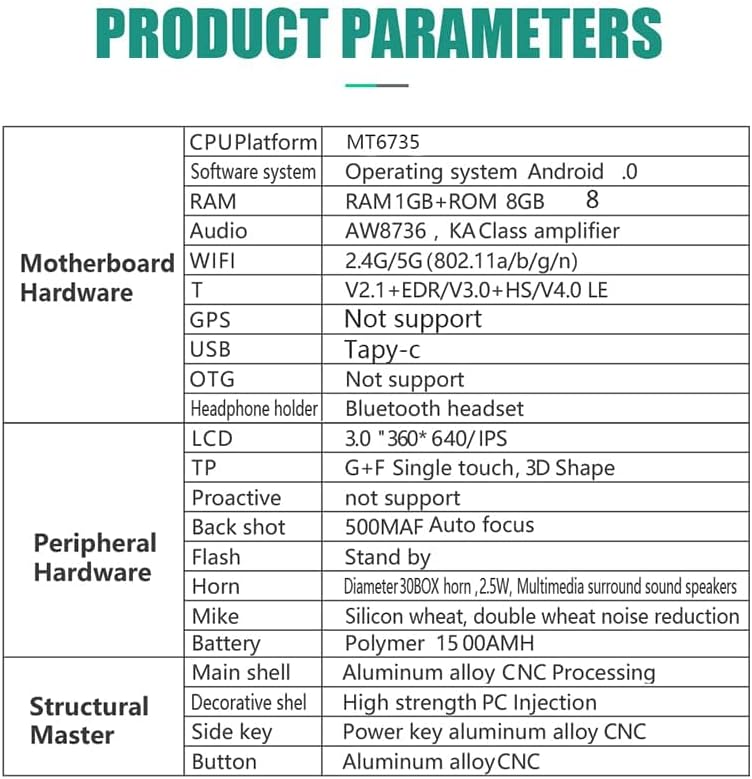
ຮູບທີ 5: Garvee M9 Translator Product Parameters. This table provides a comprehensive overview of the device's hardware and software specifications.
| ຄຸນສົມບັດ | ລາຍລະອຽດ |
|---|---|
| ເວທີ CPU | MT6735 |
| ລະບົບຊອບແວ | Android |
| RAM | 1GB |
| ROM | 8GB |
| ສຽງ Ampມີຊີວິດຊີວາ | AW8736, KA Class ampມີຊີວິດຊີວາ |
| Wi-Fi | 2.4G/5G (802.11a/b/g/n) |
| Bluetooth | V2.1+EDR/V3.0+HS/V4.0 LE |
| GPS | ບໍ່ຮອງຮັບ |
| ພອດ USB | ປະເພດ-C |
| OTG | ບໍ່ຮອງຮັບ |
| Headphone Support | ຊຸດຫູຟັງ Bluetooth |
| ຈໍ LCD | 3.0" IPS Retina, 360*640 resolution |
| ແຕະແຜງ | G+F Single touch, 3D Shape |
| ກ້ອງໜ້າ | ບໍ່ຮອງຮັບ |
| ກ້ອງຫຼັງ | 500MAF Auto focus |
| Flash | ສະຫນັບສະຫນູນ |
| ລໍາໂພງ | Diameter 30BOX horn, 2.5W, Multimedia surround sound |
| ໄມໂຄຣໂຟນ | Silicon wheat, double wheat noise reduction |
| ແບັດເຕີຣີ | Polymer 1500mAh |
| Main Shell Material | Aluminum alloy CNC Processing |
| Decorative Shell Material | High strength PC Injection |
| Side Key Material | Aluminum alloy CNC |
| ວັດສະດຸປຸ່ມ | Aluminum alloy CNC |
| ຂະໜາດ (L x W x H) | 14 x 8 x 3 cm |
| ນ້ຳໜັກ | 217 ກຣາມ |
| ສີ | ຄໍາ |