1. ບົດແນະນຳ
This manual provides instructions for the Redragon K733 PRO Wireless Gasket RGB Number Pad. This device features 22 mechanical keys, PC and calculator modes, a 10-digit display, knob control, 5-layer noise dampening, and creamy custom linear switches. It supports USB-C wired, Bluetooth, and 2.4Ghz wireless connectivity.

Figure 1: Redragon K733 PRO Number Pad Overview
2. ຕັ້ງຄ່າ
2.1 ເນື້ອໃນຊຸດ
- Redragon K733 PRO Number Pad
- ສາຍ USB-C ຫາ USB-A
- ຄູ່ມືຜູ້ໃຊ້
- Keycap Puller (for hot-swappable switches)
- Switch Puller (ສໍາລັບສະວິດທີ່ຮ້ອນ-swappable)
2.2 ຕົວເລືອກການເຊື່ອມຕໍ່
The K733 PRO supports three connection modes: USB-C wired, Bluetooth (BT 3.0/5.0), and 2.4Ghz wireless.
2.2.1 ການເຊື່ອມຕໍ່ແບບມີສາຍ USB-C
- ເຊື່ອມຕໍ່ສາຍ USB-C ທີ່ໃຫ້ມາເຂົ້າກັບພອດຢູ່ເທິງແຜງຕົວເລກ.
- ເຊື່ອມຕໍ່ປາຍສາຍ USB-A ເຂົ້າກັບພອດ USB ທີ່ມີຢູ່ໃນຄອມພິວເຕີຂອງທ່ານ.
- The number pad will be automatically recognized and ready for use.
2.2.2 ການເຊື່ອມຕໍ່ໄຮ້ສາຍ 2.4Ghz
- Locate the 2.4Ghz USB dongle (usually stored in a compartment on the number pad).
- ສຽບ dongle USB ເຂົ້າໄປໃນພອດ USB ທີ່ມີຢູ່ໃນຄອມພິວເຕີຂອງທ່ານ.
- Ensure the number pad's mode switch (if present, usually on the side or bottom) is set to 2.4G.
- The number pad should connect automatically.
2.2.3 ການເຊື່ອມຕໍ່ Bluetooth
- Ensure the number pad's mode switch is set to BT.
- ໃນຄອມພິວເຕີ ຫຼືອຸປະກອນຂອງທ່ານ, ເປີດການຕັ້ງຄ່າ Bluetooth.
- Initiate pairing mode on the number pad (refer to specific key combination in the manual, typically Fn + a number key for Bluetooth channels).
- Select "Redragon K733 PRO" from the list of available Bluetooth devices and complete the pairing process.
3. ການດໍາເນີນງານ
3.1 PC Mode and Calculator Mode
The K733 PRO features two primary operating modes: PC Mode and Calculator Mode. Switch between these modes using the PC/CAL button located above the number keys.

Figure 2: PC and Calculator Modes
- ໂໝດ PC: The number pad functions as a standard numeric keypad for your computer. Input numbers and operations directly into applications.
- Calculator Mode: The number pad operates as a standalone 10-digit calculator. Calculations are displayed on the integrated screen. Use the ສົ່ງ button to transmit the calculated result to your computer. The AC button clears the calculator display.
3.2 ປຸ່ມຄວບຄຸມ
The multi-function knob provides quick access to RGB lighting and volume controls.

Figure 3: All-in-ONE Control Knob
- ໂໝດສະຫຼັບ: Press and hold the knob for 3 seconds to toggle between RGB lighting control and volume control.
- ການຄວບຄຸມແສງ RGB: When in RGB mode, rotate the knob to adjust brightness (4 steps, including OFF). Press the knob to cycle through various RGB lighting effects.
- ການຄວບຄຸມລະດັບສຽງ: When in volume mode, rotate the knob to increase or decrease system volume. Press the knob to mute/unmute audio.
3.3 ຜົນກະທົບແສງສະຫວ່າງ RGB
The K733 PRO features dynamic RGB backlighting. Use the knob control to cycle through different lighting modes and adjust brightness. There are various color cycle modes and keypress-reactive modes available.
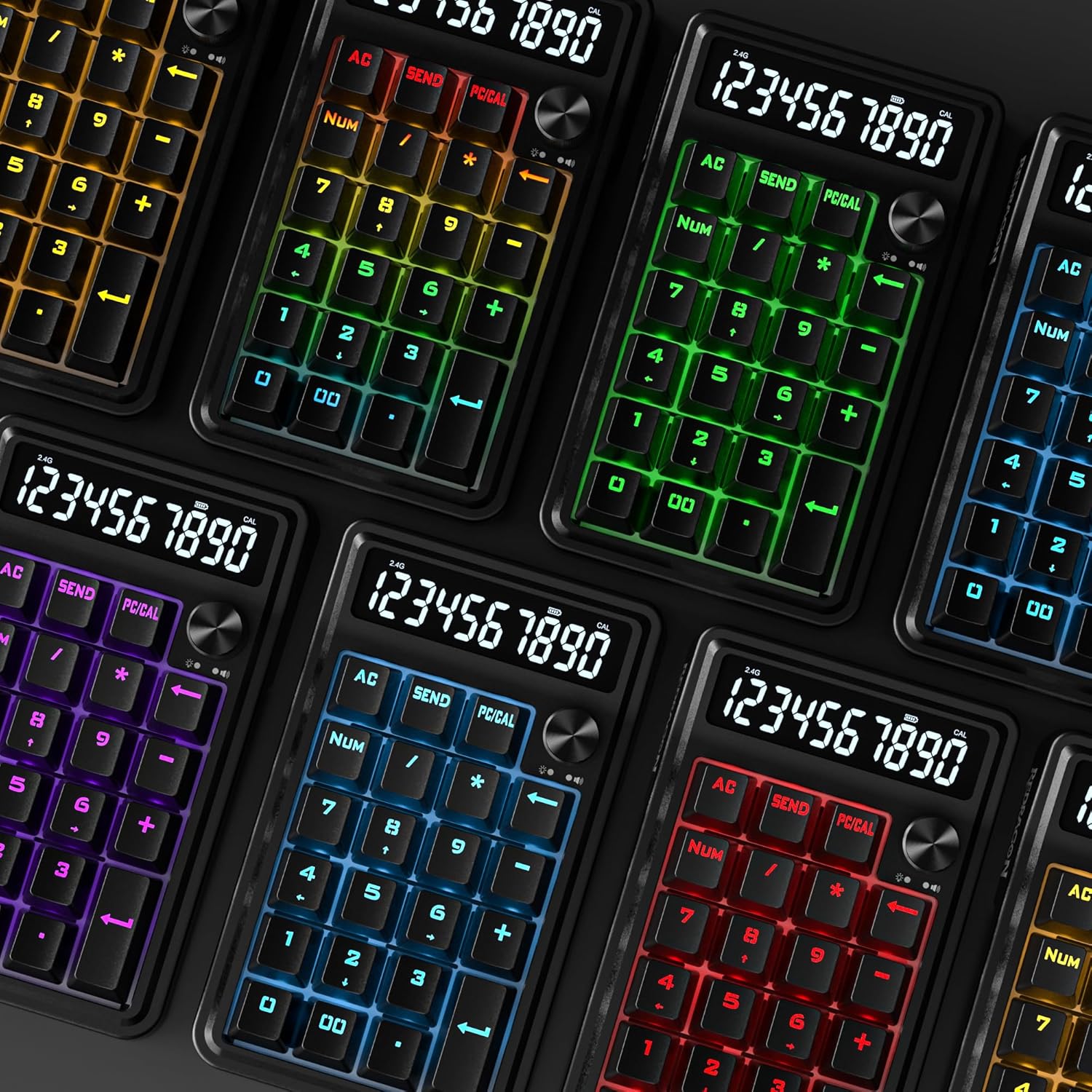
Figure 4: RGB Lighting Variations
3.4 Gasket Design and Noise Dampening
The number pad incorporates a gasket-mounted design and 5-layer noise dampening for an enhanced typing experience. This includes 3.5mm PO foam, IXPE switch foam, PET sound pad, bottom socket foam, and a silicone bottom pad, all contributing to reduced noise and a softer keystroke feel.

Figure 5: Gasket Design for Melodic Keystrokes
4. ບໍາລຸງຮັກສາ
4.1 ການທໍາຄວາມສະອາດ
- Disconnect the number pad from your computer before cleaning.
- Use a soft, dry cloth to wipe the surface of the number pad.
- ສໍາລັບຝຸ່ນ stubborn, ເລັກນ້ອຍ dampen ຜ້າດ້ວຍນ້ໍາຫຼືການແກ້ໄຂການທໍາຄວາມສະອາດອ່ອນໆ. ຫຼີກເວັ້ນຄວາມຊຸ່ມຊື່ນຫຼາຍເກີນໄປ.
- ໃຊ້ອາກາດບີບອັດເພື່ອເອົາຂີ້ຝຸ່ນ ແລະສິ່ງເສດເຫຼືອອອກຈາກລະຫວ່າງກະແຈ.
4.2 ສະວິດທີ່ສາມາດແລກປ່ຽນໄດ້ດ້ວຍຄວາມຮ້ອນ
The K733 PRO features hot-swappable switches, allowing for easy replacement without soldering. This enables customization of typing feel or replacement of faulty switches.

Figure 6: Hot-Swappable Custom Linear Switch
- ໂດຍໃຊ້ຕົວດຶງຝາປິດປຸ່ມກົດທີ່ສະໜອງໃຫ້, ໃຫ້ຖອດຝາປິດປຸ່ມກົດທີ່ຕ້ອງການອອກຢ່າງລະມັດລະວັງ.
- Using the provided switch puller, gently grip the switch and pull it straight up to remove it from the socket.
- Align the pins of the new switch with the holes in the PCB socket.
- Press the new switch firmly into place until it clicks. Ensure it is seated correctly and not bent.
- ປ່ຽນປຸ່ມກົດ.
5. ການແກ້ໄຂບັນຫາ
5.1 Number Pad Not Responding
- ການເຊື່ອມຕໍ່ສາຍ: Ensure the USB-C cable is securely connected to both the number pad and the computer. Try a different USB port or cable.
- ໄຮ້ສາຍ 2.4GHz: Ensure the USB dongle is plugged in and the number pad's mode switch is set to 2.4G. Check battery level.
- Bluetooth Wireless: Ensure the number pad is in Bluetooth mode and successfully paired with your device. Check battery level.
- ແບັດເຕີຣີ: If using wireless modes, ensure the battery is charged. Connect via USB-C to charge.
5.2 ໄຟ RGB ບໍ່ເຮັດວຽກ ຫຼື ບໍ່ຖືກຕ້ອງ
- Ensure the number pad is powered on.
- Use the knob control to cycle through lighting modes and adjust brightness. Ensure brightness is not set to OFF.
- If the issue persists, try resetting the number pad (refer to the manufacturer's website for specific reset procedures if not detailed here).
5.3 Calculator Mode Issues
- Ensure the number pad is in Calculator Mode (display should show numbers). Press the PC/CAL ປຸ່ມເພື່ອປ່ຽນໂໝດ.
- If calculations are incorrect, ensure correct input and operations.
- ຖ້າ ສົ່ງ function is not working, ensure the number pad is properly connected to the computer in PC mode after calculation.
6. ຂໍ້ມູນຈໍາເພາະ
| ຄຸນສົມບັດ | ລາຍລະອຽດ |
|---|---|
| ຕົວແບບ | K733 PRO |
| ກະແຈ | 22 ກະແຈກົນຈັກ |
| ການເຊື່ອມຕໍ່ | USB-C Wired, Bluetooth (BT 3.0/5.0), 2.4Ghz Wireless |
| ປະເພດສະຫຼັບ | Custom Linear (Hot-swappable) |
| ການເດີນທາງແບບປະຕິບັດ | 2.0 .0.5 XNUMX ມມ |
| ແຮງກະຕຸ້ນ | 40 ± 10 gf |
| ການເດີນທາງທັງໝົດ | 3.60 ມມ |
| ຈໍສະແດງຜົນ | 10 Digits (for Calculator Mode) |
| Backlighting | RGB |
| ສຽງດັງ Dampening | 5-Layer (PO foam, IXPE switch foam, PET sound pad, bottom socket foam, silicone bottom pad) |
| ຂະໜາດ | ປະມານ 6.3 x 3.7 ນິ້ວ (16 x 9.4 ຊມ) |
| ນ້ຳໜັກ | 13 ອອນສ໌ (ປະມານ 368 ກຣາມ) |
| ອຸປະກອນທີ່ເຂົ້າກັນໄດ້ | PC, ແລັບທັອບ, ແທັບເລັດ |
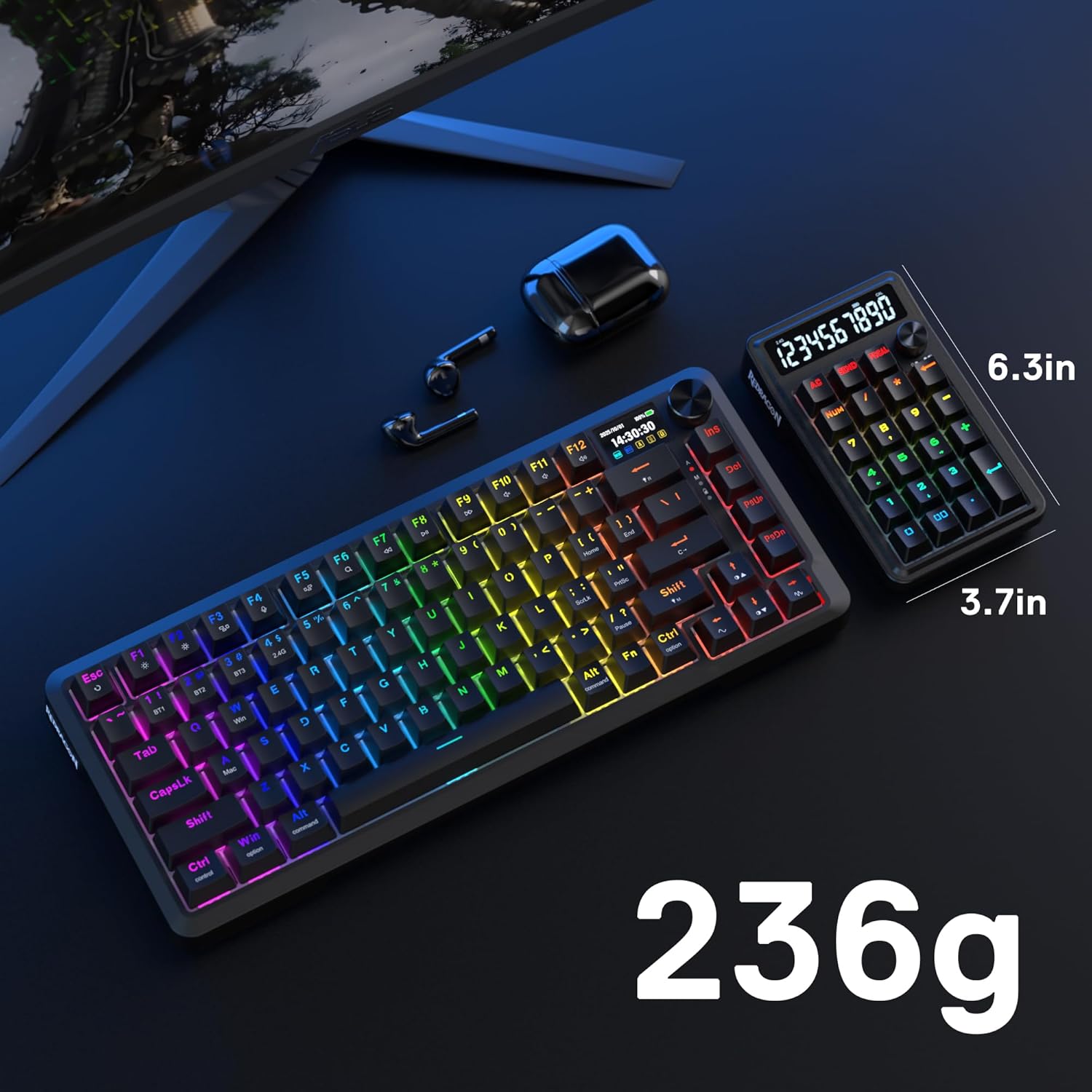
Figure 7: Approximate Dimensions
7. ການຮັບປະກັນແລະການສະຫນັບສະຫນູນ
ສໍາລັບຂໍ້ມູນການຮັບປະກັນແລະການສະຫນັບສະຫນູນດ້ານວິຊາການ, ກະລຸນາເບິ່ງ Redragon ຢ່າງເປັນທາງການ webເວັບໄຊ ຫຼືຕິດຕໍ່ບໍລິການລູກຄ້າຂອງເຂົາເຈົ້າ. ຮັກສາໃບຮັບເງິນການຊື້ຂອງທ່ານສໍາລັບການຮ້ອງຂໍການຮັບປະກັນ.
Redragon ຢ່າງເປັນທາງການ Webເວັບໄຊ: www.redragonusa.com


