1. ຜະລິດຕະພັນເກີນview
This manual provides detailed instructions for the Gamrombo Wireless Controller, designed for use with Xbox One, Xbox Series X|S, PC, and Windows 10/11 operating systems. Please read this manual carefully before use.
1.1 ເນື້ອໃນຊຸດ
- Gamrombo Wireless Controller (x2)
- 2.4GHz USB Adapter (x2)
- ສາຍສາກ USB Type-C (x2)
- ຄູ່ມືຜູ້ໃຊ້ (ເອກະສານນີ້)
1.2 ການວາງຕົວຄວບຄຸມ
The Gamrombo Wireless Controller features a standard layout with responsive buttons, joysticks, and triggers for an enhanced gaming experience.

ຮູບພາບ 1.1: ດ້ານຫນ້າ view of the Gamrombo Wireless Controllers and 2.4GHz USB Adapters.

ຮູບພາບ 1.2: ລາຍລະອຽດ view of controller buttons, joysticks, and triggers.
2. ການຕິດຕັ້ງແລະການເຊື່ອມຕໍ່
2.1 Connecting to Xbox Consoles (Xbox One, Xbox Series X|S)
- ໃຫ້ແນ່ໃຈວ່າເຄື່ອງຫຼີ້ນ Xbox ຂອງທ່ານເປີດຢູ່.
- Insert the 2.4GHz USB adapter into an available USB port on your Xbox console.
- Press and hold the Home button on the controller for 3 seconds to power it on. The indicator light on the controller will flash rapidly.
- Once the controller connects to the adapter, the indicator light will become solid, indicating a successful connection.
2.2 Connecting to PC (Windows 10/11)
- ໃຫ້ແນ່ໃຈວ່າ PC ຂອງທ່ານເປີດຢູ່.
- Insert the 2.4GHz USB adapter into an available USB port on your PC. The system will automatically install the necessary drivers.
- Press and hold the Home button on the controller for 3 seconds to power it on. The indicator light on the controller will flash rapidly.
- Once the controller connects to the adapter, the indicator light will become solid. You can now use the controller for PC games.

Image 2.1: Controller compatibility with various platforms.
2.3 ການສາກເຄື່ອງຄວບຄຸມ
To charge the controller, connect the included USB Type-C cable to the charging port on the controller and the other end to a USB power source (e.g., console, PC, or USB wall adapter). The indicator light will show charging status and turn off when fully charged.
3. ຄໍາແນະນໍາການດໍາເນີນງານ
3.1 ເປີດ/ປິດ
- ເປີດ: ກົດປຸ່ມຫນ້າທໍາອິດຄ້າງໄວ້ 3 ວິນາທີ.
- ປິດພະລັງງານ: Press and hold the Home button for 5-8 seconds. The controller will automatically power off after 5 minutes of inactivity.
3.2 ຟັງຊັນ Turbo
The Turbo function allows for rapid, repeated input of a button press, which can be beneficial in certain games.
- ກົດປຸ່ມ Turbo ຄ້າງໄວ້.
- While holding the Turbo button, press the desired action button (e.g., A, B, X, Y, LB, RB, LT, RT). The Turbo function is now activated for that button.
- To deactivate Turbo for a specific button, repeat the process: press and hold the Turbo button, then press the action button again.

Image 3.1: Instructions for activating the Turbo function.
3.3 ການສັ່ນສະເທືອນຄູ່
The controller features dual motors for vibration feedback, providing an immersive gaming experience. Vibration intensity can vary based on game support and in-game settings.

Image 3.2: Dual-motor vibration feedback levels.
3.4 Audio Jack and Volume Control
The controller includes a standard 3.5mm stereo audio jack for connecting headsets. Volume can be adjusted directly on the controller.
- ປະລິມານຂຶ້ນ: Push the volume slider to the right (+).
- ປະລິມານລົງ: Push the volume slider to the left (-).
- ປິດສຽງ: Press and hold the middle of the volume slider to mute audio.

Image 3.3: Audio jack and volume control details.
4. ບໍາລຸງຮັກສາ
- ທໍາຄວາມສະອາດ: ໃຊ້ຜ້າອ່ອນໆ, ແຫ້ງເພື່ອເຮັດຄວາມສະອາດເຄື່ອງຄວບຄຸມ. ຫຼີກເວັ້ນການນໍາໃຊ້ສານເຄມີທີ່ຮຸນແຮງຫຼືວັດສະດຸຂັດ.
- ການເກັບຮັກສາ: ເກັບຮັກສາເຄື່ອງຄວບຄຸມໄວ້ໃນບ່ອນທີ່ເຢັນ, ແຫ້ງ, ຫ່າງຈາກແສງແດດໂດຍກົງແລະອຸນຫະພູມທີ່ສຸດ.
- ການດູແລຫມໍ້ໄຟ: To prolong battery life, avoid fully discharging the controller frequently. Charge the controller regularly, even if not in active use.
5. ການແກ້ໄຂບັນຫາ
5.1 ບັນຫາການເຊື່ອມຕໍ່
- ຕົວຄວບຄຸມບໍ່ໄດ້ເຊື່ອມຕໍ່: Ensure the 2.4GHz USB adapter is securely plugged into the console/PC. Make sure the controller is charged. Try re-pairing by powering off and on the controller.
- ການເຊື່ອມຕໍ່ແບບບໍ່ຢຸດຢັ້ງ: Ensure there are no strong wireless interference sources nearby. Try moving closer to the console/PC.
5.2 Controller Firmware Upgrade
If you experience persistent connection issues, particularly with Xbox consoles, a firmware upgrade may be required. The upgrade process is performed on a Windows PC.

Image 5.1: Information regarding controller firmware upgrade for connection issues.
- Upgrade Program Download: we.tl/t-I78iIsdPhP
- Video Upgrade Steps: youtu.be/2Q_x2bhtcUU
- The upgrade typically takes 2-3 minutes and ensures continued compatibility with Xbox devices.
5.3 ບັນຫາອື່ນໆ
- ປຸ່ມບໍ່ຕອບສະໜອງ: Ensure the controller is powered on and connected. Restart the controller and try again.
- ການສັ່ນສະເທືອນບໍ່ເຮັດວຽກ: ກວດເບິ່ງການຕັ້ງຄ່າໃນເກມເພື່ອຮັບປະກັນການສັ່ນສະເທືອນ.
6. ຂໍ້ມູນຈໍາເພາະ
| ຄຸນສົມບັດ | ລາຍລະອຽດ |
|---|---|
| ການເຊື່ອມຕໍ່ | 2.4GHz ໄຮ້ສາຍ |
| ຄວາມເຂົ້າກັນໄດ້ | Xbox One, Xbox Series X|S, PC (Windows 10/11) |
| ຄວາມອາດສາມາດຫມໍ້ໄຟ | 650mAh |
| ເວລາສາກໄຟ | 2-3 ຊົ່ວໂມງ |
| ເວລາປະຕິບັດງານ | 8-10 ຊົ່ວໂມງ |
| ສຽງ Jack | ຂະ ໜາດ 3.5mm Stereo |
| ການສັ່ນສະເທືອນ | ມໍເຕີຄູ່ |
| ເຊັນເຊີກວດຈັບການເຄື່ອນໄຫວ | 6-Axis (for supported games/platforms) |
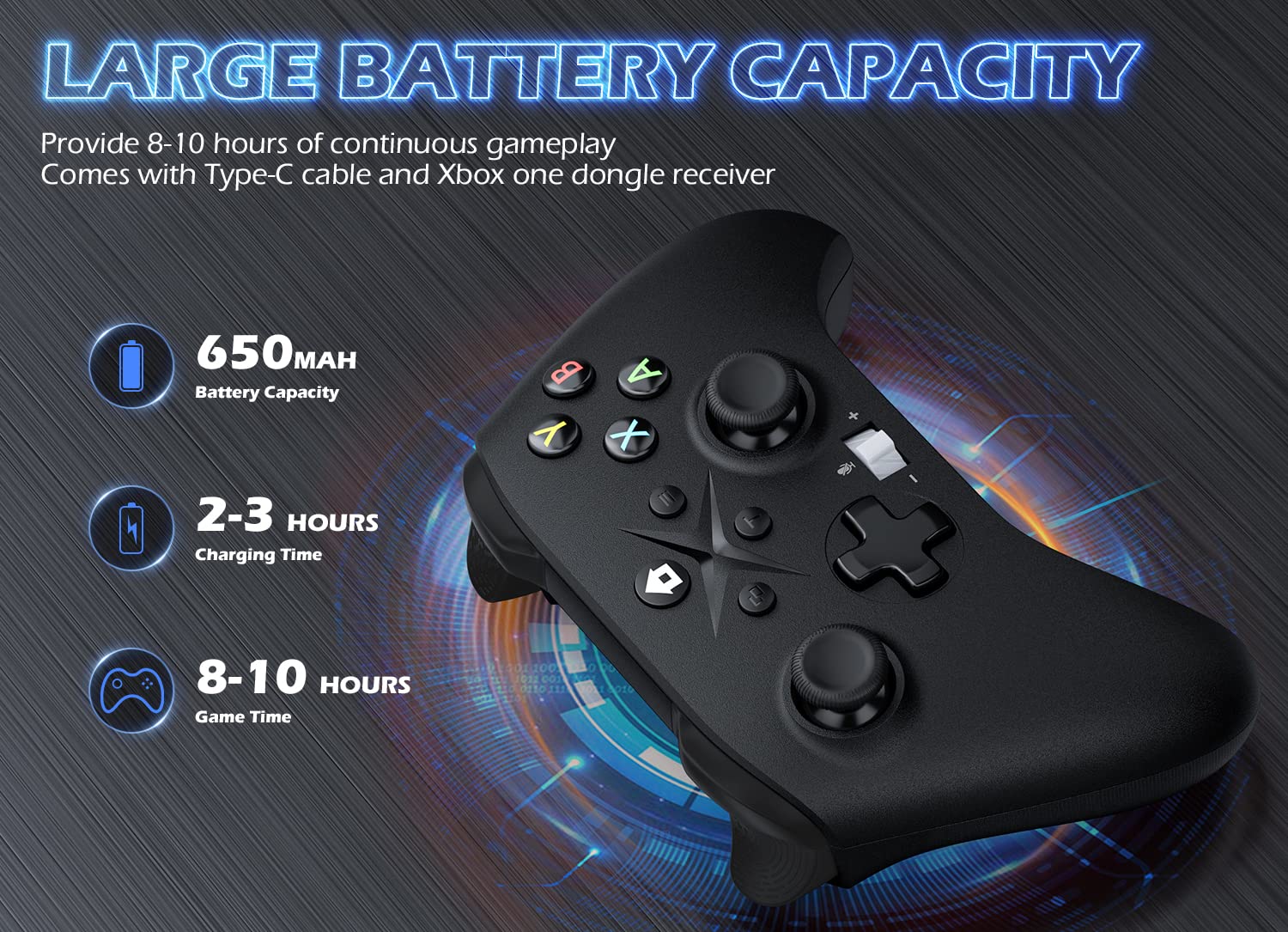
Image 6.1: Battery specifications.
7. ຂໍ້ມູນຄວາມປອດໄພທີ່ສໍາຄັນ
- ຢ່າໃຫ້ຕົວຄວບຄຸມຖືກອຸນຫະພູມສູງ, ຄວາມຊຸ່ມຊື່ນ ຫຼື ແສງແດດໂດຍກົງ.
- ຫຼີກລ້ຽງການລຸດລົງ ຫຼື ວາງຕົວຄວບຄຸມຕໍ່ກັບຜົນກະທົບທີ່ຮຸນແຮງ.
- ຢ່າພະຍາຍາມຖອດປະກອບ ຫຼືແກ້ໄຂຕົວຄວບຄຸມ. ນີ້ອາດຈະເຮັດໃຫ້ການຮັບປະກັນເປັນໂມຄະແລະເຮັດໃຫ້ເກີດຄວາມເສຍຫາຍ.
- Keep the controller and its accessories out of reach of small children.
- ໃຊ້ພຽງແຕ່ສາຍສາກທີ່ສະໜອງໃຫ້ ຫຼືສາຍທຽບເທົ່າທີ່ໄດ້ຮັບການຮັບຮອງ.
8. ການຊ່ວຍເຫຼືອລູກຄ້າ
For further assistance or inquiries, please contact Gamrombo customer support through the retailer's platform or the official Gamrombo webເວັບໄຊ.


