1. ບົດແນະນຳ
The Mercusys Halo H3600BE (2-Pack) is a Whole Home Mesh Wi-Fi 7 System designed to provide extensive and high-speed wireless coverage throughout your home. This system combines advanced Wi-Fi 7 technology with a mesh network architecture to eliminate dead zones and deliver seamless connectivity for multiple devices. This manual provides instructions for setting up, operating, and maintaining your Halo H3600BE system.
2. ເນື້ອໃນຊຸດ
ກວດສອບວ່າລາຍການທັງຫມົດແມ່ນມີຢູ່ໃນຊຸດຂອງທ່ານ:
- 2 × Halo H3600BE Units
- 1 × RJ45 Ethernet Cable
- 2 × Power Adapters
- ຄູ່ມືການຕິດຕັ້ງດ່ວນ
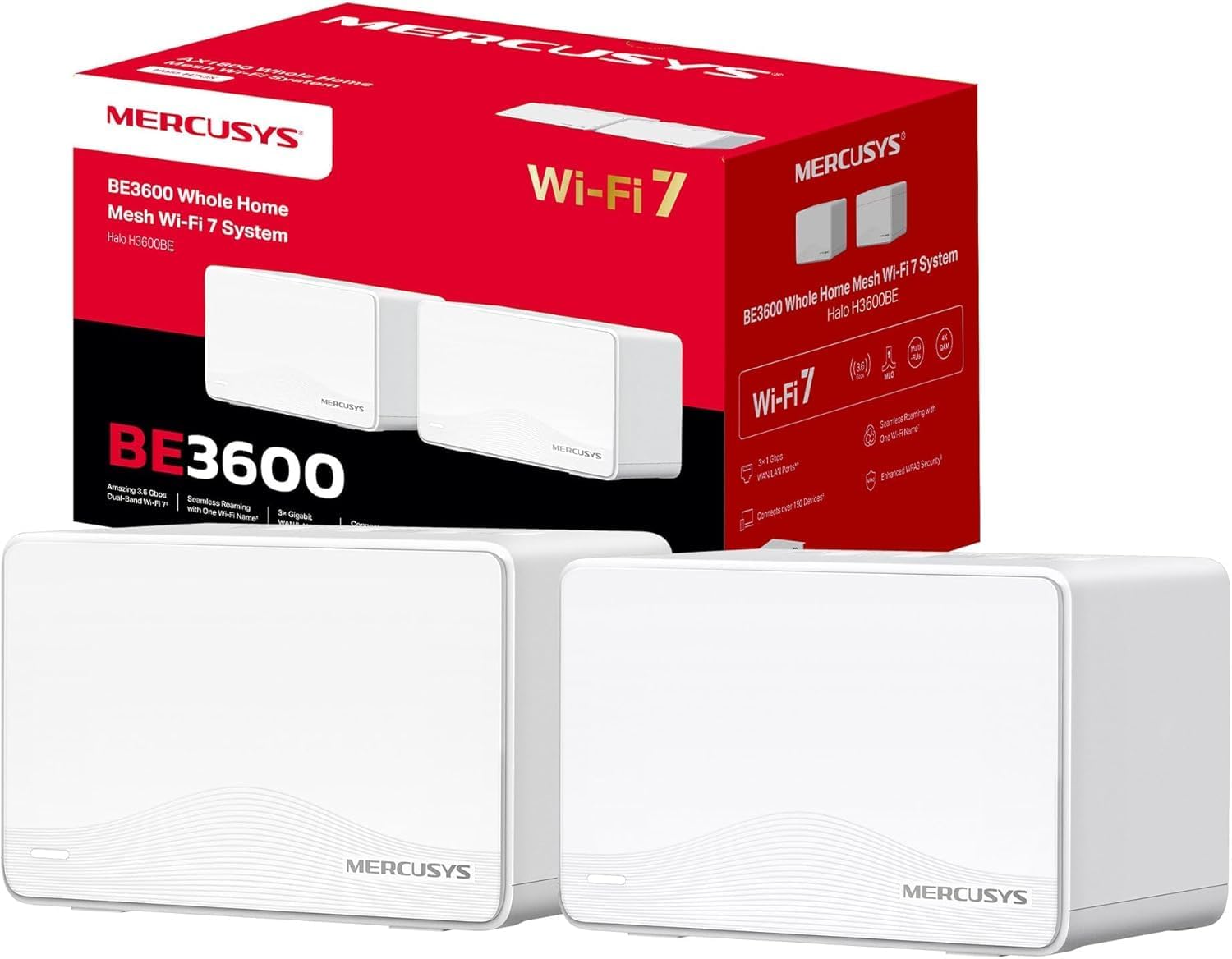
Image: The Mercusys Halo H3600BE (2-Pack) Mesh WiFi 7 System, showing two units and their retail packaging.
3. ຄູ່ມືການຕິດຕັ້ງ
Follow these steps to set up your Mercusys Halo H3600BE Mesh WiFi System:
- Step 1: Unpack the Devices. ເອົາອົງປະກອບທັງຫມົດອອກຈາກການຫຸ້ມຫໍ່.
- Step 2: Connect the Main Halo Unit.
- Connect one Halo unit to your modem or existing router using the provided Ethernet cable. Plug one end into any of the Gigabit ports on the Halo unit (these ports are auto-sensing WAN/LAN) and the other end into your modem/router's LAN port.
- Connect the power adapter to the main Halo unit and plug it into an electrical outlet. Wait for the LED indicator on the Halo unit to turn solid white, indicating it is ready for setup.
- Step 3: Download and Configure via Mercusys App.
- Download the Mercusys app from the App Store (iOS) or Google Play Store (Android).
- Open the app and follow the on-screen instructions to create a Mercusys ID and set up your main Halo unit. The app will guide you through creating your Wi-Fi network name (SSID) and password.
- Step 4: Add Additional Halo Units.
- Place the second Halo unit in a central location within your home, ideally between the main Halo unit and the area needing improved coverage.
- Connect the power adapter to the additional Halo unit and plug it into an electrical outlet.
- The additional unit will automatically detect and join the existing mesh network. The LED indicator will turn solid white once successfully connected.
- Step 5: Verify Connection. Once all units are set up, check the Mercusys app to ensure all Halo units are online and functioning correctly.

Image: A visual representation of the Mercusys Halo H3600BE setup process, including connecting power, Ethernet, and using the mobile application for configuration.
4. ຄໍາແນະນໍາການດໍາເນີນງານ
4.1. Network Management via Mercusys App
The Mercusys app provides comprehensive control over your mesh network. Key features include:
- ການຄວບຄຸມຂອງພໍ່ແມ່: Manage internet access times and content for specific devices.
- ເຄືອຂ່າຍແຂກ: ສ້າງເຄືອຂ່າຍ Wi-Fi ແຍກຕ່າງຫາກສໍາລັບແຂກ, ຮັກສາເຄືອຂ່າຍຕົ້ນຕໍຂອງທ່ານໃຫ້ປອດໄພ.
- ສະຖານະອຸປະກອນ: View connected devices, their signal strength, and manage their access.
- ຄຸນນະພາບການບໍລິການ (QoS): Prioritize bandwidth for specific applications or devices.
- ບົດລາຍງານປະຈໍາເດືອນ: Receive summaries of network usage and security events.
4.2. ໂຣມມິງແບບບໍ່ມີຮອຍຕໍ່
The Halo H3600BE system supports seamless roaming, meaning your devices will automatically switch to the strongest Wi-Fi signal as you move around your home, without experiencing drops or interruptions.
4.3. ເທັກໂນໂລຢີ Wi-Fi 7
This system utilizes Wi-Fi 7 (802.11be) technology, offering:
- ການດໍາເນີນງານສອງແຖບ: Combines 5GHz (up to 2880Mbps) and 2.4GHz (up to 688Mbps) bands for high-speed data transfer.
- ຄວາມອາດສາມາດສູງ: Supports over 150 devices simultaneously.
- ການຕອບສະໜອງຕໍ່າ: Optimized for demanding applications like 4K/8K streaming and VR/AR gaming.
- ຄວາມປອດໄພ WPA3: Enhanced security protocols for your wireless network.

ຮູບພາບ: ຫຼາຍກວ່າview of Mercusys Halo H3600BE features, including Wi-Fi 7 dual-band speeds, device capacity, and Gigabit ports.
5. ບໍາລຸງຮັກສາ
- ການອັບເດດເຟີມແວ: Regularly check the Mercusys app for available firmware updates to ensure optimal performance and security.
- ການຈັດວາງ: Ensure Halo units are placed in open areas, away from obstructions and sources of interference (e.g., microwaves, cordless phones).
- ທໍາຄວາມສະອາດ: Gently wipe the units with a soft, dry cloth. Do not use liquid cleaners or aerosols.
- ຣີສະຕາດ: If you experience network issues, try restarting your Halo units and modem.
6. ການແກ້ໄຂບັນຫາ
- ບໍ່ມີການເຂົ້າເຖິງອິນເຕີເນັດ:
- ກວດເບິ່ງວ່າໂມເດັມຂອງທ່ານເຮັດວຽກຢ່າງຖືກຕ້ອງຫຼືບໍ່.
- ໃຫ້ແນ່ໃຈວ່າສາຍອີເທີເນັດລະຫວ່າງຫນ່ວຍ Halo ຕົ້ນຕໍແລະໂມເດັມຖືກເຊື່ອມຕໍ່ຢ່າງປອດໄພ.
- Restart your modem and all Halo units.
- ສັນຍານ Wi-Fi ອ່ອນແອ ຫຼືເຂດຕາຍ:
- Relocate the additional Halo units closer to the main unit or to a more central location.
- Ensure there are no major physical obstructions (thick walls, large metal objects) between the units.
- ບໍ່ສາມາດເຊື່ອມຕໍ່ກັບ Wi-Fi ໄດ້:
- Verify you are using the correct Wi-Fi network name (SSID) and password.
- ລອງຣີສະຕາດອຸປະກອນທີ່ທ່ານກຳລັງພະຍາຍາມເຊື່ອມຕໍ່.
- Check the Mercusys app to ensure the network is broadcasting.
- ຄວາມໄວຊ້າ:
- ໃຫ້ແນ່ໃຈວ່າຜູ້ໃຫ້ບໍລິການອິນເຕີເນັດ (ISP) ຂອງເຈົ້າກໍາລັງສົ່ງຄວາມໄວທີ່ຄາດໄວ້.
- Minimize interference by moving other wireless devices away from the Halo units.
- ກວດເບິ່ງການອັບເດດເຟີມແວ.
7. ຂໍ້ມູນຈໍາເພາະ
| ຄຸນສົມບັດ | ລາຍລະອຽດ |
|---|---|
| ຍີ່ຫໍ້ | MERCUSYS |
| ຊື່ຕົວແບບ | Halo H3600BE |
| ປະເພດການເຊື່ອມຕໍ່ໄຮ້ສາຍ | 802.11.be (Wi-Fi 7) |
| ຫ້ອງຮຽນແຖບຄວາມຖີ່ | ແຖບຄູ່ |
| ຄຸນນະສົມບັດພິເສດ | Parental Control, Guest Networks, Mesh, WPA3 |
| ອຸປະກອນທີ່ເຂົ້າກັນໄດ້ | Smartphone, Laptop, Smart TV, IoT Devices |
| ການນໍາໃຊ້ທີ່ແນະນໍາ | ບ້ານ |
| ຈໍານວນຫົວຫນ່ວຍ | 2-ຊອງ |
| ການຄຸ້ມຄອງ (2 ຊຸດ) | Up to 460m² / 5,000 ft² |
| ອຸປະກອນເຊື່ອມຕໍ່ສູງສຸດ | ຫຼາຍກວ່າ 150 |
| Ethernet Ports per Unit | 3 Gigabit (Auto-sensing WAN/LAN) |
| ຂະໜາດ (ຕໍ່ຫົວໜ່ວຍ) | ຂະໜາດປະມານ 21.9 x 16.4 x 15.9 cm |
| ນໍ້າ ໜັກ (ຕໍ່ ໜ່ວຍ) | ປະມານ 660 g |
| ລະບົບປະຕິບັດການ | ລະບົບປະຕິບັດການ TP-Link |

ຮູບພາບ: ດ້ານຫລັງ view of a Mercusys Halo H3600BE unit, displaying the power input, reset button, and three Gigabit WAN/LAN ports.
8. ການຮັບປະກັນແລະການສະຫນັບສະຫນູນ
ສໍາລັບຂໍ້ມູນການຮັບປະກັນ ແລະການຊ່ວຍເຫຼືອດ້ານວິຊາການ, ກະລຸນາເບິ່ງ Mercusys ຢ່າງເປັນທາງການ website or contact Mercusys customer service. The Quick Installation Guide included in your package may also contain specific warranty details for your region.
ທ່ານສາມາດຊອກຫາຂໍ້ມູນເພີ່ມເຕີມແລະຊັບພະຍາກອນສະຫນັບສະຫນູນກ່ຽວກັບ Mercusys Brand Store.


