1. ບົດແນະນຳ
Welcome to the XBJ A5pro Touch Screen Portable Projector user manual. This guide provides detailed instructions for setting up, operating, maintaining, and troubleshooting your new smart projector. Please read this manual thoroughly before use to ensure optimal performance and longevity of your device.
The XBJ A5pro combines the functionality of a portable projector with an interactive touchscreen, offering versatile entertainment and presentation options. Featuring Wi-Fi 6, Bluetooth 5.2, native 1080P resolution with 4K decoding support, and a 180° rotatable stand, it is designed for both indoor and outdoor use.
2. ຄຸນລັກສະນະຂອງຜະລິດຕະພັນ
- Unique Touchscreen Design: Seamlessly switch between tablet mode for interactive control and projector mode for large-screen display (30-300 inches).
- Quiet & Portable & Long Lamp ຊີວິດ: Ultra-quiet cooling system (<30dB) extends lamp life up to 85,000 hours. The 180° rotatable stand allows projection on various surfaces.
- Native 1080P & 4K Decoding: Delivers sharp images with 800 ANSI lumens, auto-focus, and auto-keystone correction.
- Built-in Apps & Two-way Bluetooth Function: Integrated Android OS with pre-installed apps. Dual-band Wi-Fi 6 ensures low-latency streaming. Bluetooth 5.2 for audio synchronization and external speaker connection.
- ຕົວເລືອກການເຊື່ອມຕໍ່ຫຼາຍອັນ: USB, HDMI, and audio ports for connecting various devices like gaming consoles, laptops, and external speakers.
3. ຕັ້ງຄ່າ
3.1 Unboxing ແລະ Initial Inspection
Carefully remove all components from the packaging. Verify that all items listed in the 'What's in the Box' section are present and undamaged. If any items are missing or damaged, please contact customer support.
3.2 ການເຊື່ອມຕໍ່ພະລັງງານ
- ເຊື່ອມຕໍ່ສາຍໄຟເຂົ້າກັບພອດປ້ອນຂໍ້ມູນພະລັງງານຂອງໂປເຈັກເຕີ.
- ສຽບສາຍໄຟອີກດ້ານໜຶ່ງເຂົ້າໄປໃນປລັກສຽບໄຟທີ່ເໝາະສົມ.
- The projector will power on automatically or can be powered on using the power button on the device or remote control.
3.3 ການຈັດວາງ ແລະ ການປັບຕົວ
Place the projector on a stable, flat surface. The 180° rotatable stand allows for flexible positioning, including projecting onto walls, ceilings, or tents.
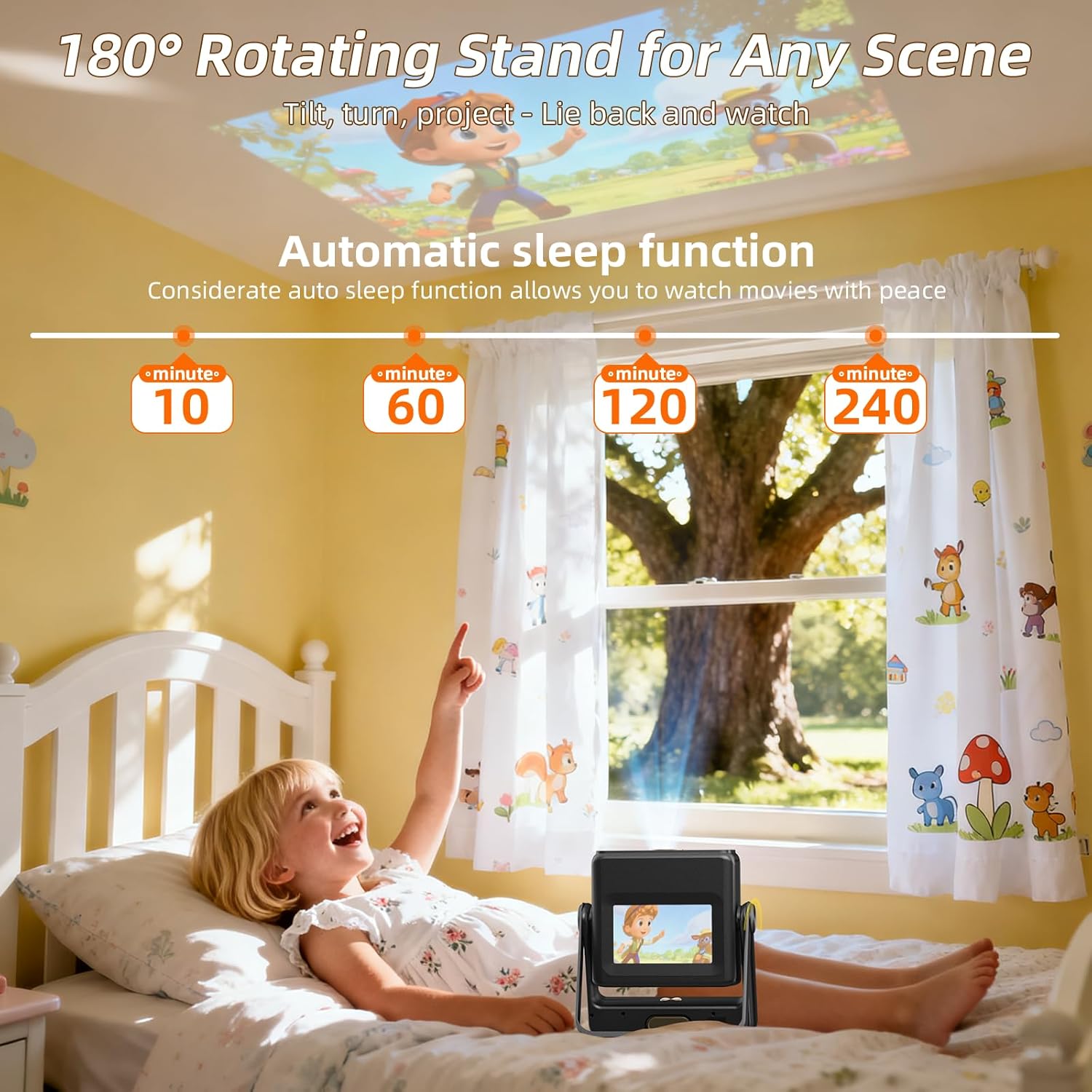
Figure 1: XBJ A5pro projector demonstrating its 180° rotatable stand for flexible projection angles.
- Adjust the projector's angle using the rotatable stand to direct the image onto your desired surface.
- The projector features automatic focus and keystone correction. Allow a few moments for the device to adjust the image clarity and shape.
- For manual focus adjustment, use the remote control's focus buttons (F+ / F-).
Video 1: Demonstration of the XBJ A5pro's touchscreen and automatic focus/keystone adjustment when moved or tilted.
4. ຄໍາແນະນໍາການດໍາເນີນງານ
4.1 ການປ່ຽນລະຫວ່າງຮູບແບບຕ່າງໆ
The XBJ A5pro offers two primary modes: Tablet Mode and Projector Mode. You can easily switch between them:
- ໂໝດແທັບເລັດ: Use the built-in 7-inch touchscreen for direct interaction with the Android OS and apps.
- ໂໝດໂປຣເຈັກເຕີ: Project the interface and content onto a larger screen.

Figure 2: Illustration of the XBJ A5pro's dual functionality: Tablet Mode for direct interaction and Projector Mode for large-screen display.
4.2 ການນໍາທາງໃນການໂຕ້ຕອບ
The projector runs on an Android OS. You can navigate using:
- ໜ້າຈໍສຳຜັດ: Directly interact with the display in Tablet Mode.
- ການຄວບຄຸມໄລຍະໄກ: Use the included remote for navigation, app selection, volume control, and voice commands. Dedicated buttons for popular streaming apps (YouTube, Netflix, Prime Video, Google Play) are available.
4.3 ການເຊື່ອມຕໍ່
4.3.1 ການເຊື່ອມຕໍ່ Wi-Fi
- Go to 'Settings' on the home screen.
- ເລືອກ 'ເຄືອຂ່າຍ ແລະ ອິນເຕີເນັດ' ຫຼື 'Wi-Fi'.
- Choose your desired Wi-Fi network and enter the password.
- Connect to a 5G Wi-Fi network for optimal streaming and screen mirroring performance.
4.3.2 ການເຊື່ອມຕໍ່ Bluetooth
The projector supports Two-way Bluetooth 5.2, allowing connection to external Bluetooth speakers or using the projector as a Bluetooth speaker itself.
- Go to 'Settings' on the home screen.
- Select 'Connected Devices' or 'Bluetooth'.
- ເປີດ Bluetooth ແລະຊອກຫາອຸປະກອນທີ່ມີຢູ່.
- Select your desired device to pair.

Figure 3: XBJ A5pro's two-way Bluetooth functionality for connecting to phones or external speakers.
4.3.3 HDMI and USB Connections
The projector includes HDMI and USB ports for wired connections.
- Connect your device (e.g., TV Stick, PC, gaming console) to the appropriate HDMI or USB port on the back of the projector.
- The projector should automatically detect the input. If not, navigate to the 'Source' menu on the home screen to select the correct input.

ຮູບ 4: ດ້ານຫລັງ view of the XBJ A5pro projector highlighting its various connectivity ports.
4.4 ການສະທ້ອນໜ້າຈໍ
The projector supports screen mirroring from smartphones and other devices via Wi-Fi 6.
ໝາຍເຫດສຳຄັນ: Due to HDCP (High-bandwidth Digital Content Protection) agreements, screen mirroring may not work with certain streaming apps (e.g., Hulu, Netflix) directly from your phone. To view content from these apps, please use a TV Stick/Chrome-cast inserted into the projector or connect via HDMI to a laptop/PC.

Figure 5: XBJ A5pro projector showcasing its screen mirroring capabilities via dual-band Wi-Fi 6.
5. ບໍາລຸງຮັກສາ
5.1 ການທໍາຄວາມສະອາດ
- ເລນ: ໃຊ້ຜ້າທີ່ອ່ອນນຸ່ມ, ບໍ່ມີເສັ້ນດ່າງທີ່ອອກແບບມາໂດຍສະເພາະສໍາລັບເລນ optical. ຢ່າໃຊ້ເຄື່ອງເຮັດຄວາມສະອາດຂັດຫຼືສານລະລາຍ.
- ພາຍນອກ: Wipe the projector's exterior with a soft, dry cloth. Avoid using liquid cleaners directly on the device.
- ການກັ່ນຕອງຂີ້ຝຸ່ນ: The projector features a built-in dust filter. Regularly check and clean the filter to maintain optimal performance and extend lifespan.

ຮູບທີ 6: ພາຍໃນ view of the XBJ A5pro's fully enclosed optical design and built-in dust filter.
5.2 ການເກັບຮັກສາ
When not in use, store the projector in a cool, dry place away from direct sunlight and extreme temperatures. Use the original packaging or a protective case to prevent dust and damage.
6. ການແກ້ໄຂບັນຫາ
- No Image/Sound during Screen Mirroring: This is often due to HDCP protection on certain streaming apps. Use a TV Stick/Chrome-cast or HDMI connection instead.
- ຮູບພາບແມ່ນມົວ: Allow the automatic focus to adjust. If still blurry, use the remote control's F+ / F- buttons for manual adjustment.
- ຮູບພາບບິດເບືອນ (ຮູບຊົງ Trapezoid): The projector has automatic keystone correction. If manual adjustment is needed, access the 'Projection Settings' in the menu.
- ບໍ່ມີການເຊື່ອມຕໍ່ Wi-Fi/Bluetooth: Ensure the Wi-Fi/Bluetooth function is enabled in 'Settings'. Check your network connection and device compatibility.
- Item Received Damaged: If the product is damaged during shipping, contact XBJ customer support for assistance.
7. ຂໍ້ມູນຈໍາເພາະ
| ຄຸນສົມບັດ | ຂໍ້ມູນຈໍາເພາະ |
|---|---|
| ຍີ່ຫໍ້ | XBJ |
| ຕົວແບບ | A5pro |
| ຄວາມລະອຽດການສະແດງ | Native 1920 x 1080 (Supports 4K decoding) |
| ຄວາມສະຫວ່າງ | 800 ANSI Lumens |
| ເຕັກໂນໂລຊີການເຊື່ອມຕໍ່ | Bluetooth 5.2, USB, Wi-Fi 6 (Dual-band) |
| ຄຸນນະສົມບັດພິເສດ | Auto Focus, Auto Keystone Correction, Built-In Cooling System, Built-In Speaker, Portable, Touch Screen, 180° Rotatable Stand |
| ນ້ໍາຫນັກລາຍການ | 5.77 ປອນ |
| ຂະໜາດແພັກເກັດ | 15.39 x 13.07 x 5.59 ນິ້ວ |
8. ສິ່ງທີ່ຢູ່ໃນກ່ອງ
- XBJ A5pro Touchscreen Projector
- ການຄວບຄຸມໄລຍະໄກ
- ສາຍ HDMI
- ສາຍໄຟ
- ຄູ່ມືຜູ້ໃຊ້ (ເອກະສານນີ້)
9. ການຮັບປະກັນແລະການສະຫນັບສະຫນູນ
XBJ is committed to providing high-quality products and customer satisfaction. If you encounter any issues with your product, please refer to the troubleshooting section or contact our customer support team.
- ການຊ່ວຍເຫຼືອລູກຄ້າ: For technical assistance or product inquiries, please contact us. We are fully responsible for products sold via our official store.
- ອີເມວ: ESzxkj@outlook.com
- ການທົດແທນ: In case of product damage during Amazon shipping, we offer replacements.

Figure 7: XBJ Customer Support details for technical assistance and replacements.


