1. ບົດແນະນຳ
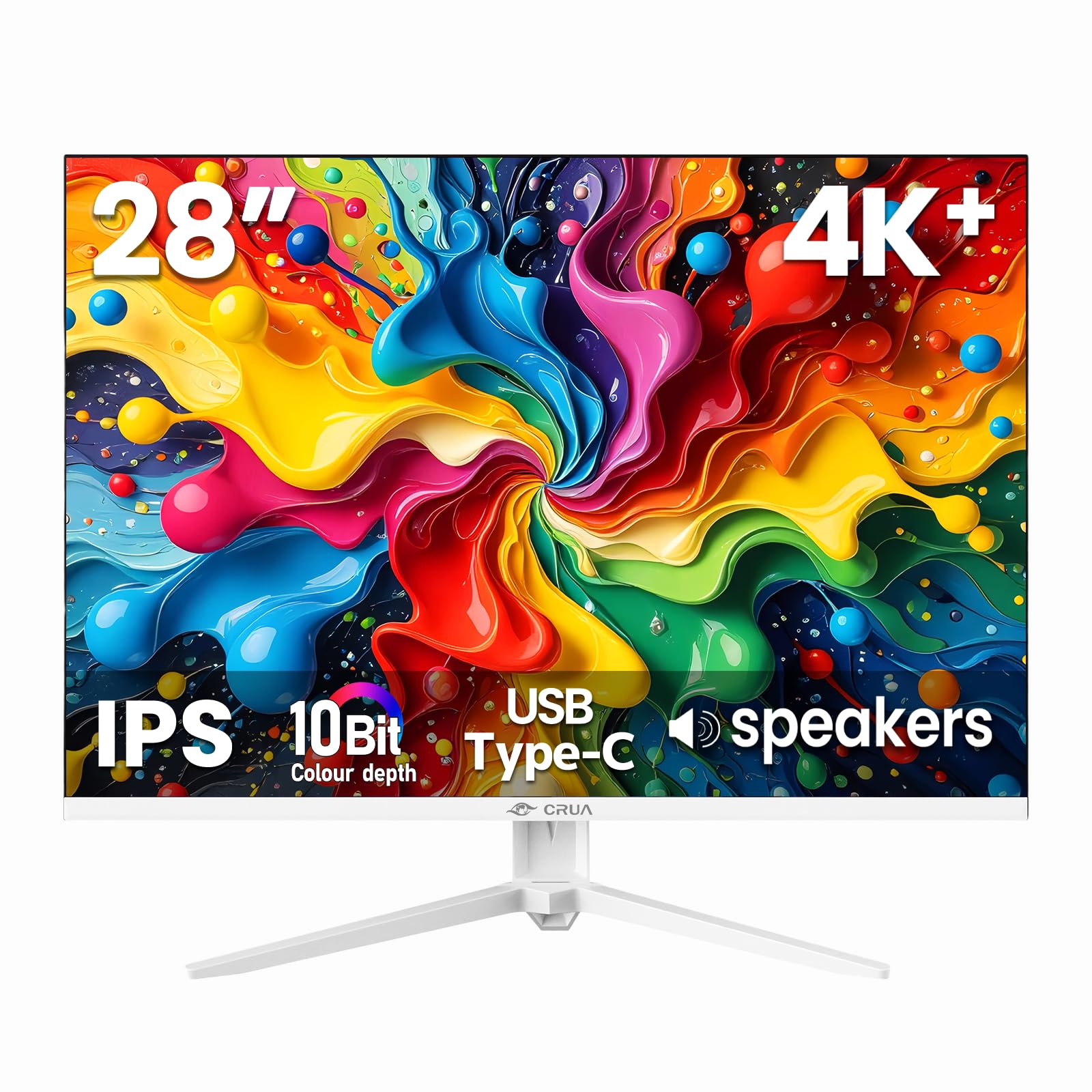
Thank you for choosing the CRUA 28 Inch 4K UHD+ IPS Monitor. This monitor is designed to deliver stunning visual clarity and vibrant colors for an immersive viewing experience, whether for work, gaming, or creative projects. Featuring a 3840×2560p resolution, 60Hz refresh rate, and extensive connectivity options, it is built to enhance your digital interactions.
Please read this manual carefully before operating your monitor to ensure proper setup and optimal performance. Keep this manual for future reference.
2. ເນື້ອໃນຊຸດ
Ensure all items are present in the box before proceeding with the setup:
- 28-inch white monitor
- Base and support
- User instructions (this manual)
- DP cable x1 (4.92 ft)
- Type-C cable x1 (4.92 ft)
- Power adapter x1 (4.92 ft)
3. ຕັ້ງຄ່າ
3.1. ຕິດຕາມກວດກາສະພາ
ເພື່ອປະກອບຂາຕັ້ງຈໍພາບ:
- ເອົາຈໍພາບອອກຈາກເຄື່ອງຫຸ້ມຫໍ່ຂອງມັນຢ່າງລະມັດລະວັງ, ວາງມັນລົງເທິງພື້ນຜິວທີ່ສະອາດ, ອ່ອນໆເພື່ອປ້ອງກັນຮອຍຂີດຂ່ວນ.
- Attach the stand support to the back of the monitor.
- Secure the base to the stand support using the provided screws.
Alternatively, the monitor is wall-mountable (75×75mm VESA compatible) for flexible ergonomic setups.
3.2. ເຊື່ອມຕໍ່ຈໍພາບຂອງທ່ານ
The CRUA monitor offers versatile connectivity options:
- HDMI2.0: Connect your computer, gaming console, or other HDMI-enabled devices using one of the two HDMI 2.0 ports.
- DisplayPort 1.4: For high-resolution and refresh rate connections, use the DisplayPort 1.4.
- USB Type-C: Connect compatible devices for video, data transfer, and power delivery (charging).
- Jack ສຽງ 3.5mm: ເຊື່ອມຕໍ່ລຳໂພງ ຫຼືຫູຟັງພາຍນອກ.
Ensure the power adapter is securely connected to the monitor and a power outlet.

4. ປະຕິບັດການຕິດຕາມກວດກາຂອງທ່ານ
4.1. ເມນູການສະແດງເທິງໜ້າຈໍ (OSD).
The OSD menu allows you to adjust various monitor settings. Buttons are typically located on the back or bottom edge of the monitor. Common controls include:
- ປຸ່ມເປີດປິດ: ເປີດ/ປິດຈໍສະແດງຜົນ.
- ປຸ່ມເມນູ: ເຂົ້າເຖິງເມນູ OSD.
- ປຸ່ມນຳທາງ: Used to move through menu options and adjust values (e.g., brightness, contrast, input source).
4.2. ຄຸນນະສົມບັດທີ່ສໍາຄັນ
- Ultra-Sharp 4K Visuals: Enjoy a 3840×2560p resolution on a 28-inch IPS panel with a 15:10 aspect ratio, 1.07 billion colors (8-bit+FRC), 120% sRGB, 270 cd/m² brightness, and 1200:1 contrast ratio for vivid and true-to-life images.
- IPS Panel & Wide Viewໃນມຸມ: Consistent and accurate colors are maintained across a wide 178° viewing angle, ideal for various professional and entertainment uses.
- Smooth Gaming & Eye Protection: AMD FreeSync technology and a 60Hz refresh rate provide tear-free gameplay. A built-in blue light filter helps reduce eye strain during extended use.
- Flexible Ergonomic Setup: Adjust the monitor with tilt support (-5° forward, 15° backward) or mount it on a wall using the 75×75mm VESA standard.
- ລຳໂພງໃນຕົວ: Integrated speakers deliver clear audio, eliminating the need for external audio devices.


5. ບໍາລຸງຮັກສາ
To ensure the longevity and optimal performance of your CRUA monitor, follow these maintenance guidelines:
- ທໍາຄວາມສະອາດຫນ້າຈໍ: ເຊັດໜ້າຈໍຢ່າງອ່ອນໂຍນດ້ວຍຜ້າອ່ອນໆ, ບໍ່ມີເຈັ້ຍ. ສໍາລັບຮອຍແຂງ, ເບົາບາງ dampເຊັດຜ້າດ້ວຍນ້ຳ ຫຼື ນ້ຳຢາທຳຄວາມສະອາດໜ້າຈໍ. ຫຼີກລ່ຽງສານເຄມີຮຸນແຮງ ຫຼື ວັດສະດຸທີ່ມີສີຂັດ.
- ທໍາຄວາມສະອາດ Casing: ໃຊ້ຜ້າປຽກອ່ອນໆເພື່ອເຮັດຄວາມສະອາດຈໍສະແດງຜົນ casing.
- ການລະບາຍອາກາດ: ໃຫ້ແນ່ໃຈວ່າຊ່ອງລະບາຍອາກາດຂອງຈໍພາບແມ່ນໂປ່ງໃສ ແລະ ບໍ່ມີສິ່ງກີດຂວາງເພື່ອປ້ອງກັນຄວາມຮ້ອນເກີນໄປ.
- ປິດພະລັງງານ: ປິດຈໍພາບສະເໝີ ແລະ ຖອດປລັກອອກຈາກປລັກໄຟກ່ອນທຳຄວາມສະອາດ ຫຼື ຖ້າມັນຈະບໍ່ຖືກນໍາໃຊ້ເປັນເວລາດົນ.
6. ການແກ້ໄຂບັນຫາ
ຖ້າທ່ານພົບບັນຫາກັບຈໍພາບຂອງທ່ານ, ໃຫ້ອ້າງອີງເຖິງຂັ້ນຕອນການແກ້ໄຂບັນຫາທົ່ວໄປຕໍ່ໄປນີ້:
- ບໍ່ມີຈໍສະແດງຜົນ/ສີດຳ:
- ກວດສອບວ່າຈໍພາບເປີດຢູ່ ແລະ ສາຍໄຟໄດ້ເຊື່ອມຕໍ່ຢ່າງແໜ້ນໜາແລ້ວ.
- Verify that the video cable (HDMI, DisplayPort, or USB-C) is correctly connected to both the monitor and your computer/device.
- ໃຫ້ແນ່ໃຈວ່າເລືອກແຫຼ່ງປ້ອນຂໍ້ມູນທີ່ຖືກຕ້ອງຢູ່ໃນຈໍພາບຜ່ານເມນູ OSD.
- Test with a different video cable or device to rule out cable or source issues.
- Flickering/Unstable Image:
- Check the video cable connections for looseness.
- ປັບອັດຕາການໂຫຼດຫນ້າຈໍຄືນໃນການຕັ້ງຄ່າຈໍສະແດງຜົນຂອງຄອມພິວເຕີຂອງທ່ານ.
- Disable AMD FreeSync in the OSD menu if issues persist.
- ບໍ່ມີສຽງຈາກລຳໂພງໃນຕົວ:
- ໃຫ້ແນ່ໃຈວ່າລະດັບສຽງຂອງຈໍພາບບໍ່ໄດ້ຖືກປິດສຽງ ຫຼື ຕັ້ງໄວ້ຕໍ່າເກີນໄປໃນເມນູ OSD.
- ກວດເບິ່ງການຕັ້ງຄ່າສຽງອອກຂອງຄອມພິວເຕີຂອງທ່ານເພື່ອຮັບປະກັນວ່າຈໍພາບຖືກເລືອກເປັນອຸປະກອນຫຼິ້ນ.
- Verify the audio source is working correctly.
- Image Too Dark/Bright/Incorrect Colors:
- ປັບຄວາມສະຫວ່າງ, ກົງກັນຂ້າມ, ແລະການຕັ້ງຄ່າສີຜ່ານເມນູ OSD.
- ຣີເຊັດຈໍພາບເປັນຄ່າເລີ່ມຕົ້ນຈາກໂຮງງານຜ່ານເມນູ OSD.
If these steps do not resolve the issue, please contact CRUA customer support for further assistance.
7. ຂໍ້ມູນຈໍາເພາະ
| ຄຸນສົມບັດ | ຂໍ້ມູນຈໍາເພາະ |
|---|---|
| ຂະໜາດສິນຄ້າ | 18.58 x 24.09 x 19.97 ນິ້ວ |
| ນ້ໍາຫນັກລາຍການ | 11.08 ປອນ |
| ຜູ້ຜະລິດ | CRUA |
| ໝາຍເລກຕົວແບບ | CR280HDM |
| ຂະຫນາດຈໍສະແດງຜົນຢືນ | 28.2 ນິ້ວ |
| ອັດຕາສ່ວນ | 3:2 (Note: Marketing materials mention 15:10, which is approximately 1.5:1, while 3:2 is 1.5:1. These are very similar.) |
| ຄວາມລະອຽດ | 3840x2560 Pixels (4K UHD+) |
| ຄວາມສະຫວ່າງຂອງຮູບພາບ | 270 Candela (cd/m²) |
| ພອດ USB ທັງໝົດ | 1 (USB ປະເພດ-C) |
| ລາຍລະອຽດຫນ້າຈໍ | Matte |
| ປະເພດແຜງ | IPS |
| ອັດຕາການໂຫຼດຂໍ້ມູນຄືນໃໝ່ | 60Hz |
| ຄວາມເລິກຂອງສີ | 10-Bit (8-bit + FRC) |
| ສີ Gamut | 120% sRGB |
| ເທັກໂນໂລຍີການຊິງຄ໌ແບບປັບຕົວໄດ້ | AMD FreeSync |
8. ການຮັບປະກັນແລະການສະຫນັບສະຫນູນ
CRUA provides high-quality computer monitors and premium services. For any questions or issues regarding your CRUA 28 Inch 4K UHD+ IPS Monitor, please contact our customer support team. We are committed to serving you and solving all your problems.
ກະລຸນາອ້າງອີງເອກະສານການຊື້ຂອງທ່ານສຳລັບລາຍລະອຽດການຮັບປະກັນ ແລະ ຂໍ້ມູນຕິດຕໍ່ສະເພາະ.


