1. ບົດແນະນຳ
Thank you for choosing the Tongtion Wireless Display Dongle Adapter. This device provides a seamless and portable solution for mirroring content from your smartphone, PC, or tablet to a larger display such as a TV, monitor, or projector. Featuring 1080p HDMI streaming, 5GHz WiFi, and support for AirPlay and Miracast, it offers a plug-and-play experience for various applications including business presentations, home entertainment, and multimedia education.
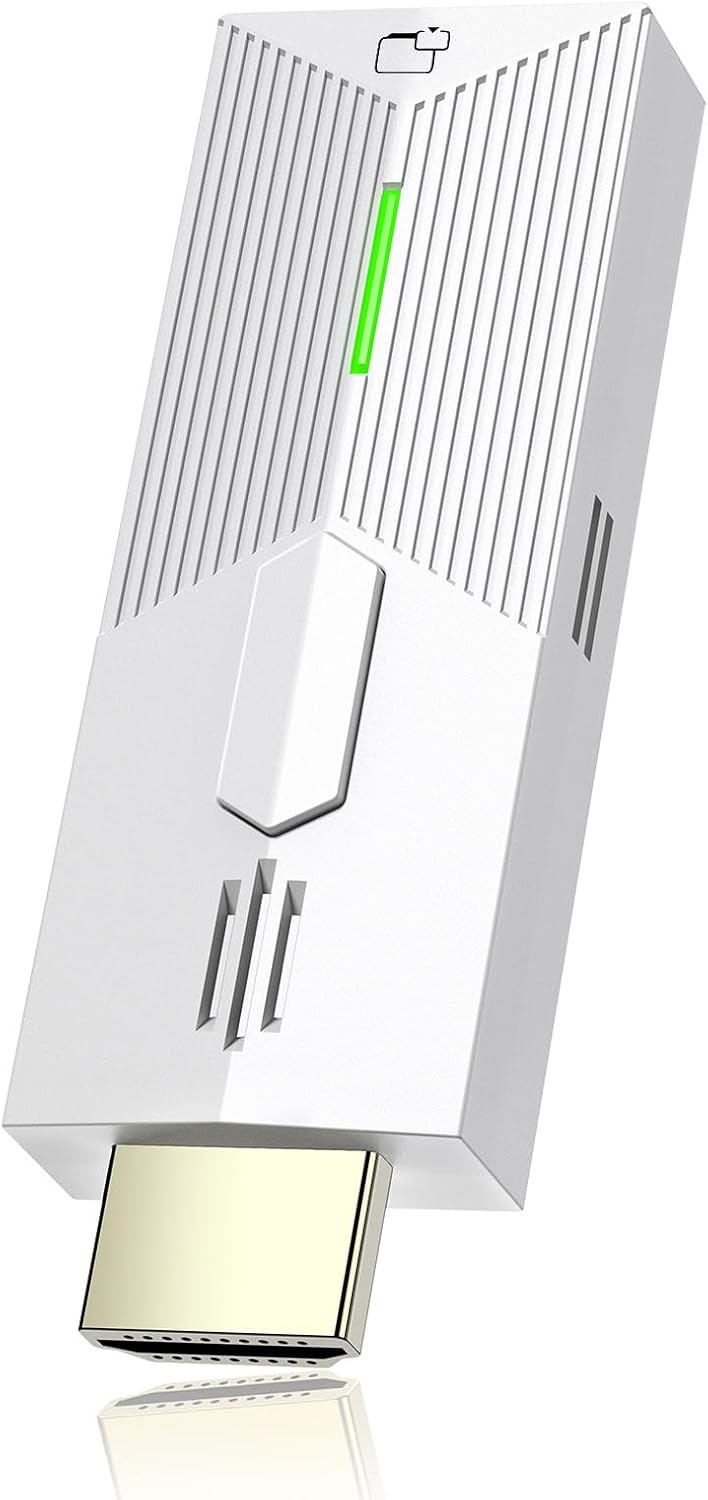
Image: The Tongtion Wireless Display Dongle Adapter, a compact white device with an HDMI connector and status indicator.
2. ເນື້ອໃນຊຸດ
ກະລຸນາກວດສອບວ່າລາຍການທັງໝົດມີຢູ່ໃນຊຸດຂອງທ່ານ:
- Tongtion Wireless HDMI Display Dongle Adapter
- USB Power Cable (often integrated or separate for power)
- ຄູ່ມືຜູ້ໃຊ້ (ເອກະສານນີ້)
3. ຜະລິດຕະພັນເກີນview
The Tongtion Wireless Display Dongle Adapter is designed for ease of use and stable performance. Below are the key components and their functions:
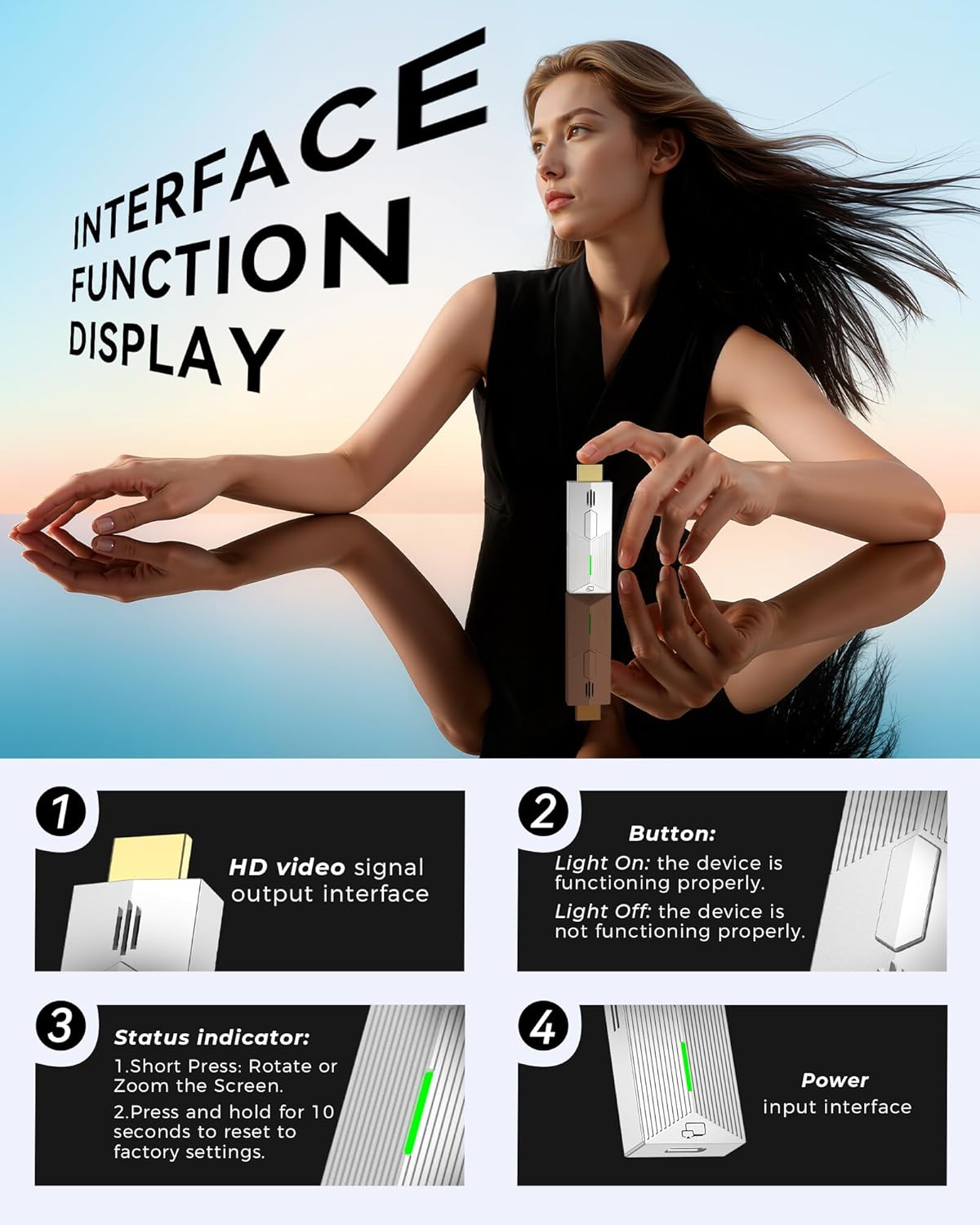
ຮູບພາບ: ລາຍລະອຽດ view of the dongle's interface, highlighting the HDMI output, button, status indicator, and power input.
- HD Video Signal Output Interface: This is the HDMI connector that plugs into your TV, monitor, or projector.
- ປຸ່ມ:
- Short Press: Rotates or zooms the screen.
- Press and hold for 10 seconds: Resets the device to factory settings.
- ຕົວຊີ້ບອກສະຖານະ:
- Light On: The device is functioning properly.
- Light Off: The device is not functioning properly.
- ການໂຕ້ຕອບການປ້ອນຂໍ້ມູນພະລັງງານ: Connects to the USB power cable for device operation.
The device supports 5G stable transmission for low latency and a smooth viewing experience. It is compatible with a wide range of devices and operating systems, including iOS, Android, Windows, and macOS.

Image: Diagram showing compatibility with various devices including iPhone, Android, Tablet, Laptop, TV, Monitor, and Projector, along with supported operating systems and protocols like WiFi, AirPlay, DLNA, Miracast, Windows, iOS, Android, and macOS.
4. ຄູ່ມືການຕິດຕັ້ງ
Follow these steps to set up your Tongtion Wireless Display Dongle Adapter:
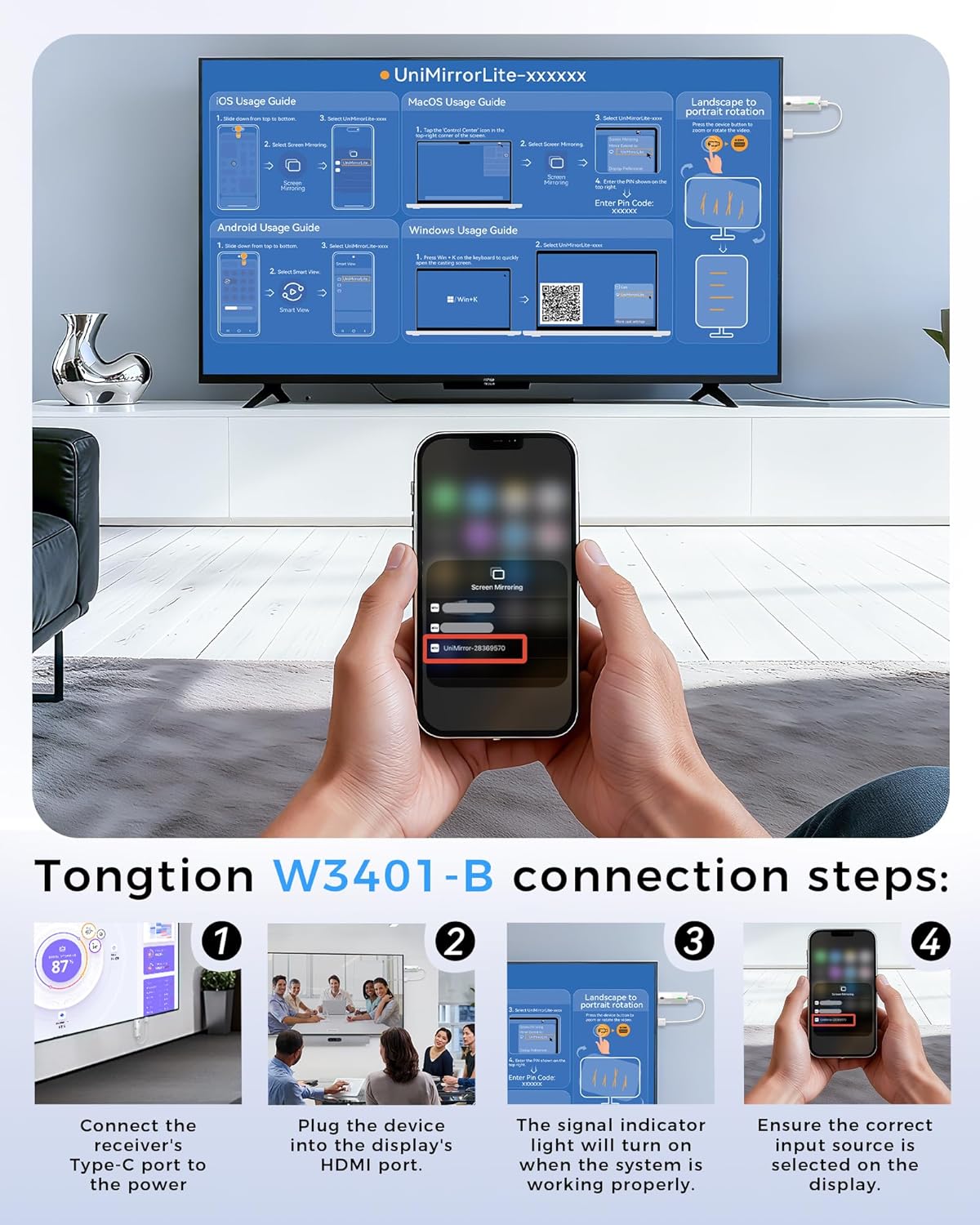
Image: Visual guide demonstrating the four connection steps for the Tongtion Wireless Display Dongle.
- ເຊື່ອມຕໍ່ພະລັງງານ: Connect the receiver's Type-C port (or USB power input) to a power source using the provided USB cable. This can be a USB port on your TV or a separate USB power adapter (5V/2A recommended).
- Plug into Display: Plug the device into an available HDMI port on your TV, monitor, or projector.
- Verify Indicator: Ensure the signal indicator light on the dongle turns on, indicating the system is working properly.
- ເລືອກການປ້ອນຂໍ້ມູນ: On your display device (TV/monitor/projector), use its remote control to select the correct HDMI input source that the dongle is connected to.
Once connected, your display should show a setup screen with instructions for connecting your source device (smartphone, PC, etc.). The specific network name (SSID) and PIN will be displayed on your screen.
5. ຄໍາແນະນໍາການດໍາເນີນງານ
The Tongtion Wireless Display Dongle supports various wireless protocols for screen mirroring. No dedicated app is required for most devices.

Image: Comprehensive usage guides for connecting iOS, macOS, Android, and Windows devices, including steps for screen mirroring and screen rotation.
5.1. iOS Usage Guide (AirPlay)
- Slide down from the top-right corner of your iPhone/iPad screen to open Control Center.
- Tap the "Screen Mirroring" icon.
- Select "UniMirrorLite-xxxxxx" (the name displayed on your TV screen) from the list of available devices.
- Your iOS device screen will now be mirrored to the display.
5.2. macOS Usage Guide (AirPlay)
- Click the "Control Center" icon in the top-right corner of your macOS screen.
- Select "Screen Mirroring".
- Choose "UniMirrorLite-xxxxxx" (the name displayed on your TV screen) from the list.
- If prompted, enter the PIN code displayed on your TV screen.
5.3. Android Usage Guide (Miracast/Smart View)
- Slide down from the top of your Android screen to open the Quick Settings panel.
- Tap the "Smart View" (or "Cast", "Wireless Display", "Screen Mirroring") icon.
- Select "UniMirrorLite-xxxxxx" (the name displayed on your TV screen) from the list of available devices.
- Your Android device screen will now be mirrored to the display.
5.4. Windows Usage Guide
- ກົດ Windows key + K on your keyboard to quickly open the "Connect" sidebar.
- Select "UniMirrorLite-xxxxxx" (the name displayed on your TV screen) from the list of available wireless displays.
- Your Windows screen will now be mirrored or extended to the display.
5.5. Screen Rotation and Zoom
The Wireless HDMI Display Adapter supports mirror mode and off-screen mode. By clicking the button in the middle of the dongle, you can easily zoom in and out of the screen or rotate the display to enhance the viewປະສົບການ.

Image: A laptop displaying content on its screen while simultaneously extending the display to a large TV via the wireless dongle, illustrating the extended mode functionality.
6. ບໍາລຸງຮັກສາ
To ensure the longevity and optimal performance of your Tongtion Wireless Display Dongle Adapter, please follow these maintenance guidelines:
- ທໍາຄວາມສະອາດ: ໃຊ້ຜ້າປຽກແຫ້ງເພື່ອເຮັດຄວາມສະອາດອຸປະກອນ. ຫຼີກເວັ້ນການນໍາໃຊ້ເຄື່ອງເຮັດຄວາມສະອາດຂອງແຫຼວຫຼື aerosols.
- ການເກັບຮັກສາ: ເກັບຮັກສາອຸປະກອນໄວ້ໃນບ່ອນທີ່ເຢັນ, ແຫ້ງ, ຫ່າງຈາກແສງແດດໂດຍກົງ ແລະອຸນຫະພູມທີ່ຮ້າຍກາດ.
- ການຈັດການ: ຈັດການອຸປະກອນດ້ວຍຄວາມລະມັດລະວັງ. ຫຼີກລ້ຽງການປະຖິ້ມມັນຫຼືການຮັບຜົນກະທົບທີ່ເຂັ້ມແຂງ.
- ພະລັງງານ: Always use the recommended power adapter (5V/2A) to prevent damage.
7. ການແກ້ໄຂບັນຫາ
If you encounter issues with your Tongtion Wireless Display Dongle Adapter, refer to the following common problems and solutions:
| ບັນຫາ | ສາເຫດ / ການແກ້ໄຂທີ່ເປັນໄປໄດ້ |
|---|---|
| No display on TV/monitor. |
|
| Unstable connection or lag. |
|
| Cannot mirror certain apps (e.g., Netflix, Amazon Prime Video). | This dongle does not support certain paid applications that employ "HDCP" video copyright protection. These include, but are not limited to, Netflix, Amazon Prime Videos, Hulu, Comcast TV, Xfinity, Vudu, Sky Go, and BT Sport. This is a limitation due to copyright protection, not a device malfunction. |
| Device not found during screen mirroring. |
|
8. ຂໍ້ມູນຈໍາເພາະ
| ຄຸນສົມບັດ | ລາຍລະອຽດ |
|---|---|
| ຍີ່ຫໍ້ | Tongtion |
| ໝາຍເລກຕົວແບບ | TGN-W3401-B-YK-001 |
| ເຕັກໂນໂລຊີການເຊື່ອມຕໍ່ | HDMI, 5GHz WiFi |
| ປະເພດຕົວເຊື່ອມຕໍ່ | HDMI |
| ຄວາມລະອຽດ | 1080p Full HD Output (supports 4K decoding) |
| ອະນຸສັນຍາທີ່ຮອງຮັບ | AirPlay, DLNA, Miracast, Cast |
| ຮອງຮັບ OS | iOS, Android, Windows, macOS |
| ນ້ໍາຫນັກລາຍການ | 2.39 ອອນ |
| ຂະໜາດສິນຄ້າ | 5.8 x 3.7 x 1 ນິ້ວ |
9. ການຮັບປະກັນແລະການສະຫນັບສະຫນູນ
Tongtion products are designed for reliability and performance. For warranty information and technical support, please refer to the official Tongtion webເວັບໄຊ ຫຼືຕິດຕໍ່ທີມງານບໍລິການລູກຄ້າຂອງພວກເຮົາ.
- ສະຫນັບສະຫນູນອອນໄລນ໌: ຢ້ຽມຢາມ Tongtion Store on Amazon ສຳລັບຂໍ້ມູນຜະລິດຕະພັນ ແລະ ຄຳຖາມທີ່ຖືກຖາມເລື້ອຍໆ.
- ຕິດຕໍ່: For further assistance, please reach out to Tongtion customer support through the contact methods provided on our official channels.


