1. ການແນະນໍາ ແລະຫຼາຍກວ່າview
This manual provides detailed instructions for the operation and maintenance of your Vandlion 64GB Digital Voice Recorder, Model V11B. This device is designed for high-fidelity audio capture in various environments, including lectures, meetings, and interviews. It features advanced AI noise reduction, 1536Kbps crystal audio recording, password protection for your files, and a voice activation function.

Figure 1: Vandlion V11B Digital Voice Recorder
2. ສິ່ງທີ່ຢູ່ໃນກ່ອງ
Upon unboxing your Vandlion V11B Digital Voice Recorder, please ensure all the following items are present:
- 1 x Digital Voice Recorder (Model V11B)
- ສາຍຂໍ້ມູນ 1 x USB-C
- 1 x ຫູຟັງ
- 1 x ຄູ່ມືຜູ້ໃຊ້

ຮູບທີ 2: ເນື້ອໃນຊຸດ
3. ຄຸນລັກສະນະຂອງຜະລິດຕະພັນ
- AI Noise Cancellation: The advanced AI chip identifies and eliminates over 95% of distracting sounds, focusing purely on human speech for clear audio.
- Big Storage & Ultra-Portable: Stores up to 900 hours of recordings with its 64GB memory. Crafted from lightweight yet durable zinc alloy, it offers portability and a solid feel. A 1.5-hour charge provides up to 20 hours of continuous recording.
- ການບັນທຶກປຸ່ມດຽວ: Simple slide switch operation to initiate recording (slide to "REC") and save (slide to "SAVE").
- ຟັງຊັນການເປີດໃຊ້ສຽງ: When manually turned on, this feature allows the recorder to intelligently skip silent pauses and focus solely on active dialogues, providing condensed recordings. (Refer to the manual for activation steps).
- ການປົກປ້ອງລະຫັດຜ່ານ: Supports setting a 4-digit password to protect your recording files from unauthorized access.

Figure 3: AI Noise Cancellation Feature

ຮູບທີ 4: ການອອກແບບແບບພົກພາໄດ້

ຮູບທີ 5: ການບັນທຶກດ້ວຍປຸ່ມດຽວ

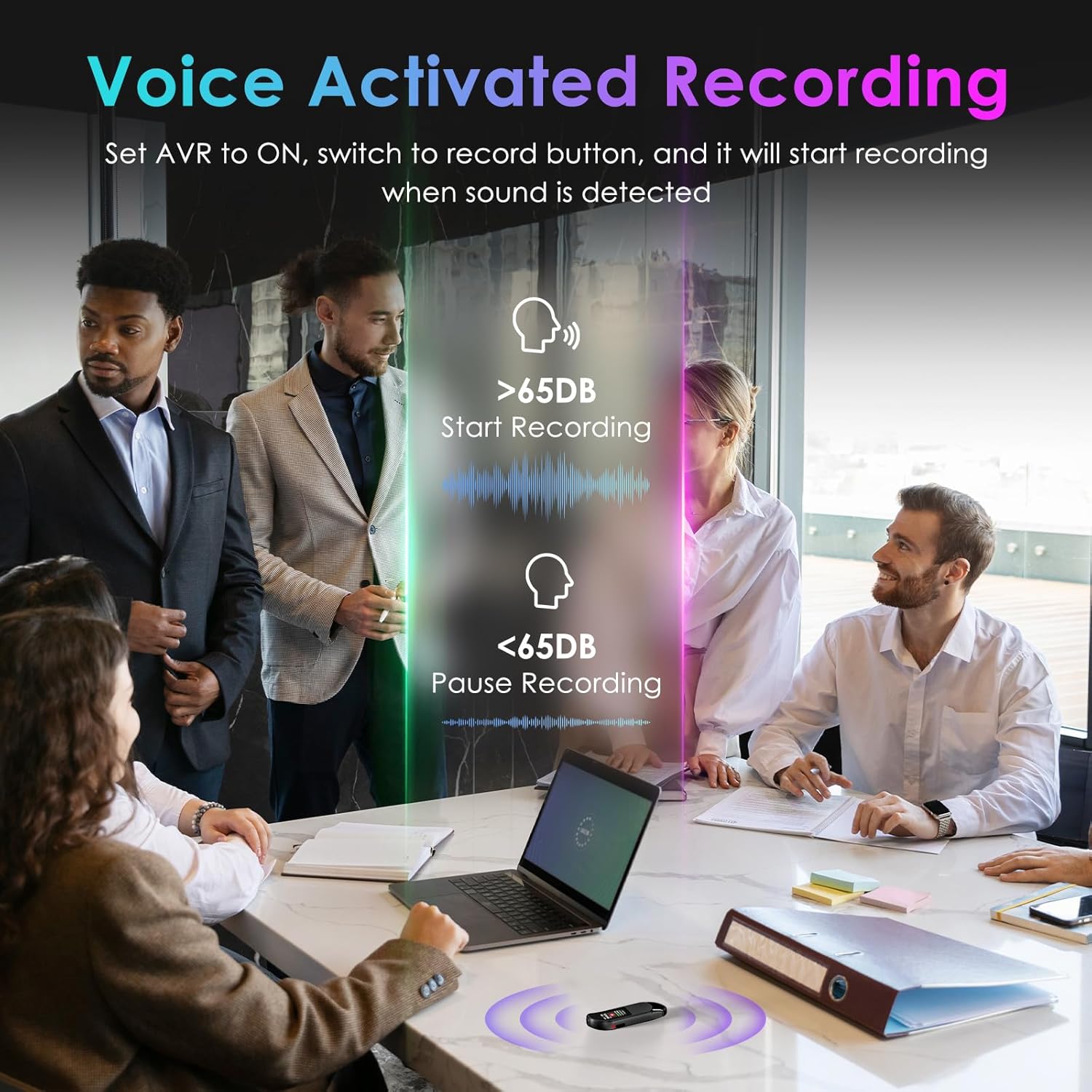
Figure 6: Voice Activated Recording
ຮູບທີ 7: ຄຸນສົມບັດການປົກປ້ອງດ້ວຍລະຫັດຜ່ານ
4. ການຕິດຕັ້ງແລະການດໍາເນີນງານພື້ນຖານ
4.1 ການຕິດຕັ້ງເບື້ອງຕົ້ນ
Before first use, fully charge the device using the provided USB-C cable. Connect the cable to the recorder and a power source (e.g., computer USB port or USB wall adapter). The device will indicate charging status on its screen.
4.2 One-Button Recording
- To start recording, slide the 'REC' button upwards. The screen will display recording in progress.
- To save the recording, slide the 'SAVE' button downwards. The recording will be saved automatically.
4.3 ການຫຼິ້ນຄືນ
The Vandlion V11B does not have a built-in speaker. To listen to recordings, you must connect the included headphones or transfer files to a computer or Android phone.
- Connect the remote control to the USB-C port of the recorder.
- Plug the headphones into the remote control.
- Use the buttons on the remote control to navigate through recordings, adjust volume, and play/pause.

Figure 8: Playback Setup
4.4 ການບັນທຶກການເປີດໃຊ້ດ້ວຍສຽງ (VOR)
To enable Voice Activated Recording:
- Connect the recorder to the remote control and headphones.
- Access the device menu (long press the 'M' button on the remote).
- Navigate to 'REC Setting' and then 'AVR Setting'.
- Change 'Set: OFF' to 'Set: ON' and adjust the AVR level as needed.
- Once enabled, slide the 'REC' button upwards. The recorder will automatically start recording when sound is detected (above 65dB) and pause during silence (below 65dB).
Video 1: How to Use the Digital Voice Recorder (Vandlion Official)
This video demonstrates the basic functions and settings of the Vandlion Digital Voice Recorder, including recording, playback, and menu navigation.
5. ການໂອນຂໍ້ມູນ
To transfer your recorded files to a computer or Android phone:
- Connect the recorder to your computer or Android phone using the provided USB-C cable.
- For Android phones, ensure the OTG function is enabled in your phone's settings.
- The device will appear as a removable drive. You can then access and transfer your MP3 or WAV recording files.
Note: Do not format the voice recorder on a computer, as this may change the memory format and cause recording failure.

Figure 9: Charging and File ໂອນ
6. ການປົກປ້ອງລະຫັດຜ່ານ
To set up password protection for your recordings:
- Connect the recorder to the remote control and headphones.
- Access the device menu (long press the 'M' button on the remote).
- Navigate to 'Password Setting' and follow the on-screen prompts to set a 4-digit password.
- Once set, the password will be required to access your recording files.
7. ຂໍ້ມູນຈໍາເພາະ
| ຄຸນສົມບັດ | ລາຍລະອຽດ |
|---|---|
| ຂະໜາດສິນຄ້າ | 0.39 x 0.86 x 2.99 ນິ້ວ |
| ນ້ໍາຫນັກລາຍການ | 1.41 ອອນສ໌ (40 ກຣາມ) |
| ໝາຍເລກຕົວແບບ | V11B |
| ໝໍ້ໄຟ | ຕ້ອງການຫມໍ້ໄຟ AA 1 ອັນ (ລວມ) |
| ຜູ້ຜະລິດ | Vandlion |
| ອຸປະກອນທີ່ເຂົ້າກັນໄດ້ | ຄອມພິວເຕີສ່ວນບຸກຄົນ, ໂທລະສັບສະຫຼາດ |
| ການໂຕ້ຕອບຮາດແວ | USB ປະເພດ C |
| ຕົວປະກອບແບບຟອມໄມໂຄຣໂຟນ | ໃນຕົວ |
| ຮູບແບບ | ສຽງ MP3, WAV |
| Jack ຫູຟັງ | 3.5 ມິນລີແມັດ |
| ຄວາມອາດສາມາດເກັບຮັກສາຫນ່ວຍຄວາມຈໍາ | 64 GB |
8. ບໍາລຸງຮັກສາ
To ensure the longevity and optimal performance of your Vandlion V11B Digital Voice Recorder, please follow these maintenance guidelines:
- ຮັກສາອຸປະກອນໃຫ້ແຫ້ງ ແລະຢູ່ຫ່າງຈາກອຸນຫະພູມສູງສຸດ.
- ເຮັດຄວາມສະອາດອຸປະກອນດ້ວຍຜ້າອ່ອນໆ, ແຫ້ງ. ຫຼີກເວັ້ນການນໍາໃຊ້ສານເຄມີທີ່ຮຸນແຮງຫຼືວັດສະດຸຂັດ.
- Store the device in a safe place to prevent physical damage.
- Regularly back up your recordings to prevent data loss.
9. ການແກ້ໄຂບັນຫາ
If you encounter any issues with your device, please refer to the following common troubleshooting tips:
- ອຸປະກອນບໍ່ເປີດ: Ensure the device is fully charged. If the issue persists, try performing a reset using the 'RESET' button.
- ບໍ່ສາມາດໂອນຍ້າຍໄດ້ files: Verify that the USB-C cable is securely connected to both the recorder and your computer/phone. For Android, ensure OTG is enabled. Try using the original cable provided.
- ຄຸນນະພາບການບັນທຶກບໍ່ດີ: Ensure the microphone is not obstructed. Check the recording settings (e.g., AI noise reduction, bitrate) and adjust as necessary.
- ບໍ່ມີສຽງໃນລະຫວ່າງການຫຼິ້ນ: Confirm that headphones are properly connected to the remote control and the remote control is connected to the recorder. Check the volume level.
Video 2: Presentation about Digital Voice Recorder (Vandlion Official)
ວິດີໂອນີ້ໃຫ້ຫຼາຍກວ່າview of the digital voice recorder's features and potential applications, which may help in understanding its functionality.
10. ການຮັບປະກັນແລະການສະຫນັບສະຫນູນ
Your Vandlion V11B Digital Voice Recorder comes with a manufacturer's warranty. Please refer to the warranty card included in your package for specific terms and conditions. For technical support, product inquiries, or warranty claims, please contact Vandlion customer service through the contact information provided in the warranty documentation or on the official Vandlion webເວັບໄຊ.