1. ບົດແນະນຳ
This manual provides detailed instructions for the KOOSMILE Mini PC N150 (Model N80). This device is a compact and portable computer featuring an 8-inch multi-touch display, designed for various applications from daily tasks to light entertainment. Please read this manual thoroughly before using the product to ensure proper operation and to maximize its lifespan.

ຮູບທີ 1.1: The KOOSMILE Mini PC N150, showcasing its integrated 8-inch touchscreen and various connectivity ports.
ຄຸນນະສົມບັດທີ່ສໍາຄັນ:
- ໜ່ວຍປະມວນຜົນ: Twin Lake N150 CPU (4 cores, 4 threads, up to 3.6 GHz)
- ໜ່ວຍຄວາມຈຳ: RAM 12GB DDR5
- ການເກັບຮັກສາ: 256GB M.2 SSD (expandable, other variants available)
- ຈໍສະແດງຜົນ: 8-inch HD multi-touch screen
- ການເຊື່ອມຕໍ່: WiFi 6, Bluetooth 5.2, Dual RJ45 Ethernet
- ພອດ: 2x USB 3.0, 2x USB 2.0, HDMI, DisplayPort, Full-function Type-C, 3.5mm Audio Jack, TF Card Slot
- ລະບົບປະຕິບັດການ: Windows 11 Pro
- ແບັດເຕີຣີ: Integrated 5000mAh battery for portable use
2. ເນື້ອໃນຊຸດ
ກວດສອບວ່າລາຍການທັງຫມົດແມ່ນມີຢູ່ໃນຊຸດຫຼັງຈາກ unboxing:
- KOOSMILE Mini PC N150 (Model N80)
- Power Adapter
- ສາຍ HDMI
- DP Cable
- ຄູ່ມືຜູ້ໃຊ້ (ເອກະສານນີ້)
3. ຜະລິດຕະພັນເກີນview (Ports and Features)
Familiarize yourself with the various ports and features of your Mini PC for optimal connectivity and usage.

ຮູບທີ 3.1: ລະອຽດ view of the KOOSMILE Mini PC N150's 12-port design, highlighting each port's function.
ລາຍລະອຽດ Port:
- ຜອດ USB 3.0 (x2): ສໍາລັບການໂອນຂໍ້ມູນຄວາມໄວສູງກັບອຸປະກອນທີ່ເຂົ້າກັນໄດ້.
- ຜອດ USB 2.0 (x2): For connecting standard USB peripherals like keyboards and mice.
- HDMI Port: Connects to external displays, TVs, or projectors for video and audio output.
- DisplayPort (DP): Connects to external displays for high-resolution video output.
- Full-function Type-C Port: Supports 4K@60Hz video output, data transfer, and power delivery.
- RJ45 Ethernet Ports (x2): ສໍາລັບການເຊື່ອມຕໍ່ເຄືອຂ່າຍມີສາຍ.
- Jack ສຽງ 3.5mm: ສໍາລັບການເຊື່ອມຕໍ່ຫູຟັງຫຼືລໍາໂພງພາຍນອກ.
- ສະລັອດຕິງບັດ TF: For expanding storage or transferring data from TF cards.
- ປຸ່ມເປີດປິດ: ເພື່ອເປີດ / ປິດອຸປະກອນ.

ຮູບທີ 3.2: The integrated adjustable metal bracket allows for flexible viewມຸມ.
4. ຄູ່ມືການຕິດຕັ້ງ
4.1 ການເຊື່ອມຕໍ່ພະລັງງານ
- Connect the provided power adapter to the power input port on the Mini PC.
- ສຽບອະແດບເຕີໄຟໃສ່ກັບປລັກສຽບໃສ່ຝາ.
- The device is now ready for initial power on.
4.2 ການ Boot ເລີ່ມຕົ້ນ ແລະການຕິດຕັ້ງ Windows
- Press the power button located on the side of the Mini PC.
- The device will boot up, and the 8-inch touchscreen will display the Windows 11 Pro setup wizard.
- Follow the on-screen instructions to complete the initial Windows setup, including language, region, network connection, and user account creation.
4.3 ການເຊື່ອມຕໍ່ອຸປະກອນຕໍ່
You can connect external devices such as a keyboard, mouse, and external monitors.
- ແປ້ນພິມແລະຫນູ: Connect USB keyboards and mice to the available USB 2.0 or USB 3.0 ports. Wireless peripherals can be connected via Bluetooth 5.2.
- ຈໍພາບພາຍນອກ: Use the provided HDMI or DP cables to connect to external displays. The full-function Type-C port also supports video output.
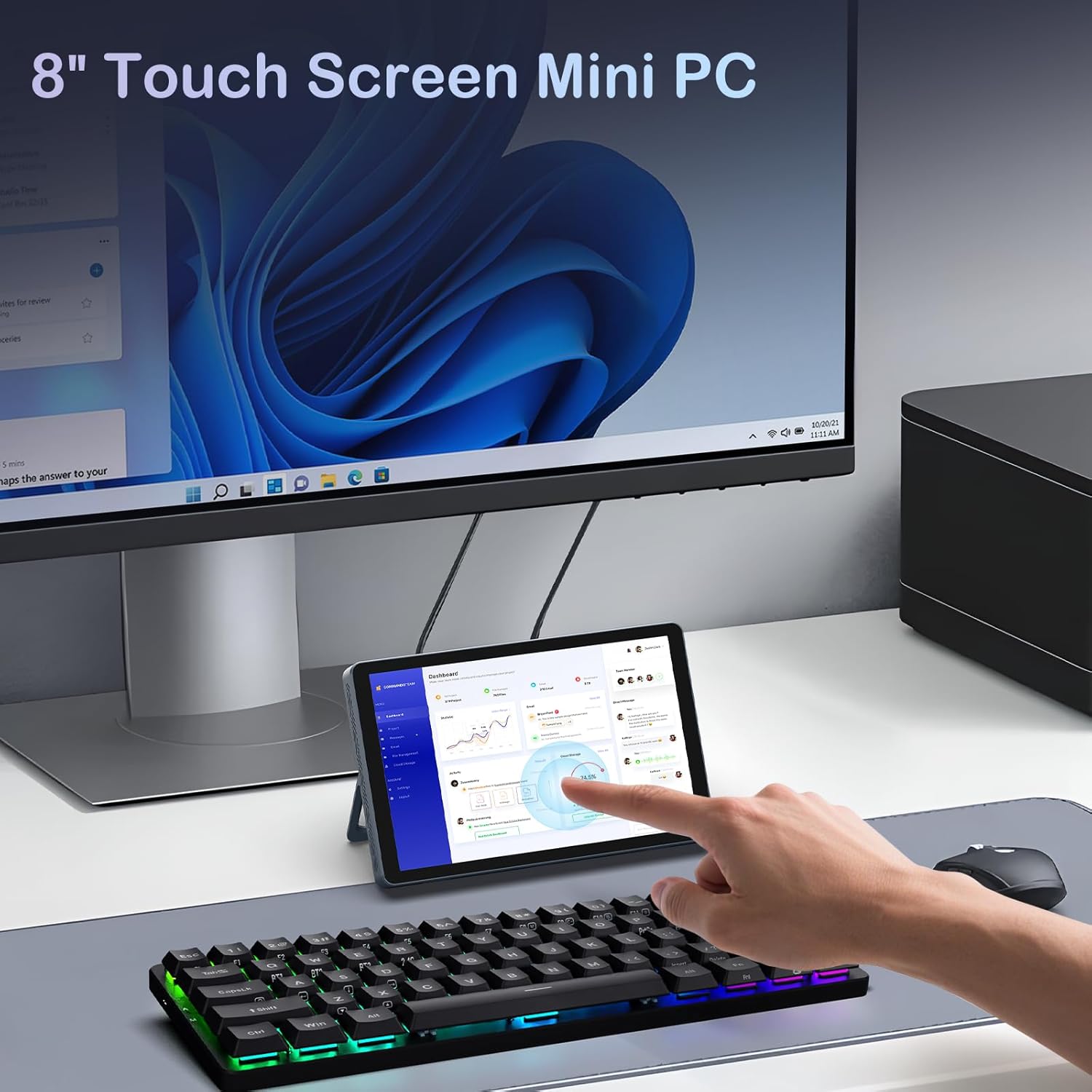
ຮູບທີ 4.1: The Mini PC N150 in a desktop setup, utilizing an external monitor and peripherals.
4.4 ການເຊື່ອມຕໍ່ເຄືອຂ່າຍ
- Wi-Fi: During Windows setup or via Windows settings, connect to your preferred Wi-Fi 6 network.
- ອີເທີເນັດ: Connect an Ethernet cable from your router or modem to one of the two RJ45 ports on the Mini PC for a wired network connection.
5. ຄໍາແນະນໍາການດໍາເນີນງານ
5.1 ການນໍາໃຊ້ຫນ້າຈໍສໍາຜັດ
The 8-inch display supports multi-touch gestures, allowing for intuitive interaction with Windows 11 Pro. Use standard touch gestures for navigation, scrolling, zooming, and selecting items.
5.2 Connecting External Displays (Dual Display)
The Mini PC supports dual 4K displays simultaneously via HDMI, DisplayPort, and the full-function Type-C port. This allows for an extended desktop experience.
- Connect your external monitors using the appropriate cables (HDMI, DP, or Type-C).
- Once connected, Windows will automatically detect the displays. You can configure display settings (extend, duplicate, or second screen only) via the Display Settings in Windows.
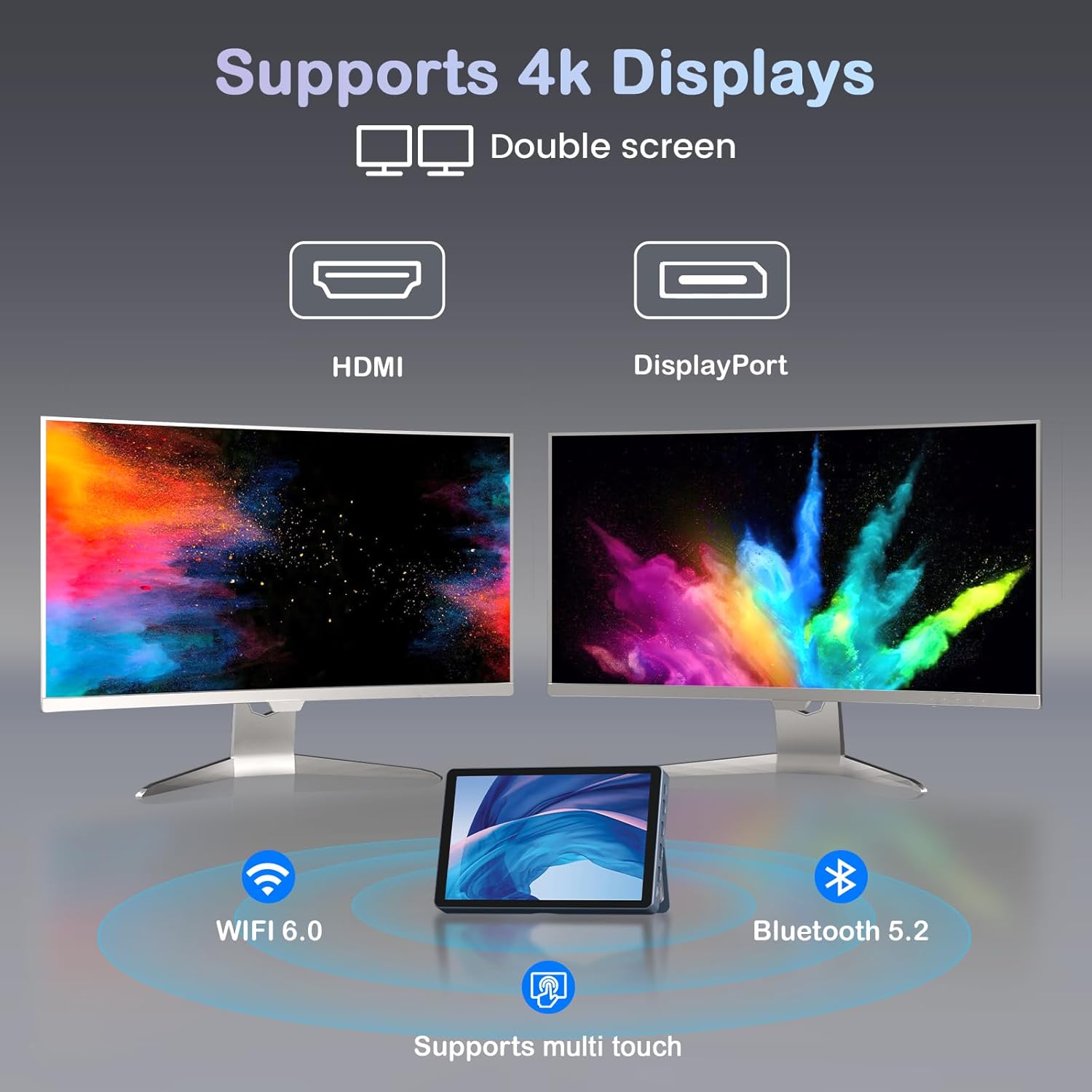
ຮູບທີ 5.1: The Mini PC N150 supporting a dual 4K monitor setup, enhancing productivity.
5.3 ການຄຸ້ມຄອງຫມໍ້ໄຟ
The integrated 5000mAh battery provides power for portable use. The battery also supports charging other devices via its Type-C port.
- Charging the Mini PC: Connect the power adapter to fully charge the internal battery.
- ກຳລັງສາກອຸປະກອນພາຍນອກ: Use a compatible USB-C cable to connect your smartphone or other devices to the Mini PC's full-function Type-C port for charging. Ensure the Mini PC has sufficient battery charge.

ຮູບທີ 5.2: The Mini PC N150 can provide power to charge other portable devices.
5.4 Adjusting the Integrated Stand
The Mini PC features an adjustable metal bracket on its rear, allowing you to set the device at various viewing ມຸມສໍາລັບການນໍາໃຊ້ສະດວກສະບາຍ.
- Gently pull out the metal bracket from the back of the device.
- Adjust the bracket to your desired angle (e.g., 45 degrees or 165 degrees) to prop up the screen.
- Ensure the bracket is stable before releasing ອຸປະກອນ.
6. ບໍາລຸງຮັກສາ
6.1 ການທໍາຄວາມສະອາດ
- ໃຊ້ຜ້າອ່ອນ, ແຫ້ງ, ແລະ ບໍ່ມີຂົນເພື່ອທຳຄວາມສະອາດດ້ານນອກຂອງອຸປະກອນ.
- For the touchscreen, use a screen-specific cleaning solution and a microfiber cloth. Avoid harsh chemicals.
- ກວດໃຫ້ແນ່ໃຈວ່າອຸປະກອນຖືກປິດ ແລະຖອດປລັກອອກກ່ອນທຳຄວາມສະອາດ.
6.2 ການຂະຫຍາຍການເກັບຮັກສາ
The Mini PC comes with an M.2 SSD, which can be upgraded. Refer to the manufacturer's guidelines or a qualified technician for storage upgrades to avoid voiding the warranty or damaging the device.
- The device supports M.2 SSDs.
- Consult the technical support team for recommended compatible M.2 SSD types and installation procedures.
7. ການແກ້ໄຂບັນຫາ
If you encounter issues with your KOOSMILE Mini PC N150, refer to the following common troubleshooting steps:
- ບໍ່ມີພະລັງງານ:
- ໃຫ້ແນ່ໃຈວ່າອະແດັບເຕີໄຟເຊື່ອມຕໍ່ຢ່າງປອດໄພກັບທັງ Mini PC ແລະປລັກສຽບໄຟທີ່ເຮັດວຽກໄດ້.
- ກວດສອບວ່າປລັກສຽບໄຟເຮັດວຽກໄດ້ໂດຍການສຽບໃສ່ອຸປະກອນອື່ນ.
- If using the battery, ensure it is charged.
- ບໍ່ມີການສະແດງຜົນຢູ່ໃນຈໍພາບພາຍນອກ:
- Check that the HDMI, DP, or Type-C cable is securely connected to both the Mini PC and the monitor.
- ໃຫ້ແນ່ໃຈວ່າຈໍພາບພາຍນອກເປີດຢູ່ ແລະ ຕັ້ງເປັນແຫຼ່ງປ້ອນຂໍ້ມູນທີ່ຖືກຕ້ອງ.
- ລອງໃຊ້ສາຍໄຟ ຫຼື ຈໍພາບອື່ນຖ້າມີ.
- ບັນຫາການເຊື່ອມຕໍ່ Wi-Fi/Bluetooth:
- ໃຫ້ແນ່ໃຈວ່າ Wi-Fi/Bluetooth ຖືກເປີດໃຊ້ໃນການຕັ້ງຄ່າ Windows.
- ຣີສະຕາດ Mini PC ແລະ router/modem ຂອງທ່ານ.
- ກວດເບິ່ງໄດເວີເຄືອຂ່າຍທີ່ອັບເດດແລ້ວໃນ Device Manager.
- ໜ້າຈໍສໍາຜັດບໍ່ຕອບສະໜອງ:
- ຣີສະຕາດ Mini PC.
- ໃຫ້ແນ່ໃຈວ່າຫນ້າຈໍສະອາດແລະບໍ່ມີສິ່ງເສດເຫຼືອ.
- Check for updated touchscreen drivers.
If these steps do not resolve the issue, please contact KOOSMILE technical support for further assistance.
8. ຂໍ້ມູນຈໍາເພາະ
The following table outlines the technical specifications for the KOOSMILE Mini PC N150 (Model N80):
| ຄຸນສົມບັດ | ຂໍ້ມູນຈໍາເພາະ |
|---|---|
| ໝາຍເລກຕົວແບບ | N80 |
| ໂຮງງານຜະລິດ | Intel Celeron N150 (4 Cores, 4 Threads, up to 3.6 GHz) |
| RAM | 12GB DDR5 |
| ການເກັບຮັກສາ | 256GB M.2 SSD (supports NVMe) |
| ຮູບພາບ | ຮູບພາບປະສົມປະສານ |
| ລະບົບປະຕິບັດການ | Windows 11 Pro |
| ຈໍສະແດງຜົນ | 8-inch HD Multi-touch Screen |
| ຄວາມລະອຽດໜ້າຈໍສູງສຸດ | 3840 x 2160 (4K) |
| ພອດ USB | 2x USB 3.0, 2x USB 2.0 |
| ຜົນຜະລິດວິດີໂອ | HDMI, DisplayPort, Full-function Type-C (4K@60Hz Dual Display Support) |
| ເຄືອຂ່າຍ | WiFi 6 (802.11ax), Bluetooth 5.2, 2x RJ45 Ethernet |
| ສຽງ | ສຽງ Jack 3.5 ມມ |
| ເຄື່ອງອ່ານບັດ | ສະລັອດຕິງບັດ TF |
| ແບັດເຕີຣີ | 5000mAh (Nonstandard Battery) |
| ຂະໜາດ | 7.62 × 4.88 × 0.91 ນິ້ວ (19.36 x 12.4 x 2.31 ຊມ) |
| ນ້ຳໜັກ | 2.42 ປອນ (1.1 ກິໂລ) |
9. ການຮັບປະກັນແລະການສະຫນັບສະຫນູນ
KOOSMILE is committed to providing reliable products and customer satisfaction.
- ການຮັບປະກັນ: Each KOOSMILE Mini PC N150 comes with a 1-year limited warranty from the date of purchase. This warranty covers manufacturing defects and hardware malfunctions under normal use.
- ສະຫນັບສະຫນູນດ້ານວິຊາການ: We offer lifetime technical support for your product. Our professional after-sales team is available 24 hours a day to assist you with any technical inquiries or issues.
- ບໍລິການລູກຄ້າ: For responsive customer service, please refer to the contact information provided on the KOOSMILE official webເວັບໄຊ ຫຼືເວທີການຊື້ຂອງທ່ານ.


