1. ບົດແນະນຳ
This manual provides essential information for the setup, operation, maintenance, and troubleshooting of your NIMO N159 15.6-inch IPS FHD Gaming Laptop. This device is equipped with an AMD Ryzen 7 7735HS processor, 32GB DDR5 RAM, and a 1TB PCIe SSD, designed for balanced performance in productivity and light gaming tasks. Please read this manual thoroughly to ensure proper usage and to maximize the lifespan of your laptop.
2. ສິ່ງທີ່ຢູ່ໃນກ່ອງ
ກວດສອບວ່າລາຍການທັງຫມົດແມ່ນມີຢູ່ໃນການຫຸ້ມຫໍ່:
- 1 x ຄອມພິວເຕີໂນດບຸກ NIMO N159
- 1 x ເຄື່ອງສາກໄຟໄວ Type-C 100W PD
- 1 x ຄູ່ມືຜູ້ໃຊ້ (ເອກະສານນີ້)
- Windows 11 Home (ຕິດຕັ້ງໄວ້ລ່ວງໜ້າ)
3. ຜະລິດຕະພັນເກີນview
Familiarize yourself with the components and features of your NIMO N159 laptop.

ຮູບ 3.1: ດ້ານຫນ້າ view of the NIMO N159 laptop, showcasing its 15.6-inch display and overall design.
3.1 ລັກສະນະທີ່ສໍາຄັນ
- ໜ່ວຍປະມວນຜົນ: AMD Ryzen 7 7735HS with 8 Cores and 16 Threads, up to 4.75GHz.
- ຮູບພາບ: GPU AMD Radeon 680M ປະສົມປະສານ.
- ໜ່ວຍຄວາມຈຳ: RAM 32GB DDR5 ສຳລັບການເຮັດວຽກຫຼາຍຢ່າງພ້ອມກັນຢ່າງມີປະສິດທິພາບ.
- ການເກັບຮັກສາ: 1TB PCIe 4.0 SSD for fast boot times and data access.
- ຈໍສະແດງຜົນ: 15.6-inch Full HD (1920x1080) IPS Anti-Glare Display.
- ການສາກໄຟ: 100W Type-C PD Fast Charger.
- ຄວາມປອດໄພ: Fingerprint Unlock integrated into the touchpad.
- ປ້ອນຂໍ້ມູນ: Backlit Keyboard with Numeric Keypad.

ຮູບ 3.2: ເກີນview of the AMD Ryzen 7 7735HS processor and its integrated Radeon 680M graphics.
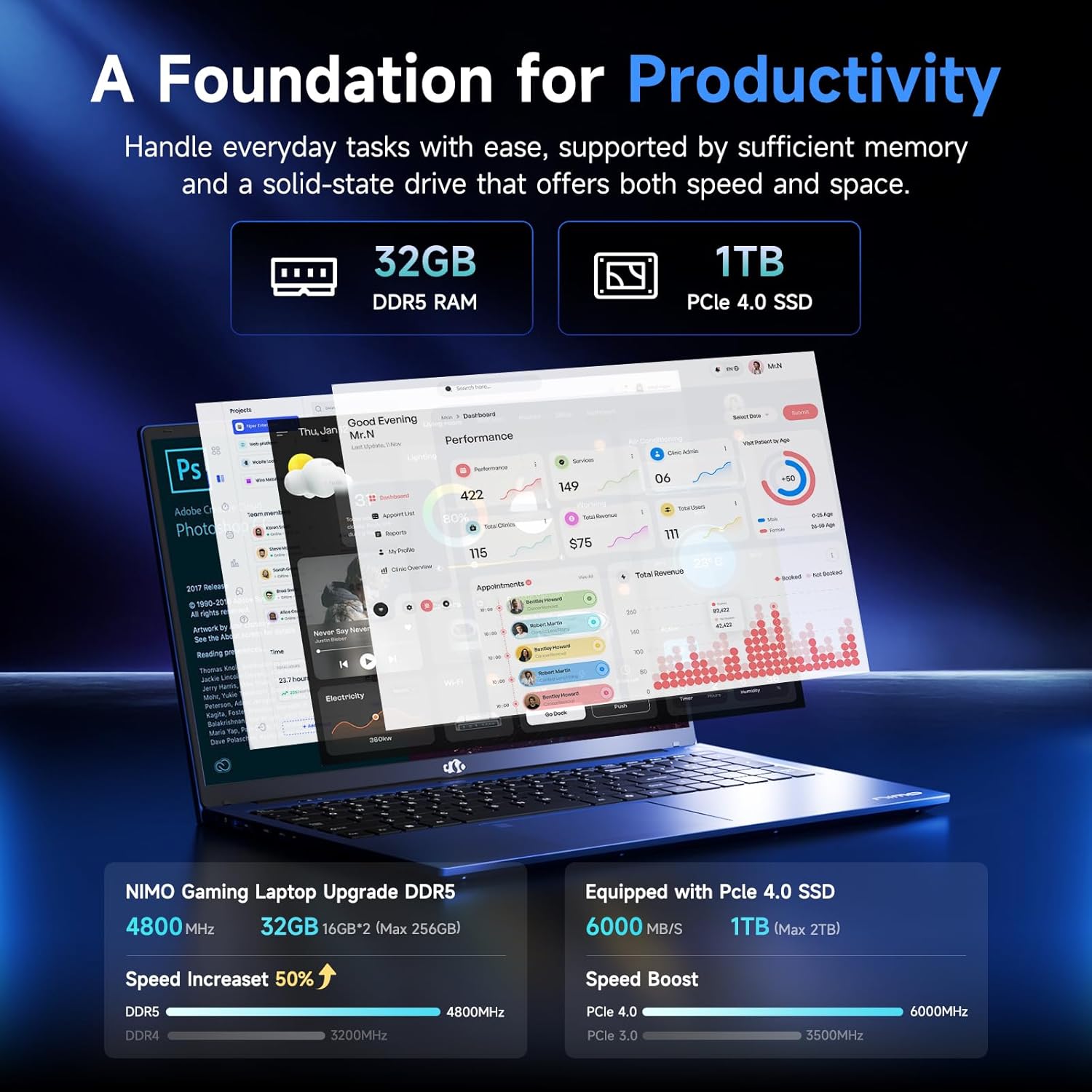
Figure 3.3: Illustration of the 32GB DDR5 RAM and 1TB PCIe 4.0 SSD, highlighting their speed and capacity.
3.2 ພອດແລະຕົວເຊື່ອມຕໍ່
The NIMO N159 laptop provides a variety of ports for connectivity:

ຮູບທີ 3.4: ລາຍລະອຽດ view of the laptop's ports and their functions.
- ຊ້າຍ: Kensington Lock, Audio Jack, USB 3.2 Gen 1, USB 2.0, Micro SD Reader.
- ເບື້ອງຂວາ: Type-C Gen2 (Multifunction), USB 3.2 Gen 1, HDMI 2.0, Type-C Gen2 (Multifunction).
3.3 ພະລັງງານແລະຫມໍ້ໄຟ

Figure 3.5: Battery and charging capabilities of the NIMO N159 laptop.
The laptop is equipped with a 54Wh smart battery. It supports fast charging via the included 100W Type-C PD charger, providing approximately 5 hours of usage from a 1-hour charge.
3.4 Keyboard and Fingerprint Unlock
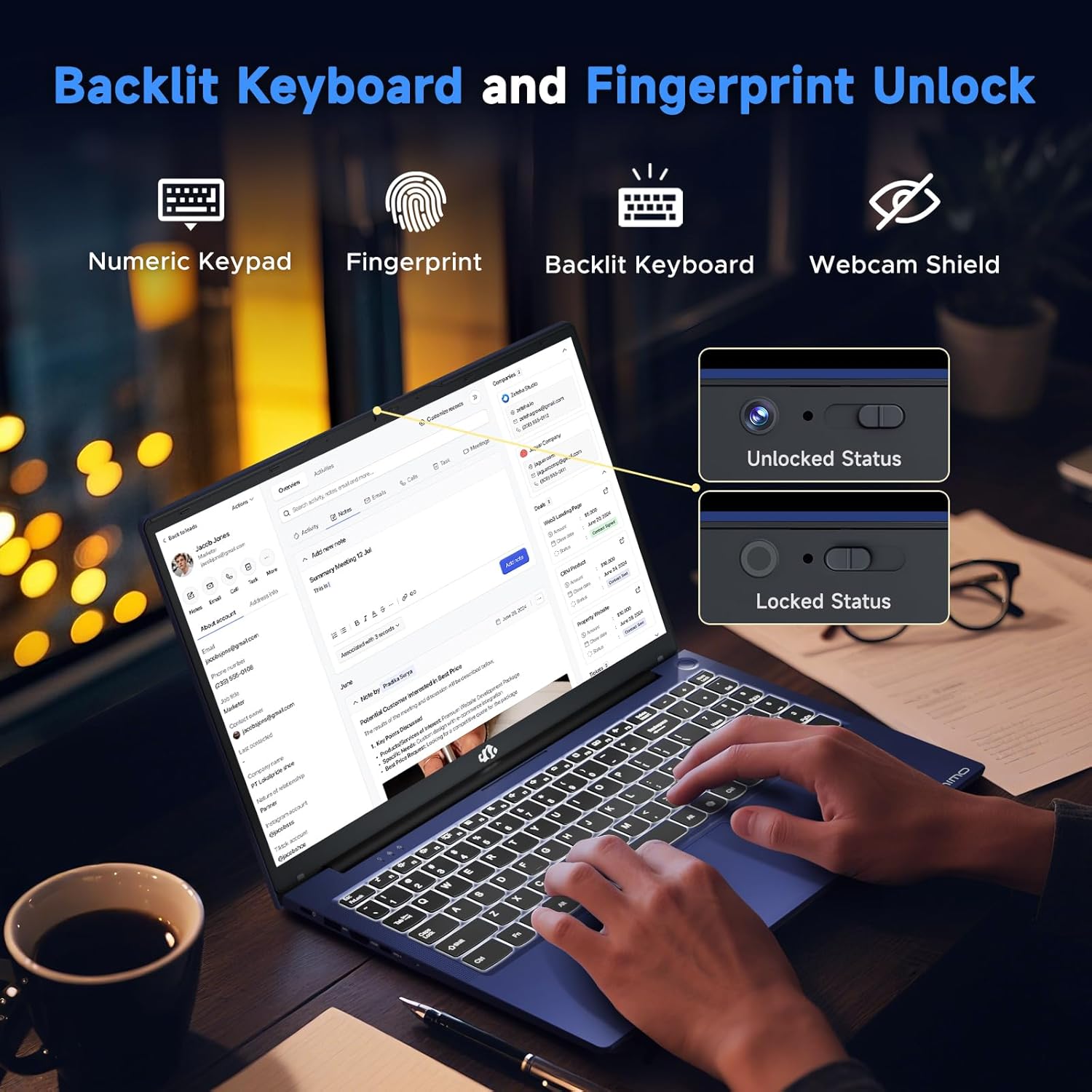
Figure 3.6: Features of the backlit keyboard, numeric keypad, fingerprint unlock, and webcam shield.
The keyboard features backlighting for use in low-light conditions and includes a numeric keypad. The fingerprint reader is integrated into the touchpad for secure and quick access.
3.5 ຈໍສະແດງຜົນ
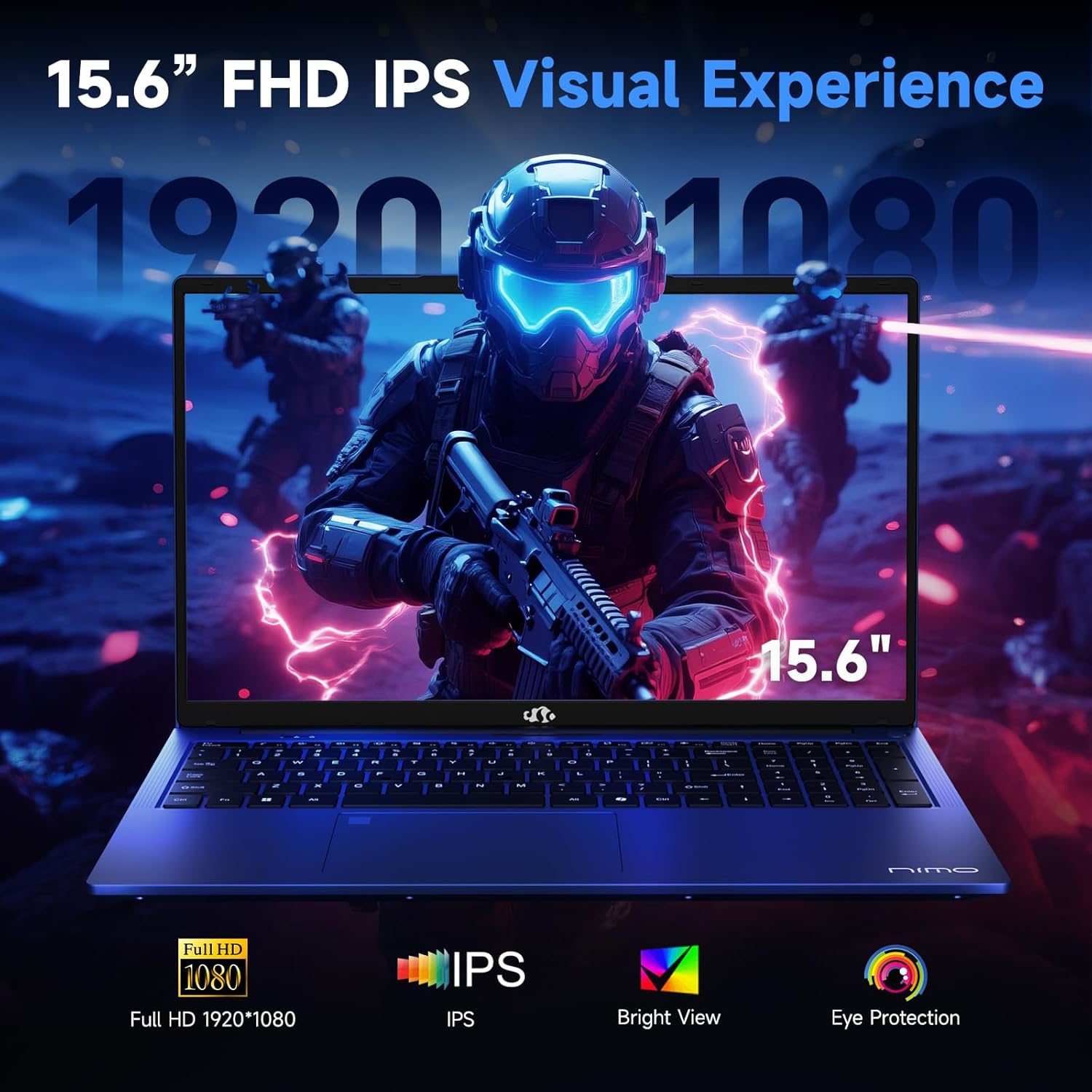
Figure 3.7: Visual representation of the 15.6-inch FHD IPS display quality.
The 15.6-inch Full HD (1920x1080) IPS Anti-Glare Display offers vibrant visuals and a wide viewing angle, suitable for various tasks from work to entertainment.
4. ຕັ້ງຄ່າ
4.1 ການເປີດເຄື່ອງເບື້ອງຕົ້ນ
- ແກະກ່ອງ: ເອົາແລັບທັອບ ແລະອຸປະກອນເສີມທັງໝົດອອກຈາກເຄື່ອງຫຸ້ມຫໍ່ຢ່າງລະມັດລະວັງ.
- ເຊື່ອມຕໍ່ພະລັງງານ: Plug the Type-C 100W PD Fast Charger into a power outlet and connect the Type-C connector to one of the multifunction Type-C ports on the laptop.
- ເກີບທໍາອິດ: Open the laptop lid and press the power button, typically located on the top-right of the keyboard or side.
- ການຕິດຕັ້ງ Windows: ປະຕິບັດຕາມຄໍາແນະນໍາໃນຫນ້າຈໍເພື່ອເຮັດສໍາເລັດການຕິດຕັ້ງ Windows 11 Home, ລວມທັງພາສາ, ພາກພື້ນ, ການເຊື່ອມຕໍ່ເຄືອຂ່າຍ, ແລະການສ້າງບັນຊີຜູ້ໃຊ້.
4.2 ການເຊື່ອມຕໍ່ເຄືອຂ່າຍ
- Wi-Fi: During Windows setup or later, select your Wi-Fi network from the available list and enter the password.
- Wired (Optional): If an Ethernet adapter (not included) is used with a USB port, connect an Ethernet cable to the adapter and then to your router/modem.
5. ຄໍາແນະນໍາການດໍາເນີນງານ
5.1 ເປີດ/ປິດ
- ເປີດ: ກົດປຸ່ມເປີດປິດ.
- ປິດລົງ: ຄລິກທີ່ປຸ່ມ Start ໃນ Windows, ຈາກນັ້ນ Power > Shut down.
- ນອນ: ປິດຝາ ຫຼືຄລິກປຸ່ມເລີ່ມຕົ້ນ, ຈາກນັ້ນເປີດປິດ > ນອນ.
5.2 ການນໍາໃຊ້ແປ້ນພິມ
- ການຄວບຄຸມໄຟຫຼັງ: Press the designated function key (e.g., F9) to cycle through backlight brightness levels (off, low, medium, high).
- ປຸ່ມຟັງຊັນ: Use the Fn key in combination with F1-F12 for various shortcuts (e.g., volume, brightness, Wi-Fi toggle).
5.3 Using the Touchpad and Fingerprint Sensor
- ແຜ່ນສໍາຜັດ: ສະຫນັບສະຫນູນ gestures multi-touch ສໍາລັບການນໍາທາງ. ເບິ່ງການຕັ້ງຄ່າ Windows ສໍາລັບການປັບແຕ່ງ.
- ປົດລັອກລາຍນິ້ວມື: Enroll your fingerprint through Windows Hello settings for secure login. Place your registered finger on the sensor located on the touchpad to unlock the device.
5.4 ການເຊື່ອມຕໍ່ອຸປະກອນພາຍນອກ
Use the available USB-A, USB-C, and HDMI ports to connect peripherals such as external monitors, USB drives, mice, and keyboards. The Type-C Gen2 ports support multifunctionality, including data transfer and video output.
6. ບໍາລຸງຮັກສາ
6.1 ການທໍາຄວາມສະອາດ
- ໜ້າຈໍ: ໃຊ້ຜ້າແພອ່ອນໆ ທີ່ບໍ່ມີເສັ້ນດ່າງ ງampສໍາເລັດດ້ວຍນ້ໍາຫຼືເຄື່ອງເຮັດຄວາມສະອາດຫນ້າຈໍ. ຢ່າສີດຂອງແຫຼວໂດຍກົງໃສ່ຫນ້າຈໍ.
- Keyboard ແລະ Chassis: ໃຊ້ຜ້າອ່ອນ, ແຫ້ງ. ສໍາລັບຝຸ່ນ stubborn, a ເລັກນ້ອຍ damp ຜ້າສາມາດນໍາໃຊ້ໄດ້, ຮັບປະກັນວ່າບໍ່ມີຂອງແຫຼວເຂົ້າໄປໃນຊ່ອງເປີດ.
- ພອດ: ໃຊ້ອາກາດບີບອັດເພື່ອລ້າງຂີ້ຝຸ່ນອອກຈາກທ່າເຮືອ.
6.2 ການດູແລຫມໍ້ໄຟ
- ຫຼີກລ້ຽງການປະຈຸຫມໍ້ໄຟຢ່າງເຕັມທີ່ເລື້ອຍໆ.
- ເກັບຮັກສາຄອມພິວເຕີໂນດບຸກໄວ້ໃນບ່ອນທີ່ເຢັນແລະແຫ້ງ ຖ້າບໍ່ໄດ້ໃຊ້ເປັນເວລາດົນ ໂດຍໃຫ້ແບັດເຕີຣີສາກໄວ້ປະມານ 50-60%.
- Use only the provided NIMO charger or a compatible 100W Type-C PD charger.
6.3 ການປັບປຸງຊອບແວ
Regularly check for and install Windows updates and driver updates to ensure optimal performance and security. These can typically be found in Windows Settings > Windows Update.
7. ການແກ້ໄຂບັນຫາ
This section addresses common issues you might encounter with your NIMO N159 laptop.
| ບັນຫາ | ສາເຫດທີ່ເປັນໄປໄດ້ | ການແກ້ໄຂ |
|---|---|---|
| ແລັບທັອບບໍ່ເປີດ. | Low battery, power adapter issue, or hardware fault. | Ensure the charger is properly connected and the outlet is working. Try charging for at least 30 minutes. If the issue persists, contact support. |
| ໜ້າຈໍຫວ່າງເປົ່າ ຫຼື ດຳ. | Display settings, external monitor conflict, or driver issue. | Press Fn + F7 (or relevant display toggle key) to cycle display modes. Disconnect any external monitors. Restart the laptop. |
| ບັນຫາການເຊື່ອມຕໍ່ Wi-Fi. | ລະຫັດຜ່ານບໍ່ຖືກຕ້ອງ, ບັນຫາເຣົາເຕີ ຫຼືອະແດັບເຕີ Wi-Fi ປິດໃຊ້ງານ. | Verify Wi-Fi password. Restart your router. Check Windows settings to ensure Wi-Fi is enabled. |
| ແລັບທັອບເຮັດວຽກຊ້າ. | Too many applications open, low storage, or outdated drivers. | Close unnecessary applications. Check available storage. Update Windows and drivers. Run a malware scan. |
| ເຊັນເຊີລາຍນິ້ວມືບໍ່ເຮັດວຽກ. | ນິ້ວມືບໍ່ສະອາດ, ເຊັນເຊີເປື້ອນ, ຫຼື ມີບັນຫາຊອບແວ. | Ensure your finger and the sensor are clean and dry. Re-enroll your fingerprint in Windows Hello settings. |
8. ຂໍ້ມູນຈໍາເພາະ
Detailed technical specifications for the NIMO N159 laptop:
| ຄຸນສົມບັດ | ລາຍລະອຽດ |
|---|---|
| ຍີ່ຫໍ້ | ນິໂມ |
| ຊື່ຕົວແບບ | NIMO N159B |
| ຂະໜາດໜ້າຈໍ | 15.6 ນິ້ວ |
| ຄວາມລະອຽດໜ້າຈໍ | 1920 x 1080 ພິກເຊວ (FHD IPS) |
| ໂຮງງານຜະລິດ | AMD Ryzen 7 7735HS (8 ຄໍ, ສູງສຸດ 4.75 GHz) |
| RAM | 32 GB DDR5 (4800 MHz) |
| ຮາດດິດ | 1024 GB SSD (PCIe 4.0) |
| Graphics Coprocessor | AMD Radeon 680M (ປະສົມປະສານ) |
| ລະບົບປະຕິບັດການ | ໜ້າຫຼັກ Windows 11 |
| ປະເພດໄຮ້ສາຍ | 802.11a/b/g/n/ac |
| ພອດ USB 2.0 | 1 |
| ພອດ USB 3.0 | 4 |
| ຜອດ Type-C | 2 (Gen2, Multifunction) |
| ພອດ HDMI | 1 (HDMI 2.0) |
| ອາຍຸຫມໍ້ໄຟສະເລ່ຍ | 5 Hours (54Wh) |
| ນ້ໍາຫນັກລາຍການ | 3.8 ປອນ |
| ຂະໜາດສິນຄ້າ | 14.07 x 8.98 x 0.76 ນິ້ວ |
| ສີ | ສີຟ້າ |
| ຄຸນນະສົມບັດພິເສດ | ແປ້ນພິມ Backlit, ເຄື່ອງອ່ານລາຍນິ້ວມື, ສຽງ HD, ປຸ່ມກົດຕົວເລກ |
9. ການຮັບປະກັນແລະການສະຫນັບສະຫນູນ
NIMO is committed to providing quality products and customer satisfaction.
- ການຮັບປະກັນຂອງຜູ້ຜະລິດ: Your NIMO N159 laptop is covered by a 2-Year Manufacturer's Warranty from Nimo Direct Inc. This warranty covers defects in materials and workmanship under normal use.
- ນະໂຍບາຍການສົ່ງຄືນ: A 90-Day Hassle-Free Return Policy is offered by Nimo Direct Inc. from the date of purchase.
9.1 ຕິດຕໍ່ສະຫນັບສະຫນູນ
For technical assistance, warranty claims, or product-related inquiries, please contact NIMO customer support:
- ອີເມວ: service@nimopc.com
- ອອນລາຍ: ເຂົ້າເບິ່ງ NIMO ຢ່າງເປັນທາງການ website for further support options and FAQs.
Our dedicated support team is available to assist you with any issues or replacements.


