1. ບົດແນະນຳ
This manual provides essential information for the NIMO 15.6" Gaming Laptop (Model N159). It covers product features, setup procedures, operating instructions, maintenance guidelines, troubleshooting tips, and detailed specifications. Please read this manual thoroughly before using your new laptop to ensure optimal performance and longevity.

Image: The NIMO 15.6" Gaming Laptop, showcasing its display and key features like fingerprint unlock, Type-C PD charger, and backlit keyboard.
2. ສິ່ງທີ່ຢູ່ໃນກ່ອງ
ກວດສອບວ່າລາຍການທັງຫມົດແມ່ນມີຢູ່ໃນການຫຸ້ມຫໍ່:
- 1 x ຄອມພິວເຕີໂນດບຸກ NIMO N159
- 1 x ເຄື່ອງສາກໄຟໄວ Type-C 100W PD
- 1 x ຄູ່ມືຜູ້ໃຊ້ (ເອກະສານນີ້)
- Windows 11 Home Operating System (pre-installed)
- ຂໍ້ມູນການຮັບປະກັນ (ຮັບປະກັນ 2 ປີ, ສົ່ງຄືນໄດ້ 90 ມື້)
3. ຜະລິດຕະພັນເກີນview
3.1 ລັກສະນະທີ່ສໍາຄັນ
- ໜ່ວຍປະມວນຜົນ: AMD Ryzen 7 7735HS (8 Cores, 16 Threads, up to 4.75GHz)
- ຮູບພາບ: Integrated AMD Radeon 680M GPU
- ຈໍສະແດງຜົນ: 15.6" Full HD (1920x1080) IPS Anti-Glare Display
- ໜ່ວຍຄວາມຈຳ: 16GB DDR5 RAM (upgradeable)
- ການເກັບຮັກສາ: 1TB PCIe 4.0 SSD (upgradeable)
- ການສາກໄຟ: 100W Type-C PD Fast Charger
- ຄວາມປອດໄພ: Fingerprint Reader for secure unlock
- ແປ້ນພິມ: ແປ້ນພິມ Backlit ດ້ວຍປຸ່ມກົດຕົວເລກ
- ສຽງ: Dual 2W stereo speakers, dual beamforming microphones
- Webກ້ອງ: 2MP with physical camera shutter
- ລະບົບປະຕິບັດການ: ໜ້າຫຼັກ Windows 11

Image: An illustration detailing the AMD Ryzen 7 7735HS processor, highlighting its 8 cores, 16 threads, and integrated Radeon 680M graphics for balanced performance.
3.2 ພອດແລະຕົວເຊື່ອມຕໍ່
Familiarize yourself with the available ports on your NIMO laptop:

Image: A detailed diagram illustrating the location and type of ports on the NIMO laptop, including USB 2.0, USB 3.2 Gen1, Type-C Gen2 (multifunction), HDMI 2.0, Audio Jack, Micro SD Reader, and Kensington Lock.
- ພອດ USB 2.0: ສໍາລັບການເຊື່ອມຕໍ່ອຸປະກອນ USB ເກົ່າ.
- USB 3.2 Gen1 Ports (x4): ສໍາລັບການໂອນຂໍ້ມູນຄວາມໄວສູງກັບອຸປະກອນ USB ທີ່ເຂົ້າກັນໄດ້.
- Type-C Gen2 Ports (x2, Multifunction): Supports data transfer, video output, and power delivery (100W PD fast charging).
- ຜອດ HDMI 2.0: ສໍາລັບການເຊື່ອມຕໍ່ກັບຈໍສະແດງຜົນພາຍນອກຫຼືໂທລະພາບ.
- Jack ສຽງ: ສໍາລັບການເຊື່ອມຕໍ່ຫູຟັງຫຼືລໍາໂພງພາຍນອກ.
- Micro SD Reader: ສຳລັບການອ່ານກາດໜ່ວຍຄວາມຈຳ Micro SD.
- Kensington Lock Slot: ສຳລັບການຮັກສາຄວາມປອດໄພຂອງຄອມພິວເຕີໂນດບຸກຂອງທ່ານດ້ວຍກະແຈລັອກທີ່ເຂົ້າກັນໄດ້.
4. ຕັ້ງຄ່າ
4.1 ການເປີດເຄື່ອງເບື້ອງຕົ້ນ
- ຖອດແລັບທັອບ ແລະອຸປະກອນເສີມທັງໝົດອອກຈາກກ່ອງ.
- Connect the 100W Type-C PD Fast Charger to one of the Type-C ports on the laptop and then to a power outlet.
- ເປີດຝາແລັບທັອບ. ແລັບທັອບອາດຈະເປີດເຄື່ອງໂດຍອັດຕະໂນມັດ, ຫຼືທ່ານອາດຈະຕ້ອງກົດປຸ່ມເປີດປິດ.
- ປະຕິບັດຕາມຄໍາແນະນໍາໃນຫນ້າຈໍເພື່ອເຮັດສໍາເລັດການຕິດຕັ້ງ Windows 11 Home, ລວມທັງການເລືອກພາສາ, ການເຊື່ອມຕໍ່ເຄືອຂ່າຍ, ແລະການສ້າງບັນຊີຜູ້ໃຊ້.
4.2 ການສາກແບັດເຕີຣີ
Before first use, it is recommended to fully charge the laptop battery. The 100W Type-C PD Fast Charger can provide approximately 5 hours of usage time with just 1 hour of charging.

Image: A visual representation of the 100W Type-C lightning-fast charger connected to the NIMO laptop, demonstrating its ability to charge quickly and efficiently.
5. ຄໍາແນະນໍາການດໍາເນີນງານ
5.1 ເປີດ/ປິດ ແລະ ໂໝດນອນ
- ເປີດ: ກົດປຸ່ມເປີດປິດທີ່ຕັ້ງຢູ່ເທິງແປ້ນພິມ.
- ປິດພະລັງງານ: ຄລິກທີ່ປຸ່ມ Start ໃນ Windows, ຈາກນັ້ນເລືອກ Power > Shut down.
- ຮູບແບບການນອນ: ຄລິກປຸ່ມ Start, ຈາກນັ້ນເລືອກ Power > Sleep, ຫຼືປິດຝາປິດແລັບທັອບ.
5.2 Using the Fingerprint Unlock
The fingerprint reader is integrated into the touchpad for quick and secure access.
- During Windows setup or later in Windows Settings, configure your fingerprint for login.
- To unlock, simply place your registered finger on the fingerprint reader on the touchpad.
5.3 Adjusting the Backlit Keyboard
The keyboard backlight can be adjusted for comfortable typing in various lighting conditions.

Image: A visual guide demonstrating the fingerprint unlock feature on the touchpad and the functionality of the backlit keyboard, including how to cycle through brightness settings using the F9 key.
- ກົດ F9 key to cycle through backlight settings:
- 1 Tap: Light (Temporary)
- 2 Taps: Light (Temporary)
- 3 Taps: Light (Constant)
- 4 Taps: Off
5.4 ການນໍາໃຊ້ Webcam Shutter
For privacy, the laptop includes a physical camera shutter.
- Slide the shutter to the left to open the camera.
- Slide the shutter to the right to close and cover the camera lens.

Image: A visual guide demonstrating the physical camera shutter, showing both the 'Camera Open' and 'Camera Close' statuses for enhanced privacy.
6. ບໍາລຸງຮັກສາ
6.1 ການເຮັດຄວາມສະອາດແລັບທັອບ
- ໃຫ້ປິດຄອມພິວເຕີໂນດບຸກ ແລະ ຖອດສາຍສາກໄຟອອກກ່ອນທຳຄວາມສະອາດສະເໝີ.
- ໃຊ້ຜ້າແພທີ່ອ່ອນໆ ທີ່ບໍ່ມີເສັ້ນດ່າງ dampສໍາເລັດດ້ວຍນ້ໍາຫຼືເຄື່ອງເຮັດຄວາມສະອາດຫນ້າຈໍສໍາລັບຈໍສະແດງຜົນ.
- ສໍາລັບແປ້ນພິມ ແລະຕົວເຄື່ອງ, ໃຫ້ໃຊ້ຜ້າອ່ອນ, ແຫ້ງ. ຫຼີກເວັ້ນການສານເຄມີທີ່ຮຸນແຮງຫຼືວັດສະດຸຂັດ.
- ໃຊ້ອາກາດບີບອັດເພື່ອລ້າງຂີ້ຝຸ່ນອອກຈາກຊ່ອງລະບາຍອາກາດແຕ່ລະໄລຍະ.
6.2 ການດູແລຫມໍ້ໄຟ
- ຫຼີກລ້ຽງການປະຈຸຫມໍ້ໄຟຢ່າງເຕັມທີ່ເລື້ອຍໆ.
- ເກັບຮັກສາແລັບທັອບໃນບ່ອນເຢັນ ແລະແຫ້ງ ຖ້າບໍ່ໄດ້ໃຊ້ເປັນເວລາດົນ.
- ຢ່າເຮັດໃຫ້ແລັບທັອບມີອຸນຫະພູມສູງເກີນໄປ.
6.3 ການປັບປຸງຊອບແວ
ກວດສອບ ແລະ ຕິດຕັ້ງການອັບເດດລະບົບປະຕິບັດການ ແລະ ໄດຣເວີເປັນປະຈຳເພື່ອຮັບປະກັນປະສິດທິພາບ ແລະ ຄວາມປອດໄພທີ່ດີທີ່ສຸດ.
7. ການແກ້ໄຂບັນຫາ
| ບັນຫາ | ສາເຫດທີ່ເປັນໄປໄດ້ | ການແກ້ໄຂ |
|---|---|---|
| ແລັບທັອບບໍ່ເປີດ. | ບັນຫາແບັດເຕີລີໜ້ອຍ ຫຼືຕົວແປງໄຟ. | Connect the charger and wait a few minutes before attempting to power on. Ensure the charger is properly connected to both the laptop and the power outlet. |
| ໜ້າຈໍຫວ່າງເປົ່າ ຫຼື ດຳ. | ແລັບທັອບຢູ່ໃນໂໝດນອນຫຼັບ, ບັນຫາການຕັ້ງຄ່າການສະແດງຜົນ ຫຼືບັນຫາຮາດແວ. | Press any key or the power button to wake from sleep. Try connecting an external monitor to check if the display output works. Restart the laptop. |
| ໄຟຫຼັງແປ້ນພິມບໍ່ເຮັດວຽກ. | Backlight turned off or at lowest setting. | ກົດ F9 key repeatedly to cycle through brightness levels and turn on the backlight. |
| Fingerprint unlock not working. | Finger not properly placed, or sensor issue. | Ensure your finger is clean and dry and covers the sensor completely. Re-register your fingerprint in Windows Settings if the issue persists. |
| ການປະຕິບັດຊ້າ. | Too many applications running, insufficient storage, or outdated drivers. | Close unnecessary applications. Check available storage space. Update Windows and device drivers. |
If you encounter issues not listed here or require further assistance, please contact NIMO customer support.
8. ຂໍ້ມູນຈໍາເພາະ
| ຍີ່ຫໍ້ | ນິໂມ |
| ຊື່ຕົວແບບ | NIMO N159B |
| ຂະໜາດໜ້າຈໍ | 15.6 ນິ້ວ |
| ຄວາມລະອຽດໜ້າຈໍ | 1920 x 1080 ພິກເຊວ (FHD IPS) |
| ໂຮງງານຜະລິດ | AMD Ryzen 7 7735HS (8 Cores, 4.75 GHz Max Turbo) |
| RAM | 16 GB DDR5 (4800 MHz) |
| ຮາດດິດ | 1024 GB SSD (PCIe 4.0) |
| Graphics Coprocessor | AMD Radeon 680M (ປະສົມປະສານ) |
| ລະບົບປະຕິບັດການ | ໜ້າຫຼັກ Windows 11 |
| ປະເພດໄຮ້ສາຍ | 802.11a/b/g/n/ac |
| ພອດ USB 2.0 | 1 |
| ພອດ USB 3.0 | 4 |
| ອາຍຸຫມໍ້ໄຟສະເລ່ຍ | 5 Hours (54Wh, 11.4V/4700mAh) |
| ນ້ໍາຫນັກລາຍການ | 3.8 ປອນ |
| ຂະໜາດສິນຄ້າ | 14.07 x 8.98 x 0.76 ນິ້ວ |
| ສີ | ສີຟ້າ |
| ຫລັງ Webຄວາມລະອຽດກ້ອງ | 2 MP |
| ຄຸນນະສົມບັດພິເສດ | ແປ້ນພິມ Backlit, ເຄື່ອງອ່ານລາຍນິ້ວມື, ສຽງ HD, ປຸ່ມກົດຕົວເລກ |
9. ການຮັບປະກັນແລະການສະຫນັບສະຫນູນ
9.1 ການຮັບປະກັນຂອງຜູ້ຜະລິດ
Your NIMO N159 laptop is covered by a comprehensive ການຮັບປະກັນຂອງຜູ້ຜະລິດ 2 ປີ from Nimo Direct Inc. This warranty covers defects in materials and workmanship under normal use. For warranty claims, please contact customer support.
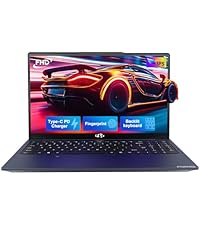
Image: A technician working on a laptop's internal components, representing the 2-year support provided for Nimo products.
9.2 ນະໂຍບາຍການກັບຄືນ
Nimo Direct Inc. offers a 90-Day Hassle-Free Return Policy. You may return any Nimo product for any reason within 90 days of purchase. Please refer to your purchase documentation for specific return procedures.
Image: A delivery person handing a package to a customer, illustrating the 90-day return policy for Nimo products.
9.3 ສະຫນັບສະຫນູນລູກຄ້າ
For any product-related questions, technical assistance, or warranty claims, please contact our professional after-sales service team. Our dedicated support team is available to resolve issues or facilitate replacements.
- ອີເມວ: service@nimopc.com
- ອອນລາຍ: ເຂົ້າເບິ່ງ NIMO ຢ່າງເປັນທາງການ website or product page for contact options.
Image: Customer service representatives wearing headsets, indicating professional customer assistance available via phone and live chat.


