1. Introduction to the Revopoint MIRACO 3D Scanner
The Revopoint MIRACO is an advanced all-in-one handheld 3D scanner designed for high-precision 3D model creation. It integrates scanning, editing, and processing capabilities directly into the device, eliminating the need for external computers during the scanning process. With its powerful hardware and versatile scanning modes, the MIRACO is suitable for capturing objects ranging from small, intricate details to large structures.

Image: The Revopoint MIRACO 3D Scanner, showcasing its ergonomic design and integrated touchscreen display.
ຄຸນນະສົມບັດທີ່ສໍາຄັນ:
- All-in-one Functionality: Perform scanning, editing, and post-processing directly on the device without external cables or computers.
- ຄວາມແມ່ນຍໍາສູງ: Achieve a single-frame precision of up to 0.02mm for detailed model capture.
- Full-Color Capture: Utilize a 48-megapixel RGB camera and Flash LED system for photorealistic color reproduction.
- ໂໝດສະແກນອະເນກປະສົງ: Quad-depth camera system supports Near-mode for fine details and Far-mode for large objects, with mid-scan switching capability.
- ຈໍສະແດງຜົນແບບປະສົມປະສານ: Features a 6-inch 2K AMOLED touchscreen that flips 180° for flexible viewing and selfie scans.
- ປະສິດທິພາບທີ່ມີປະສິດທິພາບ: Equipped with an 8-core 2.4GHz processor, 16GB RAM, and 256GB internal storage.
- ການອອກແບບແບບພົກພາ: Weighing only 750g, it is designed for one-handed operation and easy transport.
2. ຄູ່ມືການຕິດຕັ້ງ
2.1 ເນື້ອໃນຊຸດ
Before beginning, verify that all components are present in your MIRACO package:

Image: Contents of the Revopoint MIRACO 3D Scanner package.
- MIRACO ເຄື່ອງສະແກນ 3 ມິຕິ
- ຂາຕັ້ງໂຕະ
- Mini Turntable & Sample Bust (Optional, may vary by region)
- Turntable Topper & Turntable Power Cable (Optional, may vary by region)
- ຖົງເຄື່ອງສະແກນ
- Near-mode Calibration Board x 4
- Magic Mat x 2
- ສາຍແຂນ
- Dual USB Type-C Port Power Adapter
- ສາຍ USB Type-C ຫາ C (1.8 m)
- Cleaning Cloth & Markers
- ໃບຢັ້ງຢືນ & ບັດຮັບປະກັນ
- Far-mode Calibration Board x 4 (Pro version only)
- Large Calibration-board Sheet (Pro version only)
- USB Type-C to HDMI Adapter (Pro version only)
2.2 ການສາກໄຟເບື້ອງຕົ້ນ
Before first use, fully charge the MIRACO scanner. Connect the provided USB Type-C cable to the scanner and the Dual USB Type-C Port Power Adapter. Plug the adapter into a power outlet. The battery recharges to 80% capacity in approximately 35 minutes, providing up to 2 hours of scanning time.
2.3 ການເປີດ/ປິດ
- ເພື່ອເປີດເຄື່ອງ: ກົດປຸ່ມເປີດປິດຢູ່ຂ້າງອຸປະກອນຄ້າງໄວ້ຈົນກວ່າໜ້າຈໍຈະສະຫວ່າງ.
- ປິດເຄື່ອງ: Press and hold the power button until the power-off options appear on the screen, then select 'Power Off'. A short press will put the device to sleep.
3. Operating the MIRACO 3D Scanner
The MIRACO is designed for intuitive operation directly from its integrated touchscreen. This section outlines the primary functions and scanning modes.
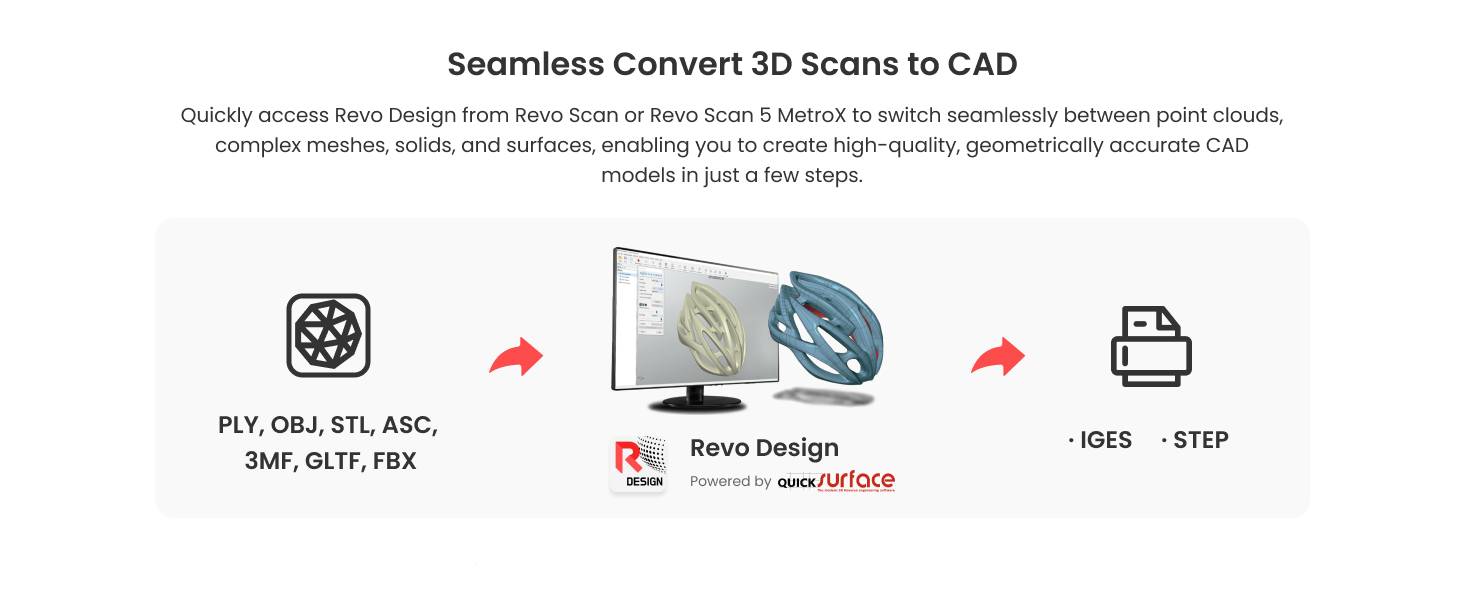
Image: The MIRACO scanner's portability and integrated display for scanning and editing.
3.1 ສ່ວນຕິດຕໍ່ຜູ້ໃຊ້ ແລະການສະແດງຜົນ
The MIRACO features a 6-inch 2K AMOLED touchscreen. This display allows for real-time viewing of scans, editing, and navigation through the device's software. The screen can be flipped 180 degrees for comfortable viewing from various angles or for self-scanning.

Image: The MIRACO's 2K AMOLED display in a flipped position.
3.2 ຮູບແບບການສະແກນ
The MIRACO offers two primary capture modes to suit different scanning needs:
- ໂModeດຕໍ່ເນື່ອງ: Ideal for quickly capturing 3D models at speeds up to 15 frames per second (fps). This mode is efficient for general scanning of objects with sufficient geometric features.
- Single-shot Mode: Recommended for objects that are feature-rich or featureless, or for situations requiring high accuracy and minimal point cloud overlap. This mode provides precise tracking and detailed capture.
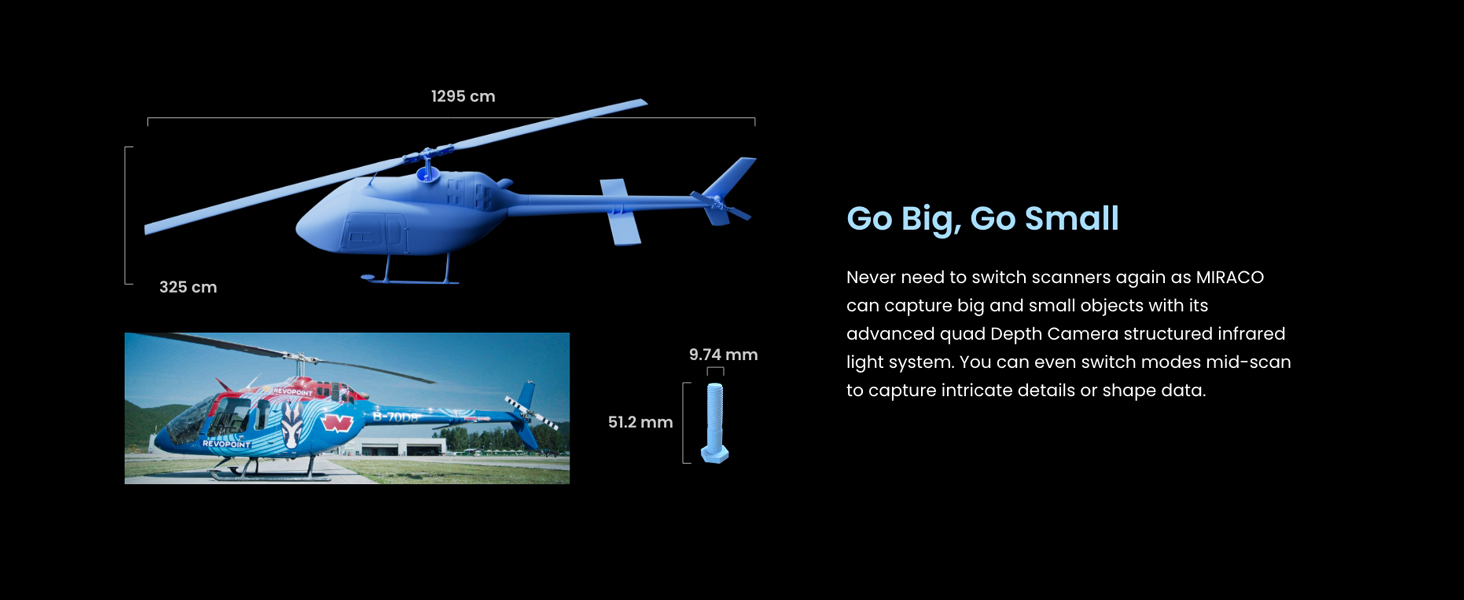
Image: Scanning in Single-shot Mode.
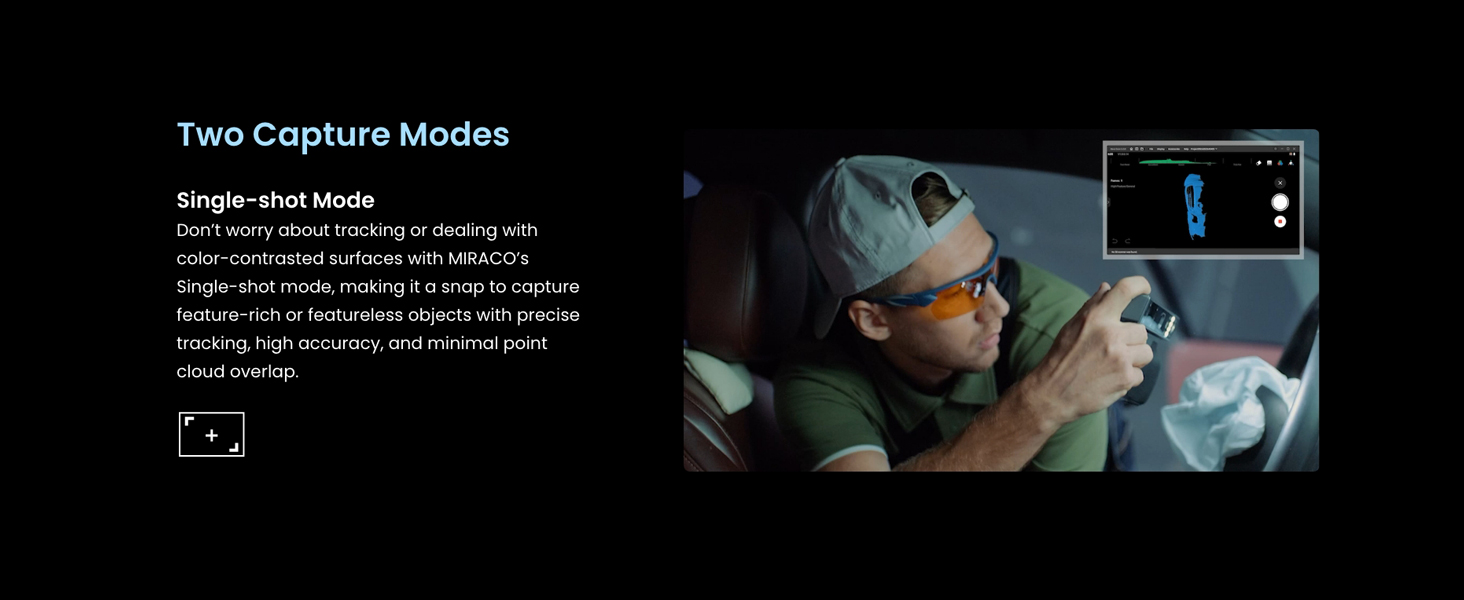
Image: Scanning in Continuous Mode.
3.3 Object Size and Detail Capture
The MIRACO's quad-depth camera system allows for scanning a wide range of object sizes. You can switch between Near-mode for capturing fine details on small objects and Far-mode for quickly scanning large surface areas or objects. This mode switching can be done mid-scan for optimal flexibility.

Image: The MIRACO's ability to scan both large and small objects.
3.4 Color Scanning
The integrated 48-megapixel RGB camera and Flash LED system enable the MIRACO to capture full-color textures, producing photorealistic 3D models. The Flash LED ensures even lighting for balanced color reproduction.

Image: Capturing vibrant colors with the MIRACO's RGB camera.
3.5 Data Transfer and Export
After scanning and editing on the MIRACO, projects can be transferred to macOS or Windows PCs using Wi-Fi 6 or a Type-C USB connection. The device supports exporting 3D models in various formats, including PLY, OBJ, STL, ASC, 3MF, GLTF, and FBX, ensuring compatibility with most 3D modeling and 3D printing software.
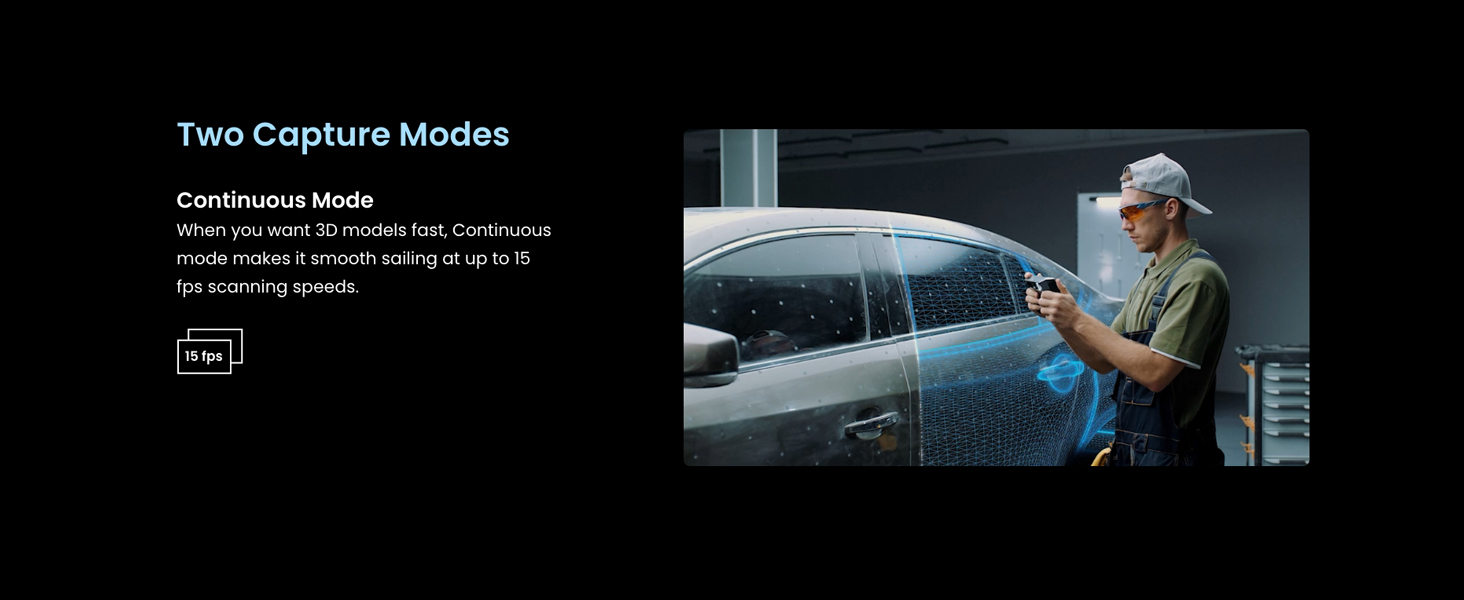
Image: Data transfer options and supported export formats.
3.6 Revo Design Software
The MIRACO integrates with Revo Design software, powered by Quicksurface, to streamline the scan-to-CAD workflow. This software allows for efficient conversion of scanned data (STL, OBJ, PLY, etc.) into ready-to-use CAD models for product design and reverse engineering. Note that Revo Design is compatible with x86_64 architecture.

Image: Revo Design software for converting 3D scans to CAD models.
4. ບໍາລຸງຮັກສາ
Proper maintenance ensures the longevity and optimal performance of your Revopoint MIRACO 3D Scanner.
4.1 ການທໍາຄວາມສະອາດອຸປະກອນ
- Use the provided cleaning cloth to gently wipe the screen and scanner lenses.
- Avoid using abrasive materials or harsh chemical cleaners, as these can damage the surfaces.
- ໃຫ້ແນ່ໃຈວ່າອຸປະກອນຖືກປິດກ່ອນທີ່ຈະທໍາຄວາມສະອາດ.
4.2 ການເກັບຮັກສາ
- Store the MIRACO in its scanner bag or a protective case when not in use to prevent dust accumulation and physical damage.
- Keep the device in a cool, dry environment, away from direct sunlight and extreme temperatures.
5. ການແກ້ໄຂບັນຫາ
This section addresses common issues you might encounter while using your MIRACO 3D Scanner.
5.1 Scanning Difficult Objects

Image: Solutions for scanning challenging object types.
- Transparent, Reflective, Dark, or Shiny Objects: These surfaces can be challenging for 3D scanning. Apply a thin, even coat of a specialized matte scanning spray to the object's surface to improve scan quality and tracking.
- Flat, Dark, or Featureless Objects: Objects lacking distinct geometric features can cause tracking issues. Use the provided marker stickers strategically placed on the object or surrounding area to provide reference points for the scanner.
- ວັດຖຸຂະໜາດນ້ອຍ: If the scanner loses tracking on small objects, ensure you are using Near-mode and consider adding marker stickers around the object to aid in tracking stability.
5.2 ຄວາມກັງວົນກ່ຽວກັບອາຍຸການໃຊ້ງານຂອງແບັດເຕີຣີ
While the MIRACO battery is rated for up to 2 hours of scanning, certain operations can consume power more rapidly:
- Onboard Lights: Using the scanner's integrated lights for illumination can significantly reduce battery life. If possible, rely on external lighting or use the onboard lights sparingly.
- Intensive Processing: Continuous high-frame-rate scanning or extensive on-device post-processing can increase power consumption.
Ensure the device is fully charged before extended scanning sessions. The fast charging feature allows for an 80% charge in 35 minutes.
5.3 ບັນຫາການເຊື່ອມຕໍ່
- ການເຊື່ອມຕໍ່ Wi-Fi: If experiencing issues with Wi-Fi 6 transfers, ensure the scanner is within range of a strong Wi-Fi signal and that network settings are correct.
- ການເຊື່ອມຕໍ່ USB-C: Verify that the USB Type-C cable is securely connected to both the scanner and your computer. Try a different USB-C port or cable if issues persist.
6. ຂໍ້ກໍານົດດ້ານວິຊາການ

Image: MIRACO's internal hardware specifications.
| ຄຸນສົມບັດ | ລາຍລະອຽດ |
|---|---|
| ໝາຍເລກຕົວແບບ | ມິຣາໂກ |
| ຂະໜາດ | 3.93 x 1.96 x 7.87 ນິ້ວ |
| ນ້ຳໜັກ | 1.65 ປອນ (ປະມານ 750g) |
| ຄວາມຊັດເຈນ | Up to 0.02 mm (single-frame) |
| ກ້ອງ RGB | 48-megapixel |
| ໂຮງງານຜະລິດ | 8-core 2.4GHz |
| RAM | 16GB (MIRACO) / 32GB (MIRACO Plus) |
| ການເກັບຮັກສາພາຍໃນ | 256GB |
| ຈໍສະແດງຜົນ | 6-inch 2K AMOLED Touchscreen |
| ການເຊື່ອມຕໍ່ | Wi-Fi 6, USB Type-C |
| ປະເພດຫມໍ້ໄຟ | Lithium Ion (ລວມ) |
| ຊີວິດຫມໍ້ໄຟ | Up to 2 hours scanning time |
| ເວລາສາກໄຟ | 35 minutes to 80% capacity |
| ຮູບແບບການສົ່ງອອກ | PLY, OBJ, STL, ASC, 3MF, GLTF, FBX |
| ຜູ້ຜະລິດ | ຖອນຄືນ |
6.1 PC System Requirements for Revo Scan (if connecting MIRACO to PC)
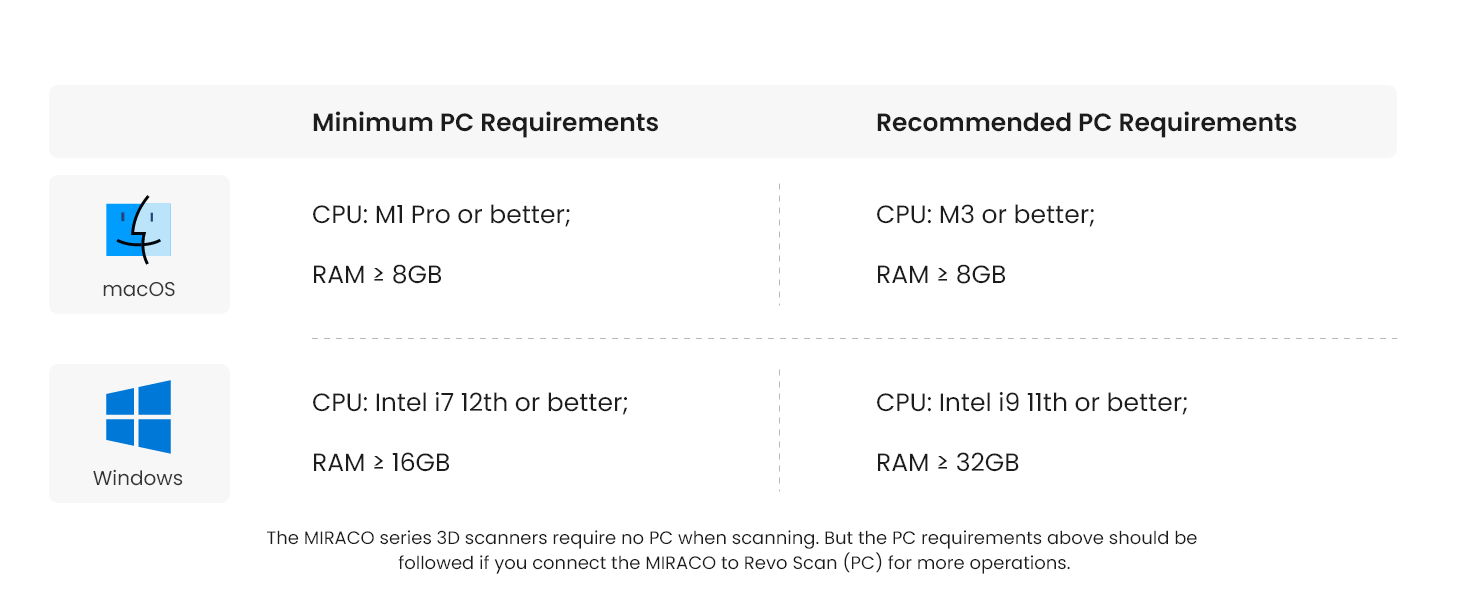
Image: Minimum and Recommended PC Requirements.
| ລະບົບປະຕິບັດການ | ຄວາມຕ້ອງການ PC ຕໍາ່ສຸດທີ່ | ຄວາມຕ້ອງການ PC ແນະນໍາ |
|---|---|---|
| macOS | CPU: M1 Pro or better; RAM ≥ 8GB | CPU: M3 or better; RAM ≥ 8GB |
| Windows | CPU: Intel i7 12th gen or better; RAM ≥ 16GB | CPU: Intel i9 11th gen or better; RAM ≥ 32GB |
Note: The MIRACO series 3D scanners do not require a PC for scanning. The PC requirements above apply if you connect the MIRACO to Revo Scan (PC) for additional operations.
7. ການຮັບປະກັນແລະການສະຫນັບສະຫນູນ
7.1 ການຮັບປະກັນຜະລິດຕະພັນ
The Revopoint MIRACO 3D Scanner comes with a two-year warranty. This warranty covers manufacturing defects and ensures a worry-free purchase. The MIRACO's battery also has a 2-year coverage.
7.2 ສະຫນັບສະຫນູນລູກຄ້າ
Revopoint offers 24/7 customer support. If you encounter any issues or have questions regarding your MIRACO scanner, please reach out to the customer service team for assistance. Contact information can be found on the official Revopoint webເວັບໄຊ ຫຼືໃນເອກະສານປະກອບກັບຜະລິດຕະພັນຂອງທ່ານ.


