1. ບົດແນະນຳ
This manual provides detailed instructions for the setup, operation, and maintenance of your POLONO PM220S Label Maker Machine. Please read this manual thoroughly before using the device to ensure proper function and longevity.
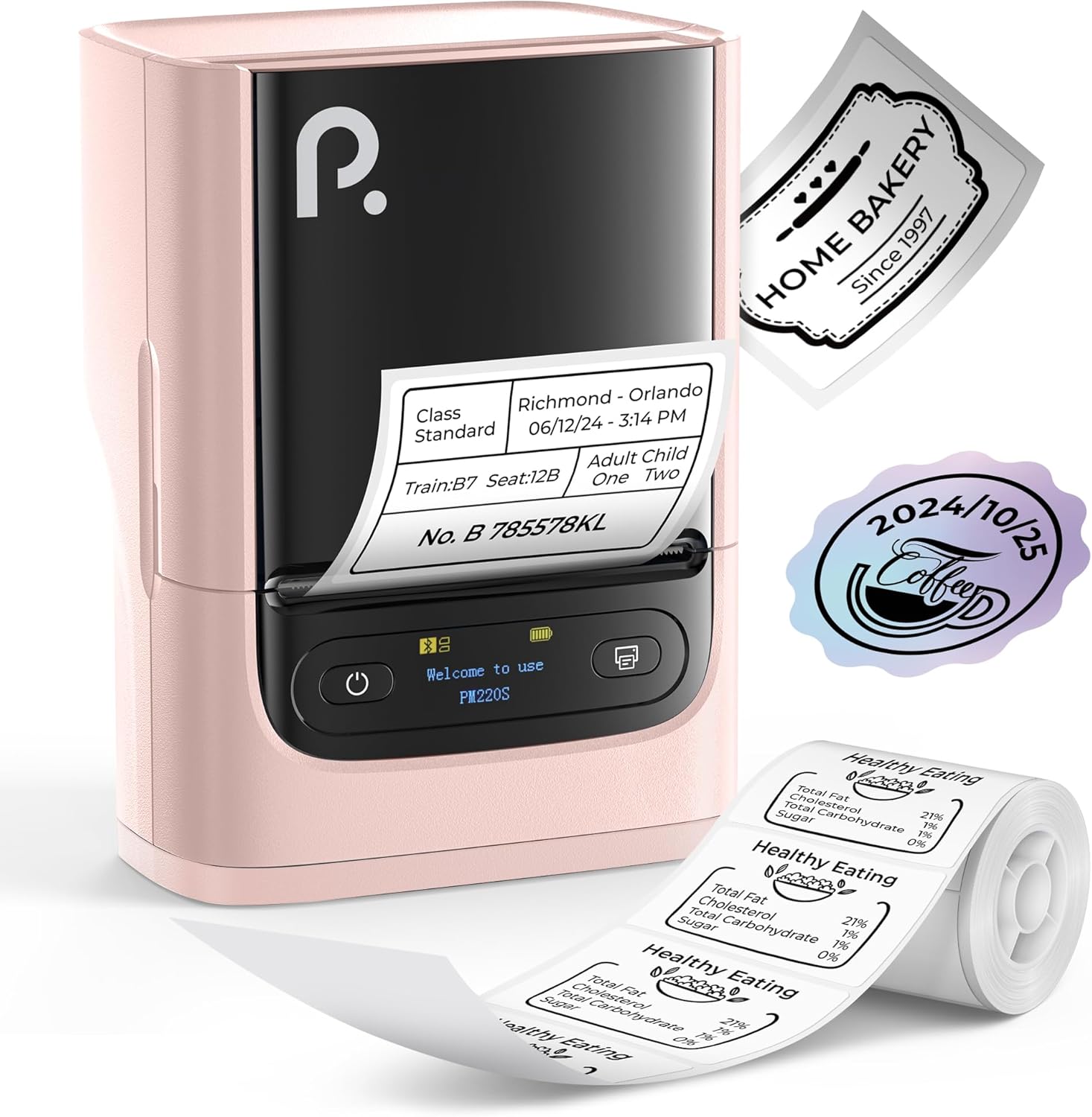
Figure 1: POLONO PM220S Label Maker Machine with sample ປ້າຍ.
2. ຜະລິດຕະພັນເກີນview
2.1 ອົງປະກອບລວມ
- POLONO PM220S Label Maker Machine
- Label Tape (50x30mm, pre-installed or included)
- ສາຍສາກ USB
- ຄູ່ມືຜູ້ໃຊ້ (ເອກະສານນີ້)
2.2 ລັກສະນະທີ່ສໍາຄັນ
- ການເຊື່ອມຕໍ່ Bluetooth: Seamless connection with iOS, Android, and PC devices.
- Intuitive LED Screen: Displays battery level, Bluetooth connection status, and alerts for paper shortages or timed shutdowns.
- Feature-Rich "Labelnize" App: Offers label templates, supports QR codes, barcodes, tables, text, icons, 90+ fonts, 14+ languages, and 450+ material presets.
- Premium Thermal Printing: BPA-Free Direct Thermal Technology with 203 DPI for high-definition, inkless printing.
- ຄວາມເຂົ້າກັນໄດ້ຂອງປ້າຍກຳກັບກວ້າງ: Supports label widths from 23-54mm (0.91"-2.12").
- ການອອກແບບແບບພົກພາ: Compact and lightweight for easy transport and use in various environments.
3. ຄໍາແນະນໍາການຕິດຕັ້ງ
3.1 ການສາກອຸປະກອນ
Before first use, fully charge the label maker using the provided USB cable. The LED screen will indicate charging status.
3.2 App Installation and Driver Download
For mobile devices (iOS/Android), download the "Labelnize" app from your respective app store. For PC users, visit polono.com ເພື່ອດາວໂຫລດໄດເວີແລະແອັບພລິເຄຊັນທີ່ຈໍາເປັນ.

Figure 2: Universal compatibility with smartphones and laptops for app and driver installation.
3.3 ການເຊື່ອມຕໍ່ຜ່ານ Bluetooth
- Ensure the PM220S is powered on.
- On your mobile device, open the "Labelnize" app.
- Within the app, search for and connect to the PM220S via Bluetooth. Do not connect directly via your device's Bluetooth settings for mobile devices.
- For PC, ensure the driver is installed, then connect through the downloaded application.
3.4 Loading Label Tape
- ເປີດຝາປິດຊ່ອງໃສ່ປ້າຍ.
- Insert the label roll with the printing surface facing upwards.
- Adjust the paper slot guides to secure the tape according to its width (23-54mm) for precise alignment.
- ປິດຝາປິດ.

Figure 3: Proper loading of label tape into the PM220S.
4. ຄໍາແນະນໍາການດໍາເນີນງານ
4.1 Using the "Labelnize" App
- Open the "Labelnize" app on your connected device.
- Select from various pre-designed templates or create your own custom labels.
- The app allows you to add text, barcodes, QR codes, tables, icons, and more.
- Customize labels using a selection of over 90 fonts and 14 languages.
- Utilize the 450+ material presets for different label applications.
- ສຳຄັນ: For optimal results, use specialized POLONO labels. Avoid tearing the green back sticker to prevent printing issues.
4.2 Understanding the LED Screen Display
The integrated LED screen provides real-time feedback on the printer's status:
- ລະດັບຫມໍ້ໄຟ: Indicates the current charge of the device.
- ການເຊື່ອມຕໍ່ບູທູດ: Shows if the device is successfully connected via Bluetooth.
- ເຈ້ຍ Shortage ເຕືອນ: Notifies when the label roll is low or empty.
- ການປິດເວລາ: Displays countdown for automatic power-off to conserve battery.

Figure 4: LED screen display functions for real-time status monitoring.
4.3 Printing a Label
- Design your label within the "Labelnize" app.
- Review the label preview to ensure accuracy.
- Tap the "Print" button in the app.
- The label maker will print the label using thermal technology.
- Carefully tear off the printed label.
5. ບໍາລຸງຮັກສາ
5.1 ການເບິ່ງແຍງທົ່ວໄປ
- ຮັກສາອຸປະກອນໃຫ້ສະອາດ ແລະບໍ່ມີຂີ້ຝຸ່ນ ແລະສິ່ງເສດເຫຼືອ.
- ຫຼີກເວັ້ນການເປີດເຜີຍອຸປະກອນກັບອຸນຫະພູມທີ່ຮຸນແຮງຫຼືແສງແດດໂດຍກົງ.
- ເກັບຮັກສາອຸປະກອນໄວ້ໃນບ່ອນແຫ້ງເມື່ອບໍ່ໄດ້ໃຊ້ງານ.
5.2 ການເຮັດຄວາມສະອາດຫົວພິມ
If print quality degrades, the thermal print head may need cleaning:
- Turn off the label maker and disconnect it from any power source.
- ເປີດຊ່ອງໃສ່ປ້າຍ.
- ເຊັດຫົວພິມຄວາມຮ້ອນດ້ວຍສຳລີຄ່ອຍໆ.ampປະກອບດ້ວຍເຫຼົ້າ isopropyl.
- ປ່ອຍໃຫ້ຫົວພິມແຫ້ງໝົດກ່ອນທີ່ຈະປິດຝາປິດ ແລະ ສືບຕໍ່ນຳໃຊ້.
6. ການແກ້ໄຂບັນຫາ
| ບັນຫາ | ສາເຫດທີ່ເປັນໄປໄດ້ | ການແກ້ໄຂ |
|---|---|---|
| ອຸປະກອນບໍ່ເປີດ | ບັນຫາແບັດເຕີຣີ ຫຼື ພະລັງງານຕໍ່າ. | Charge the device fully. Ensure the power button is pressed correctly. |
| ບໍ່ສາມາດເຊື່ອມຕໍ່ຜ່ານ Bluetooth ໄດ້ | Incorrect connection method or app issue. | Ensure you are connecting through the "Labelnize" app, not directly via phone settings. Restart both the device and the app. For PC, verify driver installation. |
| Poor print quality / Faint printing | Dirty print head, incorrect label type, or low battery. | Clean the print head (see Section 5.2). Ensure you are using thermal labels. Charge the device. |
| Labels are misaligned or jammed | Improper label loading or paper slot adjustment. | Open the cover, remove any jammed labels, and reload the tape ensuring the paper slot guides are adjusted correctly for the label width. Avoid tearing the green back sticker. |
| "Paper Shortage" alert | Label roll is empty or incorrectly loaded. | Replace the label roll or re-seat it correctly. |
7. ຂໍ້ມູນຈໍາເພາະ
| ຍີ່ຫໍ້ | POLONO |
| ຊື່ຕົວແບບ | PM220S |
| ເຕັກໂນໂລຊີການເຊື່ອມຕໍ່ | Bluetooth |
| ເຕັກໂນໂລຊີການພິມ | ຄວາມຮ້ອນ |
| ຄວາມລະອຽດການພິມສູງສຸດ | 203 DPI |
| ຄວາມໄວການພິມສູງສຸດ (ໂມໂນໂຄມ) | 45.0 ມມ/ວິນາທີ |
| ຂະ ໜາດ ສື່ທີ່ຮອງຮັບ | 23-54mm (0.91"-2.12") width, 50x30mm included |
| ຂະໜາດສິນຄ້າ | 3.3"D x 4.4"W x 2.5"H (8.4 x 11.2 x 6.4 cm) |
| ນ້ໍາຫນັກລາຍການ | 13.4 ອອນສ໌ (380g) |
| ຄຸນນະສົມບັດພິເສດ | Portable, Inkless Printing, LED Display |
8. ການຮັບປະກັນແລະການສະຫນັບສະຫນູນ
For warranty information, technical support, or to purchase accessories and replacement labels, please visit the official POLONO webສະຖານທີ່ຢູ່ polono.com or contact POLONO customer service directly.
ກະລຸນາຮັກສາຫຼັກຖານການຊື້ຂອງທ່ານສໍາລັບການຮຽກຮ້ອງການຮັບປະກັນ.