1. ບົດແນະນຳ
This manual provides essential information for the proper setup, operation, and maintenance of your NIMO 15.6 inch Laptop Computer. Please read this manual thoroughly before using your device to ensure optimal performance and longevity. Keep this manual for future reference.
2. ຜະລິດຕະພັນເກີນview
2.1. ອົງປະກອບຂອງແລັບທັອບ
The NIMO 15.6 inch Laptop features a Full HD display, a backlit keyboard, and an integrated fingerprint reader for secure access. It is powered by an AMD Ryzen 5 3500U processor and runs on Windows 11.

ຮູບ 2.1: ດ້ານຫນ້າ view of the NIMO 15.6 inch Laptop, showcasing ຈໍສະແດງຜົນແລະຮູບແບບແປ້ນພິມຂອງມັນ.
2.2. ພອດ ແລະຕົວເຊື່ອມຕໍ່
Your NIMO laptop is equipped with various ports for comprehensive connectivity, allowing you to connect peripherals and external devices.

Figure 2.2: Expanded Connectivity Options. This image illustrates the location and type of ports available on the laptop, including Type-C (Charge Only), USB 3.0, HDMI, Type-C (Full Function), Charge LED, Micro SD Reader, USB 2.0, USB 3.0, Headphone Combo, and Kensington Lock.
- Type-C (Charge Only): ສໍາລັບການປ້ອນພະລັງງານ.
- USB 3.0: ສໍາລັບການໂອນຂໍ້ມູນຄວາມໄວສູງ.
- HDMI: ສໍາລັບການເຊື່ອມຕໍ່ກັບຈໍສະແດງຜົນພາຍນອກ.
- Type-C (Full Function): Supports Power Delivery (PD), DisplayPort (DP), and data transfer.
- ສາກໄຟ LED: ຊີ້ບອກສະຖານະການສາກໄຟ.
- Micro SD Reader: ສຳລັບການອ່ານບັດ Micro SD.
- USB 2.0: ສໍາລັບອຸປະກອນ USB ມາດຕະຖານ.
- USB 3.0: ສໍາລັບການໂອນຂໍ້ມູນຄວາມໄວສູງ.
- Headphone Combo: ສຳລັບສຽງອອກ ແລະ ການປ້ອນຂໍ້ມູນໄມໂຄຣໂຟນ.
- ລັອກ Kensington: ສໍາລັບຄວາມປອດໄພທາງດ້ານຮ່າງກາຍ.
3. ຕັ້ງຄ່າ
3.1. ການສາກໄຟເບື້ອງຕົ້ນ
Before first use, connect the laptop to a power outlet using the provided 65W PD Type-C charger. The Charge LED indicator will illuminate. Allow the battery to charge fully.

Figure 3.1: Type-C 65W PD Charger. This image highlights the versatility of the 65W Power Delivery charger, capable of charging the laptop, tablets, and smartphones, reducing cable clutter.
3.2. ເປີດເຄື່ອງ
Open the laptop lid. Press the power button located on the keyboard deck. The laptop will boot up, and you will be guided through the Windows 11 initial setup process.
3.3. ການຕິດຕັ້ງ Windows 11
Follow the on-screen instructions to configure your Windows 11 operating system. This includes selecting your region, language, connecting to a Wi-Fi network, and setting up your user account.
4. ຄໍາແນະນໍາການດໍາເນີນງານ
4.1. ແປ້ນພິມ ແລະ ການປ້ອນຂໍ້ມູນ
The laptop features a backlit keyboard for comfortable typing in various lighting conditions, a responsive touchpad, and a numeric keypad for data entry.

Figure 4.1: Effortless Typing in Any Environment. This image demonstrates the backlit keyboard, touchpad, fingerprint reader, and numeric keypad, enhancing user experience and productivity.
- ແປ້ນພິມ Backlit: ກົດ Fn key and the appropriate function key (usually F3 or F4, indicated by a keyboard icon) to adjust the backlight brightness or turn it on/off.
- ແຜ່ນສໍາຜັດ: Use the touchpad for navigation. Supports multi-touch gestures for scrolling, zooming, and other functions.
- ປຸ່ມກົດຕົວເລກ: Provides dedicated number keys for efficient data entry.
4.2. ການຮັບຮູ້ລາຍນິ້ວມື
The integrated fingerprint reader allows for secure and quick login. Set up your fingerprint in Windows Settings under 'Sign-in options'.
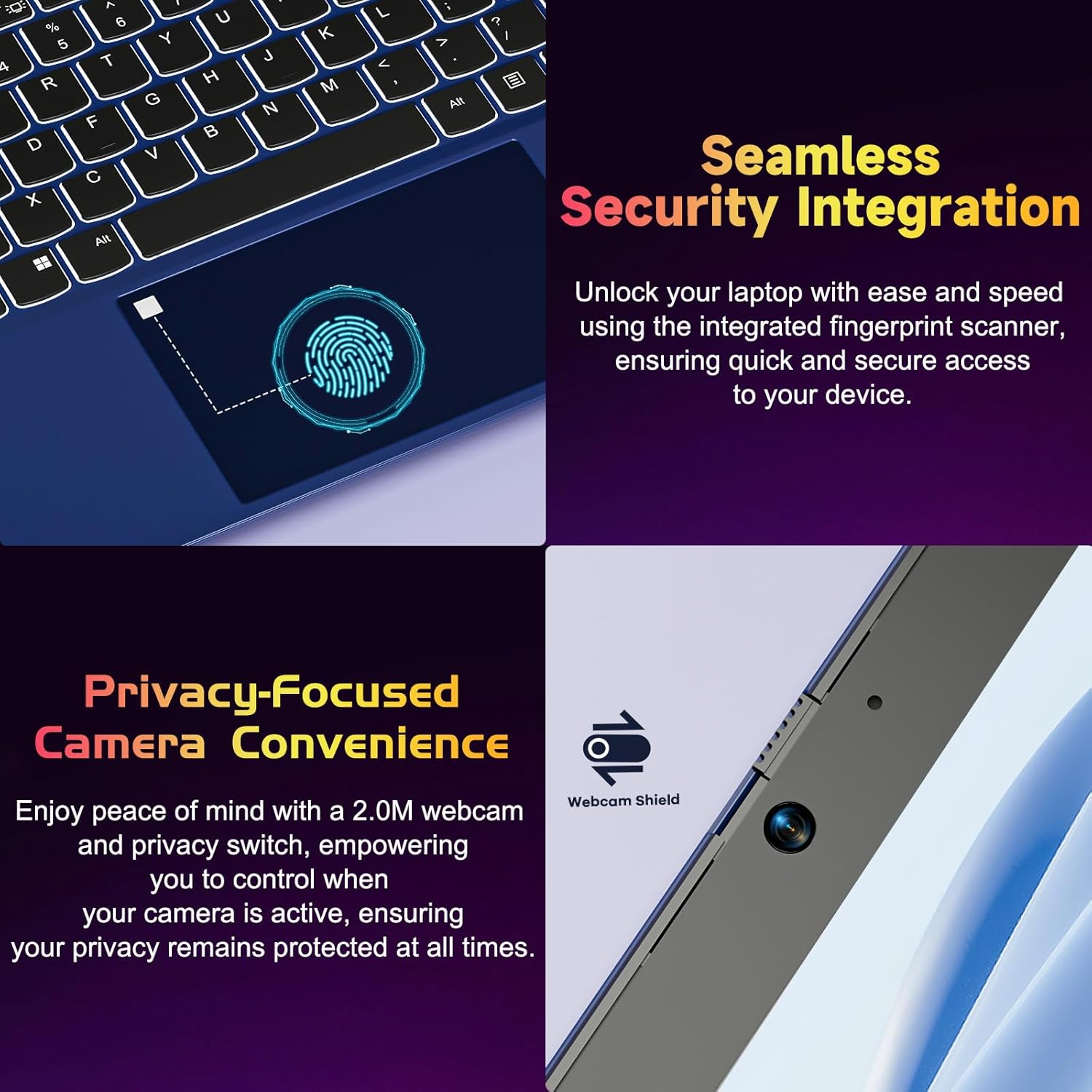
Figure 4.2: Seamless Security Integration and Privacy-Focused Camera. This image highlights the fingerprint scanner for quick and secure access, and the 2.0MP webcam with a physical privacy switch for enhanced user privacy.
4.3. ຄຸນສົມບັດການສະແດງ
The 15.6 inch Full HD (1920 x 1080 Pixel) IPS display offers vivid visuals and a wide viewing angle. The 180° lay-flat hinge allows for flexible screen positioning, ideal for sharing content.

Figure 4.3: Vivid Full HD Display. This image emphasizes the laptop's 15.6-inch Full HD (1920x1080) IPS display, offering bright visuals and eye protection.

Figure 4.4: 180° Lay-Flat Hinge. This image illustrates the laptop's ability to lay flat, expanding usage scenarios and facilitating content sharing.
4.4. Webcam Privacy
The laptop includes a 2.0MP webcam with a physical privacy switch (Webcam Shield). Slide the switch to cover the camera lens when not in use to ensure your privacy.
5. ບໍາລຸງຮັກສາ
- ທໍາຄວາມສະອາດ: ໃຊ້ຜ້າອ່ອນໆທີ່ບໍ່ມີຂົນເພື່ອທຳຄວາມສະອາດໜ້າຈໍ ແລະ ພາຍນອກ. ສຳລັບຮອຍທີ່ຝັງແໜ້ນ, ໃຫ້ເຊັດອອກເລັກນ້ອຍampໃສ່ຜ້າດ້ວຍນ້ໍາຫຼືເຄື່ອງເຮັດຄວາມສະອາດຫນ້າຈໍ. ຫຼີກເວັ້ນການສານເຄມີທີ່ຮຸນແຮງ.
- ການດູແລຫມໍ້ໄຟ: ເພື່ອຍືດອາຍຸການໃຊ້ງານຂອງແບັດເຕີຣີ, ໃຫ້ຫຼີກລ່ຽງການສາກແບັດເຕີຣີຈົນໝົດເລື້ອຍໆ. ເກັບຮັກສາຄອມພິວເຕີໂນດບຸກໄວ້ໃນບ່ອນທີ່ເຢັນແລະແຫ້ງຖ້າບໍ່ໄດ້ໃຊ້ເປັນເວລາດົນ.
- ອັບເດດຊອບແວ: ປັບປຸງລະບົບປະຕິບັດການ Windows ແລະໄດເວີຂອງທ່ານເປັນປະຈໍາເພື່ອຮັບປະກັນປະສິດທິພາບ ແລະຄວາມປອດໄພທີ່ດີທີ່ສຸດ.
- ການຂະຫຍາຍພື້ນທີ່ຈັດເກັບຂໍ້ມູນ: The laptop supports dual DDR4 SO-DIMM slots and M.2 NVMe SSD for memory and storage expansion. Consult a qualified technician for upgrades.
6. ການແກ້ໄຂບັນຫາ
6.1. ບັນຫາພະລັງງານ
- ແລັບທັອບບໍ່ເປີດ: Ensure the laptop is charged. Connect the charger and wait a few minutes before attempting to power on again.
- ແບັດເຕີຣີບໍ່ສາກໄຟ: Verify the charger is properly connected to both the laptop and the power outlet. Try a different outlet.
6.2. ສະແດງບັນຫາ
- ໜ້າ ຈໍຫວ່າງເປົ່າ: Check if the laptop is powered on. Try adjusting screen brightness using the function keys. If an external monitor is connected, ensure it is properly configured.
6.3. ບັນຫາການປະຕິບັດ
- ແລັບທັອບຊ້າ: Close unnecessary applications. Check for background processes consuming high resources. Ensure sufficient free storage space. Consider performing a system scan for malware.
6.4. ບັນຫາການເຊື່ອມຕໍ່
- Wi-Fi ບໍ່ເຊື່ອມຕໍ່: ໃຫ້ແນ່ໃຈວ່າ Wi-Fi ຖືກເປີດໃຊ້ງານແລ້ວ. ປິດເປີດເຣົາເຕີ ແລະ ແລັບທັອບຂອງທ່ານຄືນໃໝ່. ກວດສອບການຕັ້ງຄ່າເຄືອຂ່າຍໃນ Windows.
7. ຂໍ້ມູນຈໍາເພາະ
| ຄຸນສົມບັດ | ລາຍລະອຽດ |
|---|---|
| ຍີ່ຫໍ້ | ນິໂມ |
| ຊື່ຕົວແບບ | NIMO N152R |
| ຂະໜາດໜ້າຈໍ | 15.6 ນິ້ວ |
| ຄວາມລະອຽດໜ້າຈໍ | 1920 x 1080 ພິກເຊລ (Full HD) |
| ໂຮງງານຜະລິດ | AMD Ryzen 5 3500U (3.7 GHz, 4 ຄໍ, 8 ເທຣດ) |
| RAM | 8 GB DDR4 (Upgradable) |
| ຄວາມໄວຄວາມຈໍາ | 3200 MHz |
| ຮາດດິດ | 256 GB SSD (Upgradable M.2 NVMe) |
| Graphics Coprocessor | AMD Integrated graphics (Vega) |
| ລະບົບປະຕິບັດການ | Windows 11 |
| ປະເພດໄຮ້ສາຍ | 802.11abg |
| ພອດ USB | 1x USB 2.0, 2x USB 3.0, 2x USB-C (1x Charge Only, 1x Full Function) |
| ພອດ HDMI | ແມ່ນແລ້ວ |
| ຕົວອ່ານ Micro SD | ແມ່ນແລ້ວ |
| ອາຍຸຫມໍ້ໄຟສະເລ່ຍ | 5 ຊົ່ວໂມງ |
| ນ້ໍາຫນັກລາຍການ | 3.8 ປອນ (1.72 ກິໂລ) |
| ຂະໜາດສິນຄ້າ | 14.07 x 8.98 x 0.76 ນິ້ວ |
| ສີ | ດອກກຸຫຼາບ |
| ຫລັງ Webຄວາມລະອຽດກ້ອງ | 2 MP |
8. ການຮັບປະກັນແລະການສະຫນັບສະຫນູນ
Your NIMO laptop comes with a 2-year warranty, covering manufacturing defects and hardware malfunctions under normal use. Additionally, a 90-day free return policy is provided.

Figure 8.1: After-Sales Support. This image outlines the 2-year warranty, 90-day return policy, and professional customer service available for NIMO products.
8.1. ຕິດຕໍ່ສະຫນັບສະຫນູນ
For technical assistance, warranty claims, or product-related questions, please contact the NIMO U.S.-based support team. Contact information can typically be found on the official NIMO webສະຖານທີ່ຫຼືການຫຸ້ມຫໍ່ຜະລິດຕະພັນ.
9. ຂໍ້ມູນຄວາມປອດໄພ
ເພື່ອປ້ອງກັນການບາດເຈັບ ຫຼື ຄວາມເສຍຫາຍຕໍ່ອຸປະກອນຂອງທ່ານ, ໃຫ້ປະຕິບັດຕາມຂໍ້ຄວນລະວັງດ້ານຄວາມປອດໄພຕໍ່ໄປນີ້:
- ຫ້າມເປີດຄອມພິວເຕີກັບອຸນຫະພູມທີ່ຮ້າຍແຮງ, ແສງແດດໂດຍກົງ, ຫຼືຄວາມຊຸ່ມຊື່ນສູງ.
- ຫຼີກເວັ້ນການວາງວັດຖຸໜັກໃສ່ແລັບທັອບ.
- Use only the provided charger or a compatible 65W PD Type-C charger.
- ຢ່າພະຍາຍາມຖອດປະກອບ ຫຼືສ້ອມແປງແລັບທັອບເອງ. ອ້າງອີງເຖິງພະນັກງານບໍລິການທີ່ມີຄຸນວຸດທິ.
- ຮັກສາຂອງແຫຼວອອກຈາກຄອມພິວເຕີໂນດບຸກເພື່ອປ້ອງກັນການຊ໊ອກໄຟຟ້າ ຫຼືຄວາມເສຍຫາຍ.
- Ensure proper ventilation when using the laptop to prevent overheating.


