1. ບົດແນະນຳ
This manual provides essential information for the NIMO 17.3-inch FHD Gaming Laptop, Model N177. It covers the initial setup, operational guidelines, maintenance procedures, troubleshooting tips, and detailed product specifications. Please read this manual thoroughly to ensure proper use and to maximize the lifespan of your laptop.
ເນື້ອໃນຊຸດ
Upon unpacking your NIMO N177 Laptop, please verify that all items listed below are present:
- 1 x ຄອມພິວເຕີໂນດບຸກ NIMO N177
- 1 x ເຄື່ອງສາກໄຟໄວ Type-C 100W PD
- 1 x ຄູ່ມືຜູ້ໃຊ້ (ເອກະສານນີ້)
- Windows 11 Home (ຕິດຕັ້ງໄວ້ລ່ວງໜ້າ)
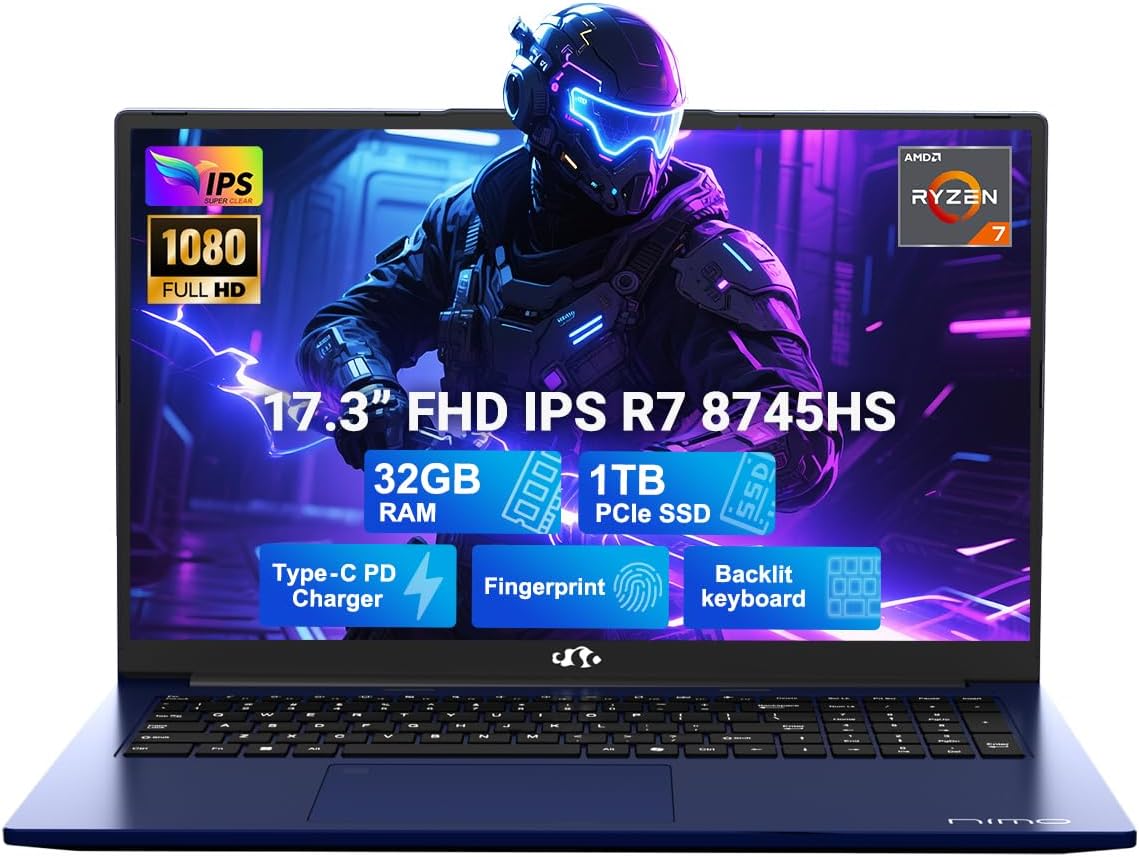
Image 1.1: The NIMO 17.3-inch FHD Gaming Laptop N177, showcasing its 17.3-inch display, 32GB RAM, 1TB SSD, Type-C PD Charger, Fingerprint sensor, and Backlit Keyboard features.
2. ຄຸນລັກສະນະຂອງຜະລິດຕະພັນ
The NIMO N177 Laptop is designed for performance and user convenience, incorporating several key features:
- ໜ່ວຍປະມວນຜົນ: Equipped with an AMD Ryzen 7 8745HS processor, featuring 8 cores and 16 threads, capable of turbo speeds up to 4.9GHz for efficient handling of demanding tasks.
- ຮູບພາບ: Integrated AMD Radeon 780M Graphics provide capable visual performance for gaming and content creation.
- ຫນ່ວຍຄວາມຈໍາແລະການເກັບຮັກສາ: Features 32GB DDR5 RAM and a 1TB PCIe 4.0 SSD for fast data access and multitasking. The design allows for memory and storage upgrades.
- ຈໍສະແດງຜົນ: A 17.3-inch Full HD (1920x1080) IPS anti-glare display offers clear visuals with an 85% screen-to-body ratio.
- ການສາກໄຟ: Includes a 100W USB-C Power Delivery (PD) fast charger, providing rapid charging capabilities.
- ຄວາມປອດໄພແລະຄວາມສະດວກ: Integrated fingerprint sensor for secure login and a backlit keyboard for comfortable typing in various lighting conditions.
- ການເຊື່ອມຕໍ່: Multiple ports including USB 2.0, USB 3.0, USB 4.0 Type-C, HDMI, headphone jack, SD card reader, and Kensington Lock slot.
ລັກສະນະລະອຽດຫຼາຍກວ່າview

Image 2.1: Close-up of the AMD Ryzen 7 8745HS processor, highlighting its 8 cores, 16 threads, 780M iGPU Radeon, and 4.9GHz Precision Boost capabilities.
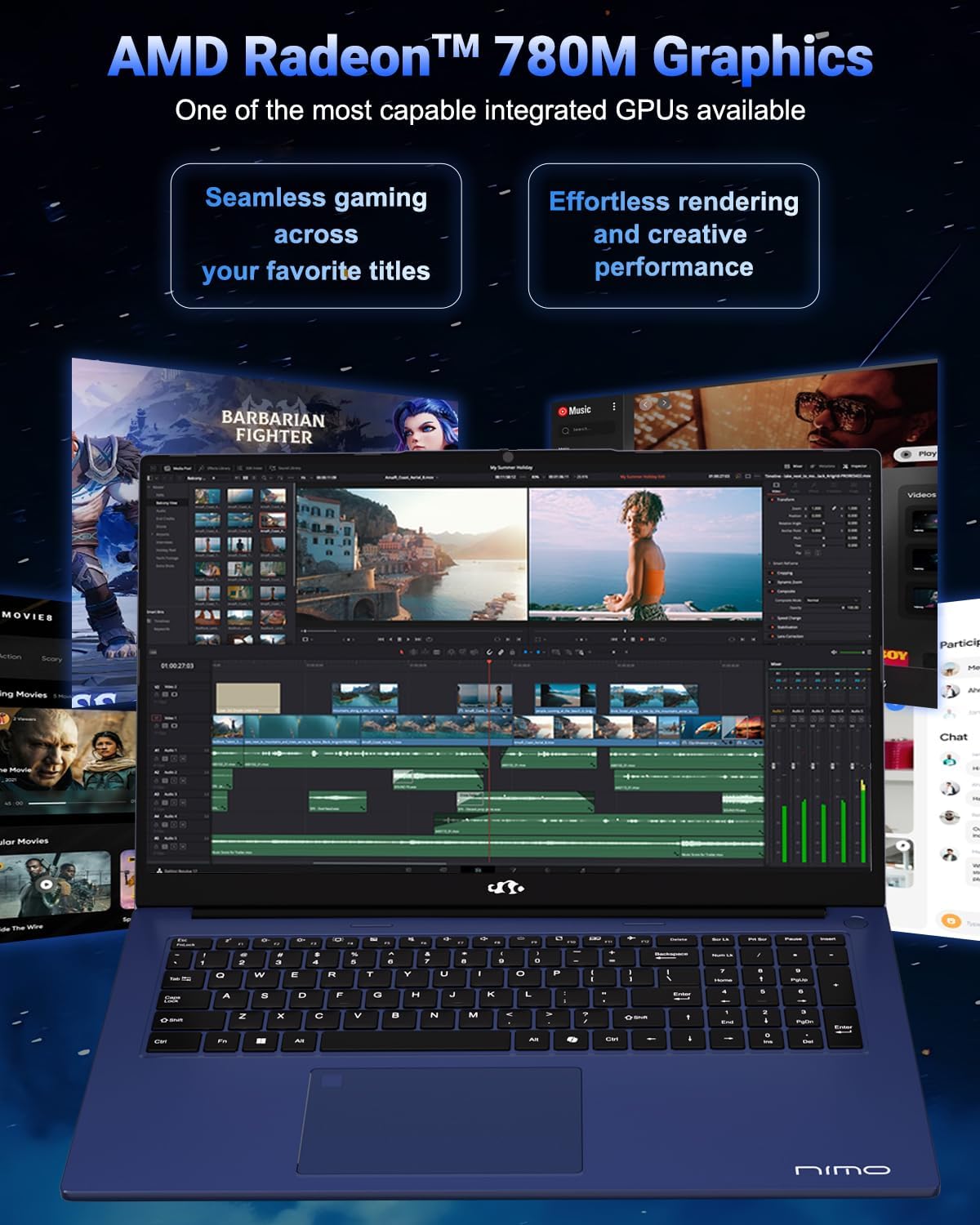
Image 2.2: Visual representation of the AMD Radeon 780M Graphics, illustrating its capacity for seamless gaming and efficient rendering for creative tasks.
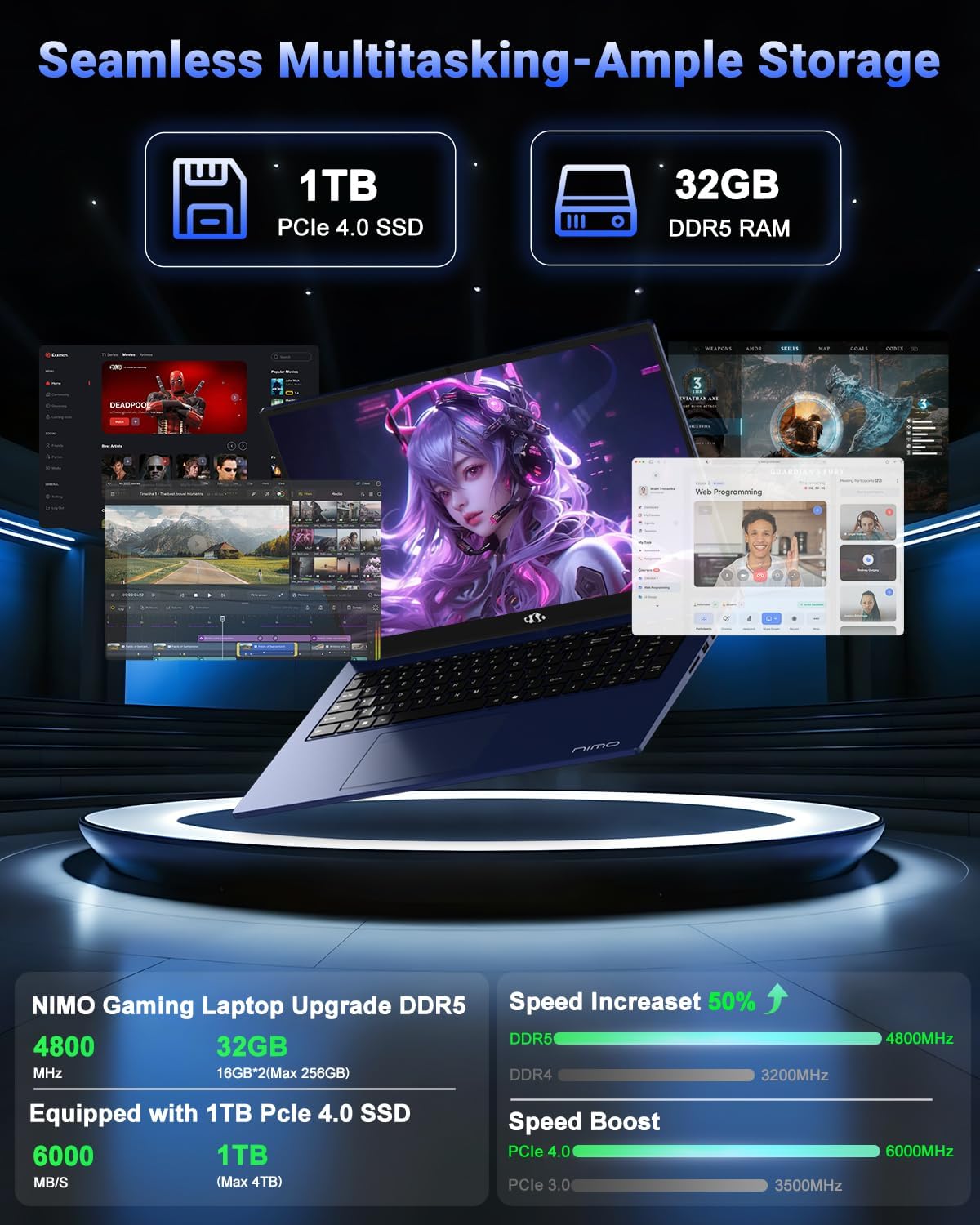
Image 2.3: Depiction of the laptop's 32GB DDR5 RAM and 1TB PCIe 4.0 SSD, emphasizing seamless multitasking and ample storage for various applications and files.

Image 2.4: Illustration of the 100W USB-C fast charger connected to the laptop, highlighting the 75Wh smart battery and its charging efficiency.
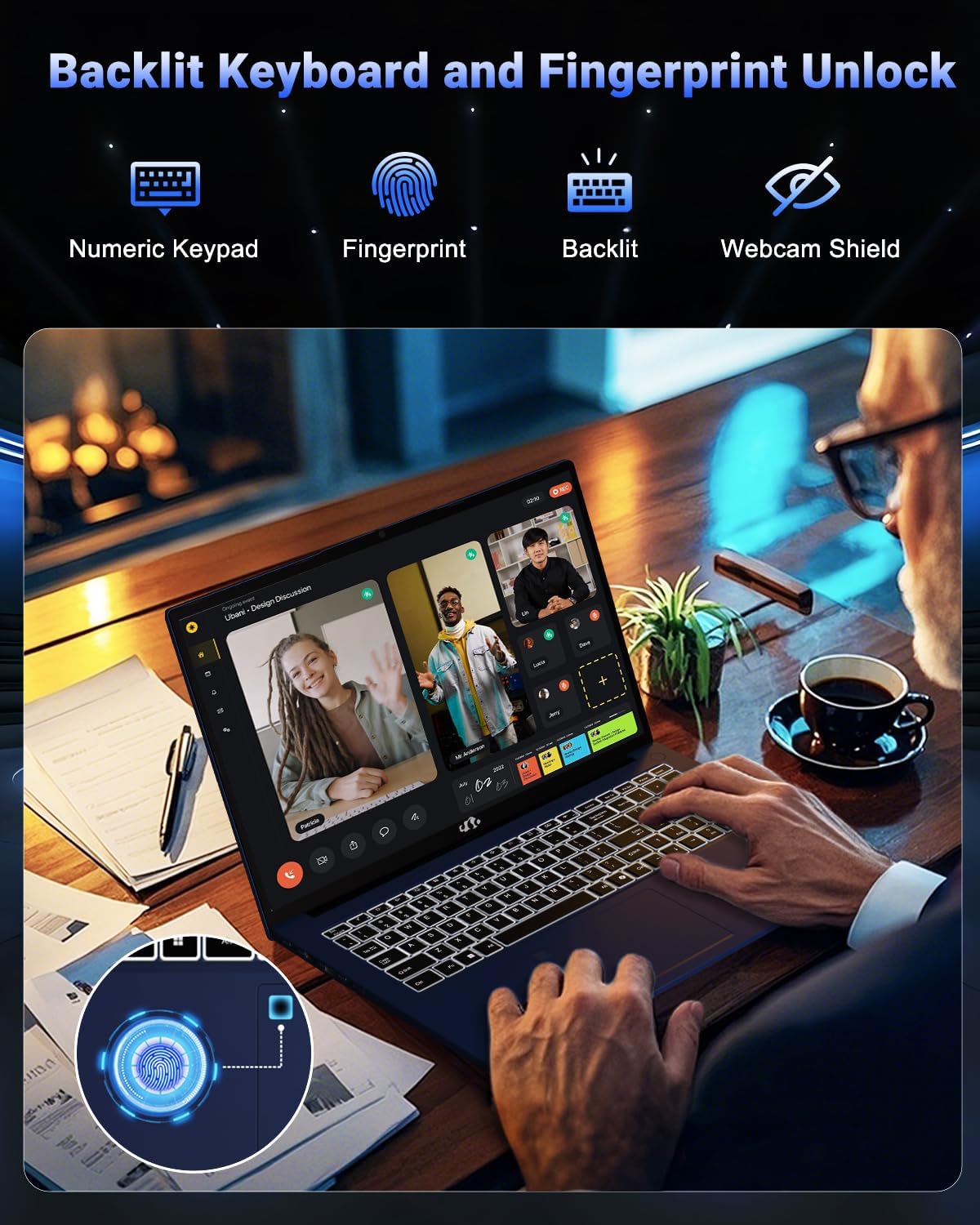
Image 2.5: The backlit keyboard and fingerprint unlock feature, showing the numeric keypad, fingerprint sensor, and webcam shield for enhanced usability and security.
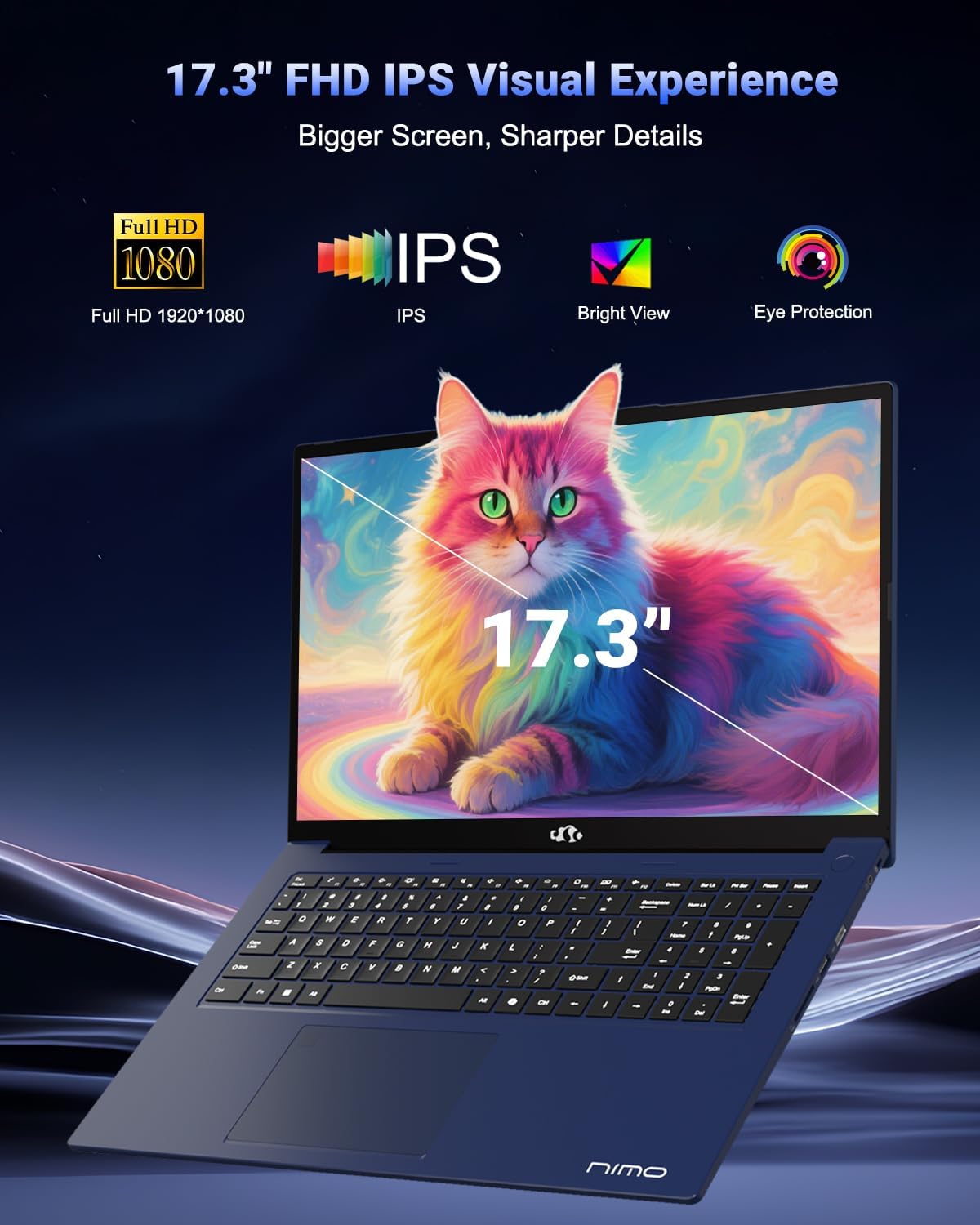
Image 2.6: The 17.3-inch FHD IPS display, emphasizing its larger screen size, sharper details, and eye protection features for an immersive visual experience.
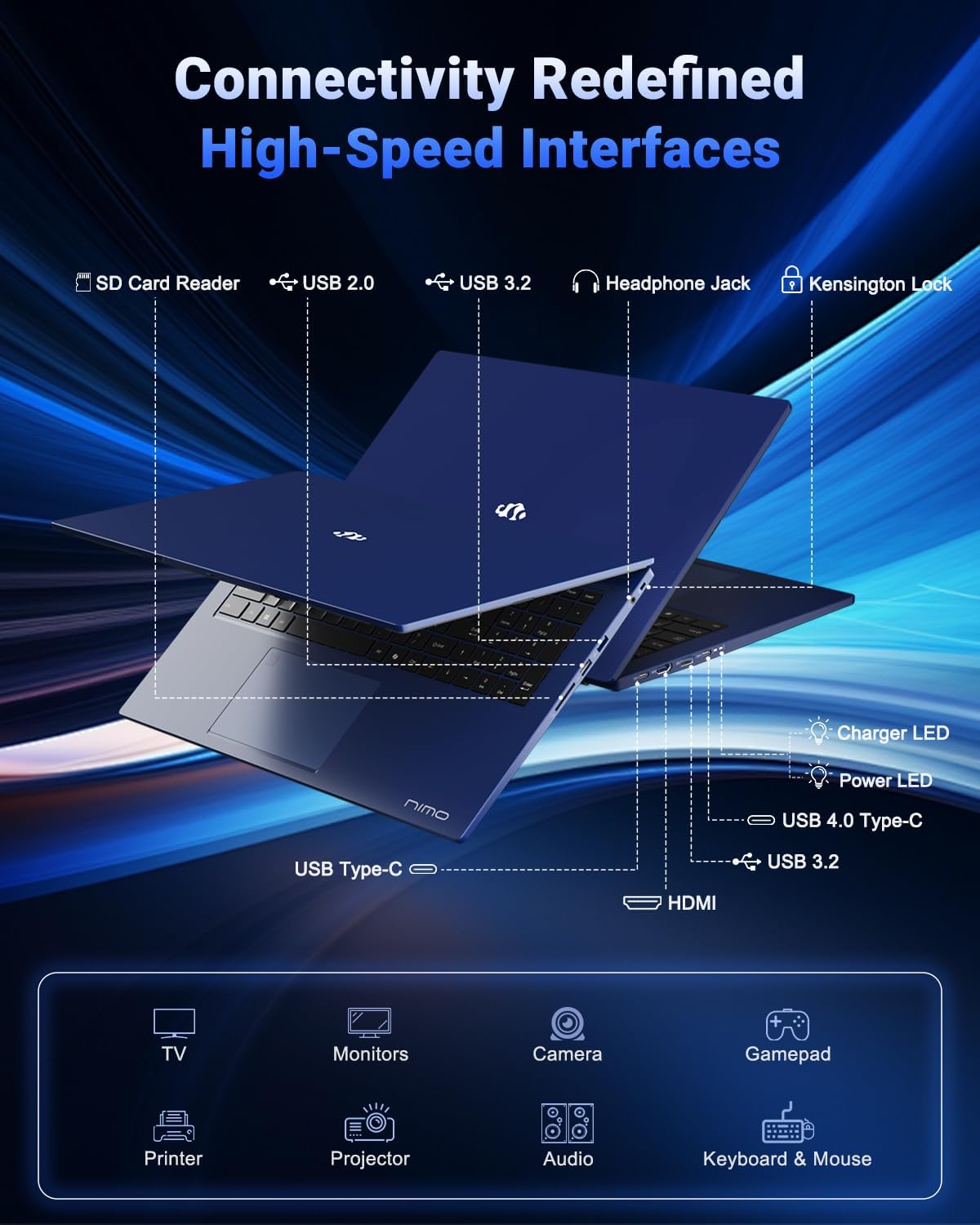
Image 2.7: Diagram illustrating the various high-speed interfaces and connectivity ports available on the NIMO N177 Laptop, including USB, HDMI, and Type-C ports.
3. ຕັ້ງຄ່າ
3.1 ການສາກໄຟເບື້ອງຕົ້ນ
Before first use, it is recommended to fully charge your NIMO N177 Laptop. Connect the provided 100W Type-C PD Fast Charger to the laptop's USB-C port and then to a power outlet. The charging indicator light will illuminate. A full charge typically takes approximately 45 minutes, providing several hours of usage.
3.2 ເປີດເຄື່ອງທຳອິດ
Open the laptop lid. Press the power button, usually located on the top right of the keyboard or side. The laptop will boot up, and you will be guided through the initial Windows 11 setup process. Follow the on-screen instructions to configure your language, region, network, and user account.
3.3 ການເຊື່ອມຕໍ່ເຄືອຂ່າຍ
During the Windows 11 setup, you will be prompted to connect to a Wi-Fi network. Select your preferred network and enter the password. For a wired connection, connect an Ethernet cable (if an adapter is used, as the laptop does not have a built-in Ethernet port) to a USB port.
4. ການປະຕິບັດ Laptop ຂອງທ່ານ
4.1 ແປ້ນພິມ ແລະ ແຜ່ນສໍາຜັດ
The laptop features a full-size keyboard with a numeric keypad and backlighting. To adjust the keyboard backlight, use the dedicated function keys (refer to the keyboard layout for specific key combinations, often Fn + Fx). The precision gesture touchpad supports multi-touch gestures for navigation.
4.2 ນີ້ວມືນີ້ວມື
The integrated fingerprint sensor allows for quick and secure login. During Windows 11 setup or via Windows Settings > Accounts > Sign-in options, you can set up Windows Hello Fingerprint recognition. Follow the prompts to register your fingerprints.
4.3 ການເຊື່ອມຕໍ່ອຸປະກອນພາຍນອກ
Utilize the available ports to connect peripherals:
- ພອດ USB: ເຊື່ອມຕໍ່ໄດຣຟ໌ USB, ແປ້ນພິມພາຍນອກ, ເມົ້າສ໌ ຫຼື ອຸປະກອນ USB ອື່ນໆ.
- USB-C 4.0 ພອດ: Supports data transfer, power delivery, and display output. This port can be used with compatible docking stations or external GPUs (eGPU dock not included).
- HDMI Port: ເຊື່ອມຕໍ່ກັບຈໍສະແດງຜົນພາຍນອກຫຼືໂທລະພາບສໍາລັບການຂະຫຍາຍຈໍສະແດງຜົນ.
- ຫູຟັງ Jack: ເຊື່ອມຕໍ່ຫູຟັງຫລື ລຳ ໂພງພາຍນອກ.
- SD Card Reader: ໃສ່ແຜ່ນ SD ສໍາລັບການໂອນຂໍ້ມູນ.
4.4 ການຕັ້ງຄ່າການສະແດງ
To adjust display settings such as resolution, brightness, or to configure multiple monitors, right-click on the desktop and select 'Display settings' or navigate through Windows Settings > System > Display.
5. ບໍາລຸງຮັກສາ
5.1 ການເຮັດຄວາມສະອາດແລັບທັອບ
To clean the laptop, power it off and disconnect the charger. Use a soft, lint-free cloth slightly dampເຊັດດ້ວຍນໍ້າ ຫຼື ນໍ້າຢາເຊັດໜ້າຈໍສຳລັບໜ້າຈໍ. ສຳລັບແປ້ນພິມ ແລະ ຕົວເຄື່ອງ, ໃຫ້ໃຊ້ຜ້າແຫ້ງ ຫຼື ເຊັດໃຫ້ແຫ້ງເລັກນ້ອຍamp ຜ້າ. ຫຼີກເວັ້ນການສານເຄມີທີ່ຮຸນແຮງຫຼືວັດສະດຸຂັດ.
5.2 ການດູແລຫມໍ້ໄຟ
ເພື່ອຍືດອາຍຸແບັດເຕີຣີ:
- ຫຼີກເວັ້ນອຸນຫະພູມທີ່ຮຸນແຮງ.
- ຢ່າປະຖິ້ມຫມໍ້ໄຟເຕັມທີ່ເລື້ອຍໆ.
- ຖ້າເກັບຮັກສາແລັບທັອບເປັນເວລາດົນ, ໃຫ້ແນ່ໃຈວ່າແບດເຕີລີ່ຖືກຄິດຄ່າປະມານ 50-70%.
5.3 ການເກັບຮັກສາແລະການຍົກລະດັບຄວາມຈໍາ
The NIMO N177 Laptop features an upgradeable design for both RAM and SSD. If you intend to upgrade, it is recommended to consult a professional or refer to specific upgrade guides to avoid damaging components and potentially voiding your warranty.
6. ການແກ້ໄຂບັນຫາ
This section addresses common issues you might encounter with your NIMO N177 Laptop.
| ສະບັບ | ການແກ້ໄຂທີ່ເປັນໄປໄດ້ |
|---|---|
| ແລັບທັອບບໍ່ເປີດ. | Ensure the charger is securely connected and the power outlet is functional. Allow the laptop to charge for at least 30 minutes before attempting to power on again. |
| ຈໍສະແດງຜົນຫວ່າງເປົ່າ ຫຼື flickering. | Check display cable connections if using an external monitor. Try adjusting screen brightness. Restart the laptop. Update graphics drivers. |
| ຊີວິດຫມໍ້ໄຟແມ່ນສັ້ນກວ່າທີ່ຄາດໄວ້. | Adjust power settings in Windows to a more power-efficient mode. Close unnecessary applications running in the background. Reduce screen brightness. |
| ບັນຫາການເຊື່ອມຕໍ່ Wi-Fi. | Restart your router and the laptop. Ensure Wi-Fi is enabled in Windows settings. Update network drivers. |
| ເຊັນເຊີລາຍນິ້ວມືບໍ່ເຮັດວຽກ. | Ensure your finger is clean and dry. Re-register your fingerprint in Windows Hello settings. |
If you encounter issues not listed here or if the suggested solutions do not resolve the problem, please contact NIMO customer support for further assistance.
7. ຂໍ້ມູນຈໍາເພາະ
The following table outlines the technical specifications for the NIMO 17.3-inch FHD Gaming Laptop N177:
| ຄຸນສົມບັດ | ຂໍ້ມູນຈໍາເພາະ |
|---|---|
| ຍີ່ຫໍ້ | ນິໂມ |
| ຊື່ຕົວແບບ | NIMO N177B |
| ຂະຫນາດຈໍສະແດງຜົນຢືນ | 17.3 ນິ້ວ |
| ຄວາມລະອຽດໜ້າຈໍສູງສຸດ | 1920x1080 ພິກເຊລ (FHD) |
| ໂຮງງານຜະລິດ | AMD Ryzen 7 8745HS (ສູງສຸດ 4.9 GHz) |
| RAM | 32 GB DDR5 (4800 MHz) |
| ຮາດດິດ | 1024 GB SSD (PCIe 4.0) |
| Graphics Coprocessor | AMD Radeon 780M (ປະສົມປະສານ) |
| ລະບົບປະຕິບັດການ | ໜ້າຫຼັກ Windows 11 |
| ປະເພດໄຮ້ສາຍ | 802.11a/b/g/n/ac |
| ພອດ USB 2.0 | 1 |
| ພອດ USB 3.0 | 3 |
| ພອດ USB 4.0 Type-C | 1 (with PD and DisplayPort support) |
| ພອດ HDMI | 1 |
| ອາຍຸຫມໍ້ໄຟສະເລ່ຍ | 6 ຊົ່ວໂມງ (ແບັດເຕີຣີ 75Wh) |
| ນ້ໍາຫນັກລາຍການ | 3.84 ປອນ |
| ຂະໜາດສິນຄ້າ (LxWxH) | 15.66 x 9.99 x 0.74 ນິ້ວ |
| ຄຸນນະສົມບັດພິເສດ | ແປ້ນພິມ Backlit, ເຄື່ອງອ່ານລາຍນິ້ວມື, ສຽງ HD, ປຸ່ມກົດຕົວເລກ |
8. ການຮັບປະກັນແລະການສະຫນັບສະຫນູນ
8.1 ຂໍ້ມູນການຮັບປະກັນ
Your NIMO N177 Laptop is covered by a ຮັບປະກັນ 2 ປີ provided by NIMO Direct Inc. This warranty covers manufacturing defects and ensures support for your product.
8.2 ນະໂຍບາຍການກັບຄືນ
NIMO offers a ນະໂຍບາຍການກັບຄືນ 90 ມື້ from the date of purchase. Please refer to the terms and conditions of your purchase for detailed return instructions.
8.3 ສະຫນັບສະຫນູນລູກຄ້າ
For any technical assistance, warranty claims, or product-related inquiries, please contact NIMO's dedicated support team. Contact information can typically be found on the official NIMO website or through your purchase platform. Our support team is available to provide solutions and ensure a satisfactory experience.


