ແນະນຳ
This manual provides instructions for the setup, operation, and maintenance of your HyperX Cloud Alpha 2 Wireless Gaming Headset. Please read this manual thoroughly before using the product to ensure proper functionality and to maximize your user experience.

Image: HyperX Cloud Alpha 2 Wireless Gaming Headset with its RGB Base Station, showcasing ຊຸດຜະລິດຕະພັນທີ່ສົມບູນ.
ແມ່ນຫຍັງຢູ່ໃນກ່ອງ
- ຫູຟັງໄຮ້ສາຍເກມ
- ສະຖານີຖານ
- ໄມໂຄຣໂຟນທີ່ຖອດອອກໄດ້
- ສາຍ USB-C ຫາ USB-C
- ອະແດັບເຕີ USB-C ຫາ USB-A
- 3.5 mm Headset Audio Cable
- ຄູ່ມືເລີ່ມຕົ້ນດ່ວນ
ຕັ້ງຄ່າ
1. ການສາກຫູຟັງ
Before initial use, fully charge the headset. Connect the headset to a power source using the provided USB-C to USB-C cable or USB-C to USB-A adapter. A full charge can provide up to 250 hours of battery life in 2.4GHz mode or 125 hours with simultaneous connection.

Image: A visual representation highlighting the headset's battery life capability of up to 250 hours on a single charge.
2. ການເຊື່ອມຕໍ່ສະຖານີຖານ
Connect the RGB Base Station to your PC or console using the appropriate USB cable. The base station acts as a central hub for audio control and connectivity.

Image: A hand interacting with the RGB Base Station, demonstrating its function as an audio control hub.
3. Software Installation (HyperX NGENUITY)
For full customization and optimal performance, download and install the HyperX NGENUITY software from the official HyperX website. This software allows for equalization adjustments, audio controls, and lighting customization for the RGB Base Station.
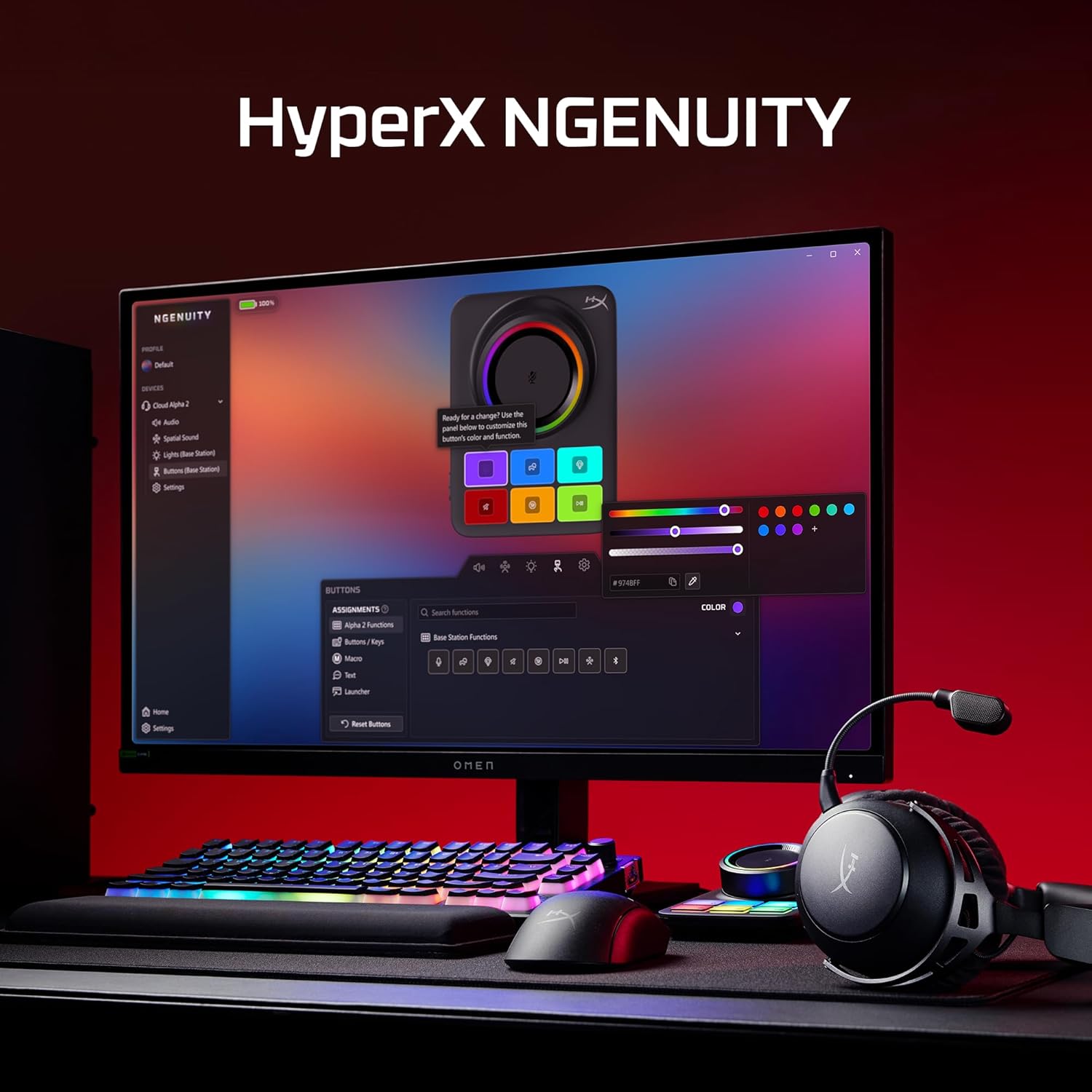
Image: A computer screen displaying the HyperX NGENUITY software, illustrating its interface for customizing headset and base station settings.
4. ການຕິດໄມໂຄຣໂຟນ
Insert the detachable boom microphone into the designated port on the headset. Ensure it is securely connected for clear voice communication.

ຮູບພາບ: A ລາຍລະອຽດ view of the detachable 10mm boom microphone, highlighting its position on the headset.
ຄໍາແນະນໍາການດໍາເນີນງານ
ໂໝດການເຊື່ອມຕໍ່
- 2.4GHz Wireless: Connects to PC, PS5, PS4, Nintendo Switch, Mac via the Base Station for low-latency audio.
- Bluetooth: Connects to mobile devices for audio and calls.
- ການເຊື່ອມຕໍ່ພ້ອມໆກັນ: The headset supports simultaneous 2.4GHz and Bluetooth connections, allowing you to listen to audio from two sources concurrently.
- 3.5mm ສາຍ: Use the included 3.5mm headset audio cable for wired connection to devices like Xbox.

Image: A user demonstrating the headset's ability to maintain simultaneous 2.4GHz and Bluetooth connections.

Image: Icons illustrating the headset's compatibility across multiple platforms including PC, PlayStation, Nintendo Switch, Mac, mobile devices, and Xbox via 3.5mm connection.
ການຄວບຄຸມຊຸດຫູຟັງ
- Volume Wheel: ປັບລະດັບສຽງອອກ.
- ປິດສຽງ: Toggles microphone mute. An LED indicator on the boom mic shows mute status.
- ປຸ່ມ Multifunction: Controls media playback and call management.
- ສະຫຼັບໂໝດໄຮ້ສາຍ: Selects between 2.4GHz and Bluetooth modes.

ຮູບພາບ: A ລາຍລະອຽດ view of the headset's onboard controls, including the volume wheel, mute button, multifunction button, and wireless mode switch.
ຄຸນສົມບັດສຽງ
The headset features 53mm dual-chamber drivers designed to provide clear audio with distinct bass and treble frequencies. Spatial audio can be enabled and customized through the HyperX NGENUITY software for an immersive sound experience.

Image: A visual representation of the headset's 53mm dual-chamber drivers in action, emphasizing sound clarity.
ບໍາລຸງຮັກສາ
ທໍາຄວາມສະອາດ
- Use a soft, dry cloth to clean the headset and base station.
- ສຳລັບແຜ່ນຮອງຫູ, ເຊັດຄ່ອຍໆດ້ວຍຜ້າເຊັດຫູເລັກນ້ອຍamp ຖ້າຈໍາເປັນ, ແລະປ່ອຍໃຫ້ອາກາດແຫ້ງຫມົດກ່ອນການນໍາໃຊ້.
- ຫຼີກເວັ້ນການນໍາໃຊ້ສານເຄມີທີ່ຮຸນແຮງຫຼືວັດສະດຸຂັດ.
ການເກັບຮັກສາ
Store the headset in a cool, dry place away from direct sunlight and extreme temperatures. When not in use, the headset's 90° rotating earcups allow for flat storage.

Image: The headset positioned to highlight its comfortable design and flexible earcups, suitable for storage.
ການດູແລຫມໍ້ໄຟ
ເພື່ອຍືດອາຍຸການໃຊ້ງານຂອງແບັດເຕີຣີ, ໃຫ້ຫຼີກລ່ຽງການສາກໄຟຫູຟັງຈົນໝົດເລື້ອຍໆ. ໃຫ້ສາກຫູຟັງເປັນປະຈຳ, ເຖິງແມ່ນວ່າຈະບໍ່ໄດ້ໃຊ້ຢູ່ຕະຫຼອດເວລາກໍຕາມ.
ການແກ້ໄຂບັນຫາ
ບໍ່ມີສຽງ / ລະດັບສຽງຕ່ຳ
- Ensure the headset is powered on and connected to the correct source (2.4GHz, Bluetooth, or 3.5mm).
- Check the volume wheel on the headset and the system volume on your device.
- ກວດສອບວ່າໄດ້ເລືອກອຸປະກອນສົ່ງສຽງທີ່ຖືກຕ້ອງໃນການຕັ້ງຄ່າສຽງຂອງລະບົບປະຕິບັດການຂອງທ່ານແລ້ວ.
- For 2.4GHz connection, ensure the Base Station is properly connected and recognized by your system.
ໄມໂຄຣໂຟນບໍ່ເຮັດວຽກ
- Ensure the detachable boom microphone is securely inserted into the headset.
- Check if the microphone mute button on the headset is disengaged (LED indicator off).
- ກວດສອບວ່າໄດ້ເລືອກອຸປະກອນປ້ອນຂໍ້ມູນໄມໂຄຣໂຟນທີ່ຖືກຕ້ອງໃນການຕັ້ງຄ່າສຽງ ແລະ ແອັບພລິເຄຊັນການສື່ສານຂອງລະບົບປະຕິບັດການຂອງທ່ານ.
- If using the internal microphone, ensure the boom mic is detached.
ບັນຫາການເຊື່ອມຕໍ່
- 2.4GHz: Ensure the Base Station is within range and free from interference. Try reconnecting the headset to the Base Station.
- Bluetooth: Ensure Bluetooth is enabled on your device and the headset is in pairing mode. Remove previous pairings and attempt to pair again.
- ທົ່ວໄປ: ຣີສະຕາດທັງຫູຟັງ ແລະອຸປະກອນທີ່ເຊື່ອມຕໍ່.
Software (NGENUITY) Issues
- Ensure you have the latest version of HyperX NGENUITY installed.
- Check for firmware updates for both the headset and the Base Station within the NGENUITY software.
- If the software is not recognizing the device, try restarting the application or your computer.
ຂໍ້ມູນຈໍາເພາະ
| ຄຸນສົມບັດ | ລາຍລະອຽດ |
|---|---|
| ຊື່ຕົວແບບ | HyperX Cloud Alpha 2 - Wireless Gaming Headset |
| ໝາຍເລກຕົວແບບ | AJ5C7AA |
| ເຕັກໂນໂລຊີການເຊື່ອມຕໍ່ | 2.4 GHz Wireless, Bluetooth 5.2, 3.5 mm Jack |
| Range ໄຮ້ສາຍ | 20 Meters (Bluetooth) |
| ຄົນຂັບລົດ | 53mm Dual-Chamber |
| ການຕອບສະໜອງຄວາມຖີ່ | 20 Hz |
| impedance | 64 ໂອມ |
| ຊີວິດຫມໍ້ໄຟ | ສູງສຸດ 250 ຊົ່ວໂມງ (ໂໝດ 2.4GHz) |
| ໄມໂຄຣໂຟນ | Detachable 10mm Boom Mic, Internal Mics |
| ວັດສະດຸ | Stainless steel, aluminum forks |
| ນ້ໍາຫນັກລາຍການ | 345 ກຣາມ (12.2 ອອນສ໌) |
| ຂະໜາດ (LxWxH) | 7.24 x 3.6 x 8.11 ນິ້ວ |
| ຄວາມເຂົ້າກັນໄດ້ຂອງເວທີ | PC, PS5, PS4, Nintendo Switch, Mac, Mobile, Xbox (wired) |
ຂໍ້ມູນການຮັບປະກັນ
For detailed warranty information regarding your HyperX Cloud Alpha 2 Wireless Gaming Headset, please refer to the official HyperX webເວັບໄຊ ຫຼືບັດຮັບປະກັນລວມຢູ່ໃນຜະລິດຕະພັນຂອງທ່ານ. ເງື່ອນໄຂການຮັບປະກັນອາດຈະແຕກຕ່າງກັນໄປຕາມພາກພື້ນ.
ສະຫນັບສະຫນູນ
If you require further assistance or have questions not covered in this manual, please visit the official HyperX support website for FAQs, drivers, and contact information. You can also find additional resources and community forums there.
Official HyperX Webເວັບໄຊ: www.hyperx.com/support


