1. ຂໍ້ມູນຄວາມປອດໄພ
Please read all instructions carefully before using this monitor. Keep this manual for future reference.
- ຢ່າເຮັດໃຫ້ຈໍສະແດງຜົນຖືກຝົນຫຼືຄວາມຊຸ່ມຊື່ນເພື່ອປ້ອງກັນໄຟໄຫມ້ຫຼືໄຟຟ້າ.
- ຫ້າມເປີດຈໍພາບ casing. ບໍ່ມີສ່ວນທີ່ຜູ້ໃຊ້ບໍລິການພາຍໃນ. ອ້າງອີງການບໍລິການທັງໝົດໃຫ້ກັບບຸກຄະລາກອນທີ່ມີຄຸນວຸດທິ.
- ວາງຈໍພາບຢູ່ເທິງພື້ນຜິວຮາບພຽງທີ່ໝັ້ນຄົງເພື່ອປ້ອງກັນບໍ່ໃຫ້ມັນຕົກ.
- ຮັບປະກັນການລະບາຍອາກາດທີ່ເຫມາະສົມຮອບຈໍ. ຫ້າມປິດຊ່ອງລະບາຍອາກາດ.
- ໃຊ້ພຽງແຕ່ອະແດັບເຕີພະລັງງານທີ່ສະໜອງໃຫ້ກັບຈໍພາບເທົ່ານັ້ນ.
- ຖອດປລັກສຽບໄຟອອກຈາກປລັກສຽບໄຟ ຖ້າຈໍສະແດງຜົນຈະບໍ່ຖືກໃຊ້ເປັນໄລຍະເວລາທີ່ຍາວນານ.
2. ເນື້ອໃນຊຸດ
ກວດສອບວ່າລາຍການທັງຫມົດແມ່ນມີຢູ່ໃນຊຸດຂອງທ່ານ:
- CRUA 34-inch Ultrawide Gaming Monitor
- Monitor Stand (ຖານ ແລະ ຄໍ)
- ອະແດບເຕີສາຍໄຟ ແລະສາຍ
- ສາຍ HDMI
- ສາຍ DisplayPort (DP).
- ຄູ່ມືຜູ້ໃຊ້
- screws ສໍາລັບສະພາແຫ່ງປະຈໍາ
3. ຕັ້ງຄ່າ
3.1 ການປະກອບຂາຕັ້ງ
- ເອົາຈໍພາບອອກຈາກເຄື່ອງຫຸ້ມຫໍ່ຂອງມັນຢ່າງລະມັດລະວັງ, ຮັກສາມັນໄວ້ເທິງພື້ນຜິວທີ່ອ່ອນໆ.
- Attach the stand neck to the monitor's rear panel using the provided screws.
- ເຊື່ອມຕໍ່ຖານຂາຕັ້ງເຂົ້າກັບຄໍຂາຕັ້ງ ແລະ ຮັດມັນໃຫ້ແໜ້ນດ້ວຍສະກູທີ່ກຳນົດໄວ້.
- Place the assembled monitor on a stable desk.
The monitor stand allows for tilt adjustment to find your optimal viewມຸມ ing.
3.2 ການຕິດຝາ (ທາງເລືອກ)
This monitor supports VESA wall mounting (75x75mm). To wall mount:
- Remove the stand from the monitor if it is already attached.
- Attach a compatible VESA 75x75mm wall mount bracket (not included) to the monitor's rear panel using appropriate screws.
- ປະຕິບັດຕາມຄໍາແນະນໍາທີ່ສະຫນອງໃຫ້ກັບການຕິດຝາຂອງທ່ານສໍາລັບການຕິດຕັ້ງທີ່ປອດໄພ.

ຮູບພາບ: ດ້ານຫລັງ view of the monitor highlighting the 75x75mm wall mount area and various input ports.
3.3 ການເຊື່ອມຕໍ່ກັບອຸປະກອນ
Connect your computer or gaming console to the monitor using one of the available ports:
- DisplayPort (DP 1.4): For optimal performance, especially for high refresh rates and FreeSync.
- HDMI (HDMI 1.4 x2): Compatible with most devices.
Connect the power adapter to the monitor's DC input and then plug it into a power outlet.
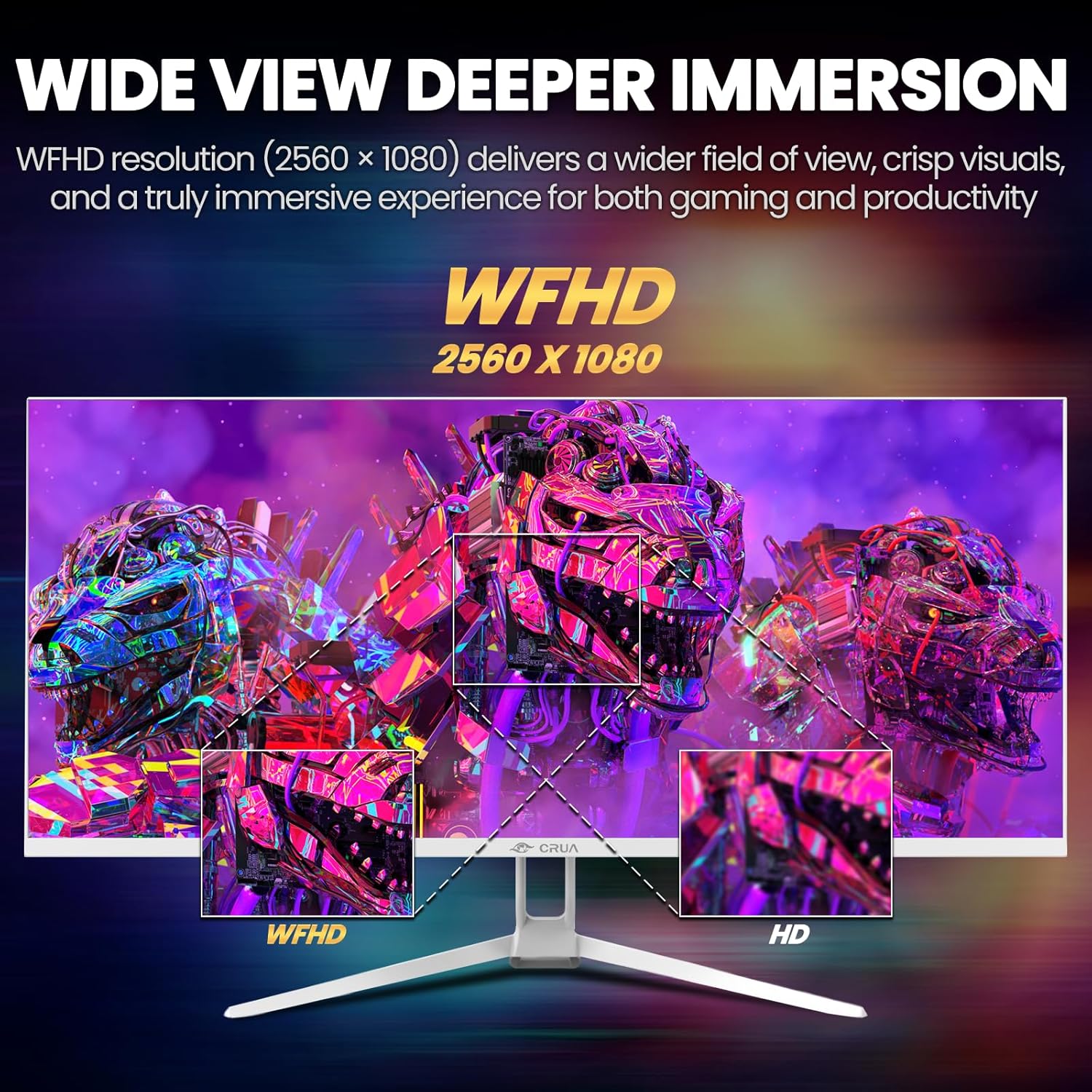
Image: A detailed diagram illustrating the monitor's connectivity options, including two HDMI 1.4 ports, one DisplayPort 1.4, an audio output, a USB charging port, and the DC power input.
4. ຄໍາແນະນໍາການດໍາເນີນງານ
4.1 ເປີດ/ປິດ
Press the power button, typically located on the bottom or rear of the monitor, to turn it on or off. The power indicator light will illuminate when the monitor is on.
4.2 ເມນູການສະແດງເທິງໜ້າຈໍ (OSD).
The OSD menu allows you to adjust various monitor settings. Access it by pressing the OSD menu button (often a joystick-like button or a set of dedicated buttons) on the monitor.
- ການນໍາທາງ: Use the OSD buttons or joystick to navigate through the menu options.
- ການຄັດເລືອກ: ກົດປຸ່ມເລືອກເພື່ອເຂົ້າສູ່ເມນູຍ່ອຍ ຫຼື ຢືນຢັນການຕັ້ງຄ່າ.
- ອອກ: Use the exit button to go back or close the OSD menu.
4.3 ການຕັ້ງຄ່າຮູບ
ປັບຕົວກໍານົດການເບິ່ງເຫັນສໍາລັບທີ່ດີທີ່ສຸດ viewໃນ:
- ຄວາມສະຫວ່າງ: ຄວບຄຸມຄວາມສະຫວ່າງໂດຍລວມຂອງໜ້າຈໍ.
- ກົງກັນຂ້າມ: ປັບຄວາມແຕກຕ່າງກັນລະຫວ່າງພື້ນທີ່ແສງສະຫວ່າງ ແລະບ່ອນມືດ.
- ອຸນຫະພູມສີ: ເລືອກຮູບແບບສີທີ່ຕັ້ງໄວ້ກ່ອນ (ເຊັ່ນ: ອົບອຸ່ນ, ເຢັນ, ຜູ້ໃຊ້).
- ການກັ່ນຕອງແສງສີຟ້າ: ຫຼຸດຜ່ອນການປ່ອຍແສງສີຟ້າເພື່ອຫຼຸດຜ່ອນຄວາມເມື່ອຍລ້າຂອງຕາໃນລະຫວ່າງການໃຊ້ງານເປັນເວລາດົນ.
- ອັດຕາສ່ວນ: Set to 21:9 for ultrawide content or other options as needed.

Image: The CRUA ultrawide monitor showcasing its 21:9 aspect ratio, demonstrating how it provides more horizontal screen space compared to a standard 16:9 display.
4.4 ການຕັ້ງຄ່າສຽງ
The monitor includes built-in speakers. Adjust volume through the OSD menu or your connected device. An external audio output port is also available for headphones or external speakers.
4.5 AMD FreeSync
To enable AMD FreeSync for tear-free gaming, ensure your graphics card supports FreeSync and that it is enabled in your graphics card's control panel. Then, activate FreeSync within the monitor's OSD menu.

Image: A visual comparison demonstrating the effect of AMD FreeSync, showing a torn image when FreeSync is off and a smooth image when FreeSync is on, highlighting the 120Hz refresh rate.
5. ບໍາລຸງຮັກສາ
5.1 ການທໍາຄວາມສະອາດຫນ້າຈໍ
- ປິດໜ້າຈໍ ແລະຖອດສາຍໄຟອອກ.
- ໃຊ້ຜ້າແພອ່ອນໆ ທີ່ບໍ່ມີເສັ້ນດ່າງ ງampສໍາເລັດດ້ວຍນ້ໍາຫຼືເຄື່ອງເຮັດຄວາມສະອາດຫນ້າຈໍພິເສດ.
- Wipe the screen gently. Do not press hard or use abrasive cleaners.
5.2 ການເບິ່ງແຍງທົ່ວໄປ
- ຮັກສາຈໍພາບໃຫ້ຫ່າງຈາກແສງແດດໂດຍກົງ, ແຫຼ່ງຄວາມຮ້ອນ, ແລະຂີ້ຝຸ່ນຫຼາຍເກີນໄປ.
- ຫຼີກເວັ້ນການວາງວັດຖຸໜັກໃສ່ຈໍພາບ ຫຼືສາຍຂອງມັນ.
- Do not spray cleaning liquids directly onto the monitor.
6. ການແກ້ໄຂບັນຫາ
ຖ້າເຈົ້າພົບບັນຫາກັບຈໍພາບຂອງເຈົ້າ, ໃຫ້ອ້າງອີງເຖິງບັນຫາ ແລະວິທີແກ້ໄຂບັນຫາທົ່ວໄປຕໍ່ໄປນີ້:
| ບັນຫາ | ການແກ້ໄຂທີ່ເປັນໄປໄດ້ |
|---|---|
| ບໍ່ມີຮູບພາບໃນ ໜ້າ ຈໍ | Ensure power cable is securely connected and the monitor is turned on. Check video cable (HDMI/DP) connections to both monitor and computer. Select the correct input source via the OSD menu. |
| ຮູບພາບກະພິບ ຫຼື ບໍ່ໝັ້ນຄົງ | Check video cable connections. Ensure your graphics card drivers are up to date. If using FreeSync, try disabling it temporarily to see if the issue persists. Adjust refresh rate in your computer's display settings. |
| ບໍ່ມີສຽງຈາກລຳໂພງໃນຕົວ | Increase volume via the OSD menu and your computer's sound settings. Ensure the correct audio output device is selected on your computer. Check if the audio cable (if used) is properly connected. |
| ສີປາກົດບໍ່ຖືກຕ້ອງ | Reset picture settings to factory defaults via the OSD menu. Adjust color temperature and individual RGB values if available. |
If the problem persists after trying these solutions, please contact CRUA customer support.
7. ຂໍ້ມູນຈໍາເພາະ
Key technical specifications for the CRUA 34-inch Ultrawide Gaming Monitor (Model CR340AU):
| ຄຸນສົມບັດ | ຂໍ້ມູນຈໍາເພາະ |
|---|---|
| ຂະໜາດໜ້າຈໍ | 34 ນິ້ວ |
| ປະເພດແຜງ | IPS |
| ຄວາມລະອຽດ | 2560 x 1080 (WFHD) |
| ອັດຕາສ່ວນ | 21:9 |
| ອັດຕາການໂຫຼດຂໍ້ມູນຄືນໃໝ່ | 120Hz |
| ເວລາຕອບສະຫນອງ | (Not specified in provided data, typical for IPS is 1-5ms GTG) |
| ຄວາມສະຫວ່າງ | 350 cd/m² |
| ສີ Gamut | 120% sRGB |
| ຄວາມເລິກຂອງສີ | 8-bit (16.7 Million Colors) |
| Viewໃນ Angles | 178° (ແນວນອນ/ຕັ້ງ) |
| Adaptive Sync | AMD FreeSync |
| ການເຊື່ອມຕໍ່ | 2x HDMI 1.4, 1x DisplayPort 1.4, Audio Out, USB Charging, DC Power Input |
| ລຳໂພງໃນຕົວ | ແມ່ນແລ້ວ |
| ຕິດຝາ | VESA 75x75mm |
| ຂະໜາດສິນຄ້າ | 9.4 x 24.13 x 17.47 ນິ້ວ |
| ນ້ໍາຫນັກລາຍການ | 14.92 ປອນ |
8. ການຮັບປະກັນແລະການສະຫນັບສະຫນູນ
CRUA provides high-quality computer monitors and customer service. For any questions or support needs regarding your CRUA 34-inch Ultrawide Gaming Monitor, please contact CRUA customer support.
Refer to your purchase documentation or the official CRUA webເວັບໄຊສໍາລັບເງື່ອນໄຂການຮັບປະກັນສະເພາະແລະຂໍ້ມູນຕິດຕໍ່.


