1. ຜະລິດຕະພັນເກີນview
The ProtoArc EM03 NL is an ergonomic wireless trackball mouse designed for comfort and efficiency. It features an index finger-controlled trackball, multi-device connectivity, quiet clicking, adjustable DPI settings, and a rechargeable battery, making it suitable for various computing environments.
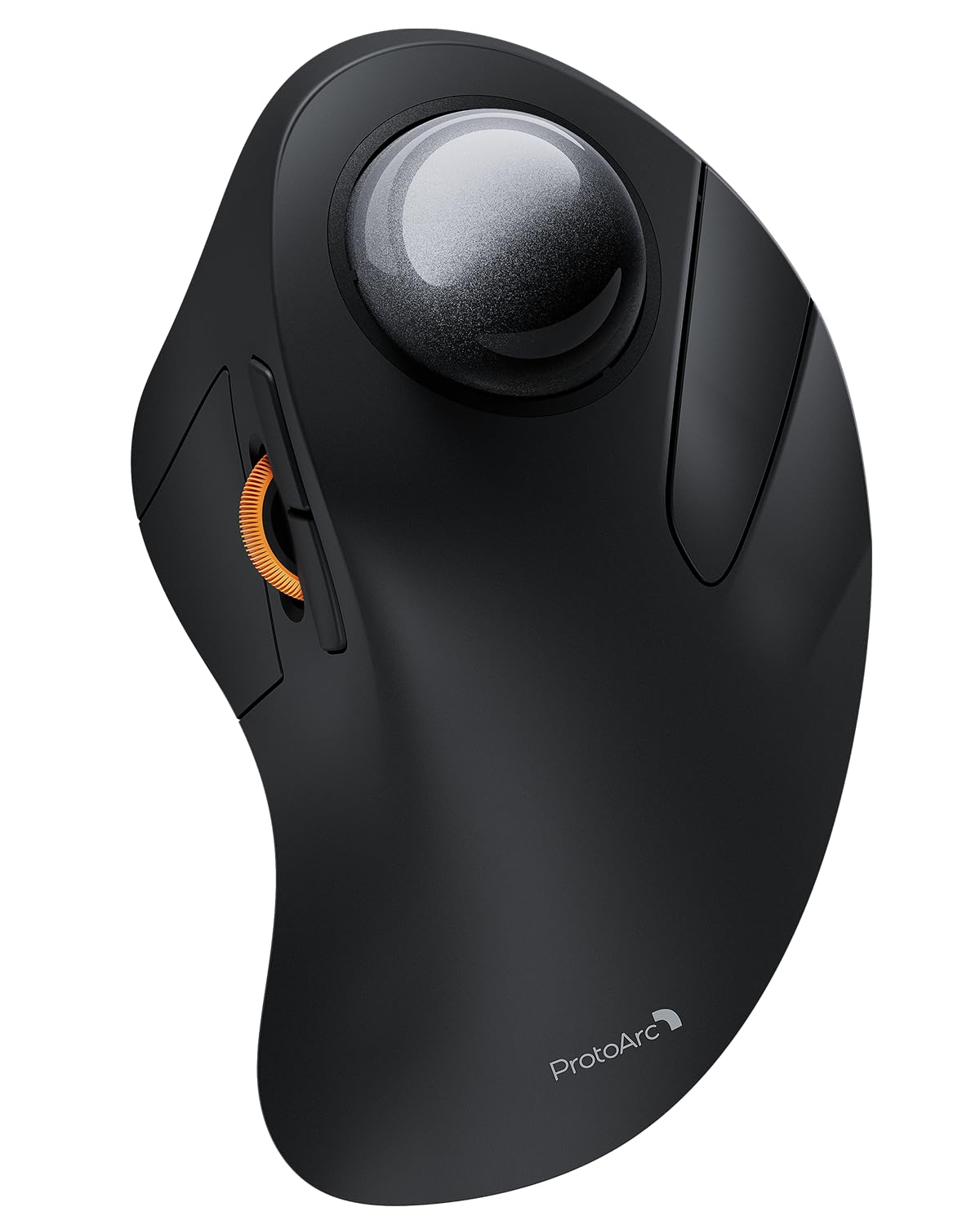
Image 1: The ProtoArc EM03 NL Wireless Bluetooth Trackball Mouse in gray, showcasing ການອອກແບບ ergonomic ຂອງມັນ.
2. ສິ່ງທີ່ຢູ່ໃນກ່ອງ
- ProtoArc EM03 NL Trackball Mouse
- ຄູ່ມືຜູ້ໃຊ້
- ຕົວຮັບ USB
- ສາຍສາກ (USB-C)
3. ຄຸນນະສົມບັດທີ່ສໍາຄັນ
- Ergonomic Index Finger Trackball: Sculpted to fit the hand naturally, promoting a comfortable wrist posture and precise control with its 44mm trackball.
- ການເຊື່ອມຕໍ່ຫຼາຍອຸປະກອນ: Connects to up to 3 devices via 2.4G USB receiver or Bluetooth (BT1, BT2), allowing seamless switching.
- ຄລິກງຽບໆ: Smooth frosted surface and quiet clicks for a better user experience without disturbing others.
- DPI ທີ່ສາມາດປັບໄດ້: 5 DPI levels (200/400/800/1200/1600 DPI) for customizable cursor sensitivity and precise tracking.
- ແບັດເຕີຣີທີ່ສາມາດສາກໄດ້: Built-in 930mAh lithium battery provides up to 60 days of power on a single full charge. Features auto-sleep mode to conserve battery.
- ຕົວປະຢັດພື້ນທີ່: Stationary trackball design frees up desk space, ideal for small workstations or minimalist setups.

Image 2: A hand resting comfortably on the ProtoArc EM03 NL mouse, highlighting its ergonomic design for all-day comfort.

Image 3: Close-up of the ProtoArc EM03 NL trackball mouse, emphasizing the large 44mm trackball designed for index finger control and precise handling.

Image 4: The ProtoArc EM03 NL trackball mouse shown in different usage scenarios: an office desk, an aircraft cabin, and a library, illustrating its versatility and space-saving design.
4. ຄູ່ມືການຕິດຕັ້ງ
4.1. USB Receiver Connection (2.4G Wireless)
- ຊອກຫາຕົວຮັບສັນຍານ USB ທີ່ເກັບໄວ້ໃນຊ່ອງທີ່ຢູ່ດ້ານລຸ່ມຂອງເມົ້າ.
- ສຽບຕົວຮັບ USB ເຂົ້າໄປໃນຜອດ USB ທີ່ມີຢູ່ໃນຄອມພິວເຕີຂອງທ່ານ.
- ເປີດເມົ້າໂດຍໃຊ້ສະວິດໄຟຢູ່ດ້ານລຸ່ມ.
- Switch the channel selector on the bottom of the mouse to the '2.4G' position (usually indicated by a USB icon or '1'). The mouse should connect automatically.
4.2. ການເຊື່ອມຕໍ່ Bluetooth (BT1 / BT2)
- ເປີດເມົ້າໂດຍໃຊ້ສະວິດໄຟຢູ່ດ້ານລຸ່ມ.
- Switch the channel selector on the bottom of the mouse to either 'BT1' or 'BT2' position.
- Press and hold the channel button for 3 seconds until the corresponding indicator light flashes quickly, indicating pairing mode.
- On your device (PC, iPad, Mac, etc.), go to Bluetooth settings and search for new devices.
- Select 'ProtoArc EM03 NL' from the list of available devices to connect. The indicator light will turn solid once connected.

Image 5: Diagram illustrating the multi-device connection options (2.4G, BT1, BT2) on the underside of the ProtoArc EM03 NL mouse, showing how to switch between devices.
5. ຄໍາແນະນໍາການດໍາເນີນງານ
5.1. ການທໍາງານຂອງປຸ່ມ

Image 6: Labeled diagram of the ProtoArc EM03 NL mouse, showing the positions of the trackball, left button, right button, scroll wheel, forward button, backward button, DPI button, channel switch, power switch, and USB receiver slot.
- ປຸ່ມຊ້າຍ: ຟັງຊັນຄລິກຊ້າຍມາດຕະຖານ.
- ປຸ່ມຂວາ: ຟັງຊັນຄລິກຂວາມາດຕະຖານ.
- ລໍ້ເລື່ອນ: Scroll up and down pages.
- ປຸ່ມສົ່ງຕໍ່: ເລື່ອນໄປຂ້າງໜ້າໃນ web ຕົວທ່ອງເວັບຫຼື file ນັກສຳຫຼວດ.
- ປຸ່ມກັບຄືນ: ຖອຍຫຼັງໃນ web ຕົວທ່ອງເວັບຫຼື file ນັກສຳຫຼວດ.
- Trackball: Control cursor movement with your index finger.
5.2. ການປັບ DPI
The DPI button is located on the bottom of the mouse. Press it to cycle through the 5 available DPI levels (200/400/800/1200/1600 DPI) to adjust cursor speed and precision according to your preference.
5.3. ການສະຫຼັບຫຼາຍອຸປະກອນ
Use the channel switch on the bottom of the mouse to seamlessly switch between the 2.4G USB receiver connection and the two Bluetooth connections (BT1, BT2).
6. ບໍາລຸງຮັກສາ
6.1. ການເຮັດຄວາມສະອາດແທຣັກບອລ
To ensure smooth operation, periodically clean the trackball:
- Gently push the trackball from the bottom opening to remove it.
- Use a soft, lint-free cloth to wipe any dust or debris from the trackball and the inside of the trackball cavity.
- Reinsert the trackball into its slot.

Image 7: Step-by-step visual guide on how to remove, clean with a soft cloth, and reinsert the trackball of the ProtoArc EM03 NL mouse.
6.2. ການສາກໄຟ
Connect the provided USB-C charging cable to the charging port on the mouse and to a USB power source. The mouse can be used while charging. A full charge takes approximately 3.5 hours and provides up to 60 days of use.

Image 8: Visual representation of the USB-C charging port on the ProtoArc EM03 NL mouse and an illustration of the 5 adjustable DPI modes.
7. ການແກ້ໄຂບັນຫາ
- ເມົ້າບໍ່ຕອບສະໜອງ: Ensure the mouse is turned on and fully charged. Check the connection mode (2.4G or Bluetooth) and ensure it matches your device's connection. For 2.4G, ensure the USB receiver is securely plugged in. For Bluetooth, re-pair the device if necessary.
- ການເຄື່ອນໄຫວຂອງເຄີເຊີບໍ່ສະໝໍ່າສະເໝີ ຫຼື ໜຽວ: ທຳຄວາມສະອາດແທຣັກບານ ແລະ ຊ່ອງຂອງມັນຕາມທີ່ໄດ້ອະທິບາຍໄວ້ໃນພາກການບຳລຸງຮັກສາ.
- ບັນຫາການເຊື່ອມຕໍ່ Bluetooth: Ensure your device's Bluetooth is enabled. Try forgetting the device in your Bluetooth settings and re-pairing. Ensure the mouse is in pairing mode (flashing indicator light).
- DPI ບໍ່ປ່ຽນແປງ: Press the DPI button firmly on the bottom of the mouse to cycle through settings.
8. ຂໍ້ມູນຈໍາເພາະ
| ຄຸນສົມບັດ | ລາຍລະອຽດ |
|---|---|
| ຍີ່ຫໍ້ | ProtoArc |
| ຕົວແບບ | EM03 NL |
| ເຕັກໂນໂລຊີການເຊື່ອມຕໍ່ | 2.4G, Bluetooth |
| ເຕັກໂນໂລຍີກວດຈັບການເຄື່ອນໄຫວ | ແທຣັກບານ |
| ລະດັບ DPI | 200/400/800/1200/1600 |
| ຄວາມອາດສາມາດຫມໍ້ໄຟ | ແບດເຕີຣີ້ມາດຕະຖານ Lithium 930mAh |
| ເວລາສາກໄຟ | ປະມານ. 3.5 ຊົ່ວໂມງ |
| ເວລາສະແຕນບາຍ | ສູງສຸດ 60 ມື້ |
| ຄຸນນະສົມບັດພິເສດ | Ergonomic Design, Rechargeable, Soundless |
| ນ້ໍາຫນັກລາຍການ | 13.1 ອອນ |
| ຂະໜາດແພັກເກັດ | 6.89 x 4.92 x 3.27 ນິ້ວ |
9. ວິດີໂອຜະລິດຕະພັນຢ່າງເປັນທາງການ
Video 1: An official product video from ProtoArc showcasing the features and benefits of the Wireless Bluetooth Trackball Mouse. This video highlights the ergonomic design, multi-device connectivity, and overall user experience.
10. ການຮັບປະກັນແລະການສະຫນັບສະຫນູນ
For warranty information, technical support, or customer service, please refer to the contact details provided in the included User Manual or visit the official ProtoArc website. ProtoArc aims to deliver innovative workspace solutions that enhance comfort, boost productivity, and foster overall wellness.
ນອກນັ້ນທ່ານຍັງສາມາດໄປຢ້ຽມຢາມໄດ້ ຮ້ານຄ້າ ProtoArc ໃນ Amazon ສໍາລັບຜະລິດຕະພັນແລະຂໍ້ມູນເພີ່ມເຕີມ.


