1. ບົດແນະນຳ
Thank you for choosing the PEICHENG Android 15.0 10-inch Tablet. This manual provides essential information for setting up, operating, and maintaining your device. Please read it thoroughly to ensure optimal performance and longevity of your tablet.
2. ສິ່ງທີ່ຢູ່ໃນກ່ອງ
ຫຼັງຈາກການຍົກເລີກການຫຸ້ມຫໍ່, ກະລຸນາກວດສອບວ່າລາຍການທັງຫມົດທີ່ມີຢູ່ຂ້າງລຸ່ມນີ້:
- PEICHENG Android 15.0 10-inch Tablet
- ແປ້ນພິມ Bluetooth
- ເມົາສ໌ໄຮ້ສາຍ
- ປາກກາສະໄຕລັດ
- Foldable Protective Case
- ສາຍສາກ USB
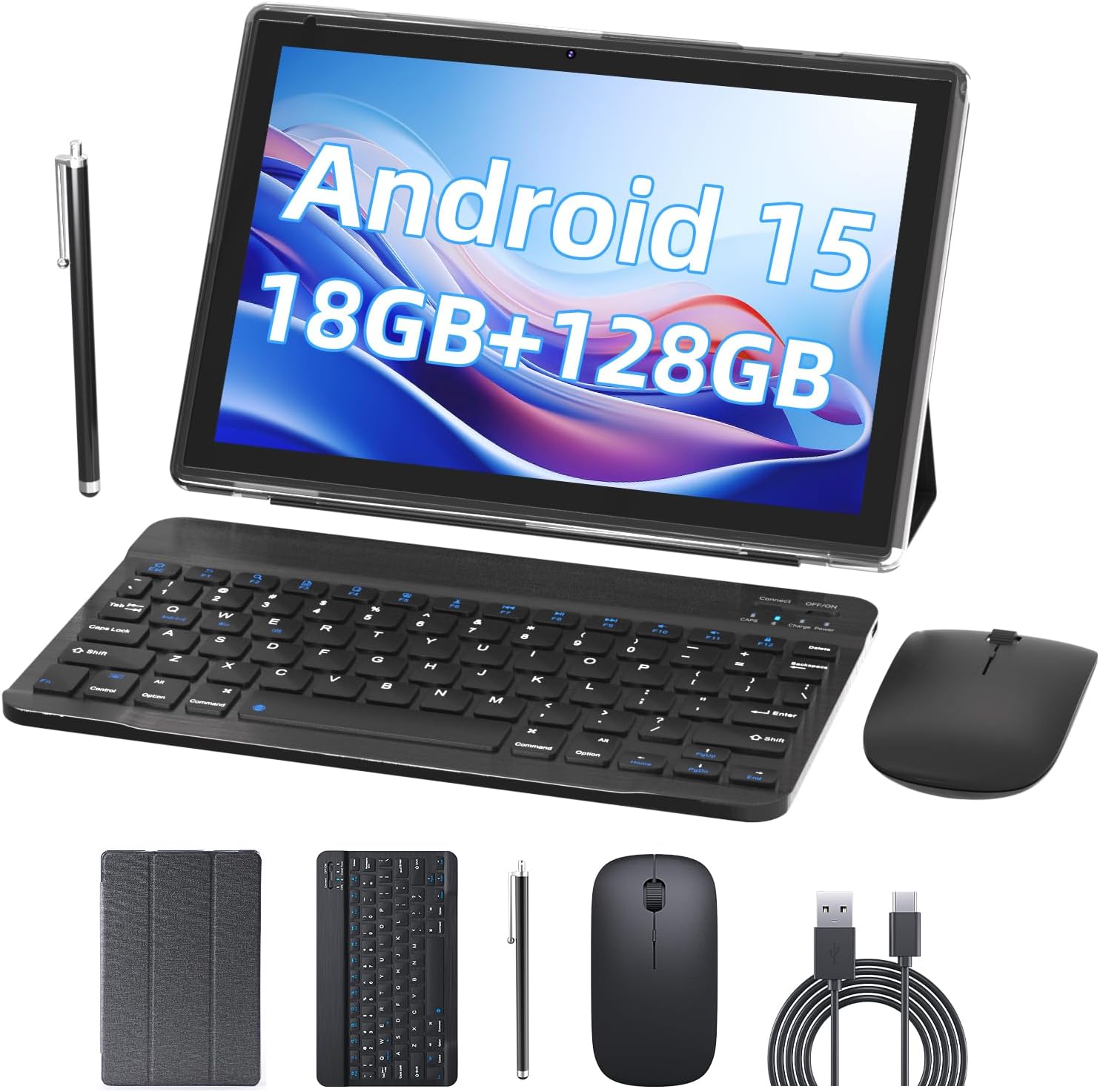
Image 2.1: Contents of the PEICHENG Tablet package, including the tablet, keyboard, mouse, stylus, case, and charging cable.
3. ຜະລິດຕະພັນເກີນview
The PEICHENG 10-inch Tablet is designed for versatility and performance. It features a 10.1-inch IPS display, front and rear cameras, and various ports for connectivity. Familiarize yourself with the device's layout for ease of use.
3.1 ອົງປະກອບຫຼັກ
- ຈໍສະແດງຜົນ: 10.1-inch IPS touchscreen (1280x800 resolution).
- ກ້ອງຖ່າຍຮູບ: 8MP Rear Camera, 2MP Front Camera.
- ພອດ: USB-C port for charging and data transfer, MicroSD card slot.
- ປຸ່ມ: Power button, Volume Up/Down.
4. ຕັ້ງຄ່າ
4.1 ການສາກໄຟເບື້ອງຕົ້ນ
Before first use, fully charge your tablet using the provided USB charging cable and a compatible power adapter. The charging indicator will typically show progress and turn off when fully charged.
4.2 ການເປີດ/ປິດ
- ເພື່ອເປີດເຄື່ອງ: ກົດປຸ່ມເປີດປິດຄ້າງໄວ້ຈົນກ່ວາ ໜ້າ ຈໍຈະແຈ້ງຂຶ້ນ.
- ປິດເຄື່ອງ: ກົດປຸ່ມເປີດປິດຄ້າງໄວ້, ຈາກນັ້ນເລືອກ 'ປິດເຄື່ອງ' ຈາກຕົວເລືອກໃນໜ້າຈໍ.
4.3 ການຕັ້ງຄ່າເບື້ອງຕົ້ນ
Upon first startup, follow the on-screen prompts to:
- ເລືອກພາສາທີ່ທ່ານຕ້ອງການ.
- ເຊື່ອມຕໍ່ກັບເຄືອຂ່າຍ Wi-Fi.
- ເຂົ້າສູ່ລະບົບດ້ວຍບັນຊີ Google ຂອງທ່ານ ຫຼືສ້າງອັນໃໝ່.
- Set up security features (PIN, pattern, or password).

Image 4.1: The PEICHENG Tablet configured for use with its accessories, suitable for various tasks.
5. ຄໍາແນະນໍາການດໍາເນີນງານ
5.1 ລະບົບປະຕິບັດການ Android 15.0
Your tablet runs on the Android 15.0 operating system, offering a user-friendly interface and access to a vast ecosystem of applications via the Google Play Store.
5.2 ການນໍາທາງພື້ນຖານ
- ປັດ: ຍ້າຍນິ້ວມືຂອງທ່ານໄປມາເທິງໜ້າຈໍເພື່ອເລື່ອນເບິ່ງເນື້ອຫາ ຫຼື ສະຫຼັບລະຫວ່າງໜ້າຈໍຫຼັກ.
- ແຕະ: Touch an icon or item once to open or select it.
- ຂ່າວຍາວ: Press and hold an item for additional options or to move it.
- Pinch-to-Zoom: ໃຊ້ສອງນິ້ວເພື່ອຊູມເຂົ້າ ຫຼືອອກໃນຮູບ ແລະ web ໜ້າ.
5.3 ການຈັດການແອັບ
Download and install applications from the Google Play Store. To uninstall an app, long-press its icon and drag it to the 'Uninstall' option.
5.4 ຄຸນສົມບັດການສະແດງ
The 10.1-inch IPS display provides clear visuals. Utilize the 'Reading Mode' feature in the display settings to reduce harmful blue light, enhancing comfort during extended reading sessions.

Image 5.1: The tablet screen showcasing multiple applications and web content, demonstrating its multitasking capabilities.
6. ອຸປະກອນເສີມ
Your PEICHENG Tablet comes with a suite of accessories to enhance its functionality.
6.1 ແປ້ນພິມ Bluetooth
ການຈັບຄູ່: Turn on the keyboard and enable Bluetooth on your tablet. ຊອກຫາ available devices and select the keyboard to pair. Once connected, you can use it for typing, similar to a laptop.
6.2 ເມົາສ໌ໄຮ້ສາຍ
ການຈັບຄູ່: Similar to the keyboard, turn on the mouse and enable Bluetooth on your tablet. Pair the mouse through the Bluetooth settings. The mouse provides precise navigation and control.
6.3 Stylus Pen
The stylus allows for more precise input, drawing, and note-taking on the touchscreen. No pairing is required for basic functionality.
6.4 ກໍລະນີປ້ອງກັນ
The foldable protective case safeguards your tablet from scratches and minor impacts. It also functions as a stand, allowing for comfortable viewing ແລະການພິມມຸມ.

Image 6.1: The PEICHENG Tablet with its keyboard and mouse, demonstrating its capability as a portable workstation.
7. ການຄຸ້ມຄອງຫມໍ້ໄຟ
The tablet is equipped with a 6000mAh battery, providing extended usage time.
7.1 ການສາກໄຟ
Use the provided USB-C cable to charge the tablet. It is recommended to use a compatible charger to ensure efficient and safe charging.
7.2 Battery Life Tips
- ຫຼຸດຄວາມສະຫວ່າງໜ້າຈໍ.
- ປິດ Wi-Fi ແລະ Bluetooth ເມື່ອບໍ່ໄດ້ໃຊ້ງານ.
- ປິດແອັບພລິເຄຊັນທີ່ບໍ່ໄດ້ໃຊ້ທີ່ເຮັດວຽກຢູ່ໃນພື້ນຫຼັງ.
- Enable power-saving modes in settings.

Image 7.1: Visual representation of the tablet's 6000mAh battery, highlighting its extended endurance.
8. ການເຊື່ອມຕໍ່
8.1 Wi-Fi 6.0
The tablet supports 2.4GHz and 5GHz Wi-Fi 6.0, providing faster and more stable wireless connections. To connect, go to ການຕັ້ງຄ່າ > ເຄືອຂ່າຍ ແລະອິນເຕີເນັດ > Wi-Fi, ເລືອກເຄືອຂ່າຍຂອງທ່ານ, ແລະໃສ່ລະຫັດຜ່ານ.
8.2 ບລູທູດ 5.0
Bluetooth 5.0 allows for efficient connection to wireless accessories like headphones, speakers, and the included keyboard and mouse. Enable Bluetooth in ການຕັ້ງຄ່າ> ອຸປະກອນເຊື່ອມຕໍ່ແລ້ວ> ການຕັ້ງຄ່າການເຊື່ອມຕໍ່> Bluetooth and pair your devices.
9. ການຂະຫຍາຍການເກັບຮັກສາ
The tablet comes with 128GB of internal storage and 18GB RAM (6GB physical + 12GB virtual). For additional storage, you can expand it up to 2TB using a MicroSD card (not included). Insert the MicroSD card into the designated slot on the tablet.

Image 9.1: The tablet's storage capabilities, highlighting its 18GB RAM, 128GB internal storage, and support for up to 2TB MicroSD expansion.
10. ການນໍາໃຊ້ກ້ອງຖ່າຍຮູບ
The tablet features an 8MP rear camera and a 2MP front camera. Open the Camera app to capture photos and videos. The front camera is ideal for video calls and selfies.
11. ບໍາລຸງຮັກສາ
11.1 ການທໍາຄວາມສະອາດ
Use a soft, lint-free cloth to clean the screen and body of the tablet. Avoid using harsh chemicals or abrasive materials. For stubborn smudges, a screen cleaner designed for electronics can be used sparingly.
11.2 ການປັບປຸງຊອບແວ
ກວດສອບ ແລະຕິດຕັ້ງການອັບເດດຊອບແວເປັນປະຈຳເພື່ອຮັບປະກັນວ່າແທັບເລັດຂອງທ່ານມີຄຸນສົມບັດຫຼ້າສຸດ, ແຜ່ນປ້ອງກັນຄວາມປອດໄພ ແລະການປັບປຸງປະສິດທິພາບ. ໄປທີ່ ການຕັ້ງຄ່າ > ລະບົບ > ການປັບປຸງລະບົບ.
12. ການແກ້ໄຂບັນຫາ
ຖ້າຫາກທ່ານພົບບັນຫາກັບຢາເມັດຂອງທ່ານ, ເບິ່ງວິທີແກ້ໄຂທົ່ວໄປດັ່ງຕໍ່ໄປນີ້:
- ອຸປະກອນບໍ່ເປີດ: ໃຫ້ແນ່ໃຈວ່າໄດ້ສາກໄຟແລ້ວ. ເຊື່ອມຕໍ່ສາຍສາກແລ້ວລໍຖ້າສອງສາມນາທີກ່ອນທີ່ຈະພະຍາຍາມເປີດເຄື່ອງອີກຄັ້ງ.
- ໜ້າຈໍບໍ່ຕອບສະໜອງ: Try restarting the tablet by holding the Power button for about 10-15 seconds.
- ບັນຫາການເຊື່ອມຕໍ່ Wi-Fi: ຣີສະຕາດເລົາເຕີ Wi-Fi ແລະແທັບເລັດຂອງທ່ານ. ລືມເຄືອຂ່າຍໃນການຕັ້ງຄ່າແທັບເລັດ ແລະເຊື່ອມຕໍ່ຄືນໃໝ່.
- ແອັບຂັດຂ້ອງ: ລ້າງແຄດຂອງແອັບຯທີ່ມີບັນຫາ (ການຕັ້ງຄ່າ > ແອັບ > [ຊື່ແອັບ] > ບ່ອນເກັບຂໍ້ມູນ ແລະແຄດ > ລຶບແຄດ). If the issue persists, try reinstalling the app.
- ປະສິດທິພາບຊ້າ: Close unused apps, clear cache, and ensure sufficient storage space. Consider a factory reset as a last resort (ການຕັ້ງຄ່າ > ລະບົບ > ຕົວເລືອກຣີເຊັດ > ລຶບຂໍ້ມູນທັງໝົດ (ຣີເຊັດເປັນຄ່າໂຮງງານ) - Note: This will delete all data on your tablet. Back up important files ທໍາອິດ.).
13. ຂໍ້ມູນຈໍາເພາະ
| ຄຸນສົມບັດ | ຂໍ້ມູນຈໍາເພາະ |
|---|---|
| ຍີ່ຫໍ້ | PEICHENG |
| ຊື່ຕົວແບບ | 10.1 inch Tablet |
| ລະບົບປະຕິບັດການ | Android 15.0 |
| ຂະໜາດໜ້າຈໍ | 10.1 ນິ້ວ |
| ຄວາມລະອຽດໜ້າຈໍສູງສຸດ | 1280x800 IPS |
| RAM | 18GB (6GB ທາງກາຍະພາບ + ຂະຫຍາຍ 12GB) |
| ການເກັບຮັກສາພາຍໃນ | ROM 128GB |
| ການເກັບຮັກສາທີ່ຂະຫຍາຍໄດ້ | ສູງສຸດ 2TB ຜ່ານບັດ MicroSD |
| ໂຮງງານຜະລິດ | 2.0GHz Quad-core |
| ການເຊື່ອມຕໍ່ Wi-Fi | 2.4G/5G Wi-Fi 6.0 |
| Bluetooth | Bluetooth 5.0 |
| ກ້ອງໜ້າ | 2MP |
| ກ້ອງຫຼັງ | 8MP |
| ຄວາມອາດສາມາດຫມໍ້ໄຟ | 6000mAh |
| ຂະໜາດ (LxWxH) | 10.1 x 4.85 x 0.4 ນິ້ວ |
| ນ້ໍາຫນັກລາຍການ | 2.66 ປອນ |
14. ການຮັບປະກັນແລະການສະຫນັບສະຫນູນ
For warranty information and technical support, please refer to the documentation provided with your purchase or contact PEICHENG customer service. Keep your proof of purchase for warranty claims.


