1. ບົດແນະນຳ
Thank you for choosing the Dierya x TMKB M1 Wireless Gaming Mouse. This manual provides detailed instructions on how to set up, operate, and maintain your new gaming mouse. The M1 mouse offers versatile connectivity, high-precision tracking, and customizable features to enhance your gaming and productivity experience.
2. ຜະລິດຕະພັນເກີນview
2.1 ອົງປະກອບ ແລະການຄວບຄຸມ
Familiarize yourself with the various buttons and features of your Dierya M1 mouse:
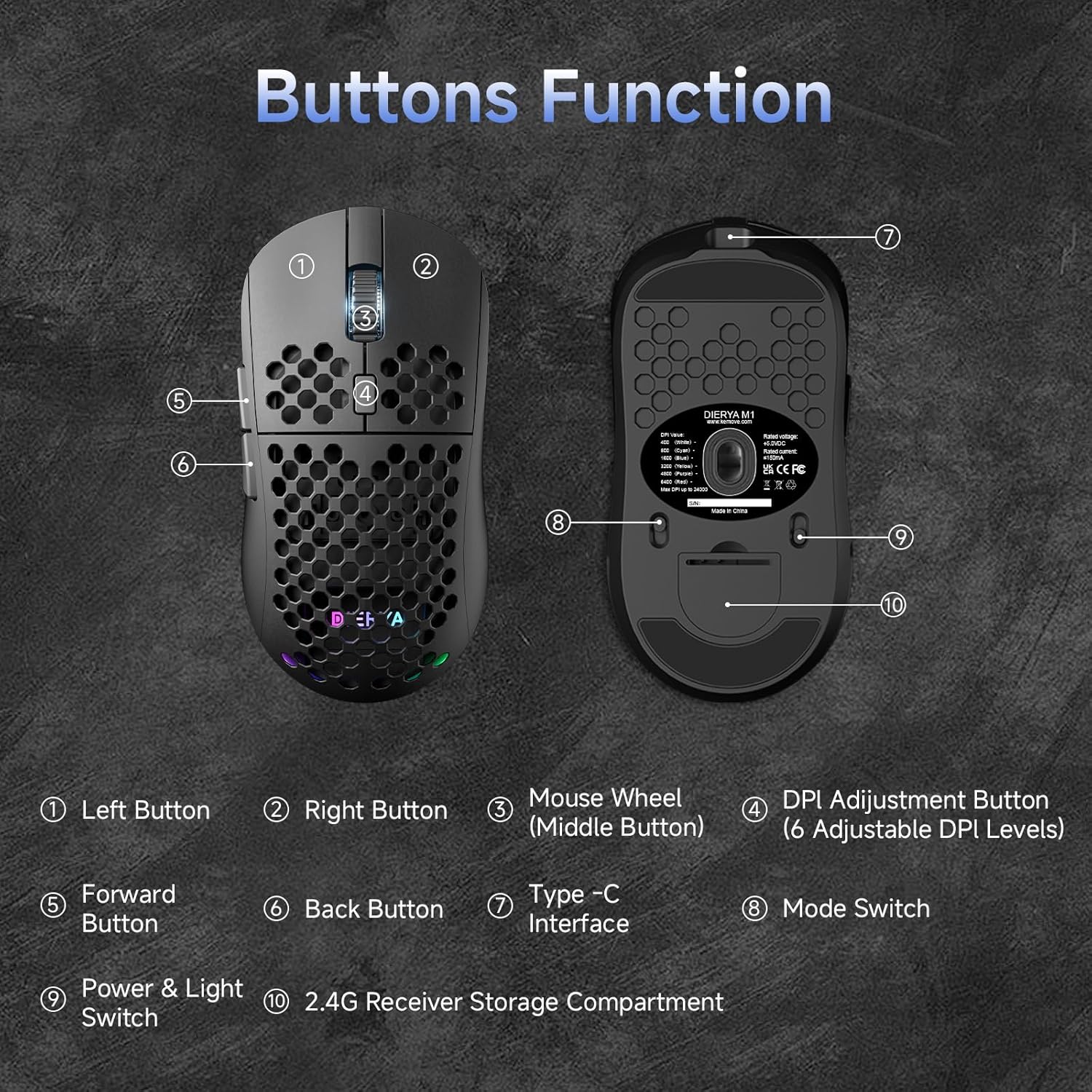
This diagram illustrates the various components of the Dierya M1 wireless gaming mouse. It highlights the ປຸ່ມຊ້າຍ (1), ປຸ່ມຂວາ (2), Mouse Wheel (Middle Button) (3), DPI Adjustment Button (4) with 6 adjustable DPI levels, Forward Button (5), Back Button (6), Type-C Interface (7) for charging and wired connection, ສະຫຼັບໂໝດ (8) for selecting connection type, Power & Light Switch (9), ແລະ 2.4G Receiver Storage Compartment (10) located on the underside.
2.2 ລັກສະນະທີ່ສໍາຄັນ
- ເຊັນເຊີ Optical 24,000 DPI: Adjustable DPI range from 200 to 24,000, with 6 preset levels (400-6400 DPI).
- ການເຊື່ອມຕໍ່ສາມໂຫມດ: Supports ultra-fast 2.4GHz wireless, energy-efficient Bluetooth 5.2, and stable USB-C wired connections.
- ຊີວິດຫມໍ້ໄຟຍາວ: 1000mAh battery provides up to 180 hours in ECO mode or 48 hours with RGB lighting, with 1-hour fast charging.
- ການອອກແບບນ້ໍາຫນັກເບົາແລະ Ergonomic: Weighs only 90g with a honeycomb shell for breathability and a symmetrical design (125x63x41 mm).
- ປຸ່ມທີ່ຕັ້ງໂປຣແກຣມໄດ້: 6 customizable buttons via the M1 Driver software (Windows only).
- ແສງ RGB ແບບໄດນາມິກ: 13 integrated RGB lighting effects with 16.8 million customizable colors.
- ປະສິດທິພາບສູງ: 125-1000 Hz polling rate, 300 IPS tracking speed, and 35G acceleration.
- ສະວິດທີ່ທົນທານ: Equipped with Huano switches rated for 20 million clicks and 100% PTFE feet for smooth gliding.
3. ຕັ້ງຄ່າ
3.1 ການສາກໄຟຂອງຫນູ
Before first use, it is recommended to fully charge the mouse. Connect the provided USB-C cable to the Type-C Interface (7) on the mouse and the other end to a USB power source (e.g., computer USB port, USB wall adapter).
- The mouse charges in approximately 1 hour.
- The scroll wheel LED will indicate charging status (e.g., red for charging, green for fully charged).
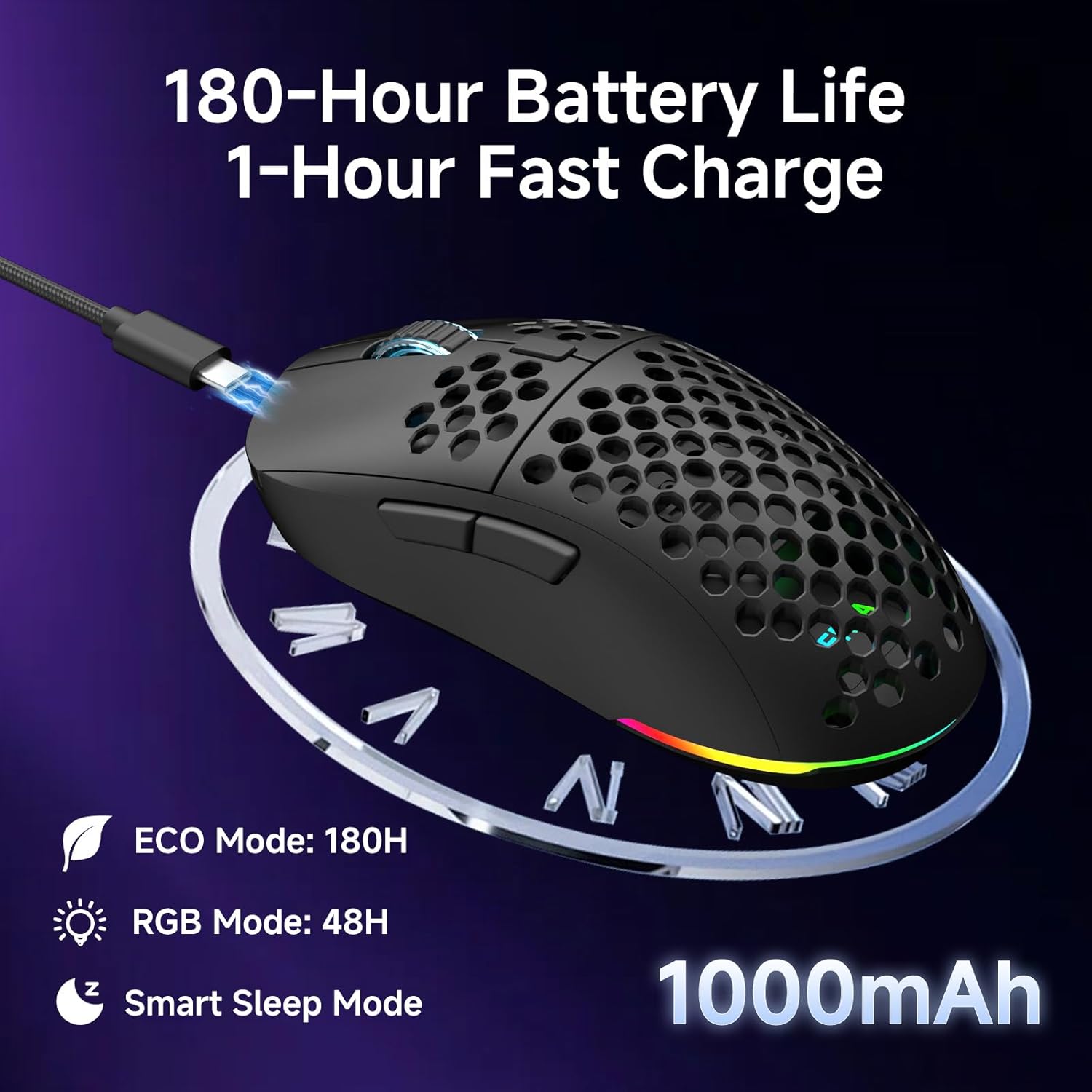
The Dierya M1 mouse features a 1000mAh battery, providing up to 180 hours of use in ECO mode or 48 hours with RGB lighting enabled. It supports fast charging, reaching full capacity in approximately 1 hour via the included USB-C cable. The mouse also includes a smart sleep mode to conserve power during inactivity.
3.2 ການເຊື່ອມຕໍ່ຫນູ
The Dierya M1 mouse offers three connection modes: 2.4GHz Wireless, Bluetooth 5.2, and USB-C Wired.

The Dierya M1 mouse supports three flexible connection modes: Bluetooth 5.2 for energy-efficient pairing with up to two devices, 2.4GHz Wireless via a USB dongle for ultra-fast response, and a stable USB-C Wired connection for charging and direct use. Each mode offers a different polling rate, with 2.4GHz and wired modes providing 1000Hz, and Bluetooth offering 125Hz.
3.2.1 ການເຊື່ອມຕໍ່ໄຮ້ສາຍ 2.4GHz
- Locate the 2.4G receiver in the storage compartment (10) on the underside of the mouse.
- ສຽບຕົວຮັບ 2.4G ເຂົ້າໄປໃນຜອດ USB ທີ່ມີຢູ່ໃນຄອມພິວເຕີຂອງທ່ານ.
- Set the Mode Switch (8) on the underside of the mouse to the '2.4G' position.
- The mouse should connect automatically. The polling rate for this mode is 1000 Hz.
ການເຊື່ອມຕໍ່ Bluetooth 3.2.2 5.2
- Set the Mode Switch (8) on the underside of the mouse to the 'BT' position.
- ໃນຄອມພິວເຕີ ຫຼືອຸປະກອນຂອງທ່ານ, ເປີດການຕັ້ງຄ່າ Bluetooth ແລະຊອກຫາອຸປະກອນໃໝ່.
- Select 'Dierya M1' from the list of available devices to pair.
- The mouse supports Bluetooth 5.2 and has a polling rate of 125 Hz in this mode.
3.2.3 ການເຊື່ອມຕໍ່ແບບມີສາຍ USB-C
- Connect the USB-C cable to the Type-C Interface (7) on the mouse.
- ເຊື່ອມຕໍ່ປາຍອື່ນຂອງສາຍ USB-C ກັບພອດ USB ທີ່ມີຢູ່ໃນຄອມພິວເຕີຂອງທ່ານ.
- The mouse will automatically switch to wired mode and begin charging. The polling rate for this mode is 1000 Hz.
4. ຄໍາແນະນໍາການດໍາເນີນງານ
4.1 ການປັບ DPI
The Dierya M1 mouse features a dedicated DPI Adjustment Button (4) to cycle through preset DPI levels. The scroll wheel LED color indicates the current DPI setting.
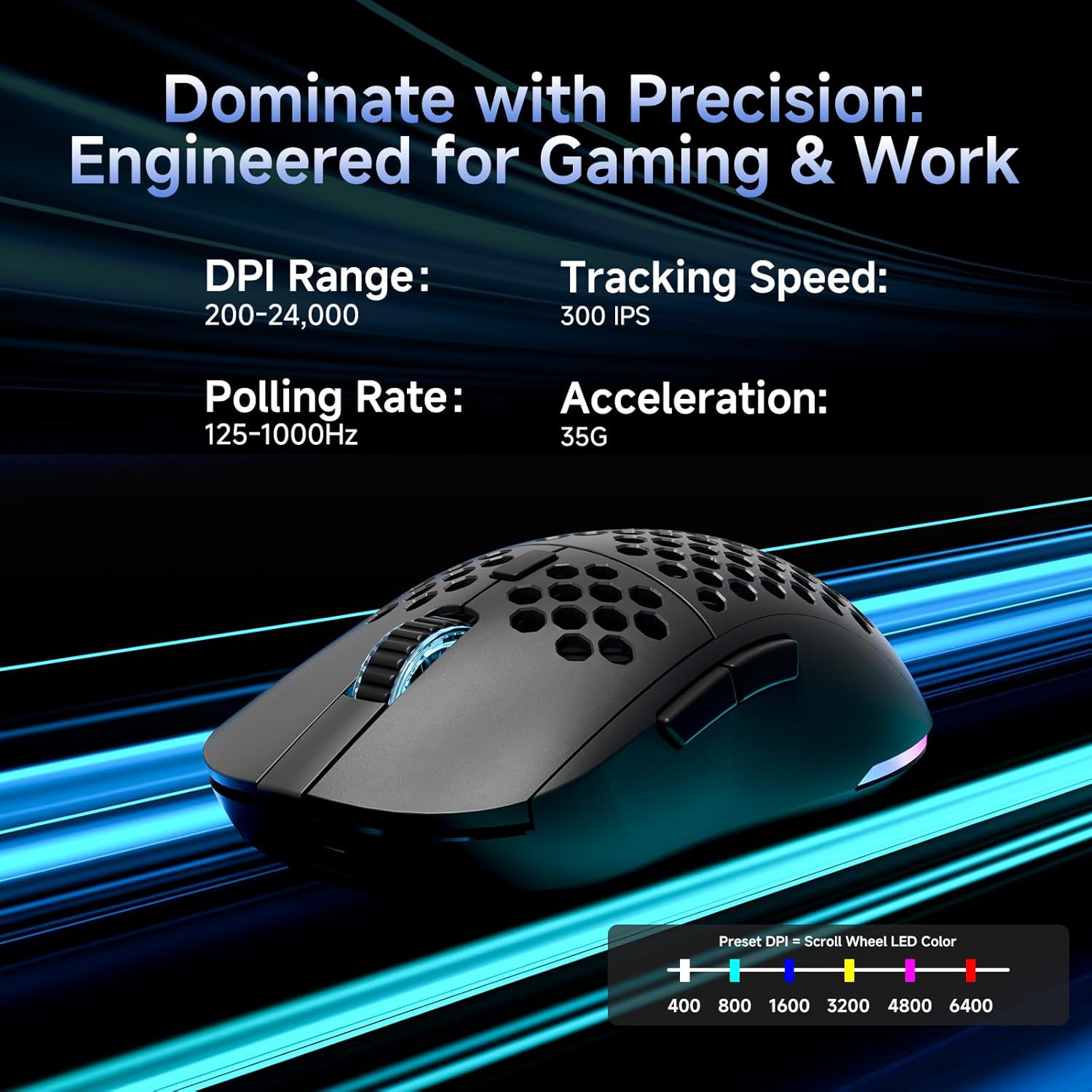
This image details the performance specifications of the Dierya M1 mouse, including a DPI range of 200-24,000, a tracking speed of 300 IPS, a polling rate of 125-1000Hz, and 35G acceleration. It also shows the preset DPI levels (400, 800, 1600, 3200, 4800, 6400) and the color indicators on the scroll wheel for each setting.
- Press the DPI Adjustment Button (4) to cycle through the 6 default DPI settings: 400, 800, 1600, 3200, 4800, and 6400 DPI.
- Each DPI level is indicated by a specific color on the scroll wheel LED.
- For custom DPI settings and a wider range (200-24,000 DPI), use the M1 Driver software.
4.2 ການຄວບຄຸມແສງ RGB
The Dierya M1 mouse features dynamic RGB lighting. You can control the lighting effects and colors using the M1 Driver software.
- The mouse has 13 built-in RGB lighting effects.
- Use the M1 Driver software to customize colors (16.8 million options), brightness, and speed of the lighting effects.
- The Power & Light Switch (9) on the underside can be used to turn the lighting on or off.
4.3 ປຸ່ມ ແລະ ຊອບແວທີ່ສາມາດຕັ້ງໂປຣແກຣມໄດ້
The M1 mouse has 6 programmable buttons that can be customized using the dedicated M1 Driver software.

The Dierya M1 driver software, currently available for Windows, allows users to customize various aspects of the mouse. This includes reassigning the 6 programmable buttons, creating macros, adjusting DPI settings, modifying the polling rate, and personalizing the 13 dynamic RGB lighting effects with 16.8 million colors.
- ຄວາມເຂົ້າກັນໄດ້ຂອງຊອບແວ: The M1 Driver software is currently only available for Windows operating systems.
- ວຽກຫຼັກ: Reassign functions to any of the 6 programmable buttons (Left, Right, Middle, DPI, Forward, Back).
- ການສ້າງມາໂຄຣ: Create and assign complex macros to streamline in-game actions or productivity tasks.
- DPI & Polling Rate: Fine-tune DPI settings beyond the presets and adjust the polling rate.
- ການປັບແຕ່ງ RGB: Personalize lighting effects, colors, and patterns.
- ໂປຣfile ການຄຸ້ມຄອງ: Save and load different profiles ສໍາລັບເກມຕ່າງໆຫຼືຄໍາຮ້ອງສະຫມັກ.
4.4 ໂໝດປະຢັດພະລັງງານ
The M1 mouse is designed with automatic power-saving features to extend battery life:
- The mouse will enter an automatic power-saving mode after 1-5 minutes of inactivity.
- This inactivity time can be adjusted via the M1 Driver software.
- ເພື່ອປຸກເມົາສ໌, ພຽງແຕ່ຍ້າຍມັນ ຫຼືຄລິກປຸ່ມໃດກໍໄດ້.
5. ບໍາລຸງຮັກສາ
Proper maintenance ensures the longevity and optimal performance of your Dierya M1 mouse.
- ທໍາຄວາມສະອາດ: ໃຊ້ຜ້າແຫ້ງທີ່ອ່ອນໆເຊັດພື້ນຜິວຂອງຫນູ. ສໍາລັບຝຸ່ນ stubborn, a ເລັກນ້ອຍ damp ຜ້າສາມາດນໍາໃຊ້ໄດ້, ແຕ່ໃຫ້ແນ່ໃຈວ່າບໍ່ມີຄວາມຊຸ່ມຊື່ນເຂົ້າໄປໃນຫນູ. ຫຼີກເວັ້ນການສານເຄມີທີ່ຮຸນແຮງຫຼືເຄື່ອງເຮັດຄວາມສະອາດຂັດ.
- ການບຳລຸງຮັກສາເຊັນເຊີ: ຮັກສາເຊັນເຊີ optical ຢູ່ດ້ານລຸ່ມຂອງຫນູສະອາດແລະບໍ່ມີຝຸ່ນຫຼືສິ່ງເສດເຫຼືອເພື່ອຮັບປະກັນການຕິດຕາມທີ່ຖືກຕ້ອງ.
- ການດູແລຫມໍ້ໄຟ: ຫຼີກລ່ຽງການສາກແບັດເຕີຣີໃຫ້ໝົດເລື້ອຍໆ. ສຳລັບການເກັບຮັກສາໄລຍະຍາວ, ໃຫ້ສາກເມົ້າໃຫ້ເຫຼືອປະມານ 50% ແລະເກັບຮັກສາໄວ້ໃນບ່ອນທີ່ເຢັນແລະແຫ້ງ.
- ການເກັບຮັກສາ: ເມື່ອບໍ່ໄດ້ໃຊ້, ໃຫ້ເກັບຮັກສາຫນູໃນສະພາບແວດລ້ອມທີ່ສະອາດ, ແຫ້ງຫ່າງຈາກອຸນຫະພູມທີ່ຮຸນແຮງ.
6. ການແກ້ໄຂບັນຫາ
If you encounter issues with your Dierya M1 mouse, refer to the following common troubleshooting steps:
| ບັນຫາ | ສາເຫດທີ່ເປັນໄປໄດ້ | ການແກ້ໄຂ |
|---|---|---|
| ເມົ້າບໍ່ຕອບສະໜອງ (2.4GHz) | Low battery, receiver unplugged, incorrect mode, interference. | Charge the mouse. Ensure 2.4G receiver is securely plugged in. Set Mode Switch to '2.4G'. Try a different USB port. Reduce distance to receiver. |
| ເມົ້າບໍ່ຕອບສະໜອງ (Bluetooth) | Low battery, incorrect mode, not paired, Bluetooth off on device. | Charge the mouse. Set Mode Switch to 'BT'. Ensure Bluetooth is enabled on your device. Re-pair the mouse in Bluetooth settings. |
| ເມົາສ໌ບໍ່ຕອບສະໜອງ (ມີສາຍ) | Cable not connected, faulty cable/port. | Ensure USB-C cable is securely connected to both mouse and computer. Try a different USB port or cable. |
| ການຕິດຕາມທີ່ບໍ່ຖືກຕ້ອງ | Dirty sensor, unsuitable surface, incorrect DPI. | Clean the optical sensor. Use a mouse pad or a clean, non-reflective surface. Adjust DPI settings. |
| ແສງ RGB ບໍ່ເຮັດວຽກ | Lighting switched off, low battery, software issue. | Check Power & Light Switch (9). Charge the mouse. Check settings in M1 Driver software. |
| ປຸ່ມບໍ່ສາມາດຕັ້ງໂປຣແກຣມໄດ້ | M1 Driver not installed/running, not on Windows. | Ensure M1 Driver software is installed and running (Windows only). Check software settings. |
7. ຂໍ້ມູນຈໍາເພາະ
| ຊື່ຕົວແບບ | M1 |
| ຍີ່ຫໍ້ | ດີຢາ |
| ເຕັກໂນໂລຊີການເຊື່ອມຕໍ່ | 2.4GHz Wireless, Bluetooth 5.2, ມີສາຍ USB-C |
| ເຕັກໂນໂລຍີກວດຈັບການເຄື່ອນໄຫວ | Optical |
| ຊ່ວງ DPI | 200 - 24,000 DPI (6 preset levels: 400, 800, 1600, 3200, 4800, 6400) |
| ອັດຕາການລົງຄະແນນສຽງ | 125-1000 Hz |
| ຄວາມໄວການຕິດຕາມ | 300 IPS |
| ການເລັ່ງ | 35ກ |
| ຈໍານວນປຸ່ມ | 6 (ຕັ້ງໂປຣແກຣມໄດ້) |
| ຄວາມອາດສາມາດຫມໍ້ໄຟ | 1000 mAh Lithium-ion |
| ຊີວິດຫມໍ້ໄຟ | Up to 180 hours (ECO mode), 48 hours (RGB mode) |
| ເວລາສາກໄຟ | ປະມານ. 1 ຊົ່ວໂມງ |
| ນ້ຳໜັກ | 90 ກຣາມ |
| ຂະໜາດ | 125 x 63 x 41 ມມ |
| ປະເພດສະຫຼັບ | Huano (20 million clicks) |
| Feet Material | 100% PTFE |
| ຄວາມເຂົ້າກັນໄດ້ຂອງລະບົບປະຕິບັດການ | Windows, macOS, Linux, Chrome OS |
| Driver Software Compatibility | Windows ເທົ່ານັ້ນ |
8. ການຮັບປະກັນແລະການສະຫນັບສະຫນູນ
8.1 ການຮັບປະກັນຈາກຜູ້ຜະລິດ
The Dierya M1 Wireless Gaming Mouse comes with a ການຮັບປະກັນຜູ້ຜະລິດ 1 ປີ. ການຮັບປະກັນນີ້ກວມເອົາຂໍ້ບົກພ່ອງຂອງວັດສະດຸແລະການເຮັດວຽກພາຍໃຕ້ການນໍາໃຊ້ປົກກະຕິ. ກະລຸນາຮັກສາຫຼັກຖານການຊື້ຂອງທ່ານສໍາລັບການຮຽກຮ້ອງການຮັບປະກັນ.
8.2 ສະຫນັບສະຫນູນລູກຄ້າ
For further assistance, technical support, or warranty inquiries, please refer to the official Dierya website or contact your retailer. Ensure you have your product model (M1) and proof of purchase ready when seeking support.


