1. ບົດແນະນຳ
Welcome to the user manual for your new FASTWD Android 15 Tablet 11-inch. This guide provides essential information for setting up, operating, and maintaining your device. Please read this manual thoroughly to ensure optimal performance and longevity of your tablet.
The FASTWD Android 15 Tablet features an 11-inch 2K QHD display, an Octa-Core T615 processor, 36GB RAM, 256GB ROM, and an 8000mAh battery. It supports 5G WiFi, 4G LTE, and includes AI-enhanced cameras, Gemini AI, and Widevine L1 for high-quality streaming.
2. ເນື້ອໃນຊຸດ
Upon unboxing, please verify that all items listed below are present in your package:
- FASTWD Android 15 Tablet (11-inch)
- ຫນູ
- ແປ້ນພິມ
- ກົດ Pen
- ກະເປົາໜັງ
- ເຄື່ອງສາກ
- ສາຍຂໍ້ມູນ (USB Type-C)
- ຄູ່ມືຜູ້ໃຊ້ແທັບເລັດ

ຮູບທີ 2.1: Included accessories with the FASTWD Android 15 Tablet.
3. ອຸປະກອນເກີນview
The FASTWD Android 15 Tablet features a sleek, lightweight metal body with a slim profile and straight edges. The display bezel measures 7.8mm, contributing to an immersive viewປະສົບການ.
ຄຸນສົມບັດທາງກາຍະພາບ
- ຈໍສະແດງຜົນ: 11-inch 2K QHD (2560x1440) In-cell Display with 90Hz refresh rate and Wide Viewມຸມ.
- ຮ່າງກາຍ: Metal construction, weighing approximately 568g.
- ພອດ: USB Type-C for charging and data transfer, SIM/MicroSD card slot.
- ກ້ອງຖ່າຍຮູບ: Rear 13MP + 3MP with autofocus and Low Light LED Flash; Front 8MP with autofocus.
- ສຽງ: ສີ່ Amplitude Speakers with Artificial Intelligence Noise Cancellation technology.

ຮູບທີ 3.1: ເກີນview of the tablet's design and key features.

ຮູບທີ 3.2: Detail of the tablet's connectivity ports and speaker placement.
4. ຕັ້ງຄ່າ
4.1 ການສາກໄຟເບື້ອງຕົ້ນ
Before first use, fully charge your tablet using the provided USB Type-C cable and charger. Connect the cable to the tablet's USB-C port and the charger to a power outlet. The battery indicator on the screen will show charging progress.
4.2 ການເປີດ/ປິດ
- ເພື່ອເປີດເຄື່ອງ: Press and hold the Power button until the FASTWD logo appears on the screen.
- ປິດເຄື່ອງ: ກົດປຸ່ມເປີດປິດຄ້າງໄວ້, ຈາກນັ້ນເລືອກ 'ປິດເຄື່ອງ' ຈາກຕົວເລືອກທີ່ປາກົດໃນໜ້າຈໍ.
- ເພື່ອເລີ່ມຕົ້ນໃໝ່: ກົດປຸ່ມເປີດປິດຄ້າງໄວ້, ຈາກນັ້ນເລືອກ 'ຣີສະຕາດ' ຈາກຕົວເລືອກຕ່າງໆ.
4.3 ຕົວຊ່ວຍສ້າງການຕິດຕັ້ງເບື້ອງຕົ້ນ
Upon first power-on, the tablet will guide you through an initial setup process. This includes selecting your language, connecting to a Wi-Fi network, setting up your Google account, and configuring basic security settings.
4.4 SIM and MicroSD Card Installation
Locate the SIM/MicroSD card tray on the side of the tablet. Use the provided SIM ejector tool to open the tray. Insert your Nano-SIM card (for 4G LTE connectivity) and/or a MicroSD card (for expanded storage) into the designated slots, ensuring correct orientation. Gently push the tray back into the tablet.
4.5 ການຈັບຄູ່ອຸປະກອນ Bluetooth
To connect Bluetooth accessories like the included keyboard or mouse:
- ໄປທີ່ ການຕັ້ງຄ່າ > ອຸປະກອນທີ່ເຊື່ອມຕໍ່ > Bluetooth.
- ສະຫຼັບ Bluetooth On.
- ກວດໃຫ້ແນ່ໃຈວ່າອຸປະກອນ Bluetooth ຂອງທ່ານຢູ່ໃນໂໝດຈັບຄູ່.
- Select 'Pair new device' and choose your device from the list.
- ປະຕິບັດຕາມການເຕືອນໃນຫນ້າຈໍເພື່ອສໍາເລັດການຈັບຄູ່.

ຮູບທີ 4.1: Bluetooth device connection interface.
4.6 Face Recognition Unlock
For convenient and secure unlocking, you can set up Face Recognition:
- ໄປທີ່ ການຕັ້ງຄ່າ > ຄວາມປອດໄພ & ຄວາມເປັນສ່ວນຕົວ > ປົດລັອກອຸປະກອນ > ປົດລັອກດ້ວຍໜ້າ.
- Follow the on-screen instructions to register your face. Ensure you are in a well-lit environment.
ຮູບທີ 4.2: Face Recognition Unlock setup.
5. ຄໍາແນະນໍາການດໍາເນີນງານ
5.1 ການນໍາທາງພື້ນຖານ
The tablet uses standard Android touch gestures:
- ແຕະ: ເລືອກລາຍການ ຫຼືເປີດແອັບ.
- ປັດ: ເລື່ອນຜ່ານໜ້າ ຫຼືລາຍຊື່.
- Pinch-to-zoom: ຊູມເຂົ້າ ຫຼືອອກໃນຮູບພາບ ແລະ web ໜ້າ.
- ກົດຄ້າງ: ເຂົ້າເຖິງເມນູບໍລິບົດ ຫຼືຍ້າຍໄອຄອນແອັບ.
5.2 Wi-Fi and 4G LTE Connectivity
- Wi-Fi: ໄປທີ່ ການຕັ້ງຄ່າ > ເຄືອຂ່າຍ ແລະອິນເຕີເນັດ > ອິນເຕີເນັດ. Select your desired Wi-Fi network and enter the password if required. The tablet supports 2.4G/5G dual-band Wi-Fi.
- 4G LTE: If a SIM card is installed, go to ການຕັ້ງຄ່າ > ເຄືອຂ່າຍ ແລະອິນເຕີເນັດ > ຊິມ to manage mobile data settings. The tablet supports 4G LTE TDD+FDD and VoLTE.

ຮູບທີ 5.1: Connectivity features of the tablet.
5.3 ການຈັດການແອັບ
ເພື່ອຈັດການແອັບພລິເຄຊັນຂອງທ່ານ:
- ຕິດຕັ້ງແອັບ: Use the Google Play Store to download and install new applications.
- ຖອນການຕິດຕັ້ງແອັບ: Long-press an app icon on the home screen or app drawer, then drag it to 'Uninstall' or select 'App info' and choose 'Uninstall'.
- Free Up Storage Space: ໄປທີ່ ການຕັ້ງຄ່າ > ແອັບ > ເບິ່ງແອັບທັງໝົດ. Select an app, then choose 'Storage & cache' to clear cache or data, or 'Force stop' to temporarily halt its operation.
ຮູບທີ 5.2: App management options.
5.4 ການຄວບຄຸມຂອງຜູ້ປົກຄອງ
Manage and monitor tablet usage for children using parental controls:
- ໄປທີ່ ການຕັ້ງຄ່າ > Digital Wellbeing & ການຄວບຄຸມຂອງພໍ່ແມ່.
- Set up screen time limits, app restrictions, and content filters.
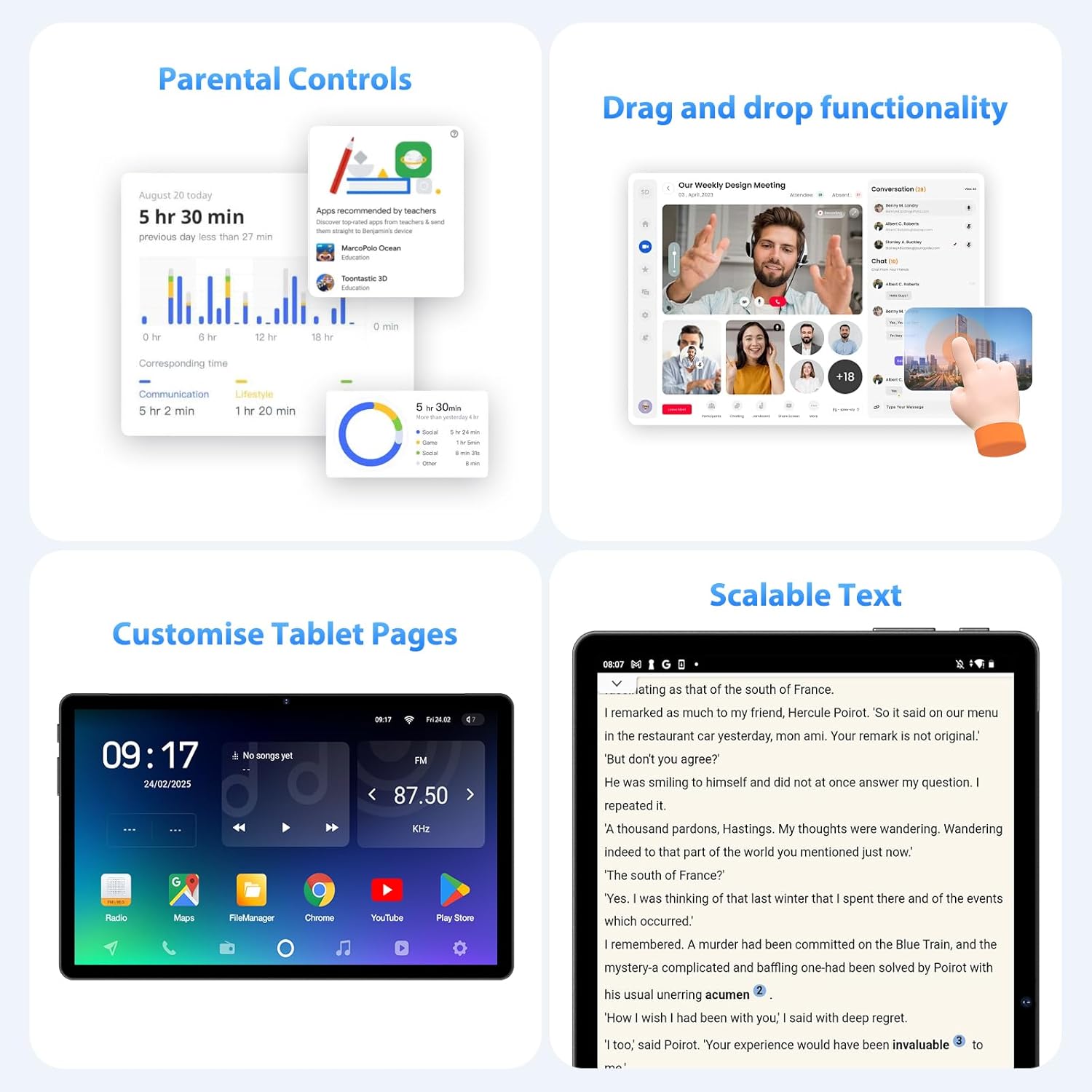
ຮູບທີ 5.3: Parental control settings.
5.5 Double-tap to Wake
To quickly wake the screen without pressing the power button, simply double-tap the display. This feature can usually be enabled or disabled in ການຕັ້ງຄ່າ > ຈໍສະແດງຜົນ > Lock screen display.
ຮູບທີ 5.4: Double-tap to wake functionality.
5.6 Customizing Tablet Pages
Personalize your tablet's home screens by long-pressing on an empty area to access wallpaper, widgets, and home screen settings. You can also rearrange app icons and create folders.
ຮູບທີ 5.5: Example of a customized tablet page.
6. ຄຸນສົມບັດຂັ້ນສູງ
6.1 Display and Multimedia
- 2K QHD 90Hz Display: Enjoy smooth visuals and vibrant colors on the 11-inch 2560x1440 resolution display. The 90Hz refresh rate enhances scrolling and gaming experiences.
- Widevine L1 DRM: Supports Widevine L1 Digital Rights Management, enabling high-definition (1080P) streaming from services like Netflix.
- DP HD Screen Throwing: Allows for high-definition screen mirroring or extension to compatible external displays.
- Scalable Text: Adjust text size for improved readability via display settings.
ຮູບທີ 6.1: Scalable text feature for enhanced readability.
6.2 Performance and AI
- Octa-Core T615 Processor: Equipped with a powerful 12nm Octa-Core T615 processor (4x A73 + 4x A53) and Mali-G72 GPU for efficient multitasking and smooth application performance.
- Gemini AI Integration: Leverages Gemini AI for enhanced smart features and optimized user experience.
- AI Smart Detection: The tablet incorporates AI for various smart detection functionalities, improving user interaction and device efficiency.
ຮູບທີ 6.2: Octa-core processor specifications.
6.3 ຄຸນສົມບັດກ້ອງຖ່າຍຮູບ
The tablet is equipped with AI-enhanced cameras:
- ກ້ອງຫຼັງ: 13MP + 3MP with HD Video Call support, autofocus, and Low Light LED Flash.
- ກ້ອງໜ້າ: 8MP with autofocus.
- Capture Unlock Face: Utilize the front camera for face recognition to unlock the device.
6.4 ລະບົບສຽງ
Experience clear audio with the tablet's advanced sound system:
- ສີ່ Amplitude Speakers: Delivers rich and immersive sound.
- AI Noise Cancellation: Artificial Intelligence Noise Cancellation technology automatically filters out ambient noise for clearer audio output.
7. ການບໍາລຸງຮັກສາແລະການດູແລ
7.1 ການເຮັດຄວາມສະອາດແທັບເລັດ
Use a soft, lint-free cloth to gently wipe the screen and body of the tablet. For stubborn smudges, slightly dampໃສ່ຜ້າດ້ວຍນ້ໍາຫຼືການແກ້ໄຂເຮັດຄວາມສະອາດຫນ້າຈໍ. ຫຼີກເວັ້ນການນໍາໃຊ້ສານເຄມີທີ່ຮຸນແຮງຫຼືວັດສະດຸຂັດ.
7.2 ການດູແລຫມໍ້ໄຟ
The tablet is equipped with an 8000mAh battery, providing approximately 8 hours of usage. To prolong battery life:
- ຫຼີກເວັ້ນອຸນຫະພູມທີ່ຮຸນແຮງ.
- ຢ່າປ່ອຍໃຫ້ຫມໍ້ໄຟຫມົດໄປເລື້ອຍໆ.
- ໃຊ້ເຄື່ອງສາກທີ່ສະໜອງໃຫ້ສໍາລັບການສາກໄຟທີ່ດີທີ່ສຸດ.
- Reduce screen brightness and disable unnecessary features (Wi-Fi, Bluetooth, GPS) when not in use.
7.3 ການປັບປຸງຊອບແວ
ກວດສອບ ແລະຕິດຕັ້ງການອັບເດດຊອບແວເປັນປະຈຳເພື່ອຮັບປະກັນວ່າແທັບເລັດຂອງທ່ານມີຄຸນສົມບັດຫຼ້າສຸດ, ແຜ່ນປ້ອງກັນຄວາມປອດໄພ ແລະການປັບປຸງປະສິດທິພາບ. ໄປທີ່ ການຕັ້ງຄ່າ > ລະບົບ > ອັບເດດລະບົບ ເພື່ອກວດສອບການອັບເດດທີ່ມີຢູ່.
7.4 ການຄຸ້ມຄອງການເກັບຮັກສາ
The tablet comes with 256GB of internal storage, expandable up to 1TB via MicroSD card. To manage storage:
- ປົກກະຕິລຶບສິ່ງທີ່ບໍ່ຈໍາເປັນ files ແລະກິດ.
- ຍ້າຍຂະຫນາດໃຫຍ່ files (photos, videos) to the MicroSD card or cloud storage.
- Clear app cache periodically via ການຕັ້ງຄ່າ > ການເກັບຮັກສາ.
8. ການແກ້ໄຂບັນຫາ
ພາກສ່ວນນີ້ແກ້ໄຂບັນຫາທົ່ວໄປທີ່ທ່ານອາດຈະພົບກັບແທັບເລັດຂອງທ່ານ.
8.1 ແທັບເລັດບໍ່ເປີດ
- ໃຫ້ແນ່ໃຈວ່າໄດ້ສາກໄຟແລ້ວ. ເຊື່ອມຕໍ່ແທັບເລັດກັບເຄື່ອງສາກເປັນເວລາຢ່າງໜ້ອຍ 30 ນາທີ.
- ກົດປຸ່ມເປີດປິດຄ້າງໄວ້ 10-15 ວິນາທີເພື່ອເປີດປິດເປີດຄືນໃໝ່.
8.2 ບັນຫາການເຊື່ອມຕໍ່ Wi-Fi
- ຣີສະຕາດເລົາເຕີ Wi-Fi ແລະແທັບເລັດຂອງທ່ານ.
- ໃຫ້ແນ່ໃຈວ່າທ່ານຢູ່ໃນຂອບເຂດຂອງສັນຍານ Wi-Fi.
- ກວດສອບລະຫັດຜ່ານ Wi-Fi ຖືກຕ້ອງ.
- ລືມເຄືອຂ່າຍໃນການຕັ້ງຄ່າ Wi-Fi ແລະເຊື່ອມຕໍ່ຄືນໃໝ່.
8.3 ການປະຕິບັດຊ້າ
- ປິດແອັບພລິເຄຊັນທີ່ບໍ່ໄດ້ໃຊ້ທີ່ເຮັດວຽກຢູ່ໃນພື້ນຫຼັງ.
- Clear app caches and free up storage space.
- ຣີສະຕາດແທັບເລັດເປັນໄລຍະ.
- Consider performing a factory reset if performance issues persist (ໝາຍເຫດ: This will erase all data on the tablet. Back up important data first).
8.4 ໜ້າຈໍບໍ່ຕອບສະໜອງ
- ດໍາເນີນການບັງຄັບໃຫ້ປິດເປີດຄືນໃໝ່ໂດຍການກົດປຸ່ມເປີດປິດຄ້າງໄວ້.
- ກວດໃຫ້ແນ່ໃຈວ່າໜ້າຈໍສະອາດ ແລະບໍ່ມີຄວາມຊຸ່ມຊື່ນ ຫຼືສິ່ງເສດເຫຼືອ.
9. ຂໍ້ມູນຈໍາເພາະ
| ຄຸນສົມບັດ | ຂໍ້ມູນຈໍາເພາະ |
|---|---|
| ຍີ່ຫໍ້ | FASTWD |
| ຊື່ຕົວແບບ | FASTWD Android 15 Tablet 11-inch |
| ລະບົບປະຕິບັດການ | Android 15 |
| ໂຮງງານຜະລິດ | Octa-Core T615 (4x A73, 4x A53, 12nm) |
| GPU | ມາລີ-G72 |
| RAM | 36GB (12GB + 24GB ເສມືນ) |
| ການເກັບຮັກສາພາຍໃນ | 256GB |
| ການເກັບຮັກສາທີ່ຂະຫຍາຍໄດ້ | ສູງສຸດ 1TB MicroSD |
| ຂະຫນາດຈໍສະແດງຜົນ | 11 ນິ້ວ |
| ຄວາມລະອຽດການສະແດງ | 2560x1440 (2K QHD) |
| ອັດຕາການໂຫຼດຂໍ້ມູນຄືນໃໝ່ | 90Hz |
| ຄວາມອາດສາມາດຫມໍ້ໄຟ | 8000 mAh |
| ຊີວິດຫມໍ້ໄຟ | ປະມານ 8 ຊົ່ວໂມງ |
| ກ້ອງຫຼັງ | 13MP + 3MP with Autofocus and LED Flash |
| ກ້ອງໜ້າ | 8MP with Autofocus |
| Wi-Fi | 802.11ac (2.4G/5G Dual-band) |
| ການເຊື່ອມຕໍ່ໂທລະສັບມືຖື | 4G LTE (TDD+FDD), VoLTE |
| Bluetooth | ແມ່ນແລ້ວ |
| ທ່າເຮືອ | USB Type-C |
| ຂະ ໜາດ (ຜະລິດຕະພັນ) | 26L x 16W x 0.8ຊມ |
| ນ້ຳໜັກ | ປະມານ 568g |
| ສະຫນັບສະຫນູນ DRM | ໄວດ໌ວາຍ L1 |
| ຄຸນສົມບັດອື່ນໆ | Gemini AI, GPS, TÜV Certified (implied from product title) |
10. ການຮັບປະກັນແລະການສະຫນັບສະຫນູນ
For detailed warranty information, please refer to the warranty card included in your product packaging or contact your point of purchase. Warranty terms and conditions may vary by region and retailer.
If you encounter issues not covered in this manual or require further assistance, please contact FASTWD customer support through the contact information provided with your product or on the official FASTWD webເວັບໄຊ.


