OPPO Reno 13 5G PKM110 Dual SIM Smartphone
ຄູ່ມືການສອນ
ແນະນຳ
This manual provides essential information for the safe and efficient use of your OPPO Reno 13 5G PKM110 Dual SIM smartphone. Please read this guide thoroughly before operating your device to ensure optimal performance and longevity. Keep this manual for future reference.
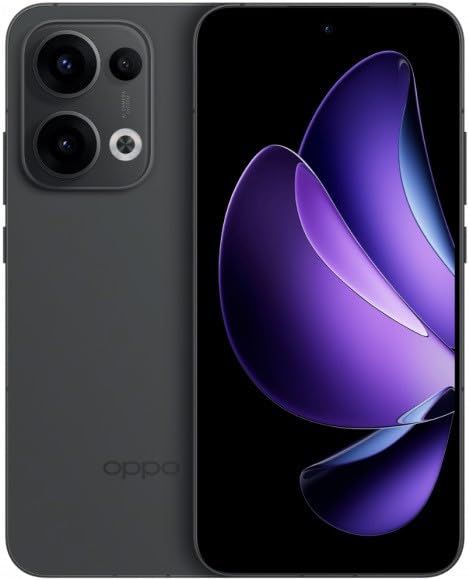
Figure 1: OPPO Reno 13 5G PKM110 Dual SIM Smartphone. This image displays the front and back of the device, highlighting its sleek design and camera module.
ຕັ້ງຄ່າ
1. Unboxing ແລະການກວດກາເບື້ອງຕົ້ນ
ເອົາລາຍການທັງຫມົດອອກຈາກການຫຸ້ມຫໍ່ຢ່າງລະມັດລະວັງ. ກວດສອບວ່າມີອົງປະກອບດັ່ງຕໍ່ໄປນີ້:
- OPPO Reno 13 5G PKM110 Smartphone
- ສາຍ USB Type-C
- Power Adapter
- SIM Ejector Tool
- ຄູ່ມືເລີ່ມຕົ້ນດ່ວນ (ເອກະສານນີ້)
Inspect the device for any visible damage. If any components are missing or damaged, contact your retailer.
2. ການຕິດຕັ້ງຊິມກາດ
- ຊອກຫາຖາດຊິມກາດຢູ່ດ້ານຂ້າງຂອງອຸປະກອນຂອງທ່ານ.
- ສຽບເຄື່ອງມືຖອດຊິມເຂົ້າໄປໃນຮູນ້ອຍຢູ່ໃນຖາດຊິມ ແລະກົດຄ່ອຍໆຈົນຖາດນັ້ນປົ່ງອອກ.
- Place your Nano-SIM cards into the designated slots on the tray. Ensure the gold contacts face downwards and the cut corner aligns correctly. This device supports Dual SIM functionality.
- ໃສ່ຖາດຊິມໃສ່ໂທລະສັບຄືນໃໝ່ຢ່າງລະມັດລະວັງຈົນກວ່າມັນຈະກົດໃສ່ບ່ອນ.
3. ເປີດ ແລະ ຕັ້ງຄ່າເບື້ອງຕົ້ນ
- ກົດປຸ່ມເປີດ/ປິດຄ້າງໄວ້ (ຕັ້ງຢູ່ເບື້ອງຂວາ) ຈົນກວ່າໂລໂກ້ OPPO ຈະປາກົດ.
- ປະຕິບັດຕາມຄໍາແນະນໍາໃນຫນ້າຈໍເພື່ອເຮັດສໍາເລັດການຕັ້ງຄ່າເບື້ອງຕົ້ນ, ລວມທັງການເລືອກພາສາ, ການເຊື່ອມຕໍ່ Wi-Fi, ການຕັ້ງຄ່າບັນຊີ Google, ແລະການຕັ້ງຄ່າຄວາມປອດໄພ.
4. ການສາກອຸປະກອນ
Before first use, it is recommended to fully charge your device. Connect the USB Type-C cable to the phone's charging port and the other end to the power adapter. Plug the adapter into a wall outlet. The charging indicator will appear on the screen.
ຄໍາແນະນໍາການດໍາເນີນງານ
1. ການນໍາທາງພື້ນຖານ
- ທ່າທາງໜ້າຈໍສຳຜັດ: ແຕະເພື່ອເລືອກ, ປັດເພື່ອເລື່ອນ, ແຕະເພື່ອຊູມ.
- ໜ້າຈໍຫຼັກ: Access your apps and widgets. Swipe left or right to navigate between screens.
- ກະດານແຈ້ງການ: ປັດລົງຈາກເທິງສຸດຂອງໜ້າຈໍໄປທີ່ view ການແຈ້ງເຕືອນ ແລະການຕັ້ງຄ່າດ່ວນ.
- ແອັບຫຼ້າສຸດ: Swipe up from the bottom of the screen and hold (or tap the recent apps button, if configured) to view ຄໍາຮ້ອງສະຫມັກທີ່ໃຊ້ບໍ່ດົນມານີ້.
2. ໂທອອກ ແລະສົ່ງຂໍ້ຄວາມ
- ໂທອອກ: Open the 'Phone' app, enter the number, and tap the call icon.
- ສົ່ງຂໍ້ຄວາມ: ເປີດແອັບ 'ຂໍ້ຄວາມ', ແຕະໄອຄອນຂໍ້ຄວາມໃໝ່, ໃສ່ໝາຍເລກຜູ້ຮັບ ຫຼືເລືອກຈາກລາຍຊື່ຜູ່ຕິດຕໍ່, ພິມຂໍ້ຄວາມຂອງເຈົ້າ ແລະແຕະສົ່ງ.
3. ການເຊື່ອມຕໍ່ເຄືອຂ່າຍ
- Wi-Fi: ໄປທີ່ ການຕັ້ງຄ່າ > Wi-Fi, ເປີດ Wi-Fi, ເລືອກເຄືອຂ່າຍທີ່ທ່ານຕ້ອງການ, ແລະໃສ່ລະຫັດຜ່ານຖ້າຕ້ອງການ.
- ຂໍ້ມູນມືຖື (5G): ໄປທີ່ ການຕັ້ງຄ່າ > ເຄືອຂ່າຍມືຖື, ensure 'Mobile data' is enabled. Your device supports 5G connectivity where available.
- Bluetooth: ໄປທີ່ ການຕັ້ງຄ່າ > Bluetooth, turn Bluetooth on, and pair with compatible devices.
4. ການນໍາໃຊ້ກ້ອງຖ່າຍຮູບ
Open the 'Camera' app. Tap the shutter button to take a photo. Swipe left or right to switch between different modes (e.g., Photo, Video, Portrait). Tap the camera icon to switch between front and rear cameras.
5. ຄຸນນະສົມບັດຄວາມປອດໄພ
- ປົດລັອກລາຍນິ້ວມື: ລົງທະບຽນລາຍນິ້ວມືຂອງທ່ານໃນ Settings > Password & Biometrics > Fingerprint.
- ປົດລັອກດ້ວຍໜ້າ: ຕັ້ງຄ່າການຮັບຮູ້ໃບໜ້າໃນ Settings > Password & Biometrics > Face.
- ລັອກ ໜ້າ ຈໍ: Choose a PIN, pattern, or password for screen lock in Settings > Password & Biometrics > Lock screen password.
ບໍາລຸງຮັກສາ
1. ການປັບປຸງຊອບແວ
ກວດສອບການອັບເດດຊອບແວເປັນປະຈຳເພື່ອຮັບປະກັນວ່າອຸປະກອນຂອງທ່ານມີຄຸນສົມບັດຫຼ້າສຸດ ແລະແພັດຄວາມປອດໄພ. ໄປທີ່ ການຕັ້ງຄ່າ > ກ່ຽວກັບອຸປະກອນ > ອັບເດດແລ້ວ ເພື່ອກວດສອບ ແລະຕິດຕັ້ງອັບເດດ.
2. ການເຮັດຄວາມສະອາດອຸປະກອນຂອງທ່ານ
ໃຊ້ຜ້າແພທີ່ອ່ອນນຸ້ມ, ບໍ່ມີສານດ່າງເພື່ອທຳຄວາມສະອາດໜ້າຈໍ ແລະຕົວເຄື່ອງຂອງໂທລະສັບຂອງທ່ານ. ຫຼີກເວັ້ນການນໍາໃຊ້ສານເຄມີທີ່ຮຸນແຮງຫຼືວັດສະດຸຂັດ. ຢ່າເຮັດໃຫ້ອຸປະກອນມີຄວາມຊຸ່ມຊື່ນຫຼາຍເກີນໄປ.
3. ການດູແລຫມໍ້ໄຟ
- ຫຼີກເວັ້ນອຸນຫະພູມທີ່ຮຸນແຮງ.
- Do not let the battery drain completely too often.
- ໃຊ້ສະເພາະເຄື່ອງສາກ ແລະ ສາຍໄຟທີ່ໄດ້ຮັບການຮັບຮອງຈາກ OPPO ເທົ່ານັ້ນ.
4. ການຄຸ້ມຄອງການເກັບຮັກສາ
To free up storage space, regularly clear cache data, uninstall unused apps, and transfer large files (photos, videos) to cloud storage or a computer. Go to Settings > About device > Storage to manage your device's storage.
ການແກ້ໄຂບັນຫາ
1. ອຸປະກອນບໍ່ຕອບສະໜອງ
ຖ້າອຸປະກອນຂອງທ່ານບໍ່ຕອບສະໜອງ, ໃຫ້ກົດປຸ່ມເປີດປິດຄ້າງໄວ້ປະມານ 10-15 ວິນາທີເພື່ອບັງຄັບໃຫ້ຣີສະຕາດ.
2. ບັນຫາການເຊື່ອມຕໍ່ເຄືອຂ່າຍ
- ບໍ່ມີສັນຍານ: Ensure your SIM card is properly inserted. Try restarting the device. Check if airplane mode is off.
- ບັນຫາການເຊື່ອມຕໍ່ Wi-Fi: Restart your router and your phone. Forget the network in Wi-Fi settings and reconnect.
3. ແອັບຂັດຂ້ອງ ຫຼື ຄ້າງ
ລຶບລ້າງແຄດ ແລະຂໍ້ມູນສຳລັບແອັບທີ່ມີບັນຫາ (Settings > Apps > App management > [App Name] > Storage usage > Clear cache/Clear data). ຖ້າບັນຫາຍັງຄົງຢູ່, ຖອນການຕິດຕັ້ງ ແລະຕິດຕັ້ງແອັບຄືນໃໝ່.
4. ຣີເຊັດເປັນຄ່າໂຮງງານ
WARNING: A factory reset will erase all data on your phone, including apps, photos, and settings. Back up your data before proceeding.
ເພື່ອຕັ້ງຄ່າໂຮງງານຄືນໃໝ່, ໃຫ້ໄປທີ່ Settings > System settings > Back up and reset > Reset phone > Erase all data. You will need to confirm your screen lock password.
ຂໍ້ມູນຈໍາເພາະ
| ຄຸນສົມບັດ | ຂໍ້ມູນຈໍາເພາະ |
|---|---|
| ຍີ່ຫໍ້ | OPPO |
| ຊື່ຕົວແບບ | Oppo Reno 13 5G PKM110 |
| ຄວາມອາດສາມາດເກັບຮັກສາຫນ່ວຍຄວາມຈໍາ | 256 GB |
| RAM ຂະຫນາດທີ່ຕິດຕັ້ງ | 12 GB |
| ປະເພດການສະແດງ | AMOLED |
| ເຕັກໂນໂລຊີໂທລະສັບມືຖື | 5G |
| ຈຳນວນຊ່ອງໃສ່ຊິມກາດ | ຊິມສອງ |
| ປັດໄຈແບບຟອມ | ບາ |
| ສີ | ດຳ |
| ຜູ້ໃຫ້ບໍລິການໄຮ້ສາຍ | ປົດລັອກແລ້ວ |
ການຮັບປະກັນແລະການສະຫນັບສະຫນູນ
1. ຂໍ້ມູນການຮັບປະກັນ
Your OPPO Reno 13 5G PKM110 is covered by a limited warranty. Please refer to the warranty card included in your product packaging for detailed terms and conditions, including warranty period and coverage specifics. Keep your proof of purchase for warranty claims.
2. ການຊ່ວຍເຫຼືອລູກຄ້າ
For technical assistance, troubleshooting beyond this manual, or warranty service, please contact OPPO customer support. Visit the official OPPO website for contact information, service center locations, and online support resources.