1. ຜະລິດຕະພັນເກີນview
The CITLLA PRO MAX E510 is an ergonomic wireless mouse designed for comfort and efficiency across multiple devices. It features dual Bluetooth and 2.4G wireless connectivity, adjustable DPI settings, and a unique smart flying scroll wheel with a side thumb wheel for enhanced navigation.

Image: The CITLLA PRO MAX E510 Wireless Bluetooth Mouse in white, showcasing its ergonomic design and multiple buttons.
2. ຄໍາແນະນໍາການຕິດຕັ້ງ
2.1 ການສາກໄຟເບື້ອງຕົ້ນ
Before first use, fully charge the mouse using the provided USB-C cable. The charging port is located at the front of the mouse. A full charge can last up to 60 days. The mouse features an auto-sleep mode after 15 minutes of inactivity to conserve battery life.
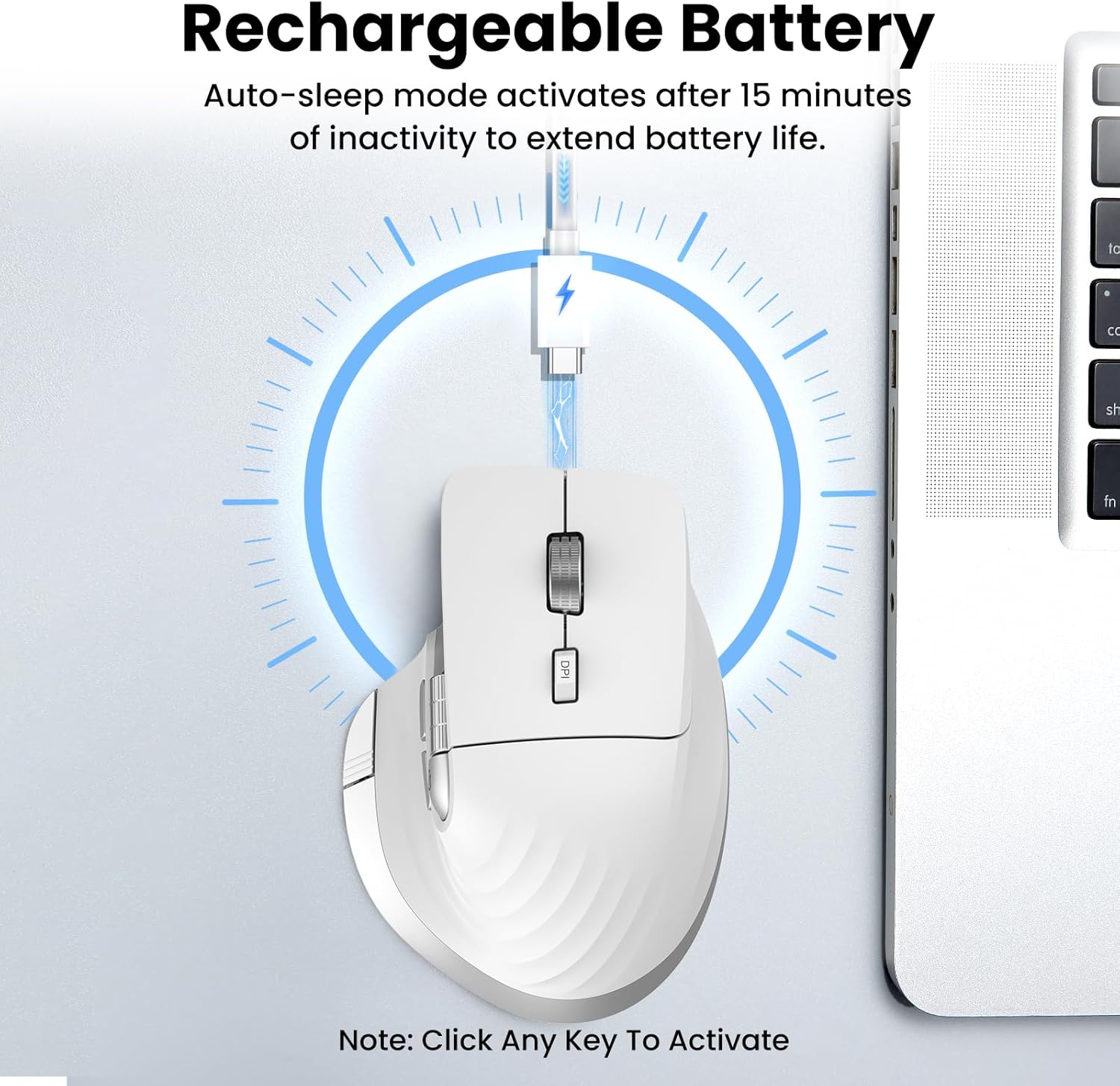
Image: The mouse connected to a USB-C charging cable, illustrating the rechargeable battery feature.
2.2 ການເຊື່ອມຕໍ່ກັບອຸປະກອນ
The mouse supports connection to up to three devices via 2.4G wireless (USB receiver) and two Bluetooth channels (Bluetooth 1, Bluetooth 2).
- ການເຊື່ອມຕໍ່ໄຮ້ສາຍ 2.4G:
- Locate the USB receiver stored in the compartment on the underside of the mouse.
- ສຽບຕົວຮັບ USB ເຂົ້າໄປໃນຜອດ USB ທີ່ມີຢູ່ໃນຄອມພິວເຕີຂອງທ່ານ.
- ເປີດເມົາສ໌ໂດຍໃຊ້ສະວິດເປີດ/ປິດທີ່ຢູ່ທາງລຸ່ມ.
- Press the 'Devices Switch Button' (labeled 6 in the button diagram) until the white indicator light for 2.4G (labeled 7) illuminates. The mouse should now be connected.
- Bluetooth Connection (Bluetooth 1 / Bluetooth 2):
- ເປີດເມົ້າໂດຍໃຊ້ປຸ່ມເປີດ/ປິດ.
- Press the 'Devices Switch Button' (6) to select either Bluetooth 1 (blue indicator) or Bluetooth 2 (green indicator).
- Press and hold the 'Devices Switch Button' for 3-5 seconds until the selected Bluetooth indicator light starts flashing rapidly. This indicates pairing mode.
- ໃນອຸປະກອນຂອງທ່ານ (ແລັບທັອບ, ແທັບເລັດ, ສະມາດໂຟນ), ໄປທີ່ການຕັ້ງຄ່າ Bluetooth ແລະຄົ້ນຫາອຸປະກອນໃໝ່.
- Select "CITLLA E510" (or similar name) from the list of available devices to pair.
- ເມື່ອຈັບຄູ່ແລ້ວ, ໄຟຕົວຊີ້ວັດຈະຢຸດກະພິບ ແລະຍັງຄົງແຂງຢູ່.

Image: Diagram showing the mouse wirelessly connected to a laptop, desktop monitor, and tablet, illustrating its multi-device capability.
3. ຄໍາແນະນໍາການດໍາເນີນງານ
3.1 ການທໍາງານຂອງປຸ່ມ

Image: Detailed diagram of the mouse buttons and their corresponding functions.
- 1. ປຸ່ມຊ້າຍ: ຟັງຊັນຄລິກຊ້າຍມາດຕະຖານ.
- 2. ປຸ່ມຂວາ: ຟັງຊັນຄລິກຂວາມາດຕະຖານ.
- 3. Smart Flying Scroll Wheel: For ultra-fast, nearly silent vertical scrolling.
- 4. ປຸ່ມ DPI: Press to cycle through 4 adjustable DPI levels (1000/1600/2400/3200).
- 5. Side Wheel: For fast horizontal scrolling.
- 6. Devices Switch Button: Press to switch between connected devices (2.4G, Bluetooth 1, Bluetooth 2). Press and hold to enter Bluetooth pairing mode.
- 7. Devices Indicators: White for 2.4G, Blue for Bluetooth 1, Green for Bluetooth 2. Also includes a low power indicator.
- 8. Forward/Back Buttons: Navigate forward/back in web browsers or switch applications (macOS).
- 9. Return to Desktop Button: Instantly minimizes all windows to show the desktop (Windows only). For macOS, this button can be used for Full Screen (Control+Command+F).
3.2 Scrolling Functions
The mouse features two distinct scrolling mechanisms:
- ໄດ້ ລໍ້ເລື່ອນບິນອັດສະລິຍະ (3) on top provides smooth and rapid vertical scrolling, ideal for long documents or web ໜ້າ.
- ໄດ້ ລໍ້ຂ້າງ (5) allows for horizontal scrolling, which is particularly useful for navigating wide spreadsheets or timelines.
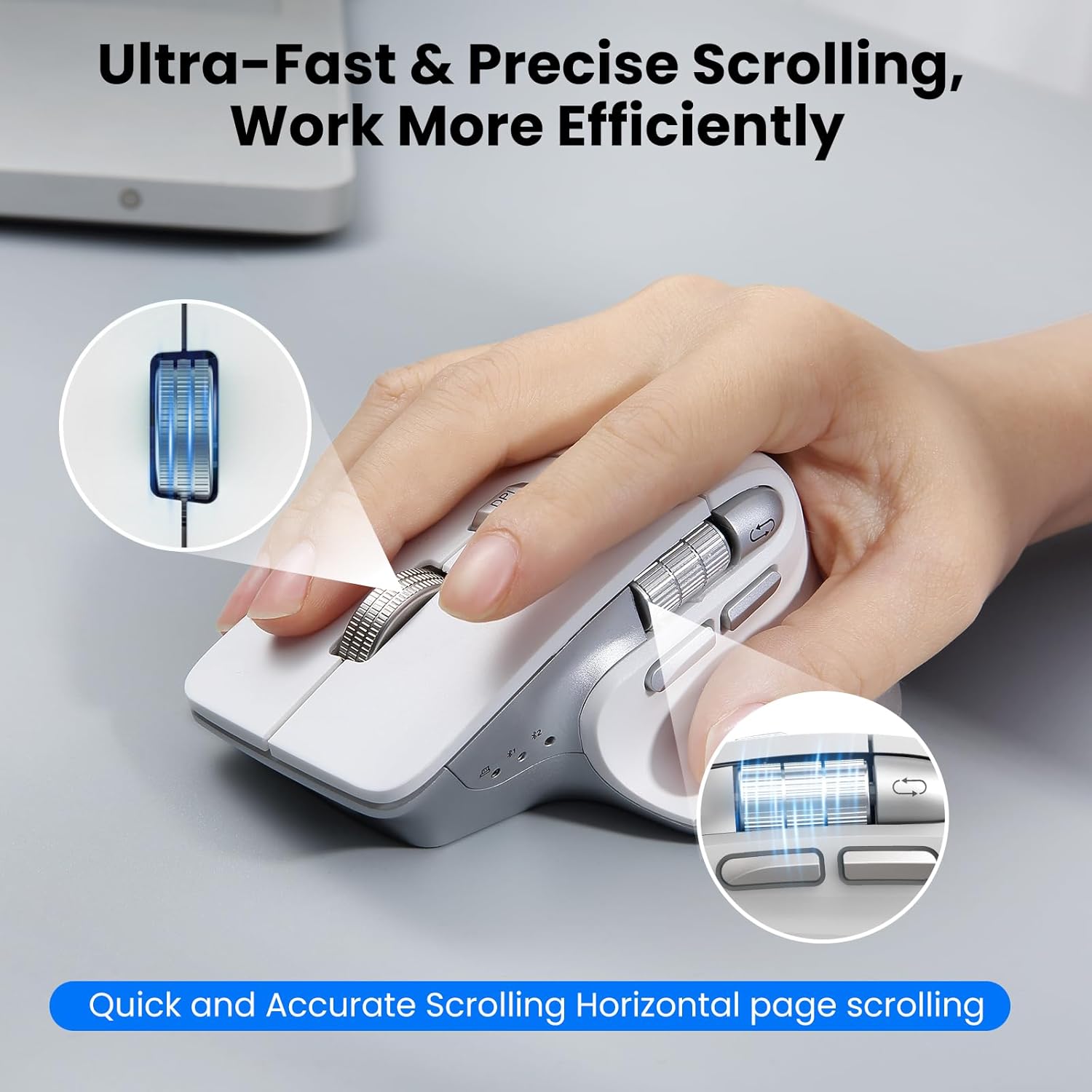
Image: A hand operating the mouse, highlighting the smart flying scroll wheel and the side thumb wheel for efficient navigation.
3.3 ການປັບ DPI
The DPI (Dots Per Inch) button (4) allows you to adjust the cursor sensitivity. Press the DPI button to cycle through the four available settings: 1000, 1600, 2400, and 3200 DPI. Choose a setting that best suits your task, whether it's precise graphic design or fast-paced gaming.

Image: A visual representation of the 4-level adjustable DPI settings (1000, 1600, 2400, 3200 DPI).
3.4 ລັກສະນະພິເສດ
- ການອອກແບບຄລິກທີ່ງຽບສະຫງົບ: The mouse is engineered for quiet operation, making it suitable for shared workspaces and quiet environments.
- Return to Desktop (Windows Only): The dedicated button (9) provides a quick way to minimize all open windows and display your desktop. This feature is specific to Windows operating systems.

Image: A laptop screen showing multiple open windows, with an arrow indicating the 'Return to Desktop' button on the mouse minimizing them.
3.5 Product Feature Video
Video: An official product video from CITLLA showcasing the key features and functionality of the PRO MAX E510 Wireless Bluetooth Mouse, including its ergonomic design, multi-device connectivity, and smart scrolling.
4. ບໍາລຸງຮັກສາ
4.1 ການທໍາຄວາມສະອາດ
To maintain optimal performance, regularly clean your mouse. Use a soft, dry cloth to wipe the exterior. For stubborn dirt, a slightly damp ສາມາດໃຊ້ຜ້າໄດ້, ເພື່ອຮັບປະກັນວ່າບໍ່ມີຄວາມຊຸ່ມຊື່ນເຂົ້າໄປໃນອົງປະກອບພາຍໃນ. ຫຼີກລ່ຽງສານເຄມີທີ່ຮຸນແຮງ ຫຼື ວັດສະດຸຂັດ.
4.2 ການດູແລຫມໍ້ໄຟ
The mouse is equipped with a rechargeable battery. Charge it using a standard USB-C cable. The low power indicator will alert you when charging is needed. To prolong battery life, the mouse enters an auto-sleep mode after 15 minutes of inactivity. Click any button to reactivate it.
5. ການແກ້ໄຂບັນຫາ
- ເມົ້າບໍ່ຕອບສະໜອງ:
- ກວດໃຫ້ແນ່ໃຈວ່າເມົາສ໌ເປີດຢູ່.
- ກວດເບິ່ງລະດັບຫມໍ້ໄຟແລະສາກໄຟຖ້າຈໍາເປັນ.
- Verify the correct connection mode (2.4G, BT1, BT2) is selected using the Devices Switch Button.
- ສຳລັບ 2.4G, ໃຫ້ແນ່ໃຈວ່າຕົວຮັບສັນຍານ USB ຖືກສຽບແໜ້ນດີແລ້ວ.
- For Bluetooth, re-pair the mouse with your device.
- ການເຄື່ອນໄຫວຕົວກະພິບແມ່ນຜິດພາດ ຫຼືຊ້າ:
- Adjust the DPI setting using the DPI button (4) to a higher sensitivity.
- ກວດໃຫ້ແນ່ໃຈວ່າເຊັນເຊີເມົາສ໌ສະອາດ ແລະບໍ່ມີສິ່ງກີດຂວາງ.
- ໃຊ້ເມົາສ໌ເທິງພື້ນຜິວທີ່ເໝາະສົມ (ເຊັ່ນ: ແຜ່ນຮອງເມົາສ໌).
- ບໍ່ສາມາດສະຫຼັບລະຫວ່າງອຸປະກອນ:
- Ensure all devices are properly paired/connected to their respective channels (2.4G, BT1, BT2).
- Press the Devices Switch Button (6) firmly to cycle through the connections.
- Return to Desktop button not working:
- This feature is only supported on Windows systems.
- ກວດໃຫ້ແນ່ໃຈວ່າລະບົບປະຕິບັດການ Windows ຂອງທ່ານອັບເດດແລ້ວ.
6. ຂໍ້ມູນຈໍາເພາະ
| ຂະໜາດສິນຄ້າ | 4.6 x 2.6 x 0.04 ນິ້ວ |
| ນ້ໍາຫນັກລາຍການ | 6.7 ອອນ |
| ໝໍ້ໄຟ | 1 ຫມໍ້ໄຟທີ່ບໍ່ແມ່ນມາດຕະຖານ (ລວມ) |
| ເຕັກໂນໂລຊີການເຊື່ອມຕໍ່ | Bluetooth, 2.4G USB Wireless |
| ຄຸນນະສົມບັດພິເສດ | 4 Way Scrolling, Ergonomic Design, Rechargeable, Silent Click, Wireless |
| ເຕັກໂນໂລຍີກວດຈັບການເຄື່ອນໄຫວ | Optical |
7. ຄວາມເຂົ້າກັນໄດ້
The CITLLA PRO MAX E510 Wireless Bluetooth Mouse is compatible with a wide range of operating systems:
- Windows
- Mac OS
- Chrome OS
- Linux
- iOS
- Android

Image: Icons for Android, Linux, Windows, Chrome OS, and Mac OS, indicating wide compatibility.
8. ສິ່ງທີ່ຢູ່ໃນກ່ອງ
- CITLLA PRO MAX E510 Wireless Bluetooth Mouse
- ສາຍສາກ USB-C
- 2.4G USB Receiver (stored in mouse)
- ຄູ່ມືຜູ້ໃຊ້
9. ການຮັບປະກັນແລະການສະຫນັບສະຫນູນ
For warranty information, technical support, or any inquiries regarding your CITLLA PRO MAX E510 Wireless Bluetooth Mouse, please refer to the contact information provided in the packaging or visit the official CITLLA website. Our customer service team is available to assist you with any product-related concerns.


