1. ຕັ້ງຄ່າ
1.1 Unboxing
Carefully remove the OnePlus Pad 3 Smart Keyboard from its packaging. The box contains the keyboard unit and a user guide with safety and warranty information.

Figure 1: OnePlus Pad 3 Smart Keyboard in its retail packaging.

Figure 2: The keyboard unit after removal from the box.
1.2 ການຕິດຄີບອດ
Align your OnePlus Pad 3 tablet with the magnetic connector on the keyboard. The tablet will snap securely into place, establishing a physical and power connection via the Pogo pin connector.

Figure 3: OnePlus Pad 3 tablet attached to the Smart Keyboard, ready for use.
1.3 Initial Connection and Firmware Update
Upon first attachment, the keyboard will automatically connect to your OnePlus Pad 3. A firmware update may be prompted; ensure you complete this update for optimal performance. If the on-screen keyboard appears when the physical keyboard is attached, navigate to Settings > Additional settings > Keyboard & input method > Physical keyboards > OnePlus Magnetic Keyboard and disable the 'Use on-screen keyboard' option.
2. ການດໍາເນີນງານ
2.1 Keyboard Layout and Touchpad
The Smart Keyboard features a full six-row layout with tactile keys for a comfortable typing experience. It includes a large precision touchpad (8640mm²) that supports multi-gesture input for enhanced navigation.
2.2 ການປັບມຸມ
The keyboard allows for five levels of angle adjustment, ranging from 110° to 160°, providing flexibility for various viewing and typing preferences.
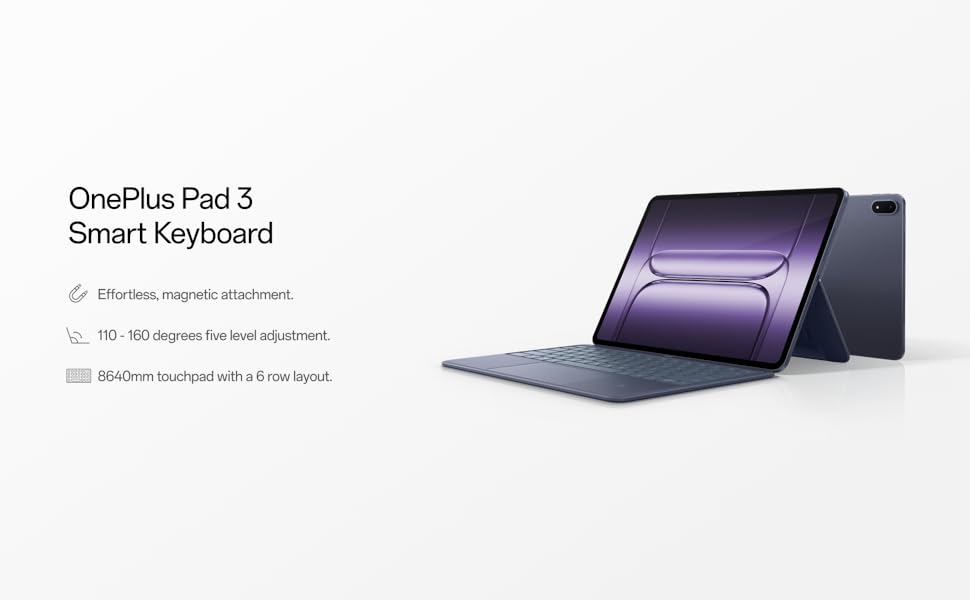
Figure 4: The keyboard offers multiple viewing angles for user comfort.
2.3 ລັກສະນະພິເສດ
- Dedicated AI Key: Access integrated AI features with a dedicated key.
- ຮອງຮັບ NFC: Utilize one-touch NFC for fast file transfers and seamless screen projection from your phone to the tablet.
3. ບໍາລຸງຮັກສາ
3.1 ການທໍາຄວາມສະອາດ
ເພື່ອທຳຄວາມສະອາດແປ້ນພິມ, ໃຫ້ເຊັດພື້ນຜິວດ້ວຍຜ້າອ່ອນໆ.amp cloth. Avoid using harsh chemicals or abrasive materials that could damage the finish or electronic components. Ensure no liquid enters the keys or touchpad.
3.2 ການເກັບຮັກສາ
When not in use, fold the keyboard to protect both the tablet screen and the keyboard keys. Store the device in a cool, dry place away from direct sunlight and extreme temperatures.
4. ການແກ້ໄຂບັນຫາ
4.1 ແປ້ນພິມບໍ່ຕອບສະໜອງ
- ກວດສອບການເຊື່ອມຕໍ່: Ensure the tablet is securely attached to the magnetic connector on the keyboard.
- ຣີສະຕາດແທັບເລັດ: A simple restart of your OnePlus Pad 3 can resolve minor connectivity issues.
- ອັບເດດເຟີມແວ: Verify that the keyboard's firmware is up to date via the tablet's settings.
- ແປ້ນພິມໃນໜ້າຈໍ: Confirm that the 'Use on-screen keyboard' option is disabled in Settings > Additional settings > Keyboard & input method > Physical keyboards.
4.2 Touchpad Issues
- ທຳຄວາມສະອາດແຜ່ນສຳຜັດ: ໃຫ້ແນ່ໃຈວ່າພື້ນຜິວສໍາຜັດສະອາດແລະບໍ່ມີສິ່ງເສດເຫຼືອ.
- ຂໍ້ບົກຜ່ອງຂອງຊອບແວ: Restarting the tablet can often resolve unresponsive touchpad behavior.
5. ຂໍ້ມູນຈໍາເພາະ
| ຄຸນສົມບັດ | ລາຍລະອຽດ |
|---|---|
| ຍີ່ຫໍ້ | OnePlus |
| ໝາຍເລກຕົວແບບ | OPK2413 |
| ນ້ໍາຫນັກລາຍການ | 1.47 ປອນ |
| ຂະໜາດສິນຄ້າ | 11.4 x 8.2 x 0.3 ນິ້ວ |
| ສີ | ສີຟ້າ |
| ແຫຼ່ງພະລັງງານ | Battery Powered (charged via Pogo pin connector from tablet) |
| ອຸປະກອນທີ່ເຂົ້າກັນໄດ້ | OnePlus Pad 3 |
| ເຕັກໂນໂລຊີການເຊື່ອມຕໍ່ | Bluetooth (for pairing, physical connection for power/data) |
| ຄຳອະທິບາຍແປ້ນພິມ | ກົນຈັກ |
| ວັດສະດຸ | ພາດສະຕິກ |
| ອົງປະກອບລວມ | USB-C to USB-C Cable (for tablet charging, not keyboard directly) |
6. ການຮັບປະກັນແລະການສະຫນັບສະຫນູນ
For detailed warranty information and technical support, please refer to the user guide included in the product packaging or visit the official OnePlus support webເວັບໄຊ. ຮັກສາຫຼັກຖານການຊື້ຂອງທ່ານສໍາລັບການຮ້ອງຂໍການຮັບປະກັນ.


