1. ບົດແນະນຳ
This manual provides comprehensive instructions for the safe and effective operation of your Jumper T14 2.4GHz ELRS Radio Controller. Please read this manual thoroughly before using the device to ensure proper setup, optimal performance, and to prevent damage or injury. Keep this manual for future reference.
2. ຂໍ້ມູນຄວາມປອດໄພ
Always operate the radio controller in a safe and responsible manner. Failure to follow safety guidelines can result in property damage, serious injury, or even death.
- ສະພາບແວດລ້ອມ: Operate in open areas, away from people, animals, and obstacles. Avoid flying near power lines, roads, or crowded places.
- ຄວາມປອດໄພຫມໍ້ໄຟ: Use only recommended batteries. Do not overcharge or over-discharge. Store batteries in a fireproof bag.
- ການກວດກາກ່ອນຖ້ຽວບິນ: Always perform a thorough pre-flight check of your aircraft and radio controller before each use.
- ເຟີມແວ: Keep your radio controller's firmware updated to the latest stable version for optimal performance and security.
- ນ້ໍາແລະຄວາມຊຸ່ມ: Keep the radio controller away from water and high humidity.
- ເດັກນ້ອຍ: This product is not a toy. Keep out of reach of children under 16 years of age. Adult supervision is required for minors.
3. ຜະລິດຕະພັນເກີນview
The Jumper T14 is a compact and ergonomic 2.4GHz ELRS radio controller designed for FPV drones and other RC applications. It features CNC Hall Gimbals, an OLED screen, and runs on EdgeTX firmware.
3.1. Radio System Components

ຮູບທີ 3.1: Detailed diagram of the Jumper T14 Radio Controller, highlighting key components and controls on the front, back, and side views. This includes switches, dials, gimbals, screen, module compartment, and charging port.
- ແຜງໜ້າ:
- VS-M CNC Hall Gimbals: High-precision gimbals for smooth control.
- 2.42" OLED Screen: Clear display for EdgeTX interface.
- ປຸ່ມເປີດປິດ: ສຳລັບການເປີດ/ປິດເຄື່ອງ.
- Switches (2-position, 3-position): Configurable for various functions.
- Dials (S1, S2): Rotary controls for fine adjustments.
- ປຸ່ມຕັດ: For adjusting stick trims.
- ປຸ່ມ SYS: System menu access.
- ປຸ່ມໜ້າ: ການນໍາທາງຫນ້າ.
- RTN Button: Return/back button.
- ແສງຕົວຊີ້ວັດສະຖານະ: Provide operational feedback.
- ກະດານດ້ານຫລັງ:
- Standard JR Module Compartment: For external RF modules.
- External Cooling Fan: Helps dissipate heat from internal components.
- ຖາດຫມໍ້ໄຟ: ຫມໍ້ໄຟເຮືອນ.
- Side/Top Panel:
- USB-C 10W Fast Charging Port: ສຳລັບການສາກໄຟ ແລະ ການເຊື່ອມຕໍ່ຂໍ້ມູນ.
- ປຸ່ມ DFU: Device Firmware Upgrade mode button.
- Trainer Port: For connecting to a simulator or another radio.
- ສະວິດຊົ່ວຄາວ: Spring-loaded switch.
- Latching Switch: Stays in position until toggled.
- Adjustable and Foldable Antenna: ສໍາລັບການສົ່ງສັນຍານ.
- Reserved Antenna DIY Port: For custom antenna modifications.
- ມືຈັບສາມາດພັບໄດ້: For portability and comfortable grip.
3.2. Key Features Visuals
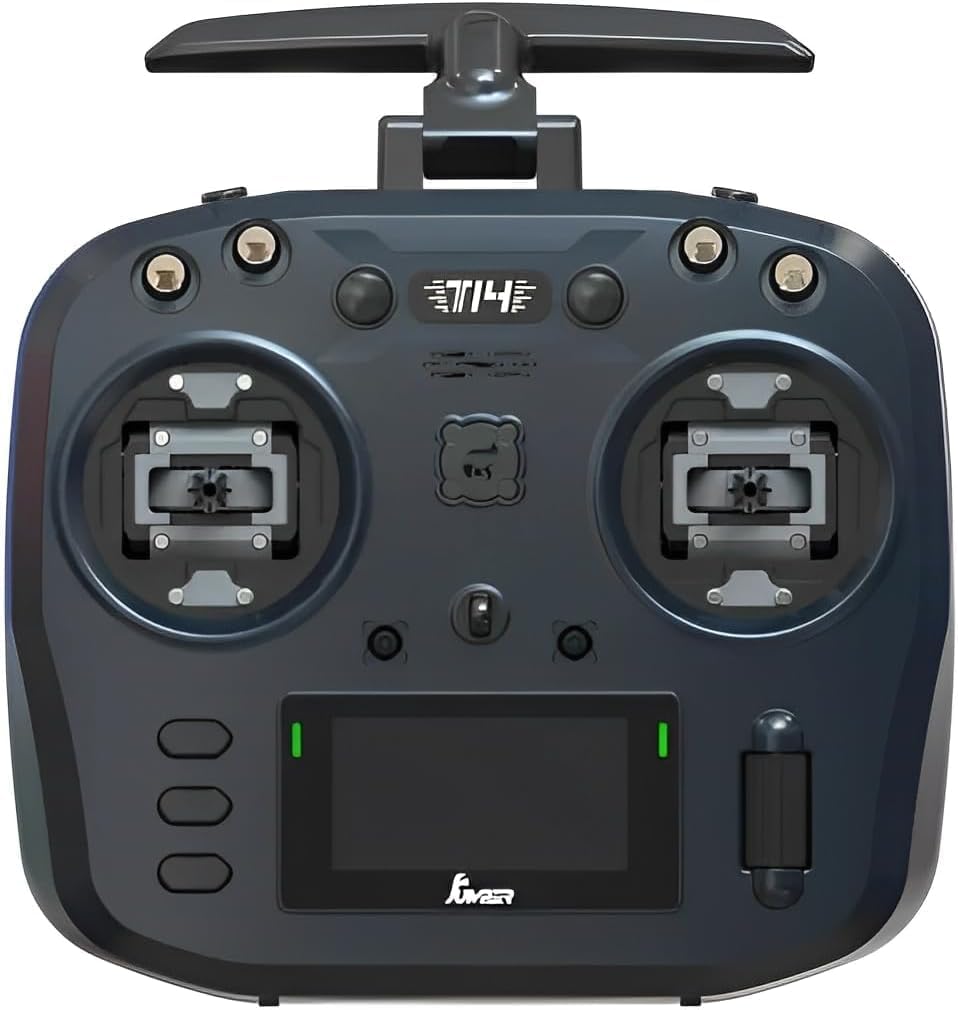
ຮູບທີ 3.2: ດ້ານໜ້າ view of the Jumper T14, showcasing the dual gimbals, OLED screen, and various control switches and dials.

ຮູບທີ 3.3: ຫລັງ view of the Jumper T14, showing the JR module bay, cooling fan, and battery compartment cover.

ຮູບທີ 3.4: Detail of the USB-C port, used for charging the internal battery and connecting to a computer for firmware updates or simulator use.

ຮູບທີ 3.5: Illustration highlighting the precision CNC Hall Sensor Gimbals, which provide accurate and durable control inputs.
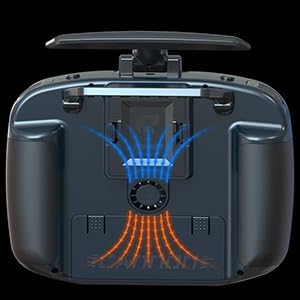
ຮູບທີ 3.6: Diagram illustrating the internal cooling fan system, designed to maintain optimal operating temperatures for the internal electronics.

ຮູບທີ 3.7: View of the bi-directional foldable antennas, which can be adjusted for optimal signal transmission and folded for compact storage.
4. ຕັ້ງຄ່າ
4.1. ການຕິດຕັ້ງ ແລະສາກແບັດເຕີຣີ
The Jumper T14 uses a rechargeable battery (not specified in input, assuming common RC battery types like 18650 or LiPo). Ensure the battery is fully charged before first use.
- ເປີດຝາປິດຊ່ອງໃສ່ແບັດເຕີຣີຢູ່ດ້ານຫຼັງຂອງວິທະຍຸ.
- Insert the battery, ensuring correct polarity if applicable.
- ປິດຝາປິດຊ່ອງໃສ່ຫມໍ້ໄຟຢ່າງປອດໄພ.
- Connect the supplied USB-C cable to the USB-C port on the top of the radio and to a compatible USB power adapter (e.g., 5V/2A).
- The OLED screen or indicator lights will show charging status. Disconnect once fully charged.
4.2. Initial Power On and EdgeTX Setup
Upon first power-on, the radio will guide you through initial setup steps for the EdgeTX firmware.
- Press and hold the Power Button until the OLED screen illuminates.
- Follow the on-screen prompts to calibrate gimbals, set date/time, and configure basic radio settings.
- Navigate menus using the scroll wheel and SYS/PAGE/RTN buttons.
4.3. ELRS Binding
To bind your Jumper T14 with an ELRS receiver, follow the standard ELRS binding procedure:
- Ensure your ELRS receiver is powered on and in binding mode (typically by cycling power three times).
- On the T14, navigate to the ELRS LUA script or the internal module settings within EdgeTX.
- Select the "Bind" option. The radio will transmit a binding signal.
- Once the receiver's LED indicates a successful bind (refer to your receiver's manual), the process is complete.
5. ຄໍາແນະນໍາການດໍາເນີນງານ
5.1. ການຄວບຄຸມພື້ນຖານ
- Gimbals: Control the primary movements of your aircraft (Throttle, Rudder, Aileron, Elevator).
- ສະວິດ: Used for arming, flight modes, special functions, etc. Assign functions in EdgeTX.
- ໜ້າປັດ: Typically used for fine-tuning parameters like camera tilt, gain, or volume.
- ປຸ່ມຕັດ: Adjust the neutral position of the gimbals for stable flight.
5.2. Model Setup in EdgeTX
EdgeTX offers extensive customization for different models. Refer to the official EdgeTX documentation for detailed instructions on advanced model setup.
- From the main screen, press the SYS button to enter the System menu.
- Navigate to "Model Select" or "Model Setup" to create a new model or edit an existing one.
- Configure internal or external RF module settings (e.g., ELRS protocol, power output).
- Set up mixes, inputs, outputs, and special functions according to your aircraft's requirements.
6. ບໍາລຸງຮັກສາ
- ທໍາຄວາມສະອາດ: Use a soft, dry cloth to clean the radio controller. Avoid abrasive cleaners or solvents.
- ການເກັບຮັກສາ: Store the radio in a cool, dry place, away from direct sunlight and extreme temperatures. Remove the battery if storing for extended periods.
- ການອັບເດດເຟີມແວ: Regularly check for and install the latest EdgeTX firmware updates from the official EdgeTX webເວັບໄຊ (www.edgetx.org) to ensure optimal performance and access to new features.
- ການດູແລຮັກສາ Gimbal: The CNC Hall Gimbals are durable, but avoid excessive force or impact. Keep them free from dust and debris.
7. ການແກ້ໄຂບັນຫາ
| ບັນຫາ | ສາເຫດທີ່ເປັນໄປໄດ້ | ການແກ້ໄຂ |
|---|---|---|
| ວິທະຍຸບໍ່ເປີດ. | ຫມໍ້ໄຟຕ່ໍາຫຼືຕາຍ; ການຕິດຕັ້ງຫມໍ້ໄຟບໍ່ຖືກຕ້ອງ. | Charge the battery; ensure battery is correctly installed with proper polarity. |
| No signal to receiver. | Not bound; incorrect ELRS settings; antenna issue. | Perform binding procedure; verify ELRS protocol and power settings in EdgeTX; check antenna connection. |
| Gimbals not responding correctly. | ຕ້ອງການການປັບທຽບ; ການອຸດຕັນທາງຮ່າງກາຍ. | Recalibrate gimbals via EdgeTX system menu; check for debris around gimbals. |
| ໜ້າຈໍຫວ່າງເປົ່າ ຫຼື ຈຶ້ງ. | Firmware issue; system crash. | Try restarting the radio. If persistent, attempt DFU mode and reflash firmware. |
8. ຂໍ້ມູນຈໍາເພາະ
| ຄຸນສົມບັດ | ລາຍລະອຽດ |
|---|---|
| ຂະໜາດສິນຄ້າ | 9 x 6 x 1.5 ນິ້ວ |
| ນ້ໍາຫນັກລາຍການ | 14.4 ອອນ |
| ASIN | B0F9WQSDGF |
| ຜູ້ຜະລິດແນະນໍາອາຍຸ | 16 ປີຂຶ້ນໄປ |
| ຜູ້ຜະລິດ | jumper |
| Gimbals | CNC Hall Sensor Gimbals |
| ໂມດູນ RF | Built-in 2.4GHz ELRS |
| ຈໍສະແດງຜົນ | ໜ້າຈໍ OLED ຂະໜາດ 2.42 ນິ້ວ |
| ເຟີມແວ | EdgeTX |
| ກຳລັງສາກໄຟ | USB-C 10W Fast Charging |
9. ການຮັບປະກັນແລະການສະຫນັບສະຫນູນ
For warranty information and technical support, please refer to the official ARRIS webເວັບໄຊ ຫຼືຕິດຕໍ່ບໍລິການລູກຄ້າຂອງເຂົາເຈົ້າໂດຍກົງ. ຮັກສາຫຼັກຖານການຊື້ຂອງທ່ານສໍາລັບການຮ້ອງຂໍການຮັບປະກັນ.
ຜູ້ຜະລິດ: jumper
ຍີ່ຫໍ້: ອາຣິສ
ສະຫນັບສະຫນູນອອນໄລນ໌: Visit the ARRIS official webເວັບໄຊທ໌ສຳລັບຄຳຖາມທີ່ຖືກຖາມເລື້ອຍໆ, ການດາວໂຫຼດເຟີມແວ ແລະ ຂໍ້ມູນຕິດຕໍ່. ARRIS Store on Amazon


