1. ບົດແນະນຳ
This manual provides essential information for the installation, operation, and maintenance of your ZOTAC Gaming GeForce RTX 5060 Twin Edge OC graphics card. Designed for high-performance gaming, this card features the NVIDIA Blackwell architecture, DLSS 4, 8GB GDDR7 memory, and PCIE 5.0 support, all within a compact, SFF-ready design. Please read this manual thoroughly before installation and use to ensure optimal performance and longevity of your product.
2. ສິ່ງທີ່ຢູ່ໃນກ່ອງ
ກວດສອບວ່າລາຍການທັງຫມົດແມ່ນມີຢູ່ໃນຊຸດ:
- ZOTAC GAMING GeForce RTX 5060 Twin Edge OC graphics card
- ຄູ່ມືຜູ້ໃຊ້ (ເອກະສານນີ້)
- ຄູ່ມືເລີ່ມຕົ້ນດ່ວນ
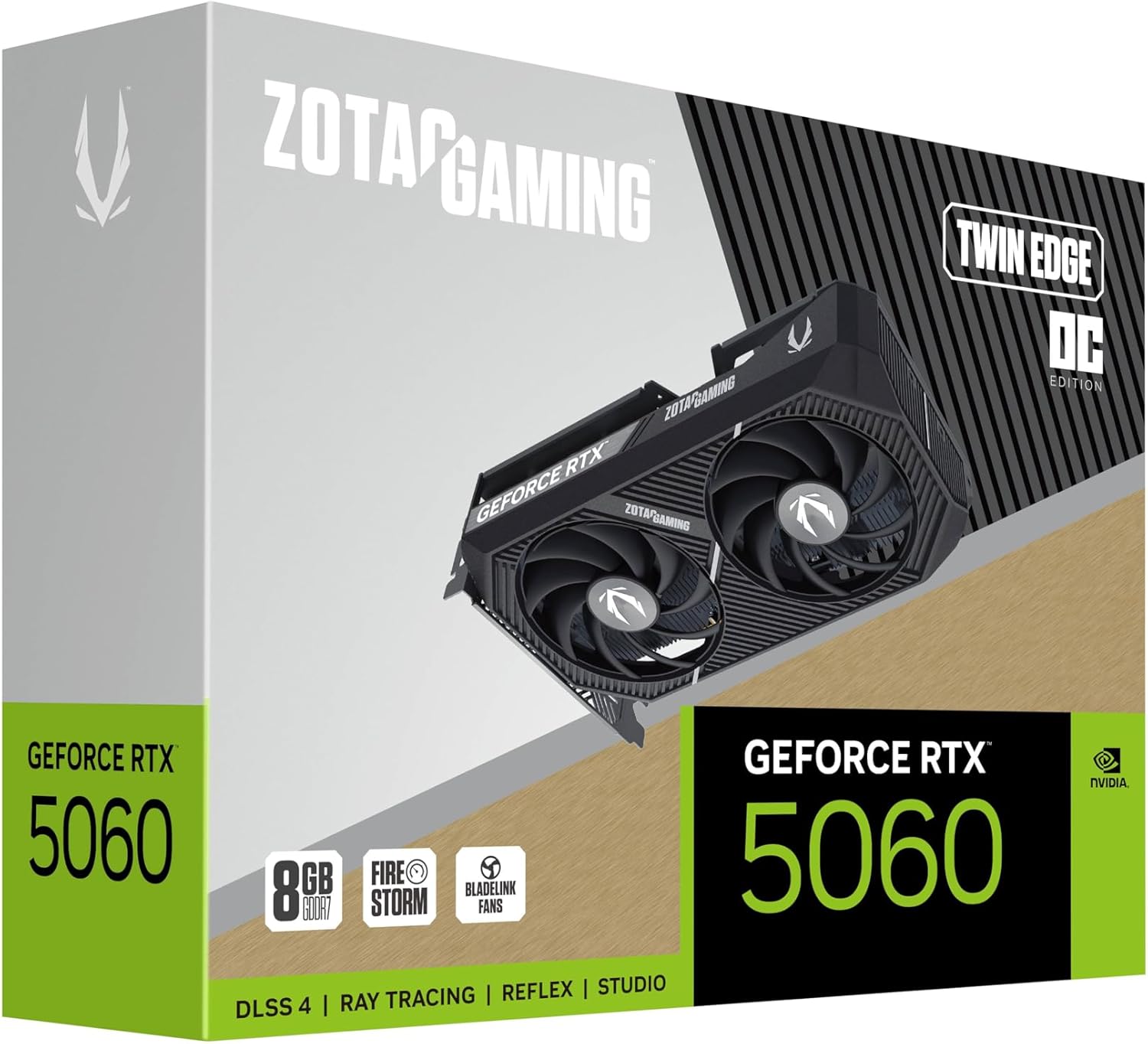
Image: The retail packaging for the ZOTAC Gaming GeForce RTX 5060 Twin Edge OC graphics card.
3. ຜະລິດຕະພັນເກີນview
Familiarize yourself with the physical components of your graphics card.

ຮູບພາບ: ທາງຫນ້າ view ຂອງບັດກາຟິກ, showcasing the dual 90mm BladeLink fans and ZOTAC GAMING branding.

ຮູບພາບ: ດ້ານຫລັງ view of the graphics card, showing the 3 DisplayPort 2.1b and 1 HDMI 2.1b output ports.

ຮູບພາບ: ຂ້າງ view of the graphics card, highlighting its compact two-slot design.
4. ຂໍ້ມູນຈໍາເພາະ
Key technical specifications of the ZOTAC Gaming GeForce RTX 5060 Twin Edge OC graphics card:
| ຄຸນສົມບັດ | ຂໍ້ມູນຈໍາເພາະ |
|---|---|
| Graphics Coprocessor | GeForce RTX 5060 |
| Chipset ຍີ່ຫໍ້ | NVIDIA |
| ຫນ່ວຍຄວາມຈໍາວິດີໂອ | 8GB GDDR7 |
| ການໂຕ້ຕອບຄວາມຈໍາ | 128-ບິດ |
| ຄວາມໄວຄວາມຈໍາ | 28 Gbps |
| ການໂຕ້ຕອບ PCIe | PCIE 5.0 |
| ສະແດງຜົນອອກ | 3 x DisplayPort 2.1b, 1 x HDMI 2.1b |
| ຄວາມລະອຽດສູງສຸດ | 7680x4320 (8K Ready) |
| ຮອງຮັບຫຼາຍຈໍສະແດງຜົນ | 4 ຈໍສະແດງຜົນ |
| ລະບົບເຮັດຄວາມເຢັນ | Dual 90mm BladeLink fans, Composite Heatpipes, Pass-thru Airflow Design |
| ຕົວເຊື່ອມຕໍ່ພະລັງງານ | 8-pin PCIe |
| ຂະໜາດ (LxWxH) | 8.7 x 1.6 x 0.1 ນິ້ວ (220.5 x 41.6 x 120.25 ມມ) |
| ນ້ຳໜັກ | 1.57 ປອນ |
5. ການຕິດຕັ້ງແລະການຕິດຕັ້ງ
5.1 ລາຍການກວດກ່ອນການຕິດຕັ້ງ
- ໃຫ້ແນ່ໃຈວ່າໜ່ວຍສະໜອງພະລັງງານ (PSU) ຂອງທ່ານຕອບສະໜອງຄ່ານ້ຳທີ່ແນະນຳtage for your system, including the new graphics card.
- ປິດຄອມພິວເຕີຂອງທ່ານ ແລະ ຖອດສາຍໄຟອອກຈາກປລັກສຽບທີ່ຝາ.
- ວາງພື້ນທີ່ໃຫ້ຕົວເອງເພື່ອປ່ອຍກະແສໄຟຟ້າສະຖິດກ່ອນການຈັດການອົງປະກອບ.
5.2 ການຕິດຕັ້ງຮາດແວ
- ເປີດກໍລະນີຄອມພິວເຕີຂອງທ່ານ.
- Locate an available PCI Express 5.0 x16 slot on your motherboard.
- Remove any expansion slot covers that correspond to the graphics card's two-slot width.
- Carefully align the graphics card with the PCIe slot and press down firmly until it is securely seated. Ensure the retention clip on the PCIe slot locks into place.
- ຮັບປະກັນບັດກາຟິກກັບກໍລະນີດ້ວຍສະກູ.
- Connect the 8-pin PCIe power connector from your PSU to the graphics card. Ensure a firm connection.
- ປິດກໍລະນີຄອມພິວເຕີຂອງທ່ານ.
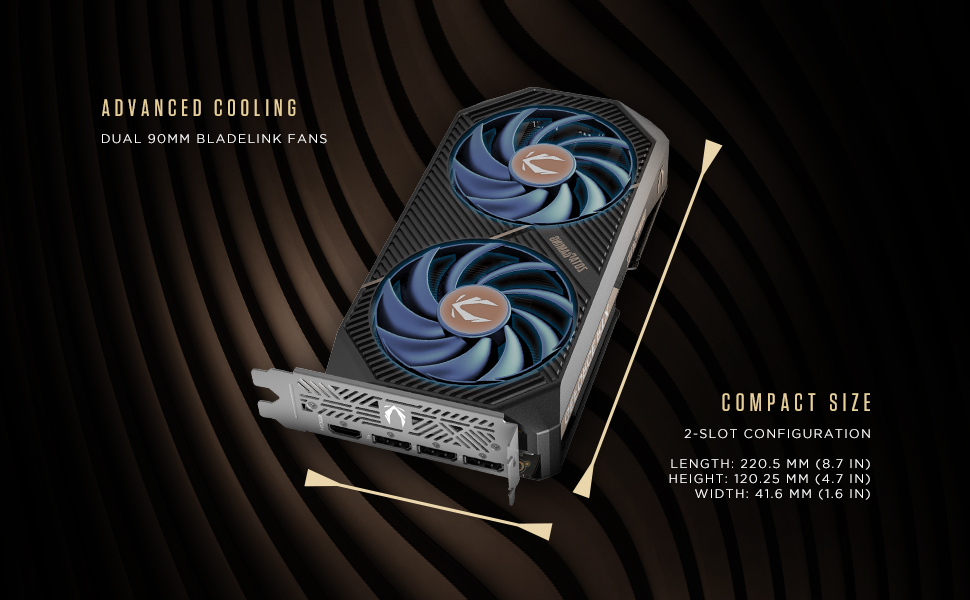
Image: Illustration of the graphics card's compact dimensions and dual fan cooling system, aiding in installation planning.
5.3 ການຕິດຕັ້ງໄດເວີ
- Reconnect the power cable and turn on your computer.
- ເຊື່ອມຕໍ່ສາຍສະແດງຜົນຂອງທ່ານ (HDMI ຫຼື DisplayPort) ຈາກກາດກຣາບຟິກໄປຫາຈໍພາບຂອງທ່ານ.
- Once the operating system loads, download the latest NVIDIA drivers for your GeForce RTX 5060 from the official NVIDIA webເວັບໄຊ (www.nvidia.com/drivers).
- ປະຕິບັດຕາມຄໍາແນະນໍາໃນຫນ້າຈໍເພື່ອສໍາເລັດການຕິດຕັ້ງໄດເວີ. ການປິດເປີດລະບົບອາດຈະຕ້ອງການ.
6. ການໃຊ້ກາດກຣາບຟິກຂອງທ່ານ
6.1 ອັບເດດໄດເວີ
Regularly update your graphics drivers to ensure optimal performance, stability, and access to the latest features and game optimizations. NVIDIA releases new drivers frequently, which can be downloaded from their official website or through the GeForce Experience application.
6.2 ZOTAC GAMING Utilities
ZOTAC provides utility software, such as FireStorm, which allows you to monitor your graphics card's performance, adjust fan speeds, and customize lighting (if applicable). Refer to the ZOTAC webເວັບໄຊທ໌ສໍາລັບຂໍ້ມູນເພີ່ມເຕີມແລະການດາວໂຫຼດ.
6.3 ການຕັ້ງຄ່າການສະແດງ
Utilize the NVIDIA Control Panel to configure display settings, including resolution, refresh rate, and multi-monitor setups. This software is installed with the graphics drivers.
7. ບໍາລຸງຮັກສາ
7.1 ການທໍາຄວາມສະອາດ
- Periodically clean the fans and heatsink of your graphics card to prevent dust buildup, which can impede cooling performance.
- Use compressed air to gently blow dust out of the heatsink fins and fan blades. Hold the fan blades in place to prevent them from spinning excessively during cleaning.
- Ensure your computer is powered off and unplugged before performing any cleaning.
7.2 ກະແສລົມ
Maintain good airflow within your PC case. Ensure that case fans are properly configured to draw cool air in and expel hot air out. Avoid obstructing the graphics card's fans or exhaust vents.

Image: Visual representation of the card's pass-through airflow design for faster heat release and the metal backplate for enhanced rigidity.
8. ການແກ້ໄຂບັນຫາ
ພາກສ່ວນນີ້ແກ້ໄຂບັນຫາທົ່ວໄປທີ່ທ່ານອາດຈະພົບກັບບັດກາຟິກຂອງທ່ານ.
| ບັນຫາ | ສາເຫດທີ່ເປັນໄປໄດ້ | ການແກ້ໄຂ |
|---|---|---|
| ບໍ່ມີການສະແດງຜົນອອກ | Incorrect cable connection, unseated card, no power, driver issue | Ensure display cables are securely connected. Reseat the graphics card. Verify the 8-pin PCIe power connector is fully inserted. Install or update drivers. |
| ຄວາມບໍ່ສະຖຽນ ຫຼື ການຂັດຂ້ອງຂອງລະບົບ | Outdated drivers, overheating, insufficient PSU power | Update graphics drivers. Monitor temperatures using ZOTAC FireStorm or other tools. Ensure PSU meets requirements. |
| Fans not spinning or excessive noise | Dust buildup, fan control settings, faulty fan | Clean fans and heatsink. Check fan speed settings in ZOTAC FireStorm. Contact support if a fan is faulty. |
| Low performance in games | Outdated drivers, incorrect game settings, CPU bottleneck | Ensure latest drivers are installed. Adjust in-game graphics settings. Verify other system components are not limiting performance. |
9. ການຮັບປະກັນແລະການສະຫນັບສະຫນູນ
ZOTAC provides dedicated customer support and warranty coverage for its products.
9.1 ການຄຸ້ມຄອງການຮັບປະກັນ
Your ZOTAC Gaming GeForce RTX 5060 Twin Edge OC graphics card typically comes with a 3-year coverage. Please register your product on the official ZOTAC website to activate and verify your warranty terms and conditions, as they may vary by region.
9.2 ສະຫນັບສະຫນູນລູກຄ້າ
For technical assistance, troubleshooting, or warranty claims, please utilize ZOTAC's support resources:
- ສົນທະນາທາງອິນເຕີເນັດ: Access 24/7 online chat support via the ZOTAC webເວັບໄຊ.
- RMA Program: For hardware issues requiring repair or replacement, refer to the Return Merchandise Authorization (RMA) program details on the ZOTAC support page.
- ຊຸມຊົນອອນໄລນ໌: Engage with other users and find solutions on ZOTAC's official forums and social media channels.
Visit the official ZOTAC webເວັບໄຊທ໌ສໍາລັບຂໍ້ມູນສະຫນັບສະຫນູນທີ່ທັນສະໄຫມທີ່ສຸດ: www.zotac.com/support

ຮູບພາບ: ຫຼາຍກວ່າview of ZOTAC's online communities and dedicated customer support services, including warranty coverage and RMA program.