ແນະນຳ
This manual provides comprehensive instructions for the setup, operation, and maintenance of your ZEBRONICS Glassy 10 Wireless Mouse. Designed for comfort and efficiency, this mouse features dual-mode connectivity (2.4GHz and Bluetooth), adjustable DPI up to 1600, silent operation, and convenient Type-C charging. Please read this manual thoroughly before using the product to ensure optimal performance and longevity.
ເນື້ອໃນຊຸດ
- ໜູ - 1 ໜ່ວຍ
- ຕົວຮັບສັນຍານນາໂນ - 1 ໜ່ວຍ
- Charging cable - 1 unit
- Quick user Guide - 1 unit
ຄໍາແນະນໍາການຕິດຕັ້ງ
1. ການສາກໄຟຂອງຫນູ
The ZEBRONICS Glassy 10 mouse features a built-in rechargeable battery and Type-C charging. Connect the provided Type-C charging cable to the mouse's charging port and to a USB power source (e.g., computer, wall adapter). The LED indicator will show charging status and turn off when fully charged.

2. ການເປີດ/ປິດ ແລະ ການເລືອກໂໝດ
Locate the Mode/Power switch on the underside of the mouse. Slide the switch to turn the mouse ON or OFF, and to select between 2.4GHz wireless mode and Bluetooth mode.
3. Connecting via 2.4GHz Wireless Mode
- Take out the USB Nano Receiver from its storage slot on the underside of the mouse.
- ສຽບຕົວຮັບສັນຍານ USB Nano ເຂົ້າກັບພອດ USB ທີ່ມີຢູ່ໃນຄອມພິວເຕີ ຫຼື ແລັບທັອບຂອງທ່ານ.
- Slide the Mode/Power switch on the mouse to the 2.4GHz position.
- ເມົ້າຄວນເຊື່ອມຕໍ່ກັບອຸປະກອນຂອງທ່ານໂດຍອັດຕະໂນມັດ.
4. ການເຊື່ອມຕໍ່ຜ່ານໂໝດ Bluetooth
- Slide the Mode/Power switch on the mouse to the Bluetooth position.
- ເມົ້າຈະເຂົ້າສູ່ໂໝດຈັບຄູ່ (ໄຟຕົວຊີ້ວັດອາດຈະກະພິບ).
- ໃນຄອມພິວເຕີ ຫຼືອຸປະກອນຂອງທ່ານ, ເປີດການຕັ້ງຄ່າ Bluetooth.
- ຊອກຫາ new devices and select "ZEB-Glassy 10" (or similar) from the list.
- Confirm pairing on your device. The mouse will connect once paired.

ຄໍາແນະນໍາການດໍາເນີນງານ
1. Mouse Buttons
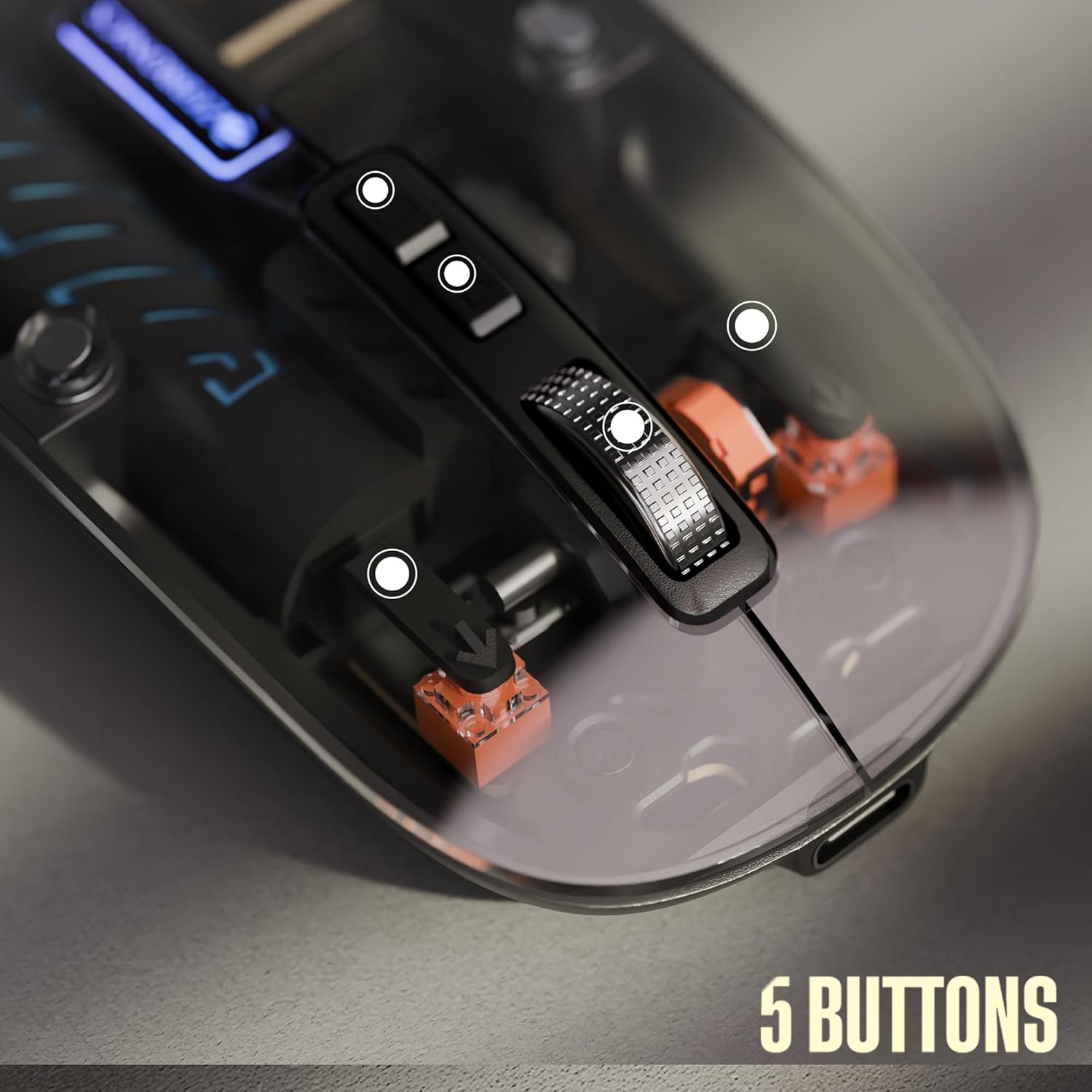
The ZEBRONICS Glassy 10 mouse is equipped with 5 buttons for enhanced functionality:
- ຄລິກຊ້າຍ: ການເລືອກມາດຕະຖານ ແລະ ການເປີດໃຊ້ງານ.
- ກົດຂວາ: Context menu access.
- Middle Scroll Wheel: ສຳລັບການເລື່ອນຜ່ານເອກະສານ ແລະ web pages. Can also be clicked for additional functions depending on software.
- DPI Control Button: ປັບຄວາມອ່ອນໄຫວຂອງເມົາສ໌ (DPI).
- Dedicated Desktop Button: Provides quick access to the desktop or other programmed functions.

2. ການປັບ DPI
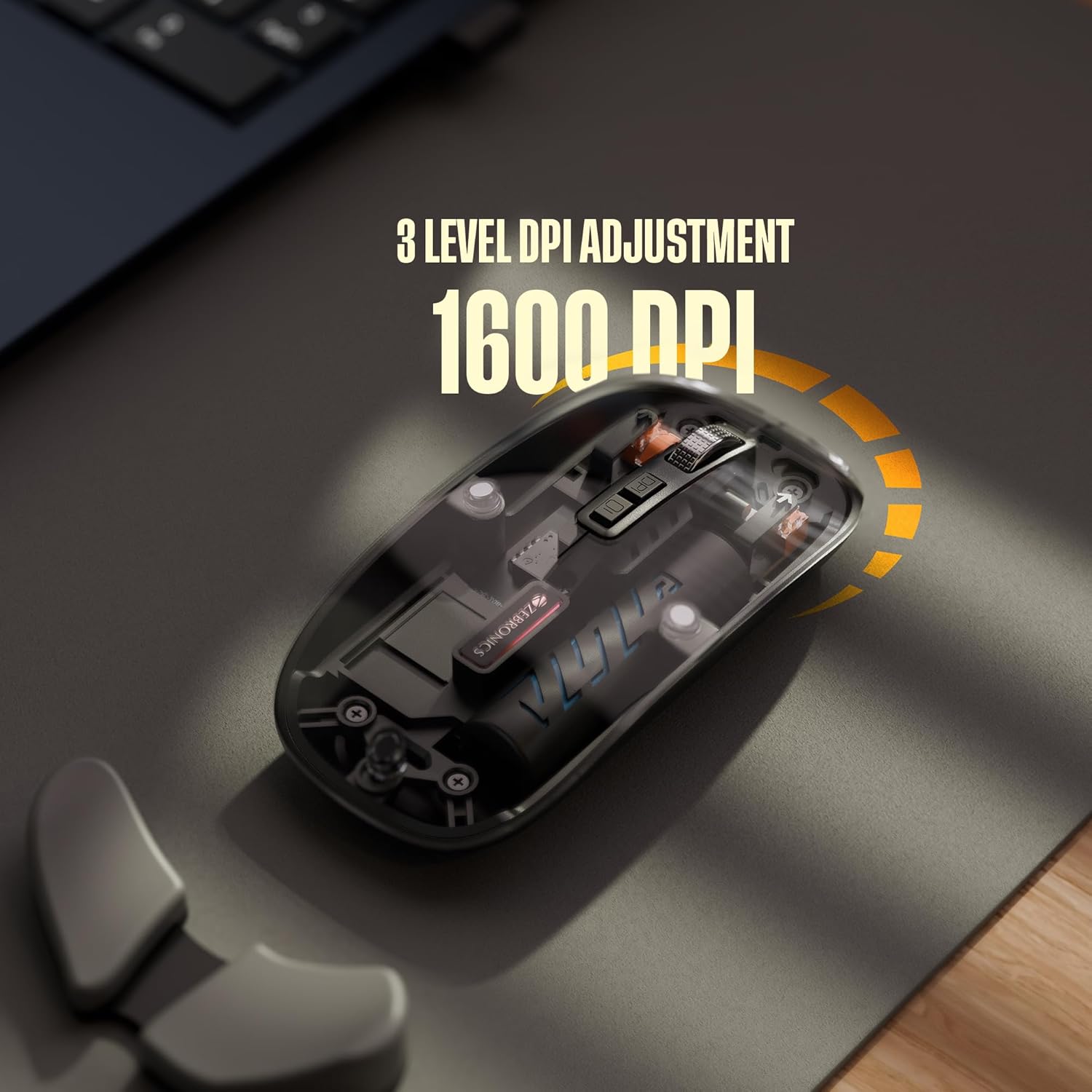
The mouse features 3 levels of DPI adjustment, up to 1600 DPI. Press the DPI control button to cycle through the available sensitivity settings. A higher DPI setting results in faster cursor movement across the screen with less physical mouse movement.
3. ການດໍາເນີນງານງຽບ
The ZEBRONICS Glassy 10 mouse is designed for silent operation, minimizing click sounds. This feature is beneficial in quiet environments, ensuring a less disruptive user experience.

4. ຄວາມເຂົ້າກັນໄດ້ຂອງພື້ນຜິວ
The mouse is ergonomically designed to function effectively on various surfaces, including mouse pads, plain tables, and wooden surfaces, providing consistent tracking performance.
ບໍາລຸງຮັກສາ
- ທໍາຄວາມສະອາດ: ໃຊ້ຜ້າປຽກແຫ້ງເພື່ອເຮັດຄວາມສະອາດຫນູ. ຫຼີກເວັ້ນການນໍາໃຊ້ສານເຄມີທີ່ຮຸນແຮງຫຼືວັດສະດຸຂັດ.
- ການເກັບຮັກສາ: When not in use, store the mouse in a cool, dry place. If storing for an extended period, ensure the mouse is turned off to preserve battery life.
- ການດູແລຫມໍ້ໄຟ: Recharge the battery regularly. Avoid completely draining the battery frequently to prolong its lifespan.
ການແກ້ໄຂບັນຫາ
| ບັນຫາ | ການແກ້ໄຂທີ່ເປັນໄປໄດ້ |
|---|---|
| ເມົ້າບໍ່ຕອບສະໜອງ |
|
| ການເຊື່ອມຕໍ່ຊ້າ ຫຼື ບໍ່ຕໍ່ເນື່ອງ |
|
| Cursor movement is too fast/slow |
|
| ບັນຫາການສາກໄຟ |
|
ຂໍ້ມູນຈໍາເພາະ
| ຄຸນສົມບັດ | ລາຍລະອຽດ |
|---|---|
| ຍີ່ຫໍ້ | ZEBRONICS |
| ຕົວແບບ | Glassy 10 |
| ເຕັກໂນໂລຊີການເຊື່ອມຕໍ່ | Dual Mode (2.4GHz Wireless, Bluetooth) |
| ລະດັບ DPI | Up to 1600 DPI (3-level adjustable) |
| ປຸ່ມ | 5 (Left, Right, Scroll Wheel, DPI, Dedicated Desktop) |
| ການດໍາເນີນງານ | Silent Click |
| ກຳລັງສາກໄຟ | Type-C, Built-in Rechargeable Battery |
| ຄວາມເຂົ້າກັນໄດ້ຂອງລະບົບປະຕິບັດການ | Mac OS (and generally Windows, Linux compatible) |
| ຂະໜາດ (LxWxH) | 11.3 x 5.7 x 0.1 cm |
| ນ້ໍາຫນັກລາຍການ | 70 g |
ການຮັບປະກັນແລະການສະຫນັບສະຫນູນ
For warranty information and technical support, please refer to the warranty card included in your package or visit the official ZEBRONICS webເວັບໄຊ. ຮັກສາໃບຮັບເງິນການຊື້ຂອງທ່ານໄວ້ເປັນຫຼັກຖານການຊື້ສໍາລັບການຮ້ອງຂໍການຮັບປະກັນ.
ຜູ້ຜະລິດ: ບໍລິສັດ Zebronics ອິນເດຍ ຈຳກັດ
ທີ່ຢູ່: ເລກທີ 13/7, ຖະໜົນສະມິດ, ຣອຍເປຕາ, ເຊນໄນ - 600 002, ອິນເດຍ


