1. ບົດແນະນຳ
This manual provides instructions for the setup, operation, maintenance, and troubleshooting of your CRUA 27-inch 240Hz QHD IPS Gaming Monitor. This monitor features a 2560x1440 QHD resolution, a 240Hz refresh rate, an IPS panel for wide viewing angles, AMD FreeSync support, a blue light filter for eye protection, and built-in speakers. Please read this manual thoroughly before using the product.
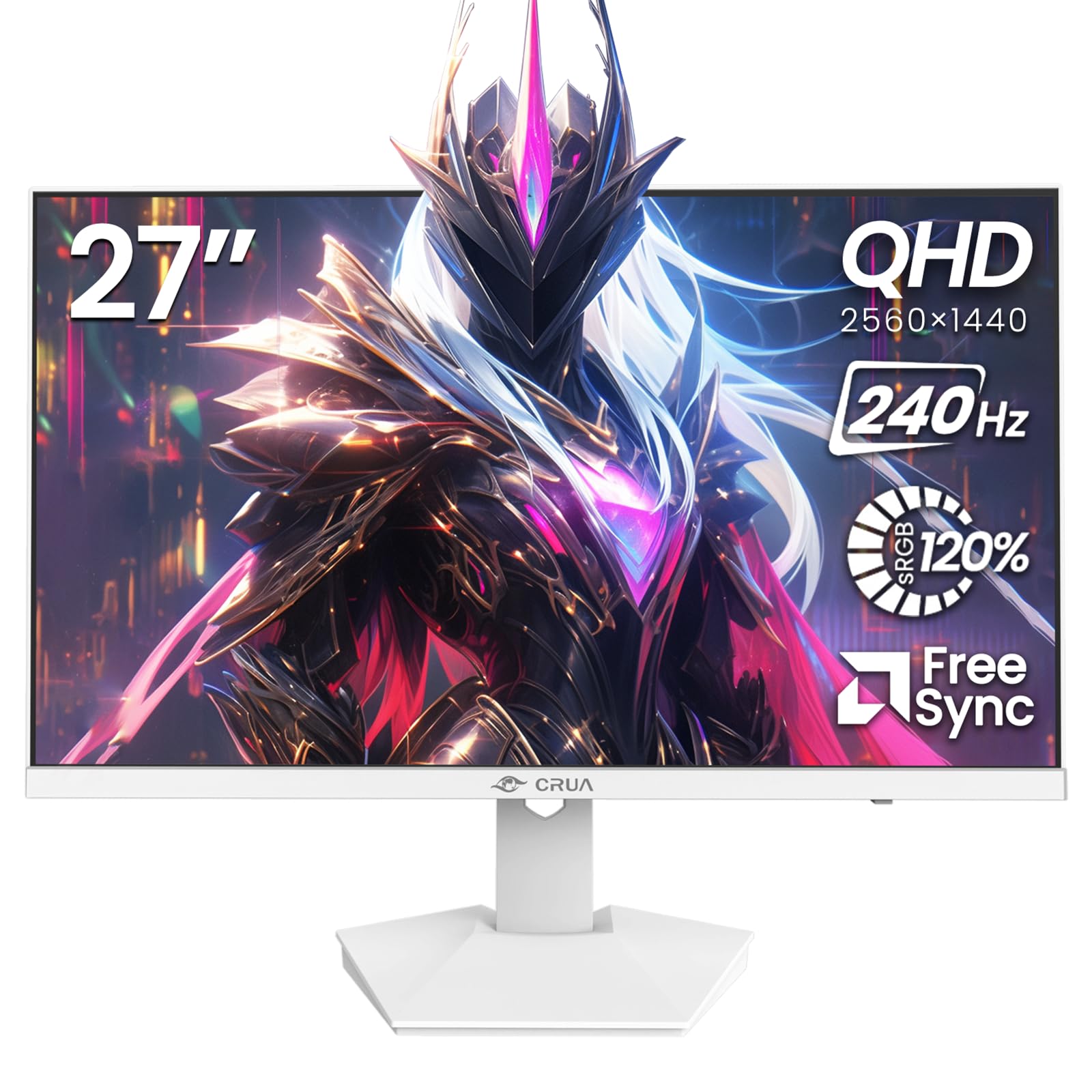
ຮູບພາບ: ທາງຫນ້າ view of the CRUA 27-inch 240Hz QHD IPS Gaming Monitor.
2. ເນື້ອໃນຊຸດ
ກວດສອບວ່າລາຍການທັງຫມົດແມ່ນມີຢູ່ໃນຊຸດ:
- CRUA 27-inch 240Hz QHD IPS Gaming Monitor
- Monitor Stand (ຖານ ແລະ ຄໍ)
- ອະແດບເຕີສາຍໄຟ ແລະສາຍ
- ສາຍ HDMI
- ສາຍ DisplayPort (DP).
- ຄູ່ມືຜູ້ໃຊ້ (ເອກະສານນີ້)
3. ຕັ້ງຄ່າ
3.1 ສະພາປະຈໍາ
- ເອົາຈໍພາບອອກຈາກເຄື່ອງຫຸ້ມຫໍ່ຂອງມັນຢ່າງລະມັດລະວັງ, ວາງມັນລົງເທິງພື້ນຜິວທີ່ສະອາດ, ອ່ອນໆເພື່ອປ້ອງກັນຮອຍຂີດຂ່ວນ.
- ແນບຄໍຂາຕັ້ງໃສ່ກັບແຜງຈໍພາບ. ໃຫ້ແນ່ໃຈວ່າມັນຄລິກໃສ່ຢ່າງປອດໄພ.
- Attach the stand base to the stand neck. Tighten any screws if provided.
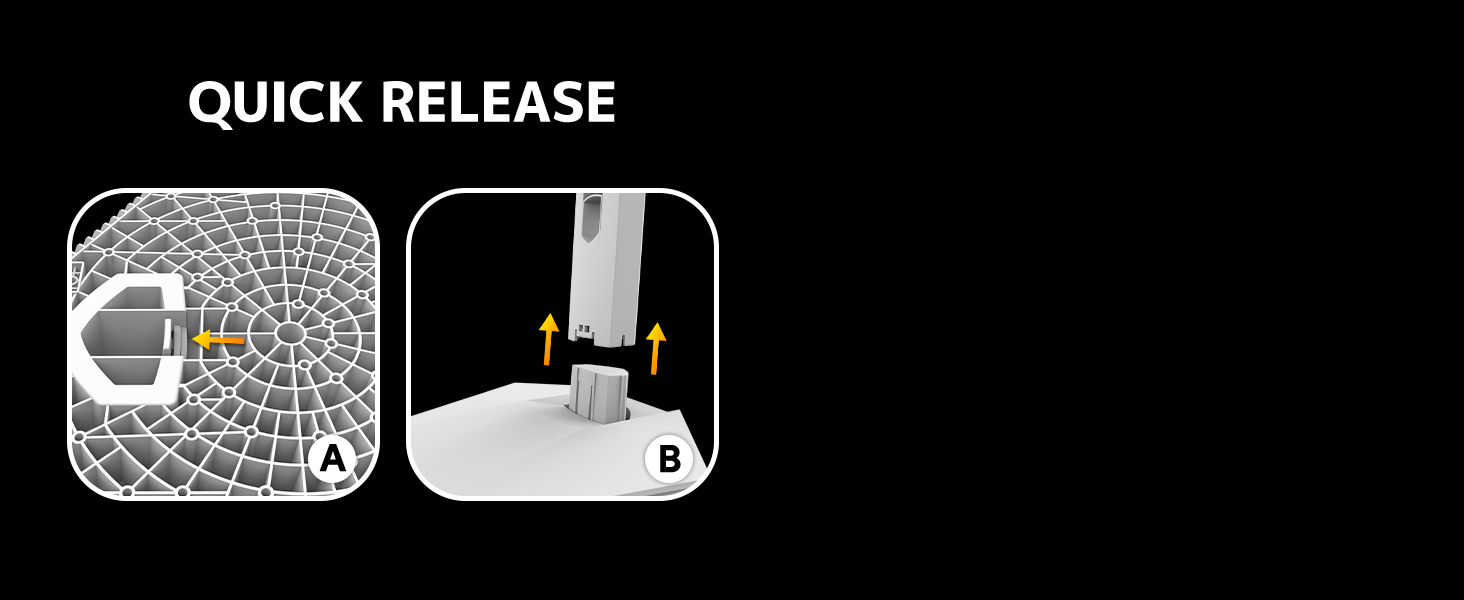
Image: Diagram illustrating the quick release stand assembly.
3.2 ການຕິດຝາ (ທາງເລືອກ)
The monitor supports VESA wall mounting (75mm x 75mm). To wall mount:
- Remove the stand from the monitor if it is already attached.
- Attach a VESA-compatible wall mount bracket (not included) to the monitor using appropriate screws.
- ປະຕິບັດຕາມຄໍາແນະນໍາທີ່ສະຫນອງໃຫ້ກັບການຕິດຝາຂອງທ່ານສໍາລັບການຕິດຕັ້ງທີ່ປອດໄພ.

ຮູບພາບ: ດ້ານຫລັງ view of the monitor showing VESA mount points (75x75mm) and built-in speakers.
3.3 ເຊື່ອມຕໍ່ກັບຄອມພິວເຕີ້
Connect the monitor to your computer using one of the following methods:
- DisplayPort (DP 1.4): For optimal performance, especially at 240Hz QHD resolution, use the included DisplayPort cable.
- HDMI (HDMI 2.0): Use an HDMI cable for QHD resolution at up to 144Hz.
ເຊື່ອມຕໍ່ອະແດບເຕີໄຟກັບອິນພຸດໄຟຂອງຈໍພາບ ແລະຈາກນັ້ນສຽບໃສ່ປລັກສຽບໄຟ.

ຮູບພາບ: ດ້ານຫລັງ view of the monitor displaying the input ports, including HDMI and DisplayPort.
4. ຄໍາແນະນໍາການດໍາເນີນງານ
4.1 ເປີດ/ປິດ
Press the power button located on the back of the monitor to turn it on or off. The power button may resemble a joystick for OSD navigation.
4.2 ເມນູການສະແດງເທິງໜ້າຈໍ (OSD).
The OSD menu allows you to adjust various monitor settings. Use the joystick-like button on the back of the monitor to navigate the menu:
- ກົດປຸ່ມ: ເປີດເມນູ OSD.
- ຍ້າຍຂຶ້ນ/ລົງ: ນຳທາງຜ່ານຕົວເລືອກເມນູ.
- ຍ້າຍຊ້າຍ/ຂວາ: Adjusts selected settings or enters sub-menus.
- ກົດອີກຄັ້ງ: Confirms selection or exits a sub-menu.
4.3 ການຕັ້ງຄ່າການສະແດງ
Within the OSD menu, you can adjust:
- ຄວາມສະຫວ່າງ/ຄວາມຄົມຊັດ: ປັບອັດຕາສ່ວນແສງສະຫວ່າງແລະຄວາມກົງກັນຂ້າມໂດຍລວມ.
- ການຕັ້ງຄ່າສີ: Fine-tune color temperature, hue, and saturation. The monitor offers 120% sRGB color coverage for accurate and vibrant visuals.
- ແຫຼ່ງປ້ອນຂໍ້ມູນ: ເລືອກດ້ວຍຕົນເອງລະຫວ່າງວັດສະດຸປ້ອນ HDMI ແລະ DisplayPort.

Image: Details on true color accuracy, including 120% sRGB, 8-bit color depth, and 16.7 million colors.
4.4 ຄຸນສົມບັດການຫຼິ້ນເກມ
- ອັດຕາການໂຫຼດຂໍ້ມູນຄືນໃໝ່: The monitor supports up to 240Hz refresh rate for smooth motion. Ensure your graphics card and cable support this rate.
- AMD FreeSync: Enable FreeSync in the OSD menu and on your AMD graphics card settings to eliminate screen tearing and stuttering.

Image: Visual comparison demonstrating the smoothness of 240Hz refresh rate versus 60Hz.

Image: Illustrates the effect of Adaptive Sync (FreeSync) on reducing screen tearing and stuttering.
4.5 ການປົກປ້ອງຕາ
The monitor includes a built-in blue light filter to reduce eye strain during extended use. This feature can be enabled or adjusted through the OSD menu.
5. ບໍາລຸງຮັກສາ
ເພື່ອຮັກສາປະສິດທິພາບ ແລະຮູບລັກສະນະຂອງຈໍພາບຂອງທ່ານ:
- ທໍາຄວາມສະອາດຫນ້າຈໍ: ເຊັດໜ້າຈໍຢ່າງອ່ອນໂຍນດ້ວຍຜ້າອ່ອນໆ, ບໍ່ມີເຈັ້ຍ. ສໍາລັບຮອຍທີ່ແຂງກະດ້າງ, ໃຫ້ໃຊ້ການແກ້ໄຂການເຮັດຄວາມສະອາດສະເພາະຂອງຈໍສະແດງຜົນທີ່ໃຊ້ກັບຜ້າ, ບໍ່ແມ່ນໂດຍກົງກັບຫນ້າຈໍ.
- ທໍາຄວາມສະອາດ Casing: ໃຊ້ຜ້າອ່ອນໆເຊັດຈໍສະແດງຜົນ casing. ຫຼີກລ້ຽງການເຮັດຄວາມສະອາດຂັດຫຼືສານລະລາຍ.
- ປິດພະລັງງານ: Always turn off the monitor and unplug it from the power outlet before cleaning.
6. ການແກ້ໄຂບັນຫາ
| ບັນຫາ | ສາເຫດທີ່ເປັນໄປໄດ້ | ການແກ້ໄຂ |
|---|---|---|
| ບໍ່ມີຮູບພາບໃນ ໜ້າ ຈໍ | ຈໍສະແດງຜົນປິດຫຼືບໍ່ໄດ້ຮັບສັນຍານ. | Ensure power cable is connected and monitor is on. Check video cable connection (HDMI/DP) to both monitor and computer. Select correct input source via OSD. |
| ຮູບພາບກະພິບ ຫຼື ຂາດ | FreeSync not enabled or incompatible settings. | Enable FreeSync in the monitor OSD and your graphics card control panel. Ensure your graphics card drivers are up to date. |
| Poor picture quality (blurry, incorrect colors) | Incorrect resolution, color settings, or faulty cable. | Set display resolution to 2560x1440. Adjust brightness, contrast, and color settings in the OSD. Try a different video cable. |
| ບໍ່ມີສຽງຈາກລຳໂພງໃນຕົວ | Volume too low, incorrect audio output selected. | Increase monitor volume via OSD. Ensure the monitor is selected as the audio output device in your computer's sound settings. |
| pixels ຕາຍ | ຄວາມບົກຜ່ອງດ້ານການຜະລິດ. | Refer to warranty information for pixel policy. Contact customer support if within warranty. |
7. ຂໍ້ມູນຈໍາເພາະ
| ຄຸນສົມບັດ | ຂໍ້ມູນຈໍາເພາະ |
|---|---|
| ໝາຍເລກຕົວແບບ | CR270I |
| ຂະໜາດໜ້າຈໍ | 27 ນິ້ວ |
| ປະເພດແຜງ | IPS |
| ຄວາມລະອຽດ | 2560 x 1440 (QHD) |
| ອັດຕາການໂຫຼດຂໍ້ມູນຄືນໃໝ່ | 240Hz |
| ອັດຕາສ່ວນ | 16:9 |
| ສີ Gamut | 120% sRGB |
| ຄວາມສະຫວ່າງ | 300 cd/m² |
| ອັດຕາສ່ວນກົງກັນຂ້າມ | 1000:1 |
| Viewໃນມຸມ | 178° (ແນວນອນ/ຕັ້ງ) |
| ວິດີໂອປ້ອນຂໍ້ມູນ | HDMI 2.0, DisplayPort 1.4 |
| ສຽງ | ລຳໂພງໃນຕົວ |
| VESA ພູເຂົາ | 75mm x 75mm |
| ຂະໜາດສິນຄ້າ | 1.78 x 24 x 14 ນິ້ວ |
| ນ້ໍາຫນັກລາຍການ | 12.62 ປອນ |
8. ການຮັບປະກັນແລະການສະຫນັບສະຫນູນ
CRUA provides high-quality computer monitors and premium services. If you have any questions or require assistance, please contact CRUA customer support. Refer to your purchase documentation for specific warranty terms and contact information.


