ແນະນຳ
Welcome to the user manual for your Motorola Moto G Power smartphone. This guide is designed to help you navigate every feature, option, and capability of your device, whether you are a first-time smartphone user or an experienced enthusiast. The Moto G Power offers robust performance, a vibrant display, and a versatile camera system, all at an accessible price point. To fully utilize its potential, a clear understanding of its functions is essential. This manual provides detailed instructions, practical tips, and expert guidance to enhance your experience.
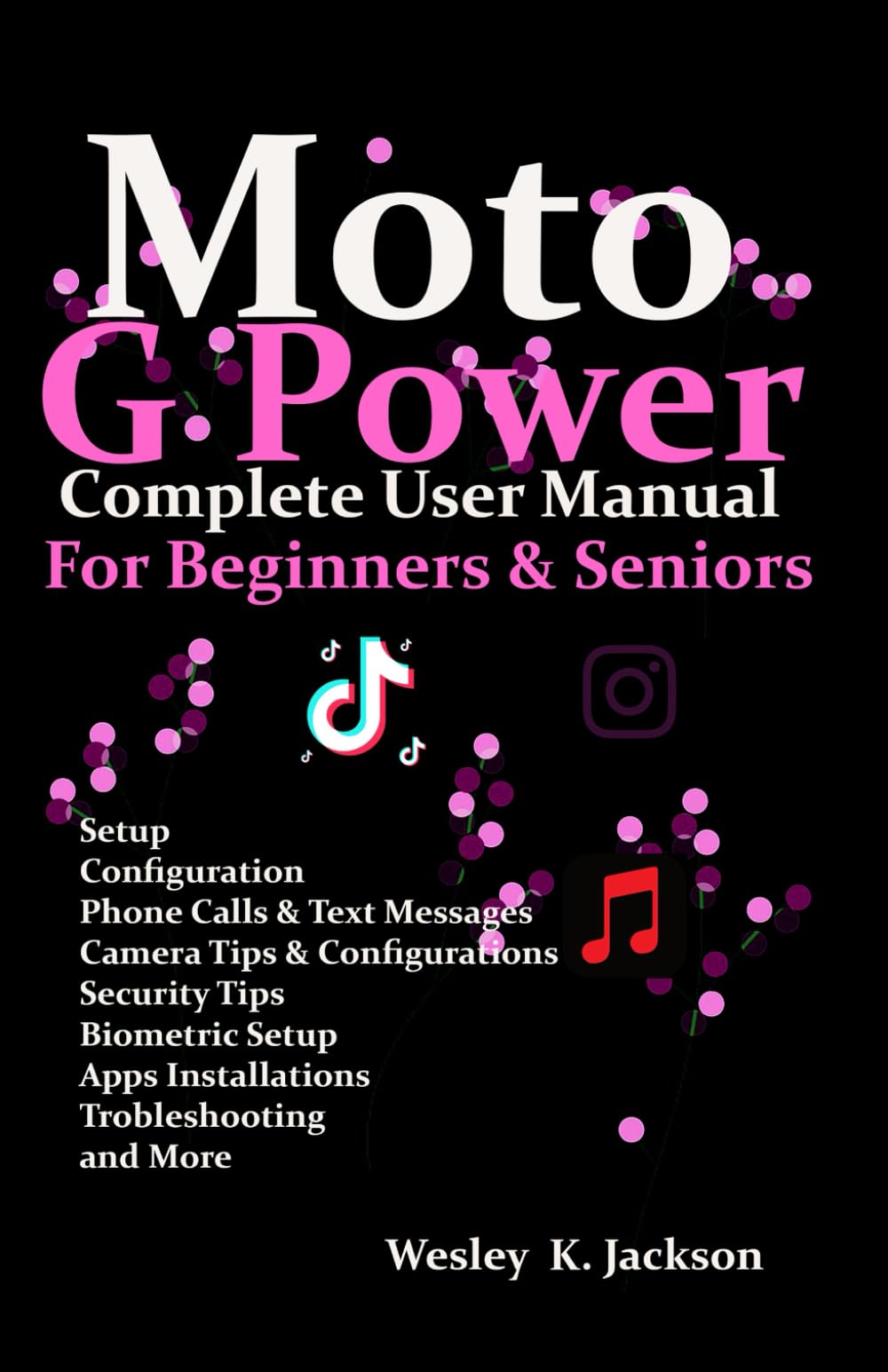
Image: Front cover of the Moto G Power User Manual. This image displays the title of the manual and its primary design.
ການເລີ່ມຕົ້ນ
This section covers the initial setup of your Moto G Power, from unboxing to customizing your home screen.
1. Unboxing ແລະຄ່າເລີ່ມຕົ້ນ
- Carefully remove your Moto G Power and its accessories from the packaging.
- Connect the charger to your phone and a power outlet. Allow the device to charge for at least 30 minutes before first use, or until the battery indicator shows sufficient charge.
2. ເປີດ / ປິດພະລັງງານ
- To power on, press and hold the Power button on the side of the device until the Motorola logo appears.
- To power off, press and hold the Power button, then tap 'Power off' on the screen.
3. ການຕິດຕັ້ງຊິມກາດ
- ຊອກຫາຖາດຊິມຢູ່ດ້ານຂ້າງຂອງໂທລະສັບຂອງທ່ານ.
- ສຽບເຄື່ອງມືຖອດ SIM ເຂົ້າໄປໃນຮູນ້ອຍໆເທິງຖາດ ແລະຍູ້ຄ່ອຍໆຈົນກ່ວາຖາດຈະອອກມາ.
- ວາງ Nano-SIM card ຂອງເຈົ້າໃສ່ຖາດໂດຍໃຫ້ແຖບຕິດຕໍ່ສີທອງຫັນລົງລຸ່ມ.
- ໃສ່ຖາດໃສ່ໂທລະສັບຄືນໃໝ່ຢ່າງລະມັດລະວັງ.
4. ຕົວຊ່ວຍສ້າງການຕິດຕັ້ງເບື້ອງຕົ້ນ
ປະຕິບັດຕາມການເຕືອນໃນຫນ້າຈໍເພື່ອເຮັດສໍາເລັດການຕັ້ງຄ່າເບື້ອງຕົ້ນ:
- ເລືອກພາສາ ແລະພາກພື້ນຂອງທ່ານ.
- ເຊື່ອມຕໍ່ກັບເຄືອຂ່າຍ Wi-Fi.
- ເຂົ້າສູ່ລະບົບດ້ວຍບັນຊີ Google ຂອງທ່ານ ຫຼືສ້າງອັນໃໝ່.
- Review ແລະຍອມຮັບຂໍ້ກໍານົດແລະເງື່ອນໄຂ.
- ຕັ້ງຄ່າການລັອກໜ້າຈໍ (PIN, ຮູບແບບ, ລະຫັດຜ່ານ, ລາຍນິ້ວມື).
5. ການໂອນຂໍ້ມູນ
If you are upgrading from an old phone, the setup wizard will guide you through transferring data from your previous device using Google's backup services or a direct cable connection.
6. ການປັບແຕ່ງໜ້າຈໍຫຼັກ
Personalize your home screen by:
- Adding widgets: Long-press on an empty area of the home screen, then tap 'Widgets'.
- Changing wallpaper: Long-press on an empty area, then tap 'Wallpaper & style'.
- Organizing apps: Drag and drop app icons to rearrange them or create folders.
ການປະຕິບັດອຸປະກອນຂອງທ່ານ
Learn how to use the core functionalities of your Moto G Power.
1. ໂທອອກ ແລະສົ່ງຂໍ້ຄວາມ
- ໂທ: Open the 'Phone' app, enter a number or select a contact, then tap the call icon.
- ຂໍ້ຄວາມ: Open the 'Messages' app, tap 'Start chat', enter a contact or number, and type your message.
2. ການໃຊ້ກ້ອງຖ່າຍຮູບໃຫ້ຊຳນານ
The Moto G Power features a multi-lens camera system designed for various photographic scenarios. This section provides expert advice on how to take great photographs and videos.
- ການເປີດຕົວກ້ອງຖ່າຍຮູບ: Tap the Camera app icon or use a Moto Action (e.g., twist your wrist twice).
- Basic Modes: Switch between Photo, Video, Portrait, and Night Vision modes by swiping across the viewຜູ້ຊອກຫາ.
- ຊູມ: Pinch in or out on the screen, or use the zoom slider.
- ຈຸດສຸມ: ແຕະໃສ່ໜ້າຈໍເພື່ອຕັ້ງຈຸດໂຟກັສ.
- ເຄັດລັບ Pro:
- Use HDR for balanced exposure in high-contrast scenes.
- Experiment with Portrait mode for professional-looking photos with blurred backgrounds.
- Utilize Night Vision in low-light conditions for brighter, clearer images.
3. ການຄຸ້ມຄອງຫມໍ້ໄຟ
Maximize the life of your cellular device's battery with these best practices for fast-charging and energy-saving.
- ການສາກໄຟທີ່ດີທີ່ສຸດ: Use the charger provided with your device for fast and efficient charging. Avoid extreme temperatures while charging.
- ໂໝດປະຢັດແບັດເຕີຣີ: Enable 'Battery Saver' in Settings > Battery to extend battery life by restricting background activity and visual effects.
- ຕິດຕາມກວດກາການນໍາໃຊ້: Check 'Battery usage' in Settings > Battery to identify apps consuming the most power and manage them accordingly.
- ຄວາມສະຫວ່າງຫນ້າຈໍ: Reduce screen brightness or enable 'Adaptive brightness' to save power.
4. ຄວາມປອດໄພ ແລະຄວາມເປັນສ່ວນຕົວ
Achieve security and privacy by establishing fingerprint and face recognition, securing your data, and managing permissions for applications.
- ເຊັນເຊີນີ້ວມື: Go to Settings > Security > Fingerprint. Follow the instructions to register your fingerprints for quick and secure unlocking.
- ປົດລັອກດ້ວຍໜ້າ: In Settings > Security > Face Unlock, set up facial recognition for convenient unlocking.
- ລັອກ ໜ້າ ຈໍ: Ensure you have a strong PIN, pattern, or password set up as a backup to biometric security.
- ການອະນຸຍາດແອັບ: ເປັນປົກກະຕິ Review and manage app permissions in Settings > Apps > See all apps > [App Name] > Permissions to control what data apps can access.
- ການເຂົ້າລະຫັດຂໍ້ມູນ: Your device's data is encrypted by default, providing an additional layer of security.
5. Hidden Features and Shortcuts (Moto Actions)
Unlock secret tricks that can enhance your user experience and increase your productivity.
- ຈັບດ່ວນ: ບິດຂໍ້ມືຂອງທ່ານສອງເທື່ອໄວເພື່ອເປີດກ້ອງຖ່າຍຮູບ.
- ໄຟສາຍໄວ: Make two chopping motions with your phone to turn the flashlight on or off.
- ພາບໜ້າຈໍດ້ວຍສາມນິ້ວ: ແຕະໜ້າຈໍຄ້າງໄວ້ດ້ວຍສາມນິ້ວເພື່ອຖ່າຍຮູບໜ້າຈໍ.
- ຍົກຂຶ້ນເພື່ອປົດລັອກ: Lift your phone to unlock it and see notifications.
- Flip for Do Not Disturb: Place your phone face down to silence notifications and calls.
ບໍາລຸງຮັກສາ
To ensure that your phone continues to function without any interruptions, it is essential to undertake regular maintenance tasks.
1. ການປັບປຸງຊອບແວ
- ກວດສອບ ແລະຕິດຕັ້ງການອັບເດດຊອບແວເປັນປະຈຳເພື່ອຮັບປະກັນວ່າອຸປະກອນຂອງທ່ານມີຄຸນສົມບັດຫຼ້າສຸດ, ແຜ່ນປ້ອງກັນຄວາມປອດໄພ ແລະການປັບປຸງປະສິດທິພາບ. ໄປທີ່ການຕັ້ງຄ່າ > ລະບົບ > ການປັບປຸງລະບົບ.
2. ການເຮັດຄວາມສະອາດອຸປະກອນຂອງທ່ານ
- Use a soft, lint-free cloth to gently wipe the screen and body of your phone.
- ຫຼີກເວັ້ນການນໍາໃຊ້ສານເຄມີທີ່ຮຸນແຮງຫຼືວັດສະດຸຂັດ.
3. ການຄຸ້ມຄອງການເກັບຮັກສາ
- ແຕ່ລະໄລຍະview your storage usage in Settings > Storage.
- ລຶບທີ່ບໍ່ຈໍາເປັນ files, uninstall unused apps, or move large files to cloud storage or an SD card (if supported).
4. ສໍາຮອງຂໍ້ມູນແລະການຟື້ນຟູ
- Ensure your data is regularly backed up to your Google account. Go to Settings > System > Backup.
- This allows you to restore your data if you get a new device or need to perform a factory reset.
ການແກ້ໄຂບັນຫາ
This section addresses common issues and provides solutions to help you resolve problems with your Moto G Power.
1. Device Not Responding/Freezing
- ກົດປຸ່ມເປີດປິດຄ້າງໄວ້ປະມານ 10-15 ວິນາທີເພື່ອບັງຄັບໃຫ້ຣີສະຕາດ.
2. App Crashing or Not Working
- Clear the app's cache and data: Settings > Apps > See all apps > [App Name] > Storage & cache > Clear cache / Clear storage.
- ຖອນການຕິດຕັ້ງ ແລະຕິດຕັ້ງແອັບຯຄືນໃໝ່.
- ກວດສອບການອັບເດດແອັບໃນ Google Play Store.
3. Connectivity Issues (Wi-Fi/Bluetooth/Cellular)
- Toggle Wi-Fi, Bluetooth, or Cellular Data off and on.
- ຣີສະຕາດໂທລະສັບຂອງທ່ານ.
- ຣີເຊັດການຕັ້ງຄ່າເຄືອຂ່າຍ: ການຕັ້ງຄ່າ > ລະບົບ > ຕົວເລືອກຣີເຊັດ > ຣີເຊັດ Wi-Fi, ມືຖື ແລະ Bluetooth.
4. ແບັດເຕີຣີໝົດໄວ
- Review 'Battery usage' in Settings to identify problematic apps.
- ເປີດໃຊ້ໂໝດຕົວປະຢັດແບັດເຕີຣີ.
- Reduce screen brightness and disable unnecessary features like GPS or always-on display when not in use.
5. ຣີເຊັດເປັນຄ່າໂຮງງານ (ຣີສອດຄັ້ງສຸດທ້າຍ)
If other troubleshooting steps fail, a factory reset can resolve persistent issues. Warning: This will erase all data on your phone. Ensure you have backed up all important information before proceeding.
- ໄປທີ່ການຕັ້ງຄ່າ> ລະບົບ> ທາງເລືອກການຕັ້ງຄ່າໃຫມ່> ລຶບຂໍ້ມູນທັງຫມົດ (ການຕັ້ງຄ່າຈາກໂຮງງານຄືນໃຫມ່).
- ປະຕິບັດຕາມຄໍາແນະນໍາໃນຫນ້າຈໍ.
ຂໍ້ມູນຈໍາເພາະ
Detailed technical specifications for the Motorola Moto G Power smartphone are not provided within this manual. Please refer to the official Motorola website or your device's packaging for comprehensive specifications.
ການຮັບປະກັນແລະການສະຫນັບສະຫນູນ
Specific warranty information and detailed support contacts are not included in this manual. For warranty details, technical support, or service inquiries, please visit the official Motorola support webເວັບໄຊ ຫຼືຕິດຕໍ່ຮ້ານຂາຍຍ່ອຍຂອງທ່ານ.
ຂໍ້ມູນເພີ່ມເຕີມ
Image: Back cover of the Moto G Power User Manual. This image includes the ISBN barcode: 979-8316428694.
This manual is intended to provide general guidance. Features and functionality may vary based on software version and region.