1. ບົດແນະນຳ
Welcome to the user manual for your new DigiLand 10.1 Inch HD Octa-Core Android Tablet. This device is designed to provide a versatile and powerful experience for both productivity and entertainment. Featuring an Octa-Core processor, ample RAM and storage, and a vibrant HD display, your tablet is equipped for a wide range of tasks, from browsing and streaming to gaming and office work.
This manual will guide you through the initial setup, operation, maintenance, and troubleshooting of your tablet to ensure you get the most out of its capabilities.
2. ສິ່ງທີ່ຢູ່ໃນກ່ອງ
ກະລຸນາກວດສອບວ່າລາຍການທັງໝົດມີຢູ່ໃນຊຸດຜະລິດຕະພັນຂອງທ່ານ:
- DigiLand 10.1 Inch Android Tablet
- ກໍລະນີປ້ອງກັນ
- ສາຍສາກໄຟ USB Type-C
- ອະແດັບເຕີໄຟ (5V/2A)
- ຄູ່ມືເລີ່ມຕົ້ນດ່ວນ

ຮູບທີ 2.1: ເນື້ອໃນຊຸດ
3. ຜະລິດຕະພັນເກີນview
The DigiLand R10 Pro+ tablet combines powerful hardware with a user-friendly Android 14 operating system. Below are the key features and components of your device.
3.1 ລັກສະນະທີ່ສໍາຄັນ
- ໜ່ວຍປະມວນຜົນ: MediaTek Helio G80 Octa-Core CPU (2x A75 2.0GHz + 6x A55 1.8GHz) for robust performance.
- ຈໍສະແດງຜົນ: 10.1-inch HD (800x1280) In-cell touchscreen with IPS clarity and 350cd/m² brightness.
- ຫນ່ວຍຄວາມຈໍາ & ການເກັບຮັກສາ: 12GB RAM and 128GB ROM, expandable up to 256GB via TF card.
- ແບັດເຕີຣີ: 6000mAh battery providing over 12 hours of runtime, with 10W fast-charging support.
- ກ້ອງຖ່າຍຮູບ: 13MP rear camera and 8MP front camera for photography and video calls.
- ສຽງ: Dual 8Ω/1W speakers for clear sound.
- ການເຊື່ອມຕໍ່: Bluetooth 5.0, 802.11n Wi-Fi, Type-C port, and headphone jack.
- ລະບົບປະຕິບັດການ: Android 14.
- Widevine L1 ສະຫນັບສະຫນູນ: Enables high-definition streaming from platforms like Netflix, Hulu, and Amazon Prime Video.
3.2 Visual Overview
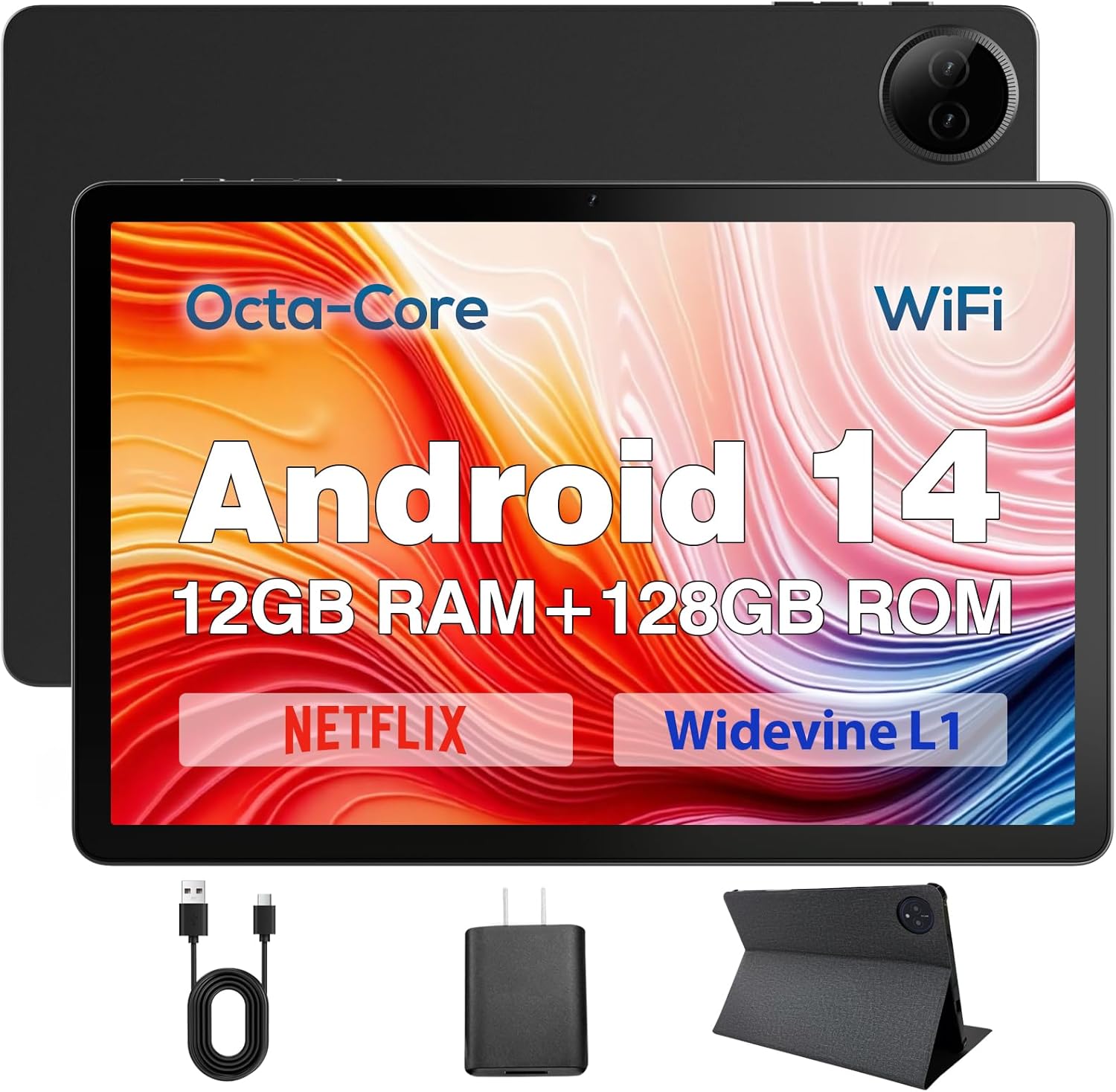
Figure 3.1: DigiLand Tablet Front and Rear View
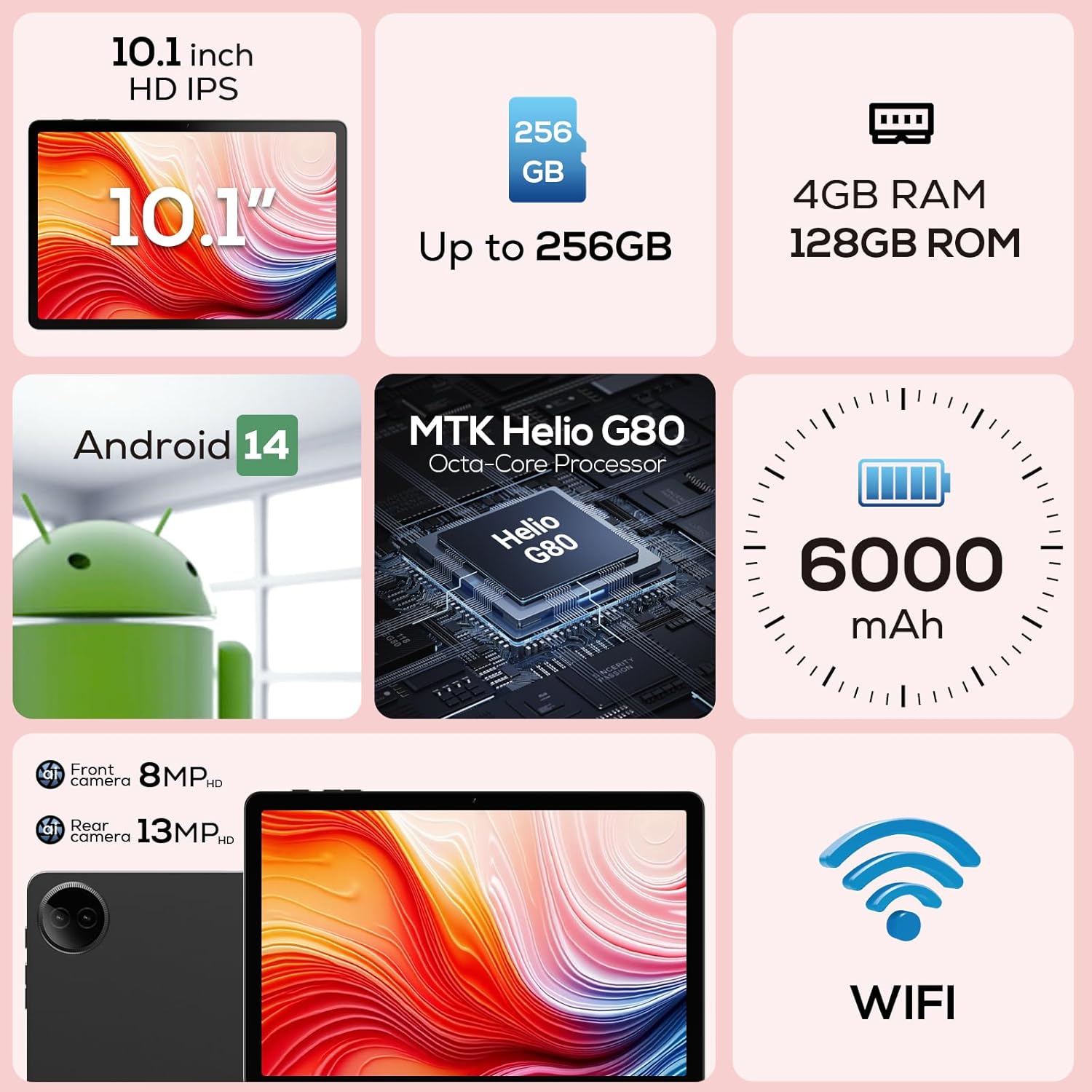
ຮູບທີ 3.2: ແຜນວາດຄຸນສົມບັດຫຼັກ

Figure 3.3: Widevine L1 Support for HD Streaming

Figure 3.4: Ultra-thin and Lightweight Design
4. ຕັ້ງຄ່າ
4.1 ການສາກໄຟເບື້ອງຕົ້ນ
Before first use, fully charge your tablet. Connect the USB Type-C cable to the tablet's charging port and the power adapter to a wall outlet. The charging indicator will show the charging status. A full charge typically takes several hours.
4.2 ການເປີດ/ປິດ
- ເພື່ອເປີດເຄື່ອງ: Press and hold the Power button located on the side of the tablet until the DigiLand logo appears on the screen.
- ປິດເຄື່ອງ: ກົດປຸ່ມເປີດປິດຄ້າງໄວ້ຈົນກວ່າເມນູຕົວເລືອກພະລັງງານຈະປາກົດຂຶ້ນ. ເລືອກ 'ປິດເຄື່ອງ' ແລະຢືນຢັນ.
- ເພື່ອເລີ່ມຕົ້ນໃໝ່: ຈາກເມນູຕົວເລືອກພະລັງງານ, ເລືອກ 'Restart'.
4.3 ຕົວຊ່ວຍສ້າງການຕິດຕັ້ງຄັ້ງທຳອິດ
Upon first power-on, the tablet will guide you through a setup wizard. Follow the on-screen prompts to:
- ເລືອກພາສາຂອງທ່ານ.
- ເຊື່ອມຕໍ່ກັບເຄືອຂ່າຍ Wi-Fi.
- ເຂົ້າສູ່ລະບົບດ້ວຍບັນຊີ Google ຂອງທ່ານ ຫຼືສ້າງອັນໃໝ່.
- ຕັ້ງຄ່າການລັອກໜ້າຈໍ (PIN, ຮູບແບບ, ລະຫັດຜ່ານ).
- Review ແລະຍອມຮັບຂໍ້ກໍານົດແລະເງື່ອນໄຂ.
5. ຄໍາແນະນໍາການດໍາເນີນງານ
5.1 ການນຳທາງໜ້າຈໍສຳຜັດ
Your tablet features a responsive multi-touch display. Common gestures include:
- ແຕະ: ເພື່ອເລືອກລາຍການ, ເປີດແອັບ ຫຼືກົດປຸ່ມໃດໜຶ່ງ.
- ແຕະຄ້າງໄວ້: To open contextual menus or drag items.
- ປັດ: ເພື່ອເລື່ອນຜ່ານລາຍການ, ຍ້າຍລະຫວ່າງໜ້າຈໍຫຼັກ, ຫຼືປິດການແຈ້ງເຕືອນ.
- Pinch-to-Zoom: ເພື່ອຊູມເຂົ້າ ຫຼືອອກໃນຮູບພາບ, ແຜນທີ່, ຫຼື web ໜ້າ.
5.2 ການເຊື່ອມຕໍ່ Wi-Fi
ເພື່ອເຊື່ອມຕໍ່ກັບເຄືອຂ່າຍ Wi-Fi:
- ໄປທີ່ ການຕັ້ງຄ່າ > ເຄືອຂ່າຍ ແລະອິນເຕີເນັດ > Wi-Fi.
- ສະຫຼັບ Wi-Fi On.
- ເລືອກເຄືອຂ່າຍທີ່ທ່ານຕ້ອງການຈາກບັນຊີລາຍຊື່.
- ໃສ່ລະຫັດຜ່ານຖ້າຖືກເຕືອນແລະແຕະ ເຊື່ອມຕໍ່.

Figure 5.1: High-Speed Wi-Fi Connectivity
5.3 ການຈັບຄູ່ Bluetooth
To pair with Bluetooth devices (e.g., headphones, speakers):
- ໄປທີ່ ການຕັ້ງຄ່າ > ອຸປະກອນທີ່ເຊື່ອມຕໍ່ > ການຕັ້ງຄ່າການເຊື່ອມຕໍ່ > Bluetooth.
- ສະຫຼັບ Bluetooth On.
- ກວດໃຫ້ແນ່ໃຈວ່າອຸປະກອນ Bluetooth ຂອງທ່ານຢູ່ໃນໂໝດຈັບຄູ່.
- Select your device from the 'Available devices' list and follow any on-screen prompts to complete pairing.
5.4 ການນໍາໃຊ້ກ້ອງຖ່າຍຮູບ
Your tablet is equipped with a 13MP rear camera and an 8MP front camera.
- ເປີດ ກ້ອງຖ່າຍຮູບ app ຈາກຫນ້າຈໍເຮືອນຂອງທ່ານຫຼື app drawer.
- ແຕະໄອຄອນສະຫຼັບກ້ອງຖ່າຍຮູບເພື່ອສະຫຼັບລະຫວ່າງກ້ອງໜ້າ ແລະກ້ອງຫຼັງ.
- Tap the shutter button to take a photo or the video icon to record a video.
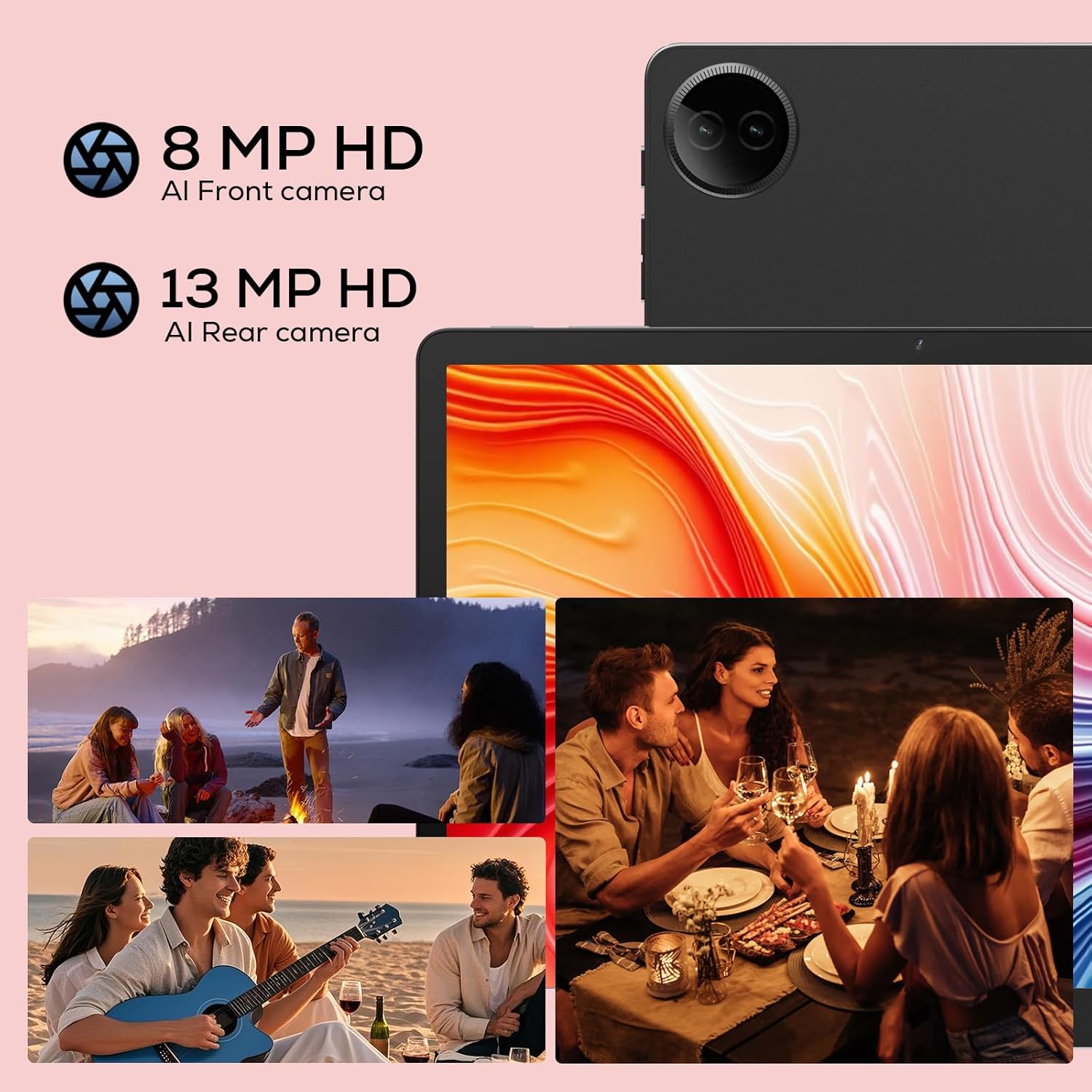
Figure 5.2: Tablet Cameras and Sample ຮູບພາບ
5.5 ການຈັດການແອັບ
ການຕິດຕັ້ງແອັບ: Download and install apps from the Google Play Store. Open the Play Store app, search for your desired app, and tap 'Install'.
ຖອນການຕິດຕັ້ງແອັບ: Touch and hold the app icon on the home screen or app drawer, then drag it to 'Uninstall' or select 'App info' and tap 'Uninstall'. Alternatively, go to ການຕັ້ງຄ່າ > ແອັບ > ເບິ່ງແອັບທັງໝົດ, ເລືອກແອັບ, ແລະແຕະ 'ຖອນການຕິດຕັ້ງ'.
6. ບໍາລຸງຮັກສາ
6.1 ການເຮັດຄວາມສະອາດແທັບເລັດຂອງທ່ານ
ໃຊ້ຜ້າແພທີ່ອ່ອນນຸ້ມ, ບໍ່ມີສານດ່າງເພື່ອເຮັດຄວາມສະອາດໜ້າຈໍ ແລະຕົວເຄື່ອງຂອງແທັບເລັດຂອງທ່ານ. ສໍາລັບ smudges stubborn, ເລັກນ້ອຍ dampen ຜ້າທີ່ມີນ້ໍາຫຼືເຄື່ອງເຮັດຄວາມສະອາດຫນ້າຈໍທີ່ຖືກອອກແບບມາສໍາລັບເອເລັກໂຕຣນິກ. ຫຼີກເວັ້ນການນໍາໃຊ້ສານເຄມີທີ່ຮຸນແຮງຫຼືວັດສະດຸຂັດ.
6.2 ການດູແລຫມໍ້ໄຟ
ເພື່ອຍືດອາຍຸແບັດເຕີຣີ:
- ຫຼີກເວັ້ນອຸນຫະພູມທີ່ຮຸນແຮງ.
- ຢ່າປ່ອຍໃຫ້ຫມໍ້ໄຟຫມົດໄປເລື້ອຍໆ.
- Use the provided charger and cable.
- Adjust screen brightness and disable unused features (Wi-Fi, Bluetooth) to conserve power.

Figure 6.1: Extended Battery Life Features
6.3 ການປັບປຸງຊອບແວ
ກວດສອບ ແລະຕິດຕັ້ງການອັບເດດຊອບແວເປັນປະຈໍາເພື່ອຮັບປະກັນປະສິດທິພາບທີ່ດີທີ່ສຸດ, ຄວາມປອດໄພ, ແລະການເຂົ້າເຖິງຄຸນສົມບັດໃຫມ່. ໄປທີ່ ການຕັ້ງຄ່າ > ລະບົບ > ອັບເດດລະບົບ.
6.4 ການຄຸ້ມຄອງການເກັບຮັກສາ
To manage your tablet's storage:
- ໄປທີ່ ການຕັ້ງຄ່າ > ການເກັບຮັກສາ ກັບ view ການນໍາໃຊ້ການເກັບຮັກສາ.
- ຖອນການຕິດຕັ້ງແອັບຯທີ່ບໍ່ໄດ້ໃຊ້.
- ລຶບລ້າງຂໍ້ມູນແຄດສຳລັບແອັບ.
- ໂອນຂະຫນາດໃຫຍ່ files (photos, videos) to cloud storage or an external TF card.
7. ການແກ້ໄຂບັນຫາ
ຖ້າທ່ານພົບບັນຫາກັບແທັບເລັດຂອງທ່ານ, ໃຫ້ອ້າງອີງເຖິງບັນຫາ ແລະ ວິທີແກ້ໄຂທົ່ວໄປຕໍ່ໄປນີ້:
| ບັນຫາ | ການແກ້ໄຂທີ່ເປັນໄປໄດ້ |
|---|---|
| ແທັບເລັດຈະບໍ່ເປີດ | ໃຫ້ແນ່ໃຈວ່າໄດ້ສາກໄຟແລ້ວ. ເຊື່ອມຕໍ່ຫາເຄື່ອງສາກຢ່າງໜ້ອຍ 30 ນາທີ. ຖ້າຍັງບໍ່ຕອບສະໜອງ, ໃຫ້ເປີດປິດເປີດຄືນໃໝ່ໂດຍການກົດປຸ່ມເປີດປິດຄ້າງໄວ້ 10-15 ວິນາທີ. |
| ບັນຫາການເຊື່ອມຕໍ່ Wi-Fi | ປິດເປີດເຣົາເຕີ Wi-Fi ຂອງທ່ານຄືນໃໝ່. ລືມເຄືອຂ່າຍໃນແທັບເລັດຂອງທ່ານ ແລະ ເຊື່ອມຕໍ່ຄືນໃໝ່. ໃຫ້ແນ່ໃຈວ່າທ່ານຢູ່ພາຍໃນຂອບເຂດຂອງສັນຍານ Wi-Fi. |
| ແອັບຯຊ້າ ຫຼືຂັດຂ້ອງ | Close background apps. Clear app cache (Settings > Apps > [App Name] > Storage & cache > Clear cache). Ensure sufficient storage space. Restart the tablet. |
| ແບັດເຕີຣີໝົດໄວ | Reduce screen brightness. Disable Wi-Fi/Bluetooth when not in use. Close unused apps. Check battery usage in Settings to identify power-hungry apps. |
| ໜ້າຈໍບໍ່ຕອບສະໜອງ | Restart the tablet. Ensure the screen is clean and dry. Remove any screen protectors that might be interfering. |
ຖ້າບັນຫາຍັງຄົງຢູ່ຫຼັງຈາກພະຍາຍາມແກ້ໄຂເຫຼົ່ານີ້, ກະລຸນາຕິດຕໍ່ຝ່າຍຊ່ວຍເຫຼືອລູກຄ້າ.
8. ຂໍ້ມູນຈໍາເພາະ
Detailed technical specifications for your DigiLand R10 Pro+ Tablet:
| ຄຸນສົມບັດ | ຂໍ້ມູນຈໍາເພາະ |
|---|---|
| ຍີ່ຫໍ້ | DigiLand |
| ຊື່ຕົວແບບ | R10 Pro+ |
| ລະບົບປະຕິບັດການ | Android 14 |
| ຂະຫນາດຈໍສະແດງຜົນຢືນ | 10.1 ນິ້ວ |
| ຄວາມລະອຽດໜ້າຈໍ | 1280 x 800 ພິກເຊລ |
| ຍີ່ຫໍ້ເຄື່ອງປະມວນຜົນ | MediaTek |
| ຕົວແບບປະມວນຜົນ | Helio G80 Octa-Core CPU |
| RAM | 12GB |
| ຂະໜາດຄວາມຈຳ Flash (ROM) | 128 GB |
| ການເກັບຮັກສາທີ່ຂະຫຍາຍໄດ້ | Up to 256GB (TF card slot) |
| ປະເພດໄຮ້ສາຍ | 802.11 ນ |
| Bluetooth | 5.0 |
| ອາຍຸຫມໍ້ໄຟສະເລ່ຍ | 12 ຊົ່ວໂມງ |
| ນ້ໍາຫນັກລາຍການ | 1.32 ປອນ (ປະມານ 600g) |
| ຂະໜາດສິນຄ້າ | 10.17 x 6.41 x 0.31 ນິ້ວ |
| ສີ | ສີເທົາ |
9. ການຮັບປະກັນແລະການສະຫນັບສະຫນູນ
9.1 ນະໂຍບາຍການຮັບປະກັນ
Your DigiLand Tablet comes with a ນະໂຍບາຍຮັບປະກັນ 1 ປີ ຈາກວັນທີ່ຊື້. ການຮັບປະກັນນີ້ກວມເອົາຄວາມບົກຜ່ອງດ້ານການຜະລິດແລະບັນຫາທີ່ເກີດຂື້ນຈາກການນໍາໃຊ້ປົກກະຕິ. ກະລຸນາຮັກສາຫຼັກຖານການຊື້ຂອງທ່ານສໍາລັບການຮຽກຮ້ອງການຮັບປະກັນ.
9.2 ສະຫນັບສະຫນູນລູກຄ້າ
For any questions regarding the use, setup, or troubleshooting of your DigiLand Tablet, our customer service team is available to assist you.
- ສະຫນັບສະຫນູນອອນໄລນ໌: We offer 24/7 online call support.
- ການຊ່ວຍເຫຼືອການສ້ອມແປງ: 1-Year Repair Support is provided.
You can contact us directly through the channels provided on our official website or through your purchase platform. We are committed to providing prompt and helpful service.

ຮູບທີ 9.1: ການສະໜັບສະໜູນລູກຄ້າໂດຍສະເພາະ
For more information and product updates, visit the official DigiLand Store: DigiLand Store on Amazon


