1. ບົດແນະນຳ
The ICY BOX M.2 NVMe/SATA & 2.5”/3.5” Hard Drive Docking Station provides a versatile solution for connecting various types of storage drives to your computer. This docking station supports M.2 NVMe/SATA SSDs and 2.5”/3.5” SATA HDDs/SSDs, offering high-speed data transfer up to 10 Gbit/s via USB 3.2 Gen2x1 Type-C. Its tool-free design and broad compatibility make it suitable for data recovery, backups, and storage expansion across Windows and macOS systems.
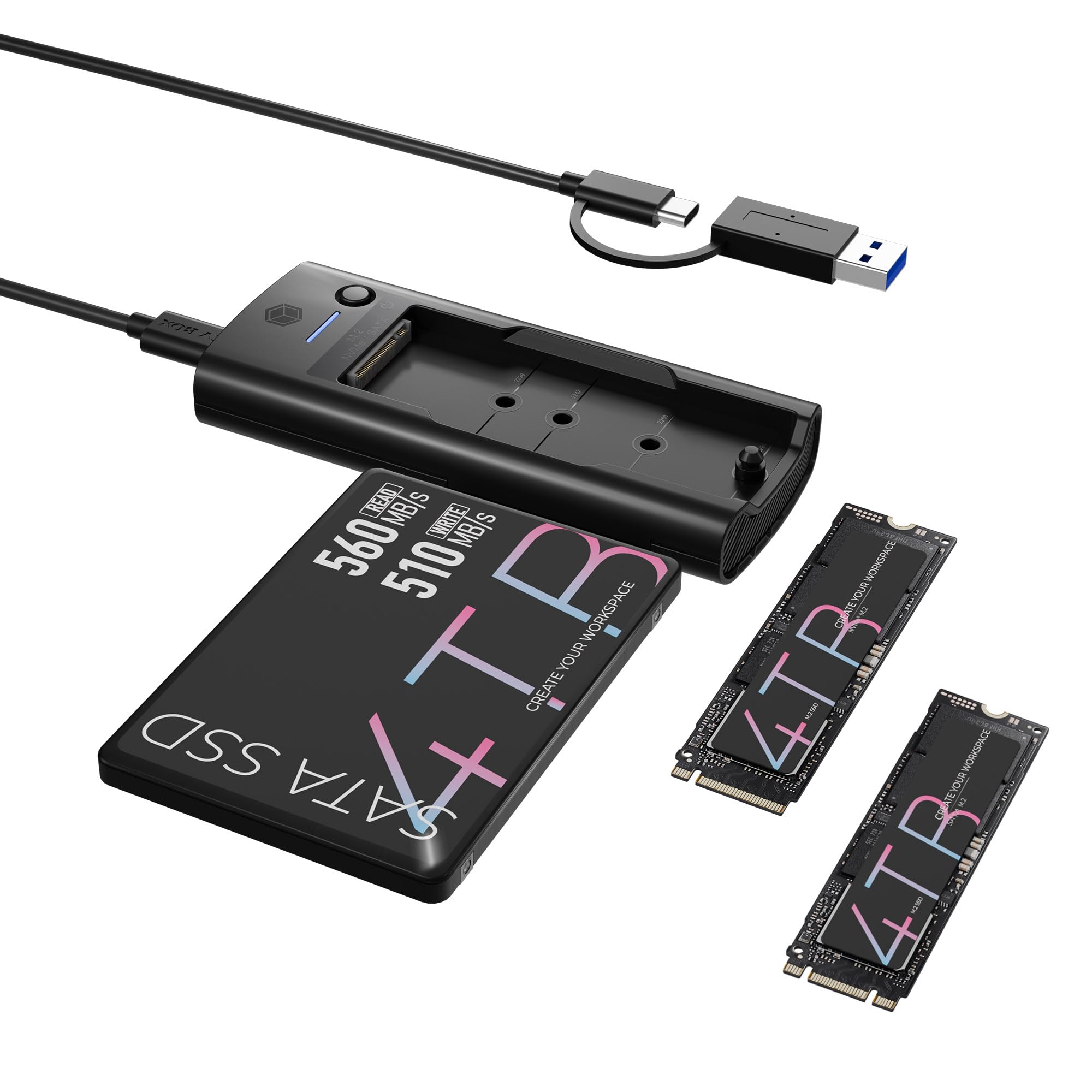
Figure 1: ICY BOX M.2 NVMe/SATA & 2.5”/3.5” Hard Drive Docking Station.
2. ເນື້ອໃນຊຸດ
ກະລຸນາກວດສອບວ່າລາຍການທັງໝົດມີຢູ່ໃນຊຸດ:
- M.2 NVMe & SATA SSD/HDD Docking Station
- 2-in-1 Cable (USB-C to USB-C & USB-C to USB-A)
- 2x M.2 rubber fixations
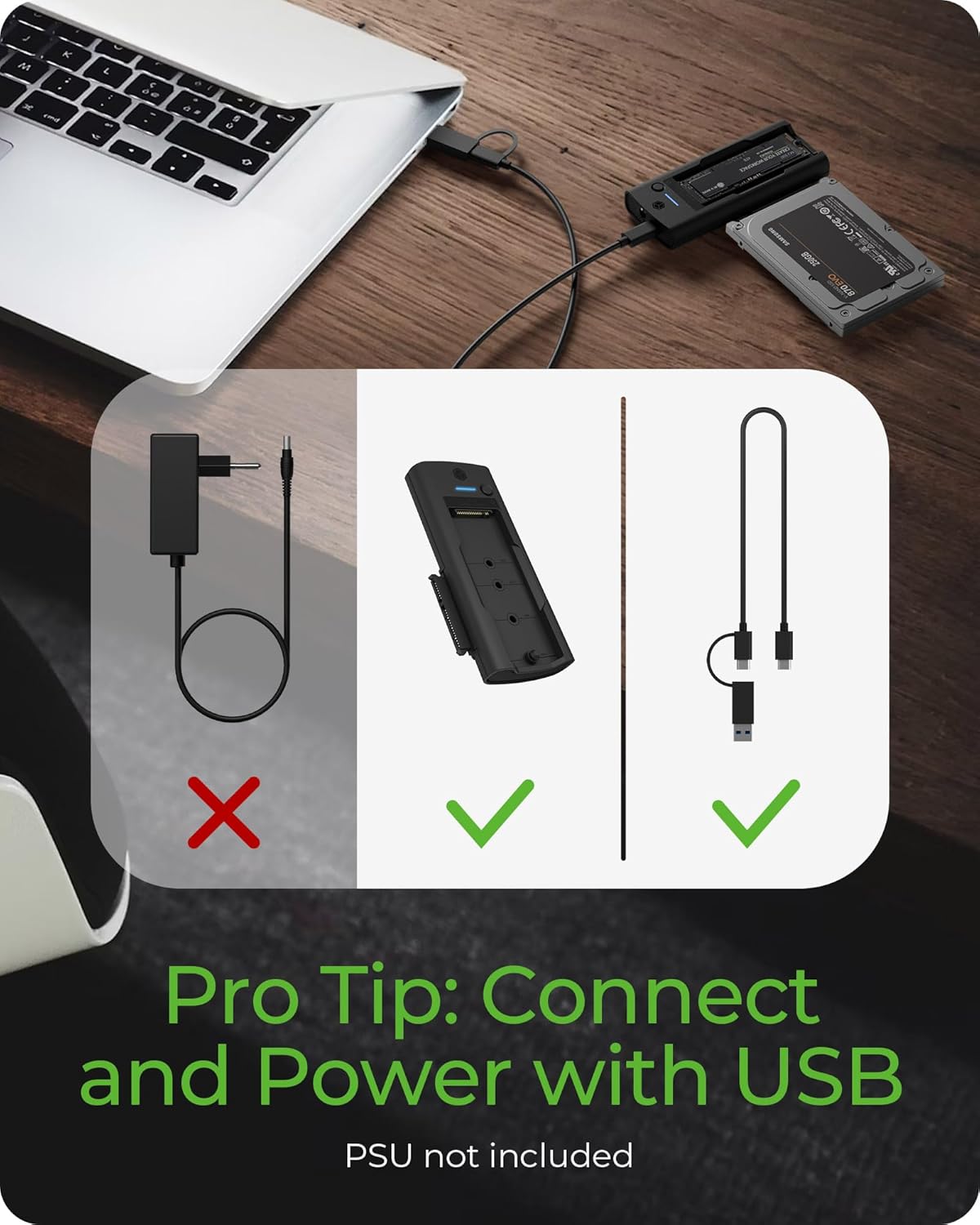
Figure 2: Included accessories with the docking station. Note: A power supply unit (PSU) for 3.5" HDDs is not included.
3. ຄູ່ມືການຕິດຕັ້ງ
3.1 Connecting an M.2 SSD
- Gently insert your M.2 NVMe or SATA SSD into the designated M.2 slot on the docking station.
- Secure the M.2 SSD with one of the provided rubber fixations.
3.2 Connecting a 2.5”/3.5” SATA Drive
- Slide your 2.5” or 3.5” SATA HDD/SSD into the SATA drive bay until it is firmly seated.
- For 3.5” HDDs, an external 12V DC power adapter (not included) is required for operation. Connect the power adapter to the DC input port on the docking station.
3.3 ການເຊື່ອມຕໍ່ກັບຄອມພິວເຕີຂອງທ່ານ
- Use the provided 2-in-1 USB cable to connect the docking station to your computer.
- Connect the USB-C end of the cable to the USB Type-C host connection port on the docking station.
- Connect the other end of the cable (USB-C or USB-A, depending on your computer's port) to an available USB port on your computer.

ຮູບ 3: ເກີນview of the docking station components, including M.2 slot, SATA connection, USB-C host connection, and power input.

Figure 4: The included 2-in-1 cable supports both USB Type-A and USB Type-C connections for broad compatibility.
4. ຄໍາແນະນໍາການດໍາເນີນງານ
4.1 Drive Detection
Once connected, your operating system (Windows or macOS) should automatically detect the docking station and any inserted drives. New drives may require initialization and formatting before use.
4.2 One-Touch Drive Switching
The docking station features a front-panel tact switch to toggle between the M.2 SSD and the 2.5”/3.5” HDD/SSD. Press the switch to select the active drive. This allows for quick switching without needing to disconnect and reconnect drives.
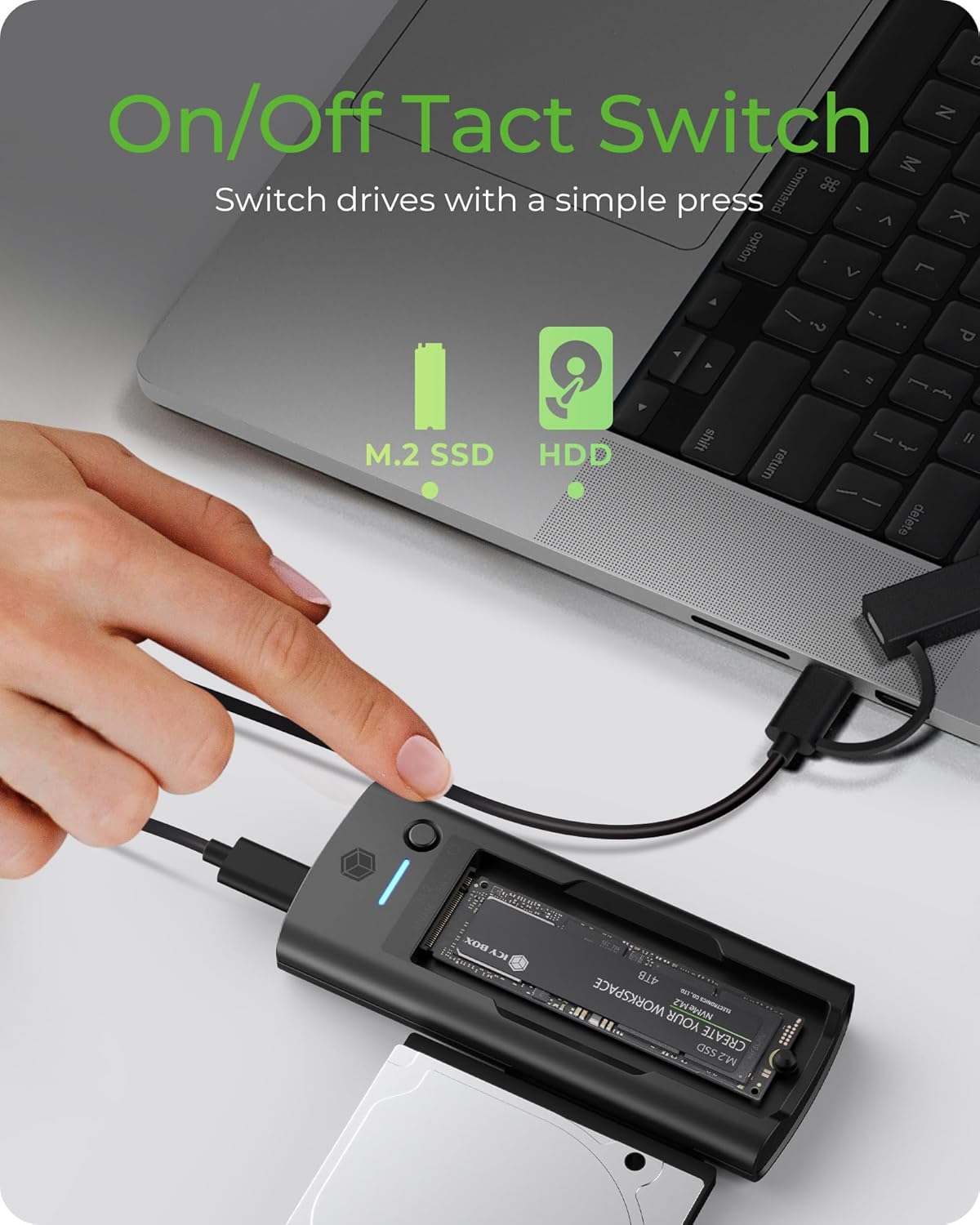
Figure 5: The tact switch allows for instant switching between M.2 SSD and 2.5”/3.5” SATA drives.
4.3 ການໂອນຂໍ້ມູນ
The docking station supports USB 3.2 Gen2x1, providing data transfer speeds up to 10 Gbit/s. This is ideal for transferring large files, performing backups, or working with high-resolution media.

Figure 6: Experience fast data transfer speeds up to 10 Gbit/s.
4.4 ຄວາມເຂົ້າກັນໄດ້ຂອງລະບົບ
This device is compatible with both macOS and Windows operating systems, ensuring seamless integration with most desktop and laptop environments.
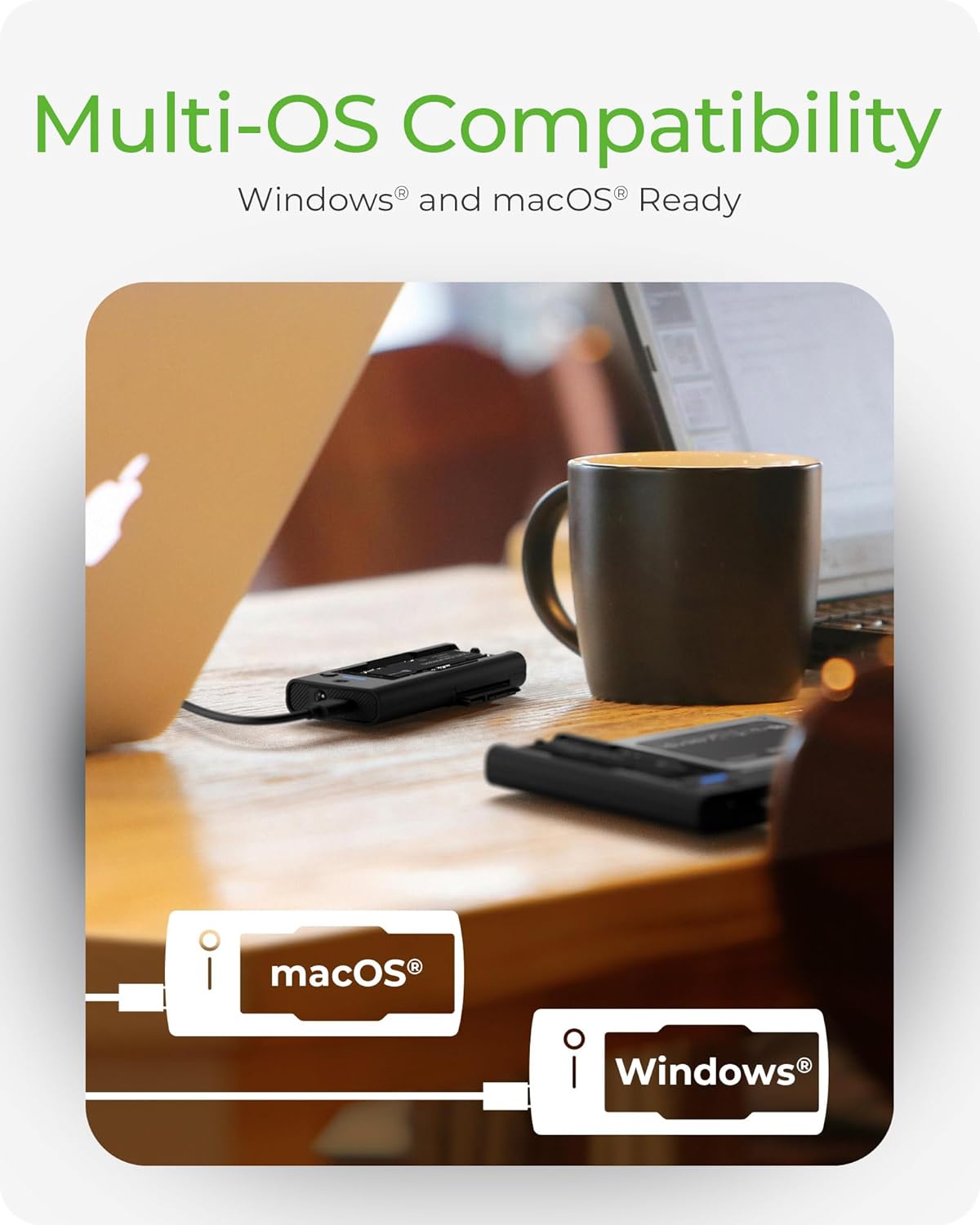
Figure 7: The docking station offers multi-OS compatibility for Windows and macOS.
5. ບໍາລຸງຮັກສາ
To ensure the longevity and optimal performance of your ICY BOX docking station, follow these maintenance guidelines:
- ທໍາຄວາມສະອາດ: Use a soft, dry cloth to clean the exterior of the docking station. Avoid using liquid cleaners or solvents, as they may damage the device.
- ການເກັບຮັກສາ: ເມື່ອບໍ່ໄດ້ໃຊ້, ໃຫ້ເກັບຮັກສາສະຖານີຈອດໃນບ່ອນທີ່ເຢັນ, ແຫ້ງແລ້ງຫ່າງຈາກແສງແດດໂດຍກົງ ແລະອຸນຫະພູມທີ່ຮຸນແຮງ.
- ການຈັດການ: ຈັດການອຸປະກອນດ້ວຍຄວາມລະມັດລະວັງເພື່ອປ້ອງກັນຄວາມເສຍຫາຍທາງຮ່າງກາຍ. ຫຼີກລ້ຽງການຫຼຸດລົງຫຼືຮັບມັນກັບຜົນກະທົບທີ່ເຂັ້ມແຂງ.
- ການລະບາຍອາກາດ: Ensure the docking station has adequate ventilation during operation to prevent overheating, especially when using multiple drives or during prolonged data transfers.
6. ການແກ້ໄຂບັນຫາ
6.1 Drive ບໍ່ໄດ້ກວດພົບ
- ກວດສອບການເຊື່ອມຕໍ່: Ensure all cables are securely connected to both the docking station and your computer.
- ການສະຫນອງພະລັງງານ: For 3.5” SATA HDDs, confirm that an external 12V DC power adapter is connected and providing power. 2.5” SATA drives and M.2 SSDs typically draw power from the USB connection, but a power adapter may be beneficial for stability with some systems.
- ບ່ອນນັ່ງຄົນຂັບ: Verify that the M.2 SSD or SATA drive is correctly and firmly seated in its respective slot.
- ລະບົບປະຕິບັດການ: ກວດສອບ Disk Management (Windows) ຫຼື Disk Utility (macOS) ຂອງຄອມພິວເຕີຂອງທ່ານເພື່ອເບິ່ງວ່າໄດຣຟ໌ຖືກຮັບຮູ້ແຕ່ບໍ່ໄດ້ເລີ່ມຕົ້ນ ຫຼື ບໍ່ໄດ້ຟໍແມັດ.
- ລອງ Port/Cable ອື່ນ: Test with a different USB port on your computer or a different USB cable if available.
6.2 ຄວາມໄວໃນການໂອນຂໍ້ມູນຊ້າ
- ພອດ USB: Ensure the docking station is connected to a USB 3.0 (or higher) port on your computer. Connecting to a USB 2.0 port will limit speeds.
- Drive Performance: The actual transfer speed is limited by the slowest component, which could be the drive itself. Older HDDs or slower SSDs will not reach 10 Gbit/s.
- ການໂຫຼດຂອງລະບົບ: ການໃຊ້ CPU ສູງ ຫຼື ຂະບວນການພື້ນຫຼັງອື່ນໆໃນຄອມພິວເຕີຂອງທ່ານສາມາດສົ່ງຜົນກະທົບຕໍ່ຄວາມໄວໃນການໂອນຍ້າຍ.
6.3 3.5” HDD Not Powering On
- ພະລັງງານພາຍນອກທີ່ຕ້ອງການ: 3.5” HDDs require an external 12V DC power adapter (not included) to operate. The USB connection alone cannot provide sufficient power for these drives.
- ຂໍ້ມູນຈໍາເພາະຂອງອະແດບເຕີໄຟຟ້າ: Ensure the power adapter used provides 12V DC and sufficient amperage (e.g., 2A or 3A) for the HDD. Using an incorrect power adapter can damage the drive or the docking station.
7. ຂໍ້ມູນຈໍາເພາະ
| ຂະໜາດສິນຄ້າ | 4.45 x 2.17 x 0.59 ນິ້ວ (11.3 x 5.5 x 1.5 cm) |
| ນ້ໍາຫນັກລາຍການ | 4.6 ອອນສ໌ (130 ກຣາມ) |
| ການໂຕ້ຕອບຮາດແວ | USB 3.2 Gen 2 |
| ອັດຕາການໂອນຂໍ້ມູນ | ສູງສຸດ 10 Gbit/s |
| ໄດຣຟ໌ທີ່ເຂົ້າກັນໄດ້ | M.2 NVMe/SATA SSDs (2230, 2242, 2260, 2280), 2.5"/3.5" SATA HDDs/SSDs |
| ລະບົບທີ່ເຂົ້າກັນໄດ້ | macOS, Windows |
| ພອດ USB ທັງໝົດ | 2 (Internal for drives) |
| ການປ້ອນຂໍ້ມູນ Voltage | 12 Volts (DC) for external power (for 3.5" HDDs) |
| ສີ | ດຳ |
8. ການຮັບປະກັນແລະການສະຫນັບສະຫນູນ
8.1 ຂໍ້ມູນການຮັບປະກັນ
This ICY BOX product comes with a 24-month warranty from the date of purchase. This warranty covers manufacturing defects and ensures the product functions as intended under normal use. Please retain your proof of purchase for warranty claims.
8.2 ສະຫນັບສະຫນູນລູກຄ້າ
For technical assistance, troubleshooting, or warranty inquiries, please contact ICY BOX customer service. Refer to the official ICY BOX webເວັບໄຊທ໌ຫຼືການຫຸ້ມຫໍ່ຜະລິດຕະພັນຂອງທ່ານສໍາລັບຂໍ້ມູນຕິດຕໍ່ໃນປະຈຸບັນຫຼາຍທີ່ສຸດ.


