ແນະນຳ
This manual provides detailed instructions for the KEFEYA 15.6" Portable Monitor S5 PRO. This device is designed to expand your laptop's display capabilities, offering a versatile multi-screen setup for enhanced productivity and entertainment. It features a 1080P FHD IPS display with 120% sRGB color gamut, a magnetic 10,000 mAh power bank, and broad compatibility with various operating systems and devices.
ແມ່ນຫຍັງຢູ່ໃນກ່ອງ
ກະລຸນາກວດເບິ່ງເນື້ອໃນຂອງແພັກເກດເມື່ອ unboxing:
- Monitor (SS Monitor) *1
- Power Bank *1
- ຜູ້ດັດແປງພະລັງງານ * 1
- ສາຍ Type-C ຫາ Type-C *2
- HDMI to Type-C Cable *1
- USB-A to Type-C Cable *1
- USB Flash Disk *1 (Contains drivers and user manual)
- ກະເປົາຖື *1
- User Manual *1 (This document)
- ຄູ່ມືເລີ່ມຕົ້ນໄວ *1
- ກ່ອງ *1

Figure 1: Contents of the KEFEYA Portable Monitor package.
ຕັ້ງຄ່າ
Follow these steps to set up your KEFEYA Portable Monitor:
- Unpack the Monitor: ເອົາສ່ວນປະກອບທັງຫມົດອອກຈາກການຫຸ້ມຫໍ່ຢ່າງລະມັດລະວັງ.
- ຕຳແໜ່ງ: The monitor features an autonomous stand. For laptops between 13 and 17 inches, the monitor attaches securely. Laptops under 14.2 inches can be used without additional clamps. The chassis pivots 180° for flexible positioning.
- ເຊື່ອມຕໍ່ Power Bank: The magnetic 10,000 mAh power bank attaches to the back of the stand. Ensure the POGO PIN male and female connectors are perfectly aligned for proper power delivery. This provides 5-6 hours of wireless dual-screen operation. The power bank can also be removed for separate charging of mobile phones or tablets.
- ເຊື່ອມຕໍ່ກັບອຸປະກອນຂອງທ່ານ:
- ການເຊື່ອມຕໍ່ USB-C: For devices with a full-featured USB-C port (supporting video and power), use one of the provided Type-C to Type-C cables. This single cable can transmit video, audio, and power.
- ການເຊື່ອມຕໍ່ HDMI: For devices with an HDMI output, use the provided HDMI to Type-C cable. You may also need to connect a USB-A to Type-C cable for power if your HDMI port does not supply sufficient power.
- ການຕິດຕັ້ງໄດເວີ: The monitor is designed for plug-and-play convenience. However, if you encounter any display issues, especially with specific operating systems or older devices, use the provided USB flash disk to install necessary drivers.
- ການເປີດເຄື່ອງເບື້ອງຕົ້ນ: Press the multi-function button to power on the monitor.
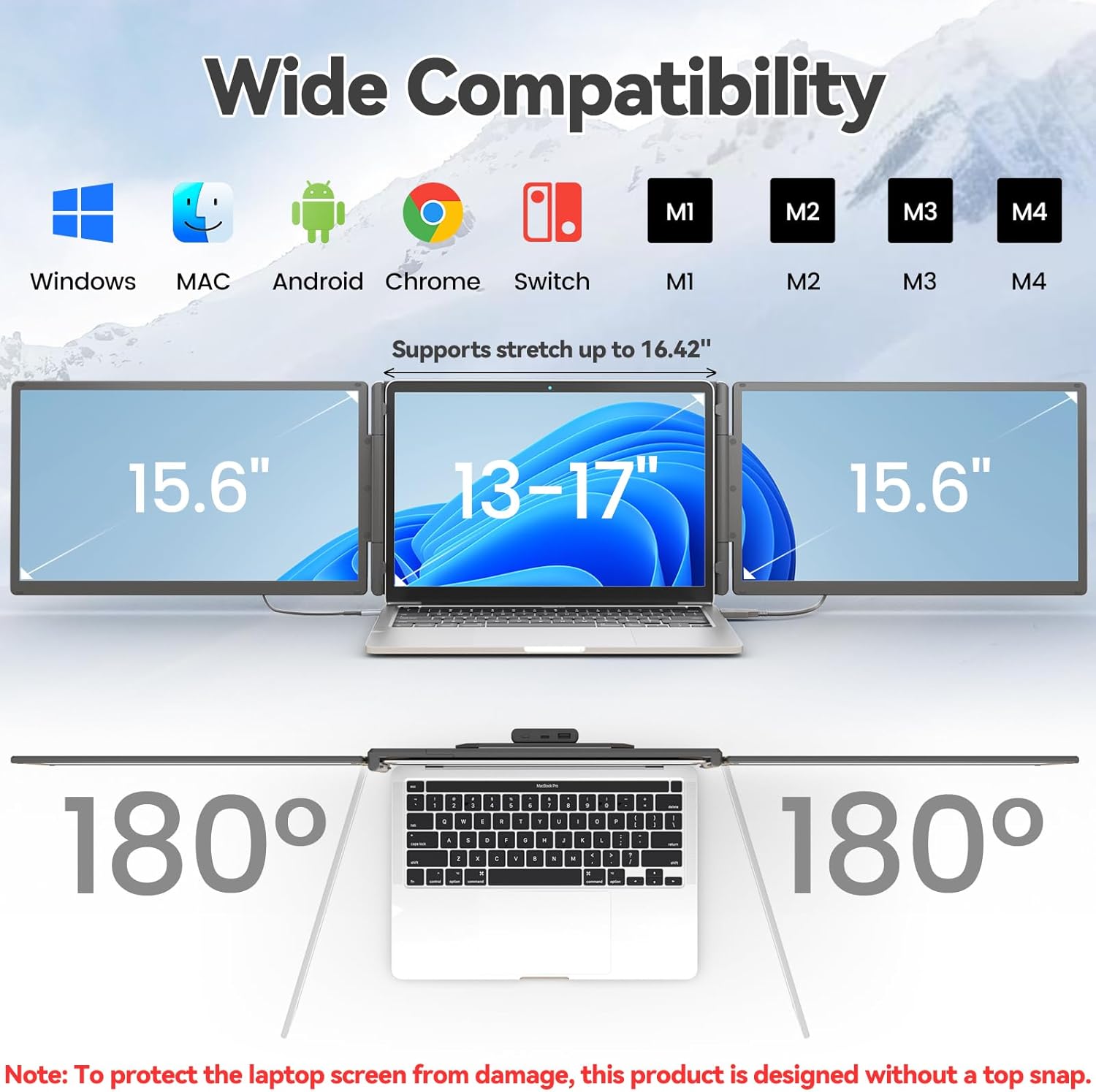
Figure 2: The monitor supports various devices and offers 180° rotation for flexible viewມຸມ.

Figure 3: Attaching the magnetic power bank to the monitor stand.

ຮູບ 4: ເກີນview of the ports (Type-C1, Type-C2, USB-C with PD) and multi-function button on the monitor.
ຄໍາແນະນໍາການດໍາເນີນງານ
The KEFEYA Portable Monitor offers various display modes and adjustable settings to optimize your viewປະສົບການ.
ໂໝດສະແດງຜົນ
The monitor supports the following display configurations:
- ໂໝດຂະຫຍາຍ: Extends your laptop's desktop across multiple screens, allowing for increased workspace and multitasking.
- Duplication (Mirror) Mode: Duplicates your laptop's display onto the portable monitor, ideal for presentations or sharing content.
- ແບບ Portrait: The monitor can be rotated 180° to be used in portrait orientation, beneficial for coding, document viewing, or specific creative tasks.
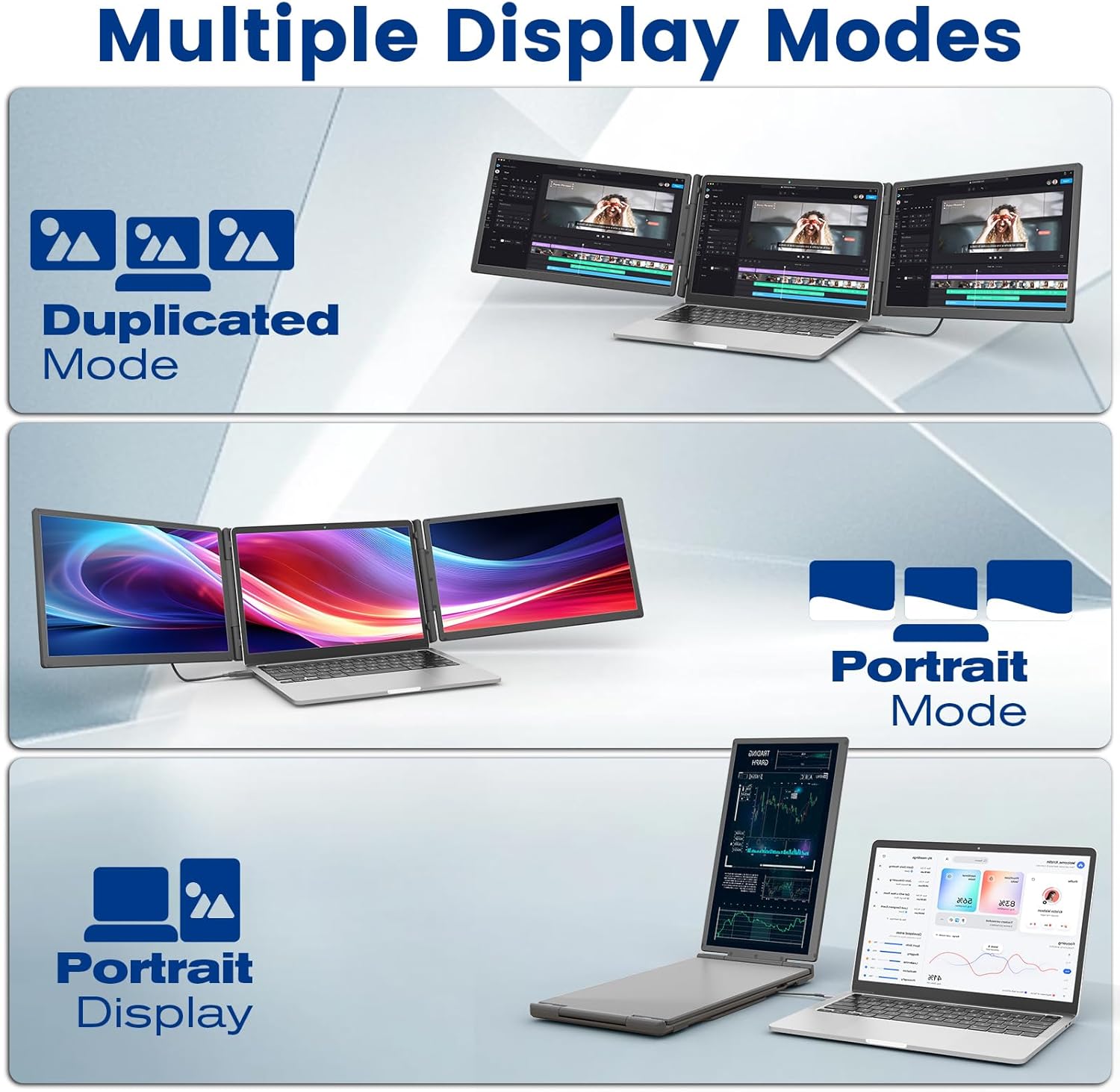
Figure 5: Illustration of Duplicated, Extended, and Portrait display modes.

ຮູບທີ 6: ຕົວຢ່າງamples of using the monitor for multiple tasks like web programming, video conferencing, and online shopping.
ປັບການຕັ້ງຄ່າ
The multi-function buttons on the monitor allow for precise control over display parameters:
- ຄວາມສະຫວ່າງ: Adjust the screen brightness to suit your environment.
- Tint/Color: Fine-tune color settings for optimal visual accuracy.
- ປະລິມານ: Control the volume of the integrated speakers.
The monitor also features advanced low blue light technology, anti-glare design, and flicker-free operation for a comfortable viewປະສົບການ.
ການໃຊ້ Power Bank
The integrated 10,000 mAh power bank provides 5-6 hours of battery life for the monitor, reducing reliance on your laptop's battery. It can also be detached and used as a standalone power source for other USB-powered devices.

Figure 7: Details of the power bank, including its capacity display and ports (Type-C, USB-A).
ບໍາລຸງຮັກສາ
To ensure the longevity and optimal performance of your KEFEYA Portable Monitor, follow these maintenance guidelines:
- ທໍາຄວາມສະອາດຫນ້າຈໍ: ໃຊ້ຜ້າອ່ອນໆທີ່ບໍ່ມີຂົນທີ່ອອກແບບມາສະເພາະສຳລັບເຄື່ອງໃຊ້ໄຟຟ້າ. ເຊັດເບົາໆampen the cloth with water or a screen-cleaning solution. Avoid harsh chemicals, alcohol, or abrasive materials.
- ທໍາຄວາມສະອາດ Casing: ເຊັດດ້ານນອກດ້ວຍຜ້າອ່ອນ, ແຫ້ງ.
- ການເກັບຮັກສາ: When not in use, store the monitor in its provided carrying bag to protect it from dust and scratches. Avoid placing heavy objects on top of the monitor.
- ເງື່ອນໄຂສິ່ງແວດລ້ອມ: ຮັກສາຈໍພາບໃຫ້ຫ່າງຈາກອຸນຫະພູມທີ່ຮຸນແຮງ, ແສງແດດໂດຍກົງ, ແລະ ຄວາມຊຸ່ມສູງ.
- ການດູແລສາຍໄຟ: Handle cables gently. Avoid bending or twisting them sharply, which can damage the internal wires.
ການແກ້ໄຂບັນຫາ
If you encounter issues with your KEFEYA Portable Monitor, refer to the following common problems and solutions:
| ບັນຫາ | ສາເຫດ / ການແກ້ໄຂທີ່ເປັນໄປໄດ້ |
|---|---|
| ບໍ່ມີຈໍສະແດງຜົນ / ໜ້າຈໍດຳ |
|
| Unstable Connection / Screen Flickering |
|
| Drivers Not Working / System Bugs |
|
| Monitor Does Not Stay Firmly Attached |
|
| Poor Image Quality / Incorrect Colors |
|
ຂໍ້ມູນຈໍາເພາະ
| ຄຸນສົມບັດ | ລາຍລະອຽດ |
|---|---|
| ຍີ່ຫໍ້ | KEFEYA |
| ໝາຍເລກຕົວແບບ | S5 PRO |
| ຂະໜາດໜ້າຈໍ | 15.6 ນິ້ວ |
| ປະເພດການສະແດງ | IPS |
| ຄວາມລະອຽດ | 1920 x 1080 ພິກເຊລ (FHD 1080p) |
| ອັດຕາສ່ວນ | 16:9 |
| ສີ Gamut | 120% sRGB |
| ຄວາມສະຫວ່າງ | 300 nits (cd/m²) |
| ອັດຕາສ່ວນກົງກັນຂ້າມ | 1000:1 |
| ເວລາຕອບສະຫນອງ | 2 ມິນລິວິນາທີ |
| ອັດຕາການໂຫຼດຂໍ້ມູນຄືນໃໝ່ | 60 Hz |
| ຫນ້າຈໍ | ດ້ານ, ຕ້ານແສງສະທ້ອນ |
| ການເຊື່ອມຕໍ່ | USB Type C (x2), USB Type A, HDMI |
| ຄຸນນະສົມບັດພິເສດ | 120% sRGB, Anti-glare screen, Energy efficiency, Blue light filter, Built-in speakers, Magnetic 10,000 mAh Power Bank |
| ຂະໜາດ (L x W x H) | 39.1 x 21.5 x 3.3 ຊັງຕີແມັດ |
| ຄວາມເຂົ້າກັນໄດ້ | Windows, Chrome, Android, Mac (M1/M2/M3/M4), Linux, Dex, PS4/5, Xbox |
ການຮັບປະກັນແລະການສະຫນັບສະຫນູນ
KEFEYA offers a one-year warranty for this product. Our customer service team is available 24 hours a day, 7 days a week, 365 days a year to assist you.
For questions regarding compatibility, installation assistance, or if you find any missing accessories, please contact us using the contact information provided inside the product packaging. Our professional team will provide prompt assistance.
For the latest information and support resources, please visit our official website or refer to the contact details in your Quick Start Guide.


