1. ບົດແນະນຳ
Welcome to the TABWEE T80 Tablet user manual. This guide provides comprehensive instructions to help you get the most out of your new Android 15 tablet. The T80 is designed for a seamless and powerful user experience, featuring advanced AI capabilities, a vibrant display, and robust performance for both work and entertainment.
ຄຸນນະສົມບັດທີ່ສໍາຄັນ:
- ລະບົບປະຕິບັດການ Android 15: Experience the latest features and security enhancements.
- Gemini AI 2.0: Enhanced AI for smarter interactions and controls.
- 10.5-inch HD+ IPS Display: Enjoy clear and vibrant visuals with a wide viewມຸມ ing.
- ປະສິດທິພາບທີ່ມີປະສິດທິພາບ: Equipped with a 2.0GHz CPU, 12GB RAM, and 64GB ROM (expandable up to 2TB via TF card).
- ແບດເຕີຣີທີ່ຍາວນານ: 6000mAh mega battery for extended use.
- ການເຊື່ອມຕໍ່ຂັ້ນສູງ: Supports 5G WiFi and Bluetooth 5.0.
- 5MP Google Lens Camera: For clear photos and smart scene recognition.

Figure 1.1: The TABWEE T80 Tablet, showcasing ການອອກແບບ sleek ແລະການສະແດງຂອງຕົນ.
2. ຕັ້ງຄ່າ
2.1 Unboxing ແລະຄ່າເລີ່ມຕົ້ນ
Carefully remove your TABWEE T80 Tablet from its packaging. Before first use, it is recommended to fully charge the device using the provided USB-C cable and power adapter. The charging port is located on the side of the tablet.
2.2 ການເປີດເຄື່ອງ ແລະການຕັ້ງຄ່າເບື້ອງຕົ້ນ
- Press and hold the Power button (located on the side) until the TABWEE logo appears on the screen.
- ປະຕິບັດຕາມການເຕືອນໃນຫນ້າຈໍເພື່ອເລືອກພາສາຂອງທ່ານ, ເຊື່ອມຕໍ່ກັບເຄືອຂ່າຍ Wi-Fi, ແລະຕັ້ງຄ່າບັນຊີ Google ຂອງທ່ານ.
- Review ແລະຍອມຮັບຂໍ້ກຳນົດ ແລະ ເງື່ອນໄຂເພື່ອເຮັດສຳເລັດຂະບວນການຕິດຕັ້ງ.

ຮູບທີ 2.1: ຈົບລົງview of the TABWEE T80's core specifications and features.
3. ປະຕິບັດການແທັບເລັດ
3.1 ຄຸນສົມບັດ Android 15
Your TABWEE T80 runs on the latest Android 15, offering enhanced user experience, improved privacy, and smart features.
Split-Screen Combo
The split-screen feature allows you to run two applications simultaneously, enhancing multitasking and productivity. You can easily save app pairs for quick access.
Video 3.1: Demonstrates how to use the split-screen feature to run two applications concurrently on the TABWEE T80 tablet.
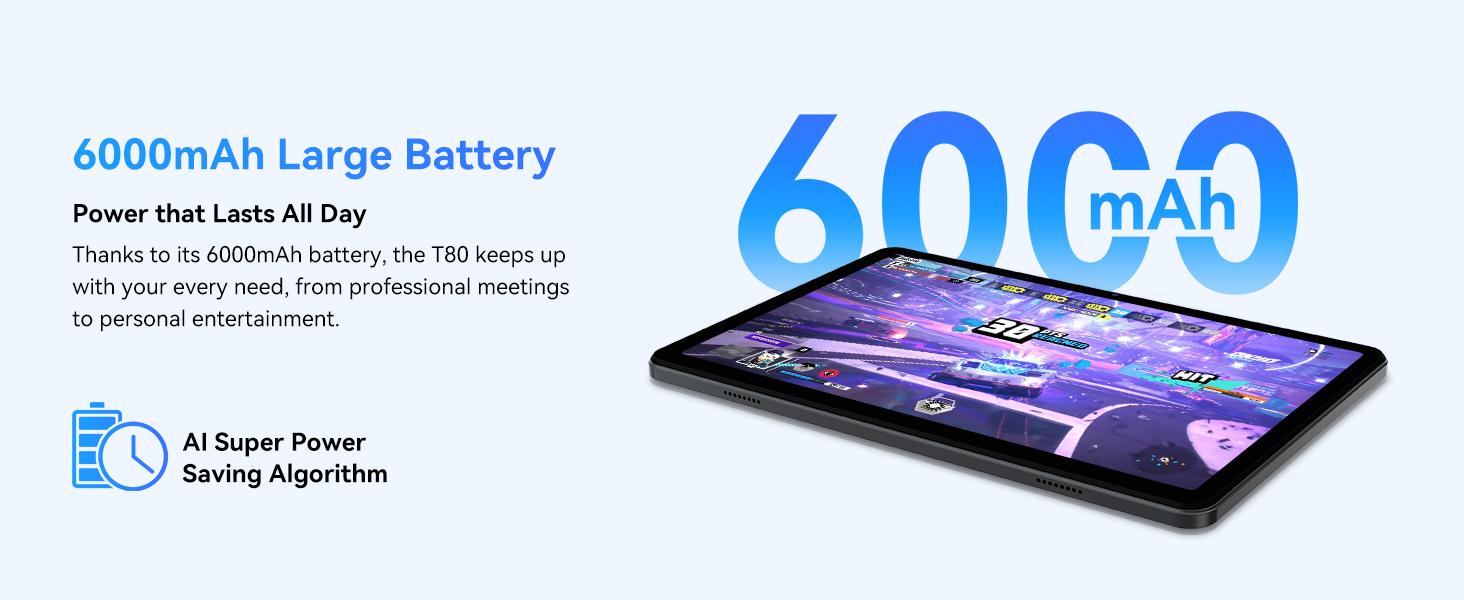
Figure 3.1: Visual representation of the split-screen functionality, allowing for efficient multitasking.
Desktop Customization and Widgets
Personalize your home screen by dragging and grouping apps freely. You can also add various widgets, such as the calendar, to quickly access information and tasks.
Video 3.2: Illustrates how to customize your desktop layout and add widgets for quick access to information.
ການຄວບຄຸມຄວາມເປັນສ່ວນຕົວ
Android 15 offers enhanced privacy controls, allowing you to manage app permissions and secure your data. You can block app access to sensitive information like location.
Video 3.3: Shows how to manage privacy settings and control app access to your data on the TABWEE T80.
Parental Controls with Gemini AI
Utilize Gemini AI parental controls to manage screen time, automatically lock games during homework, and ensure a safe digital environment for children.
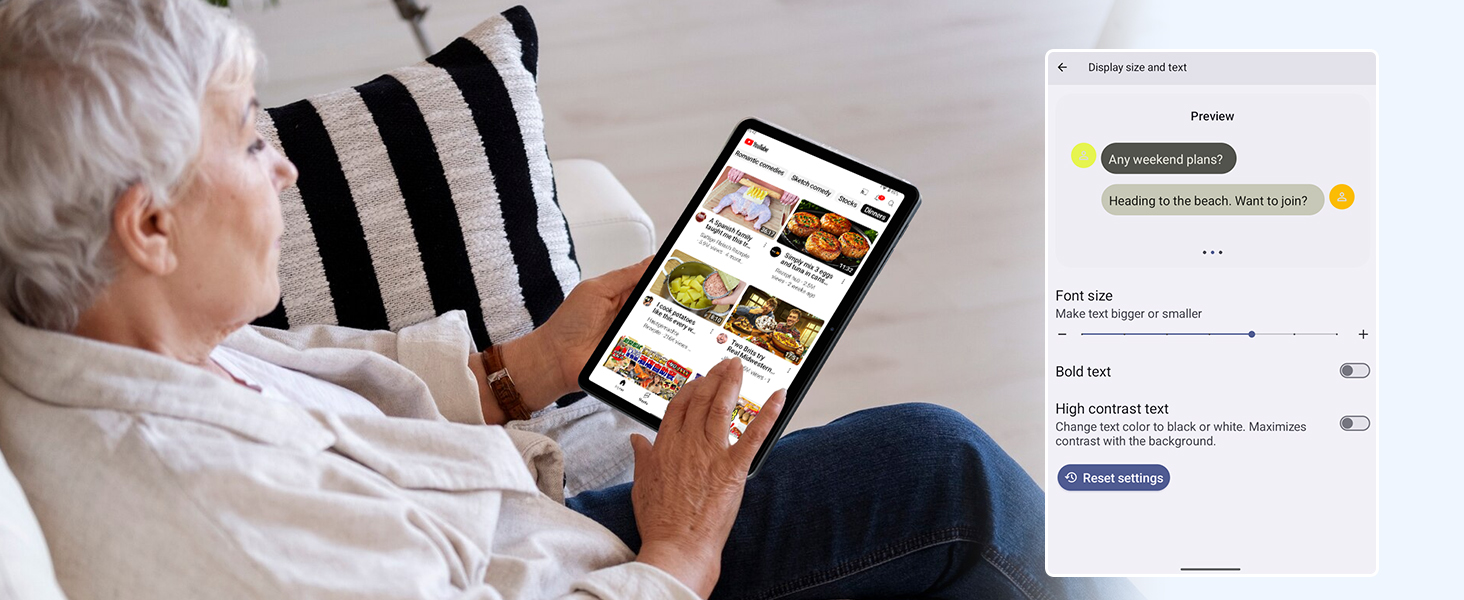
Figure 3.2: The Digital Wellbeing interface, demonstrating options for managing screen time and parental controls.
3.2 ຈໍສະແດງຜົນ ແລະສາຍຕາ
The 10.5-inch HD+ IPS display provides a clear and immersive viewing experience with a 1280x800 resolution and 84.9% screen-to-body ratio. It's ideal for watching videos, browsing, and reading.

Figure 3.3: Details of the tablet's display, highlighting its resolution and IPS full view ຄວາມສາມາດ.
3.3 ການປະຕິບັດແລະການເກັບຮັກສາ
Powered by a 2.0GHz Unisoc T310 CPU and 12GB RAM (expandable via software memory extension), the T80 ensures smooth multitasking and responsive performance. With 64GB of internal storage and support for up to 2TB TF cards, you have ample ຊ່ອງສໍາລັບທັງຫມົດຂອງທ່ານ files, ແອັບ, ແລະ ສື່.

Figure 3.4: Illustration of the tablet's processing power and memory, enabling seamless multitasking and productivity.
3.4 ອາຍຸແບັດເຕີຣີ
The 6000mAh mega battery provides extended usage, offering up to 8 hours of video streaming, 6 hours of gaming, or 30 hours of music playback. Smart power-saving modes further optimize battery longevity.

Figure 3.5: Depiction of the tablet's large 6000mAh battery and its USB-C charging port.
3.5 ຄຸນສົມບັດກ້ອງຖ່າຍຮູບ
The T80 features a 5MP Google Lens enabled camera. This allows for scene recognition, night mode optimization, and useful functions like text translation and object identification.

ຮູບທີ 3.6: ຈົບລົງview of the tablet's camera and its integration with Google Lens for smart functions.
4. ບໍາລຸງຮັກສາ
To ensure the longevity and optimal performance of your TABWEE T80 Tablet, follow these maintenance guidelines:
- ທໍາຄວາມສະອາດ: ໃຊ້ຜ້າທີ່ອ່ອນໆ, ບໍ່ມີສານດ່າງເພື່ອເຮັດຄວາມສະອາດຫນ້າຈໍແລະຮ່າງກາຍ. ຫຼີກລ້ຽງການວັດສະດຸຂັດຫຼືສານເຄມີທີ່ຮ້າຍແຮງ.
- ອັບເດດຊອບແວ: ກວດສອບ ແລະຕິດຕັ້ງການອັບເດດລະບົບເປັນປະຈຳເພື່ອຮັບປະໂຫຍດຈາກຄຸນສົມບັດຫຼ້າສຸດ, ແຜ່ນປ້ອງກັນຄວາມປອດໄພ ແລະການປັບປຸງປະສິດທິພາບ.
- ການດູແລຫມໍ້ໄຟ: ຫຼີກເວັ້ນອຸນຫະພູມທີ່ຮຸນແຮງ. ຢ່າປ່ອຍໃຫ້ແບັດເຕີຣີໝົດເຕັມເລື້ອຍໆ. ສໍາລັບການເກັບຮັກສາໃນໄລຍະຍາວ, ສາກໄຟຫມໍ້ໄຟປະມານ 50%.
- ການຈັດການການເກັບຮັກສາ: ລ້າງບໍ່ຈໍາເປັນເປັນໄລຍະ files ແລະແອັບຯເພື່ອເພີ່ມພື້ນທີ່ຫວ່າງແລະຮັກສາການດໍາເນີນງານທີ່ລຽບງ່າຍ.
- ການປົກປ້ອງ: ພິຈາລະນາໃຊ້ກໍລະນີປ້ອງກັນແລະຕົວປ້ອງກັນຫນ້າຈໍເພື່ອປ້ອງກັນການຫຼຸດລົງແລະຮອຍຂີດຂ່ວນ.
5. ການແກ້ໄຂບັນຫາ
This section addresses common issues you might encounter with your TABWEE T80 Tablet.
5.1 ອຸປະກອນບໍ່ເປີດ
- ກວດສອບຫມໍ້ໄຟ: Ensure the tablet has sufficient charge. Connect it to the charger and wait a few minutes before attempting to power on again.
- Hard Reset: Press and hold the Power button for about 10-15 seconds until the device restarts.
5.2 ບັນຫາການເຊື່ອມຕໍ່ Wi-Fi
- ສະຫຼັບ Wi-Fi: ປິດ Wi-Fi ແລ້ວເປີດອີກຄັ້ງໃນການຕັ້ງຄ່າ.
- ຣີສະຕາດເຣົາເຕີ: ວົງຈອນປິດ router Wi-Fi ຂອງທ່ານ.
- ລືມເຄືອຂ່າຍ: ໄປທີ່ການຕັ້ງຄ່າ Wi-Fi, ລືມເຄືອຂ່າຍທີ່ມີບັນຫາ, ແລ້ວເຊື່ອມຕໍ່ຄືນໃໝ່.
5.3 ການປະຕິບັດຊ້າ
- ປິດແອັບພື້ນຫຼັງ: ປິດແອັບພລິເຄຊັນທີ່ບໍ່ໄດ້ໃຊ້ທີ່ເຮັດວຽກຢູ່ໃນພື້ນຫຼັງ.
- ລຶບລ້າງແຄດ: Regularly clear app caches in Settings > Apps.
- ສ້າງພື້ນທີ່ຈັດເກັບຂໍ້ມູນ: ລຶບທີ່ບໍ່ຈໍາເປັນ files or uninstall rarely used apps.
- ຣີສະຕາດອຸປະກອນ: A simple restart can often resolve temporary slowdowns.
5.4 ແອັບຂັດຂ້ອງ ຫຼື ບໍ່ຕອບສະໜອງ
- Force Stop App: Go to Settings > Apps, select the problematic app, and choose 'Force Stop'.
- Clear App Data/Cache: In the same app settings, try clearing its cache or data (note: clearing data will reset the app to its default state).
- ຕິດຕັ້ງແອັບຄືນໃໝ່: ຖອນການຕິດຕັ້ງແລ້ວຕິດຕັ້ງແອັບຄືນໃໝ່ຈາກ Google Play Store.
6. ຂໍ້ມູນຈໍາເພາະ
Detailed technical specifications for the TABWEE T80 Tablet:
| ຄຸນສົມບັດ | ຂໍ້ມູນຈໍາເພາະ |
|---|---|
| ຍີ່ຫໍ້ | TABWEE |
| ຊື່ຕົວແບບ | T80 |
| ລະບົບປະຕິບັດການ | Android 15 |
| ຂະໜາດໜ້າຈໍ | 10.5 ນິ້ວ |
| ຄວາມລະອຽດໜ້າຈໍ | 1280 x 800 ພິກເຊລ |
| ໂຮງງານຜະລິດ | 2.0 GHz Unisoc T310 |
| ໜ່ວຍຄວາມຈຳ (RAM) | 12 GB |
| ບ່ອນຈັດເກັບຂໍ້ມູນ (ROM) | 64 GB |
| ການເກັບຮັກສາທີ່ຂະຫຍາຍໄດ້ | ສູງສຸດ 2TB ບັດ TF |
| ຫລັງ Webຄວາມລະອຽດກ້ອງ | 5 MP |
| ປະເພດໄຮ້ສາຍ | 802.11n, 802.11b, 802.11a, 802.11ac, 802.11g (5G WiFi) |
| Bluetooth | Bluetooth 5.0 |
| ຄວາມອາດສາມາດຫມໍ້ໄຟ | 6000mAh |
| ອາຍຸຫມໍ້ໄຟສະເລ່ຍ | 550 ຊົ່ວໂມງ (ສະແຕນບາຍ) |
| ນ້ໍາຫນັກລາຍການ | 1.1 ປອນ (ປະມານ 523 ກຣາມ) |
| ຂະໜາດສິນຄ້າ | 9.5 x 6.4 x 0.3 ນິ້ວ |
| ສີ | ສີເທົາ |
7. ການຮັບປະກັນແລະການສະຫນັບສະຫນູນ
TABWEE is committed to quality and customer satisfaction. Your T80 Tablet comes with comprehensive support to ensure a worry-free experience.
7.1 ຂໍ້ມູນການຮັບປະກັນ
The TABWEE T80 Tablet is backed by a ຮັບປະກັນ 2 ປີ. This warranty covers manufacturing defects and ensures free repair service for eligible issues. Please retain your proof of purchase for warranty claims.
7.2 ສະຫນັບສະຫນູນລູກຄ້າ
For any questions, technical assistance, or warranty claims, please contact our dedicated support team:
- ການຊ່ວຍເຫຼືອທາງໂທລະສັບອອນໄລນ໌ 24/7: ພ້ອມໃຫ້ການຊ່ວຍເຫຼືອທັນທີ.
- ສະຫນັບສະຫນູນດ້ານວິຊາການຕະຫຼອດຊີວິດ: Expert help whenever you need it.
- Hassle-Free Service: Assistance available through the TABWEE Official Flagship Store.
We are dedicated to providing prompt and effective solutions to all your inquiries.

Figure 7.1: Our dedicated customer support team is ready to assist you.


