1. ບົດແນະນຳ
Welcome to the user manual for your new AEEZO Android 14 10-inch Tablet. This manual provides essential information on how to set up, operate, maintain, and troubleshoot your device. Please read this manual thoroughly to ensure optimal performance and longevity of your tablet.
2. ສິ່ງທີ່ຢູ່ໃນກ່ອງ
Carefully unpack your new AEEZO tablet and ensure all items are present:
- AEEZO Android 14 10-inch Tablet
- ເຄື່ອງສາກ
- ແປ້ນພິມ
- ຫນູ
- ສາຍ USB
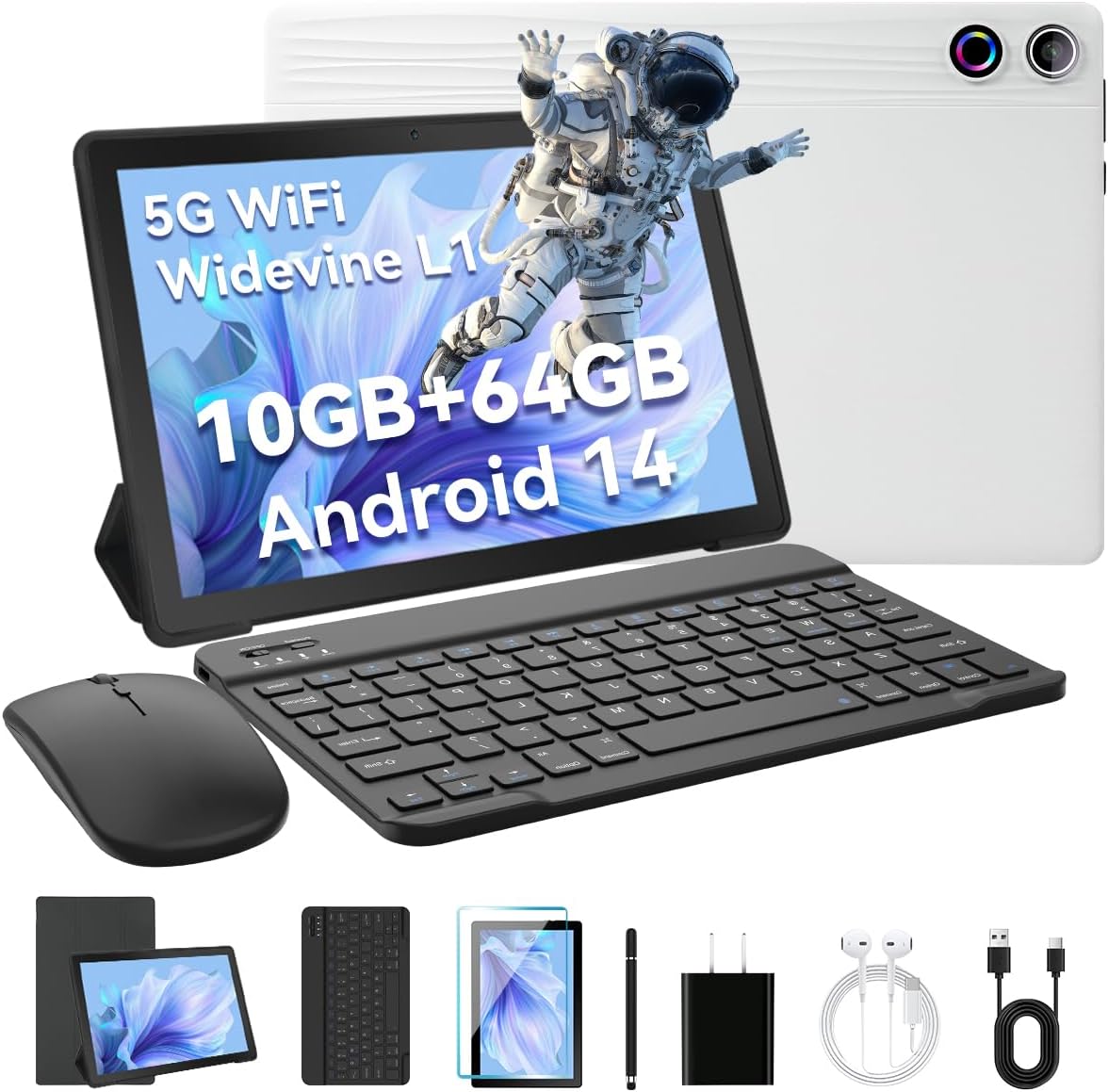
Image: The AEEZO Android 14 10-inch Tablet displayed with its full set of accessories, including the tablet itself, a detachable keyboard, a wireless mouse, a charger, and a USB cable.
3. ຜະລິດຕະພັນເກີນview
Familiarize yourself with the main components of your AEEZO tablet.

ຮູບພາບ: A front view of the AEEZO Android 14 10-inch Tablet, showcasing its display with various application icons. Below the tablet, key specifications are highlighted, including the Octa-Core Processor, Android 14 operating system, 10GB RAM + 64GB ROM, 1280x800 HD resolution, WiFi 6, and Bluetooth 5.0 connectivity.
3.1. ອົງປະກອບທາງກາຍະພາບ
- ປຸ່ມເປີດປິດ: Located on the side, used to power on/off or wake/sleep the screen.
- ປຸ່ມລະດັບສຽງ: ປັບລະດັບສຽງ.
- ພອດ USB Type-C: ສໍາລັບການສາກໄຟແລະການໂອນຂໍ້ມູນ.
- Jack ຫູຟັງ 3.5 ມມ: ສໍາລັບການເຊື່ອມຕໍ່ຫູຟັງແບບມີສາຍ.
- ກ້ອງໜ້າ: For video calls and selfies (5MP).
- ກ້ອງຫຼັງ: For taking photos and videos (8MP).
- ຊ່ອງສຽບກາດ MicroSD: Expand storage up to 1TB (TF card sold separately).
- ລຳ ໂພງຄູ່: ໃຫ້ຜົນຜະລິດສຽງສະເຕີລິໂອ.

Image: The AEEZO Android 14 10-inch Tablet is shown with graphical representations highlighting its memory specifications: 10GB RAM, 64GB internal memory, and the capability for TF card expansion up to 1TB.
4. ຕັ້ງຄ່າ
4.1. ການສາກແທັບເລັດ
Before first use, fully charge your tablet. Connect the provided charger to the USB Type-C port on the tablet and plug it into a power outlet. The battery indicator on the screen will show charging status.
4.2. ເປີດ / ປິດພະລັງງານ
- ເພື່ອເປີດເຄື່ອງ: Press and hold the Power button until the AEEZO logo appears.
- ປິດເຄື່ອງ: ກົດປຸ່ມເປີດປິດຄ້າງໄວ້ຈົນກວ່າຈະມີເມນູເປີດປິດ, ຈາກນັ້ນເລືອກ "ປິດເຄື່ອງ".
- ນອນ/ຕື່ນ: ກົດປຸ່ມເປີດປິດສັ້ນ Br.
4.3. ການຕິດຕັ້ງເບື້ອງຕົ້ນ
ເມື່ອເປີດເຄື່ອງຄັ້ງທຳອິດ, ໃຫ້ປະຕິບັດຕາມຄຳແນະນຳໃນໜ້າຈໍເພື່ອຕັ້ງຄ່າແທັບເລັດຂອງທ່ານ:
- ເລືອກພາສາທີ່ທ່ານຕ້ອງການ.
- ເຊື່ອມຕໍ່ກັບເຄືອຂ່າຍ Wi-Fi.
- Sign in with your Google account or create a new one. This is essential for downloading apps from the Google Play Store.
- ຕັ້ງຄ່າການລັອກໜ້າຈໍ (PIN, ຮູບແບບ, ລະຫັດຜ່ານ ຫຼື ການປົດລັອກດ້ວຍໃບໜ້າ).
- Review ແລະຍອມຮັບຂໍ້ກໍານົດແລະເງື່ອນໄຂ.
4.4. Connecting Keyboard and Mouse
The included keyboard and mouse connect via Bluetooth. Ensure Bluetooth is enabled on your tablet (Settings > Connected devices > Bluetooth).
- ແປ້ນພິມ: Turn on the keyboard. It should appear in the list of available Bluetooth devices. Tap to pair.
- ຫນູ: Turn on the mouse. It should appear in the list of available Bluetooth devices. Tap to pair.
4.5. Inserting a TF Card (MicroSD)
To expand storage, locate the TF card slot on the side of the tablet. Gently insert a MicroSD card (up to 1TB, sold separately) until it clicks into place. The tablet will recognize the new storage.
5. ປະຕິບັດການແທັບເລັດຂອງທ່ານ
5.1. ການນໍາທາງພື້ນຖານ
- ແຕະ: ເລືອກລາຍການ ຫຼືເປີດແອັບ.
- ແຕະຄ້າງໄວ້: ເຂົ້າເຖິງເມນູບໍລິບົດ ຫຼືຍ້າຍໄອຄອນ.
- ປັດ: ເລື່ອນຜ່ານໜ້າຈໍ ຫຼືລາຍການຕ່າງໆ.
- Pinch-to-Zoom: ຊູມເຂົ້າ ຫຼືອອກໃນຮູບພາບ ແລະ web ໜ້າ.
- ພາບໜ້າຈໍ 3 ນິ້ວ: Swipe down with three fingers to capture a screenshot.
5.2. ການເຊື່ອມຕໍ່ Wi-Fi
ໄປທີ່ ການຕັ້ງຄ່າ > ເຄືອຂ່າຍ ແລະອິນເຕີເນັດ > ອິນເຕີເນັດເປີດ Wi-Fi, ເລືອກເຄືອຂ່າຍທີ່ທ່ານຕ້ອງການ, ແລະໃສ່ລະຫັດຜ່ານຖ້າຈຳເປັນ.
5.3. ການເຊື່ອມຕໍ່ບູທູດ
ໄປທີ່ ການຕັ້ງຄ່າ > ອຸປະກອນທີ່ເຊື່ອມຕໍ່ > Bluetooth. Turn on Bluetooth, and the tablet will scan for nearby devices. Select a device to pair.
5.4. ການນໍາໃຊ້ກ້ອງຖ່າຍຮູບ
Open the Camera app to take photos or record videos. The tablet features a 5MP front camera and an 8MP rear camera.

ຮູບພາບ: A ລາຍລະອຽດ view of the AEEZO Android 14 10-inch Tablet's rear, emphasizing its 8MP rear camera and 5MP front camera. The image also illustrates the Face Unlock feature and shows examples of video calls and outdoor scenes, demonstrating the tablet's utility for communication and capturing moments.
5.5. ການຄວບຄຸມຂອງຜູ້ປົກຄອງ
Android 14 offers enhanced parental control features. Navigate to ການຕັ້ງຄ່າ > Digital Wellbeing & ການຄວບຄຸມຂອງພໍ່ແມ່ to manage screen time, app access, and content filters for children's accounts.
5.6. ປົດລັອກດ້ວຍໜ້າ
Set up Face Unlock for convenient and secure access to your tablet. Go to ການຕັ້ງຄ່າ > ຄວາມປອດໄພ ແລະ ຄວາມເປັນສ່ວນຕົວ > ປົດລັອກອຸປະກອນ > ປົດລັອກດ້ວຍໃບໜ້າ ແລະປະຕິບັດຕາມຄໍາແນະນໍາໃນຫນ້າຈໍເພື່ອລົງທະບຽນໃບຫນ້າຂອງທ່ານ.
5.7. Multi-Window Mode
To use two apps simultaneously, open one app, then swipe up from the bottom of the screen to reveal the recent apps. Tap the app icon at the top of the window and select "Split screen". Choose another app to open in the second window.
5.8. Eye Protection Mode
Activate Eye Protection Mode (also known as Night Light or Reading Mode) to reduce blue light emission, which can help reduce eye strain. This setting is typically found in ການຕັ້ງຄ່າ > ຈໍສະແດງຜົນ.
5.9. ຄຸນສົມບັດສຽງ
The tablet features built-in dual speakers for a high-quality audio experience. For private listening, connect headphones to the 3.5mm headphone jack.
5.10. ການຮອງຮັບ Widevine L1
Your tablet supports Widevine L1, enabling high-definition streaming from popular platforms like Netflix, Hulu, and Amazon Prime Video. Ensure your internet connection is stable for optimal streaming quality.
6. ບໍາລຸງຮັກສາ
6.1. ທໍາຄວາມສະອາດ Tablet ຂອງທ່ານ
ໃຊ້ຜ້າແພທີ່ອ່ອນໆ, ບໍ່ມີສານດ່າງເພື່ອເຮັດຄວາມສະອາດໜ້າຈໍ ແລະຕົວເຄື່ອງຂອງແທັບເລັດ. ສໍາລັບ smudges stubborn, ເລັກນ້ອຍ dampເຊັດຜ້າດ້ວຍນ້ຳ ຫຼື ນ້ຳຢາທຳຄວາມສະອາດໜ້າຈໍ. ຫຼີກລ່ຽງສານເຄມີທີ່ຮຸນແຮງ ຫຼື ວັດສະດຸທີ່ມີສີຂັດ.
6.2. ການດູແລຫມໍ້ໄຟ
- ຫຼີກເວັ້ນອຸນຫະພູມທີ່ຮຸນແຮງ.
- ຢ່າປ່ອຍໃຫ້ຫມໍ້ໄຟຫມົດໄປເລື້ອຍໆ.
- ໃຊ້ເຄື່ອງສາກທີ່ສະໜອງໃຫ້ສໍາລັບການສາກໄຟທີ່ດີທີ່ສຸດ.
6.3. ການປັບປຸງຊອບແວ
ກວດເບິ່ງການອັບເດດລະບົບເປັນໄລຍະເພື່ອຮັບປະກັນວ່າແທັບເລັດຂອງທ່ານມີຄຸນສົມບັດຫຼ້າສຸດ ແລະແຜ່ນປ້ອງກັນຄວາມປອດໄພ. ໄປທີ່ ການຕັ້ງຄ່າ > ລະບົບ > ການປັບປຸງລະບົບ.
6.4. ການຄຸ້ມຄອງການເກັບຮັກສາ
ປົກກະຕິອະນາໄມທີ່ບໍ່ຈໍາເປັນ files, cache data, and uninstall unused apps to free up storage space and maintain performance. You can manage storage in ການຕັ້ງຄ່າ > ບ່ອນເກັບຂໍ້ມູນ.
7. ການແກ້ໄຂບັນຫາ
| ບັນຫາ | ການແກ້ໄຂ |
|---|---|
| ແທັບເລັດຈະບໍ່ເປີດ | Ensure the tablet is charged. Press and hold the Power button for 10-15 seconds to force restart. |
| ບັນຫາການເຊື່ອມຕໍ່ Wi-Fi | Restart your Wi-Fi router. Forget the network on the tablet and reconnect. Ensure Wi-Fi is enabled. |
| ແອັບຂັດຂ້ອງ ຫຼືຄ້າງ | Clear the app's cache (Settings > Apps > [App Name] > Storage & cache > Clear cache). Update the app or reinstall it. |
| ການປະຕິບັດຊ້າ | ປິດແອັບທີ່ບໍ່ໄດ້ໃຊ້. ລຶບລ້າງແຄດ. ເພີ່ມພື້ນທີ່ຫວ່າງໃນບ່ອນເກັບຂໍ້ມູນ. ປິດເຄື່ອງແທັບເລັດຄືນໃໝ່. |
| Keyboard/Mouse not connecting | Ensure devices are charged and in pairing mode. Re-pair them via Bluetooth settings. |
8. ຂໍ້ມູນຈໍາເພາະ
Detailed technical specifications for your AEEZO Android 14 10-inch Tablet:
| ຄຸນສົມບັດ | ລາຍລະອຽດ |
|---|---|
| ຊື່ຕົວແບບ | 10.1 inch Tablet |
| ລະບົບປະຕິບັດການ | Android 14 |
| ໂຮງງານຜະລິດ | A523 8-core processor (up to 1.8 GHz) |
| GPU | ມາລີ-G57 |
| RAM | 10GB (8GB built-in + 2GB virtual) |
| ການເກັບຮັກສາພາຍໃນ | ROM 64GB |
| ການເກັບຮັກສາທີ່ຂະຫຍາຍໄດ້ | TF Card up to 1TB (sold separately) |
| ຂະໜາດໜ້າຈໍ | 10.1 ນິ້ວ |
| ຄວາມລະອຽດການສະແດງ | 1280 x 800 IPS HD |
| ການສະໜັບສະໜູນ Widevine | ໄວດ໌ວາຍ L1 |
| ກ້ອງໜ້າ | 5MP |
| ກ້ອງຫຼັງ | 8MP |
| ຄວາມອາດສາມາດຫມໍ້ໄຟ | 5000mAh |
| Wi-Fi | Dual-band Wi-Fi 6 (2.4G/5G) |
| Bluetooth | Bluetooth 5.0 |
| ພອດສາກໄຟ | USB Type-C |
| ສຽງ Jack | ຊ່ອງສຽບຫູຟັງ 3.5 ມມ |
| ຂະໜາດ (LxWxH) | 9.64 x 6.42 x 0.35 ນິ້ວ |

Image: A visual representation of the AEEZO Android 14 10-inch Tablet's internal components, specifically highlighting the Jeazans Octa-Core Processor and its support for WiFi 6. Accompanying text emphasizes key benefits such as large memory expandability up to 1TB via TF card, low power consumption with high performance, and a 2.0GHz main frequency for improved multi-tasking capabilities.
9. ການຮັບປະກັນແລະການສະຫນັບສະຫນູນ
Your AEEZO tablet comes with a standard manufacturer's warranty. Please refer to the warranty card included in your packaging for specific terms and conditions. For technical support, product inquiries, or warranty claims, please contact AEEZO customer service through their official webເວັບໄຊ ຫຼືຮ້ານຂາຍຍ່ອຍບ່ອນທີ່ທ່ານຊື້ຜະລິດຕະພັນ.
For further assistance, you may visit the AEEZO Store online: AEEZO Official Store


