1. ບົດແນະນຳ
This manual provides essential information for the safe and efficient use of your DigiLand 11-inch Android 14 Tablet. Please read this manual thoroughly before operating the device and retain it for future reference.
2. ຂໍ້ມູນຄວາມປອດໄພ
- ຢ່າໃຫ້ແທັບເລັດຖືກອຸນຫະພູມສູງ, ແສງແດດໂດຍກົງ ຫຼື ຄວາມຊຸ່ມຊື່ນສູງ.
- ຫຼີກລ່ຽງການຕົກ ຫຼື ເຮັດໃຫ້ແທັບເລັດໄດ້ຮັບຜົນກະທົບຢ່າງຮຸນແຮງ.
- Use only the charger and charging cable provided by the manufacturer.
- ຢ່າພະຍາຍາມຖອດປະກອບ ຫຼື ສ້ອມແປງແທັບເລັດດ້ວຍຕົນເອງ. ໃຫ້ປຶກສາພະນັກງານບໍລິການທີ່ມີຄຸນວຸດທິ.
- ເກັບຮັກສາຢາເມັດໃຫ້ຫ່າງຈາກນໍ້າ ແລະ ຂອງແຫຼວອື່ນໆ.
3. ເນື້ອໃນຊຸດ
ກວດສອບວ່າລາຍການທັງຫມົດແມ່ນມີຢູ່ໃນຊຸດຂອງທ່ານ:
- DigiLand R11 Tablet
- R11 Stand Case
- ເຄື່ອງສາກໄຟ (ອະແດບເຕີໄຟຟ້າ)
- ສາຍສາກ
- ຄູ່ມືຜູ້ໃຊ້

Image: Contents of the DigiLand R11 Tablet package, showing the tablet, stand case, charger, charging cable, and user manual.
4. ແຜນຜັງອຸປະກອນ
Familiarize yourself with the physical components of your DigiLand 11-inch Android Tablet.

ຮູບພາບ: ດ້ານຫນ້າແລະດ້ານຫລັງ view of the DigiLand 11-inch Android Tablet, showcasing its design and key features like the screen and rear camera module.
ອົງປະກອບທີ່ສໍາຄັນ:
- ຈໍສະແດງຜົນ IPS HD ຂະໜາດ 11 ນິ້ວ: Main screen for interaction and content viewing.
- ກ້ອງໜ້າ (8MP): Located on the front bezel, used for video calls and selfies.
- ກ້ອງຫຼັງ (13MP): Located on the back of the tablet, for capturing photos and videos.
- ປຸ່ມເປີດປິດ: ໃຊ້ເພື່ອເປີດ/ປິດແທັບເລັດ ຫຼື ເຮັດໃຫ້ມັນນອນຫຼັບ/ປຸກມັນ.
- ປຸ່ມລະດັບສຽງ: ປັບລະດັບສຽງ.
- ພອດ USB Type-C: ສໍາລັບການສາກໄຟແລະການໂອນຂໍ້ມູນ.
- Grilles ລໍາໂພງ: ສໍາລັບຜົນຜະລິດສຽງ.
- ຊ່ອງສຽບກາດ MicroSD: ສໍາລັບການຂະຫຍາຍການເກັບຮັກສາ.
5. ຕັ້ງຄ່າ
5.1 ການສາກແທັບເລັດ
Before first use, fully charge your tablet. Connect the provided USB Type-C cable to the tablet's charging port and the other end to the power adapter. Plug the adapter into a wall outlet. The battery indicator on the screen will show charging status.

Image: The DigiLand tablet connected to a charger, showing the battery charging icon and indicating its 7000mAh capacity.
5.2 ການເປີດ/ປິດ
- ເພື່ອເປີດເຄື່ອງ: Press and hold the Power button until the DigiLand logo appears.
- ປິດເຄື່ອງ: Press and hold the Power button until the power options appear on the screen. Select "Power off."
- ເພື່ອເລີ່ມຕົ້ນໃໝ່: Press and hold the Power button until the power options appear. Select "Restart."
5.3 ການຕິດຕັ້ງເບື້ອງຕົ້ນ
ເມື່ອເປີດເຄື່ອງທຳອິດ, ແທັບເລັດຈະແນະນຳທ່ານຜ່ານຂັ້ນຕອນການຕັ້ງຄ່າເບື້ອງຕົ້ນ:
- ເລືອກພາສາທີ່ທ່ານຕ້ອງການ.
- ເຊື່ອມຕໍ່ກັບເຄືອຂ່າຍ Wi-Fi.
- ເຂົ້າສູ່ລະບົບດ້ວຍບັນຊີ Google ຂອງທ່ານ ຫຼື ສ້າງບັນຊີໃໝ່. ນີ້ແມ່ນສິ່ງຈຳເປັນເພື່ອດາວໂຫຼດແອັບຈາກ Google Play Store.
- Review ແລະຍອມຮັບຂໍ້ກໍານົດແລະເງື່ອນໄຂ.
- ຕັ້ງຄ່າລັອກໜ້າຈໍ (PIN, ຮູບແບບ ຫຼື ລະຫັດຜ່ານ) ເພື່ອຄວາມປອດໄພ.
5.4 ການໃສ່ບັດ MicroSD
To expand storage, insert a MicroSD card (up to 256GB, not included) into the designated slot. Ensure the tablet is powered off before inserting or removing the card.

Image: A visual representation of the tablet's memory capabilities, including RAM, internal storage, and MicroSD card expansion.
6. ປະຕິບັດການແທັບເລັດ
6.1 ການນໍາທາງພື້ນຖານ
ແທັບເລັດໃຊ້ທ່າທາງສຳຜັດສຳລັບການນຳທາງ:
- ແຕະ: ເລືອກລາຍການ ຫຼືເປີດແອັບ.
- ປັດ: ເລື່ອນຜ່ານໜ້າ ຫຼືເມນູຕ່າງໆ.
- ເມື່ອເຂົ້າຕາຈົນ: ຊູມເຂົ້າ ຫຼືອອກໃນຮູບພາບ ແລະ web ໜ້າ.
- ຂ່າວຍາວ: ເຂົ້າເຖິງເມນູບໍລິບົດ ຫຼືຍ້າຍໄອຄອນແອັບ.
6.2 ການເຊື່ອມຕໍ່ Wi-Fi
- ໄປທີ່ ການຕັ້ງຄ່າ > ເຄືອຂ່າຍ ແລະອິນເຕີເນັດ > Wi-Fi.
- ສະຫຼັບ Wi-Fi On.
- ເລືອກເຄືອຂ່າຍທີ່ທ່ານຕ້ອງການຈາກບັນຊີລາຍຊື່ແລະໃສ່ລະຫັດຜ່ານຖ້າຫາກວ່າ prompted.
6.3 ການຈັບຄູ່ Bluetooth
- ໄປທີ່ ການຕັ້ງຄ່າ > ອຸປະກອນທີ່ເຊື່ອມຕໍ່ > Bluetooth.
- ສະຫຼັບ Bluetooth On.
- The tablet will scan for available devices. Select the device you wish to pair with and follow any on-screen prompts.
6.4 ການນໍາໃຊ້ກ້ອງຖ່າຍຮູບ
The tablet features an 8MP front camera and a 13MP rear camera.

Image: Demonstrates the tablet's dual camera functionality, with examples of a landscape photo taken by the 13MP rear camera and a video call using the 8MP front camera.
- ເປີດ ກ້ອງຖ່າຍຮູບ ແອັບ.
- ແຕະໄອຄອນກ້ອງຖ່າຍຮູບເພື່ອສະຫຼັບລະຫວ່າງກ້ອງໜ້າ ແລະກ້ອງຫຼັງ.
- ແຕະປຸ່ມຊັດເຕີເພື່ອຖ່າຍຮູບ ຫຼືເລີ່ມ/ຢຸດການບັນທຶກວິດີໂອ.
6.5 Split Screen & Screen Mirroring
- ໜ້າຈໍແຍກ: To use two apps simultaneously, open an app, then swipe up from the bottom of the screen and hold to access recent apps. Long-press the app icon at the top of the app window and select "Split screen." Choose a second app to open in the other half of the screen.
- ການສະທ້ອນໜ້າຈໍ: To cast your tablet's screen to a compatible display (e.g., smart TV), go to ການຕັ້ງຄ່າ > ອຸປະກອນທີ່ເຊື່ອມຕໍ່ > ການຕັ້ງຄ່າການເຊື່ອມຕໍ່ > Cast. Select your desired display device.
6.6 ການຈັດການແອັບ
Your tablet comes with Google Mobile Services (GMS) certified, allowing full access to the Google Play Store.
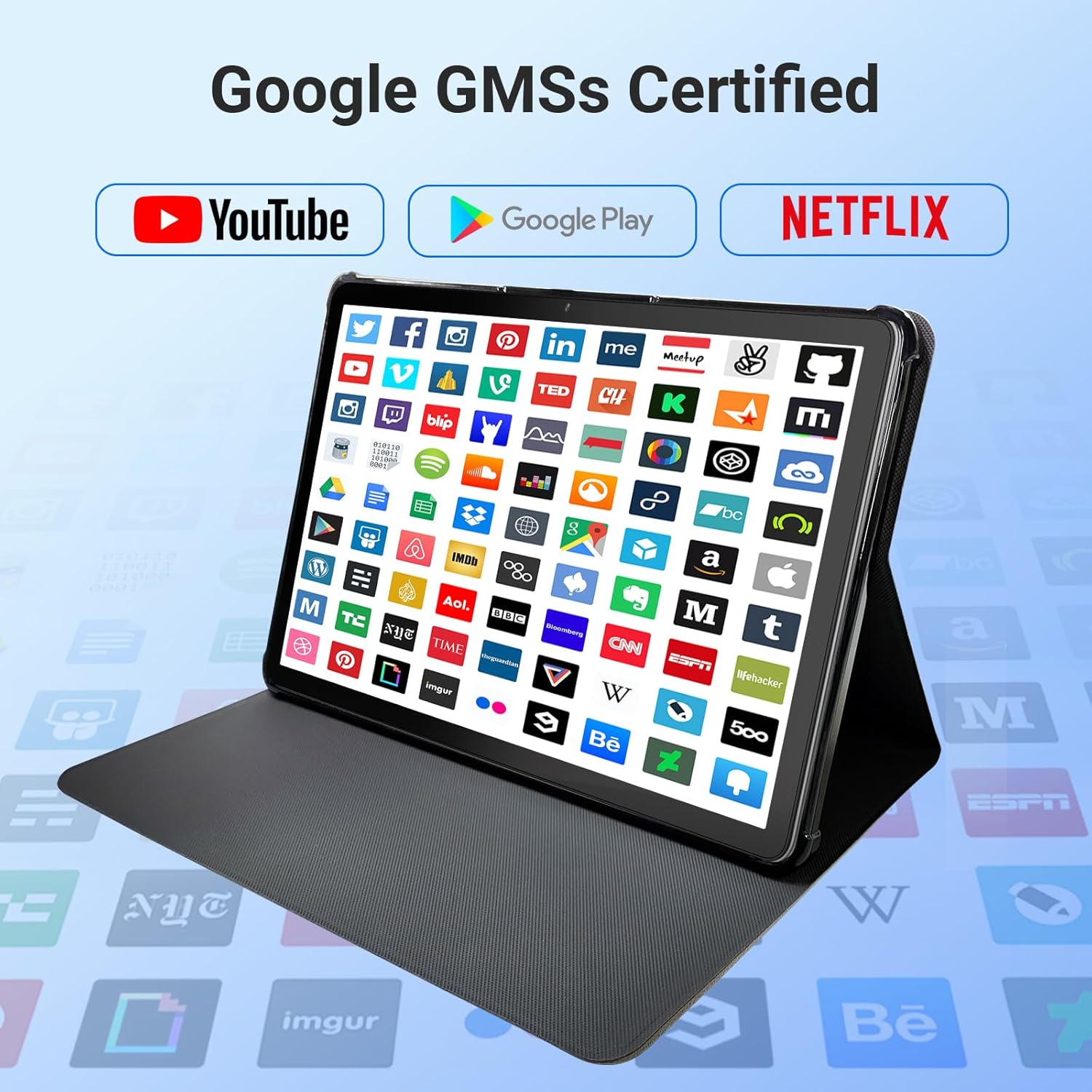
Image: The tablet screen showing numerous app icons, confirming Google GMS certification and access to popular services like YouTube and Netflix.
- ຕິດຕັ້ງແອັບ: ເປີດ Google Play Store app, search for your desired app, and tap "Install."
- ຖອນການຕິດຕັ້ງແອັບ: Long-press the app icon on the home screen or app drawer, then drag it to "Uninstall" or select "App info" and choose "Uninstall."
7. ບໍາລຸງຮັກສາ
7.1 ການທໍາຄວາມສະອາດອຸປະກອນ
Use a soft, lint-free cloth to clean the screen and body of the tablet. Do not use abrasive cleaners or solvents.
7.2 ການປັບປຸງຊອບແວ
ກວດສອບການອັບເດດລະບົບເປັນໄລຍະເພື່ອຮັບປະກັນປະສິດທິພາບ ແລະ ຄວາມປອດໄພທີ່ດີທີ່ສຸດ:
- ໄປທີ່ ການຕັ້ງຄ່າ > ລະບົບ > ອັບເດດລະບົບ.
- ປະຕິບັດຕາມຄໍາແນະນໍາໃນຫນ້າຈໍເພື່ອດາວໂຫລດແລະຕິດຕັ້ງການອັບເດດທີ່ມີຢູ່.
7.3 ການຄຸ້ມຄອງການເກັບຮັກສາ
To manage your tablet's storage:
- ໄປທີ່ ການຕັ້ງຄ່າ > ການເກັບຮັກສາ.
- Here you can see storage usage and free up space by uninstalling apps, deleting files, or clearing cache data.
8. ການແກ້ໄຂບັນຫາ
ຖ້າຫາກທ່ານພົບບັນຫາກັບຢາເມັດຂອງທ່ານ, ເບິ່ງວິທີແກ້ໄຂທົ່ວໄປດັ່ງຕໍ່ໄປນີ້:
| ບັນຫາ | ການແກ້ໄຂ |
|---|---|
| ແທັບເລັດບໍ່ເປີດ | ໃຫ້ແນ່ໃຈວ່າແບັດເຕີຣີສາກແລ້ວ. ເຊື່ອມຕໍ່ເຄື່ອງສາກ ແລະລໍຖ້າສອງສາມນາທີກ່ອນທີ່ຈະພະຍາຍາມເປີດເຄື່ອງອີກຄັ້ງ. ຖ້າບໍ່ມີການຕອບສະໜອງ, ໃຫ້ເລີ່ມການເປີດເຄື່ອງຄືນໃໝ່ໂດຍການກົດປຸ່ມເປີດເຄື່ອງຄ້າງໄວ້ປະມານ 10-15 ວິນາທີ. |
| ບັນຫາການເຊື່ອມຕໍ່ Wi-Fi | ກວດເບິ່ງວ່າ Wi-Fi ຖືກເປີດໃຊ້ໃນການຕັ້ງຄ່າຫຼືບໍ່. ຣີສະຕາດ router ແລະແທັບເລັດຂອງທ່ານ. ລືມເຄືອຂ່າຍ ແລະເຊື່ອມຕໍ່ຄືນໃໝ່. |
| ການປະຕິບັດຊ້າ | Close unused apps. Clear app caches (Settings > Apps > [App Name] > Storage > Clear cache). Free up storage space. Restart the tablet. |
| ແອັບຂັດຂ້ອງ ຫຼືຄ້າງ | Update the app to the latest version. Clear the app's cache and data (Settings > Apps > [App Name] > Storage). Uninstall and reinstall the app. |
| ໜ້າຈໍບໍ່ຕອບສະໜອງ | ປິດເປີດແທັບເລັດຄືນໃໝ່. ຖ້າບັນຫາຍັງຄົງຢູ່, ໃຫ້ຕິດຕໍ່ຫາຝ່າຍຊ່ວຍເຫຼືອລູກຄ້າ. |
9. ຂໍ້ມູນຈໍາເພາະ
Detailed technical specifications for the DigiLand 11-inch Android 14 Tablet (Model MID1109-MX):
| ຄຸນສົມບັດ | ຂໍ້ມູນຈໍາເພາະ |
|---|---|
| ຍີ່ຫໍ້ | DigiLand |
| ຊື່ຕົວແບບ | R11 |
| ໝາຍເລກຕົວແບບ | MID1109-MX |
| ລະບົບປະຕິບັດການ | Android 14 |
| ຂະໜາດໜ້າຈໍ | 11 ນິ້ວ |
| ຄວາມລະອຽດໜ້າຈໍ | 1280x800 Pixels (HD IPS) |
| ໂຮງງານຜະລິດ | 8-Core, 2 GHz (MediaTek) |
| RAM | 12 GB LPDDR4X |
| ບ່ອນຈັດເກັບຂໍ້ມູນພາຍໃນ (ROM) | 128 GB |
| ການເກັບຮັກສາທີ່ຂະຫຍາຍໄດ້ | Up to 256GB via MicroSD (TF Card) |
| Graphics Coprocessor | ມາລີ-G52 |
| ຫລັງ Webຄວາມລະອຽດກ້ອງ | 13 MP |
| ດ້ານໜ້າ Webຄວາມລະອຽດກ້ອງ | 8 MP |
| ປະເພດໄຮ້ສາຍ | 802.11a/b/g/n/ac (Dual-band 2.4G/5G Wi-Fi) |
| Bluetooth | Bluetooth 5.0 |
| ແບັດເຕີຣີ | ໂພລີເມີລີທຽມ 7000mAh |
| ອາຍຸຫມໍ້ໄຟສະເລ່ຍ | Up to 15 Hours (8 hours HD video playback) |
| ນ້ໍາຫນັກລາຍການ | 1.32 ປອນ |
| ຂະໜາດສິນຄ້າ | 10.16 x 6.69 x 0.32 ນິ້ວ |
| ສີ | ສີເທົາ |
10. ການຮັບປະກັນແລະການສະຫນັບສະຫນູນ
Your DigiLand tablet is covered by a manufacturer's warranty. Please refer to the warranty card included in your package for specific terms and conditions. For technical support, product inquiries, or warranty claims, please visit the official DigiLand webເວັບໄຊ ຫຼືຕິດຕໍ່ພະແນກບໍລິການລູກຄ້າຂອງເຂົາເຈົ້າ.
DigiLand Official Webເວັບໄຊ: Visit DigiLand Store on Amazon