1. ບົດແນະນຳ
The DigiLand R10 PRO is a 10.1-inch Android 14 tablet designed for versatile use, from entertainment to productivity. It features an MTK Helio G80 Octa-Core processor, 12GB RAM, and 128GB internal storage, expandable via TF card. This manual provides essential information to help you get started and make the most of your tablet.
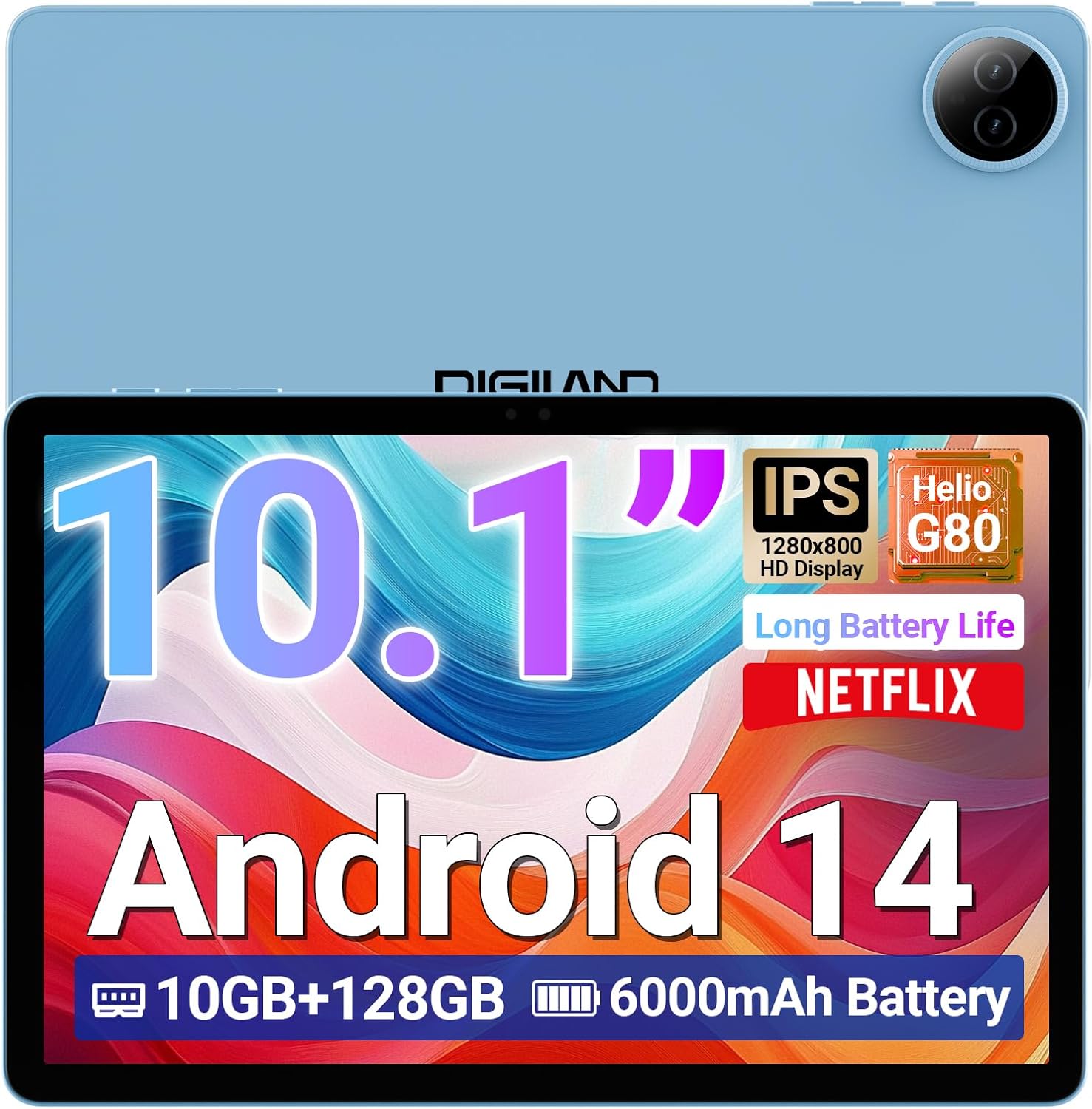
Image 1.1: DigiLand R10 PRO Tablet. This image displays the tablet's front screen, highlighting its 10.1-inch display, Android 14 operating system, 10GB RAM, 128GB ROM, and 6000mAh battery capacity.
2. ສິ່ງທີ່ຢູ່ໃນກ່ອງ
Upon unpacking your DigiLand R10 PRO tablet, please verify that all the following items are included:
- R10 PRO Tablet
- R10 PRO Stand Case
- ເຄື່ອງສາກ
- ສາຍສາກ (USB Type-C)
- ຄູ່ມືຜູ້ໃຊ້ (ເອກະສານນີ້)

Image 2.1: Box Contents. This image illustrates the tablet, charger, charging cable, stand case, and user manual included in the product packaging.
3. ຜະລິດຕະພັນເກີນview
Familiarize yourself with the physical components of your DigiLand R10 PRO tablet.
3.1 ແນວ ໜ້າ View
- 10.1-inch HD IPS Touchscreen: Main display for interaction.
- ກ້ອງໜ້າ (8MP): ຕັ້ງຢູ່ເທິງໜ້າຈໍ, ໃຊ້ສຳລັບການໂທວິດີໂອ ແລະ ເຊວຟີ.
3.2 ດ້ານຫຼັງ View
- ກ້ອງຫຼັງ (13MP): Located on the back, used for capturing photos and videos.
3.3 ຂ້າງ Views (General Layout)
- ປຸ່ມເປີດປິດ: ໃຊ້ເພື່ອເປີດ/ປິດແທັບເລັດ ຫຼື ເຮັດໃຫ້ມັນນອນຫຼັບ/ປຸກມັນ.
- ປຸ່ມລະດັບສຽງ: ປັບລະດັບສຽງ.
- ພອດ USB Type-C: ສໍາລັບການສາກໄຟແລະການໂອນຂໍ້ມູນ.
- Grilles ລໍາໂພງ: ສໍາລັບຜົນຜະລິດສຽງ.
- ຊ່ອງສຽບກາດ MicroSD: For expanding storage (supports up to 256GB).

Image 3.1: Tablet Features Overview. This infographic highlights key specifications including screen size, resolution, RAM, ROM, processor, battery, and camera details.
4. ຕັ້ງຄ່າ
4.1 ການສາກໄຟເບື້ອງຕົ້ນ
Before first use, fully charge your tablet. Connect the provided USB Type-C cable to the tablet's charging port and the other end to the power adapter. Plug the adapter into a wall outlet. The charging indicator will show the charging status.
4.2 ເປີດ/ປິດ
- ເພື່ອເປີດເຄື່ອງ: Press and hold the Power button until the DigiLand logo appears on the screen.
- ປິດເຄື່ອງ: ກົດປຸ່ມເປີດປິດຄ້າງໄວ້ຈົນກວ່າຈະມີເມນູເປີດປິດ. ເລືອກ "ປິດເຄື່ອງ" ແລະຢືນຢັນ.
- ນອນ/ຕື່ນ: ກົດປຸ່ມເປີດປິດສັ້ນ Br.
4.3 ຕົວຊ່ວຍສ້າງການຕິດຕັ້ງເບື້ອງຕົ້ນ
The first time you power on the tablet, you will be guided through an initial setup process. Follow the on-screen prompts to:
- ເລືອກພາສາຂອງທ່ານ.
- ເຊື່ອມຕໍ່ກັບເຄືອຂ່າຍ Wi-Fi.
- Set up your Google account (optional, but recommended for app downloads and services).
- ຕັ້ງຄ່າການລັອກໜ້າຈໍ (PIN, ຮູບແບບ, ຫຼືລະຫັດຜ່ານ).
- Review ແລະຍອມຮັບຂໍ້ກໍານົດແລະເງື່ອນໄຂ.
4.4 ການເຊື່ອມຕໍ່ Wi-Fi
ເພື່ອເຊື່ອມຕໍ່ກັບເຄືອຂ່າຍ Wi-Fi:
- ໄປທີ່ ການຕັ້ງຄ່າ > ເຄືອຂ່າຍ ແລະອິນເຕີເນັດ > ອິນເຕີເນັດ.
- ສະຫຼັບ Wi-Fi On.
- ເລືອກເຄືອຂ່າຍທີ່ທ່ານຕ້ອງການຈາກບັນຊີລາຍຊື່.
- ໃສ່ລະຫັດຜ່ານຖ້າຖືກເຕືອນແລະແຕະ ເຊື່ອມຕໍ່.
5. ປະຕິບັດການແທັບເລັດ
5.1 ການນໍາທາງພື້ນຖານ
- ແຕະ: ເລືອກລາຍການ ຫຼືເປີດແອັບ.
- ແຕະຄ້າງໄວ້: ເຂົ້າເຖິງເມນູບໍລິບົດ ຫຼືຍ້າຍລາຍການ.
- ປັດ: ເລື່ອນຜ່ານໜ້າຈໍ ຫຼືລາຍການຕ່າງໆ.
- ເມື່ອເຂົ້າຕາຈົນ: ຊູມເຂົ້າ ຫຼືອອກໃນຮູບພາບ ແລະ web ໜ້າ.
5.2 ໜ້າ ຈໍເຮືອນ
The home screen provides quick access to your favorite apps, widgets, and notifications. You can customize it by adding or removing app icons and widgets.
5.3 ການແຈ້ງເຕືອນ ແລະ ການຕັ້ງຄ່າດ່ວນ
ປັດລົງຈາກເທິງສຸດຂອງໜ້າຈໍເພື່ອເຂົ້າເຖິງການແຈ້ງເຕືອນ ແລະປຸ່ມສະຫຼັບການຕັ້ງຄ່າດ່ວນ (Wi-Fi, Bluetooth, ຄວາມສະຫວ່າງ, ແລະອື່ນໆ).
5.4 ການໃຊ້ກ້ອງຖ່າຍຮູບ
The tablet features an 8MP front camera and a 13MP rear camera. To use the camera:
- ເປີດ ກ້ອງຖ່າຍຮູບ ແອັບ.
- ແຕະປຸ່ມຊັດເຕີເພື່ອຖ່າຍຮູບ.
- ສະຫຼັບລະຫວ່າງກ້ອງໜ້າ ແລະກ້ອງຫຼັງໂດຍໃຊ້ໄອຄອນສະຫຼັບກ້ອງຖ່າຍຮູບ.
- ເລືອກຮູບແບບວິດີໂອເພື່ອບັນທຶກວິດີໂອ.

Image 5.1: Camera Functionality. This image highlights the 8MP front and 13MP rear cameras, showing examples of photos taken with the tablet.
5.5 ການຄຸ້ມຄອງການເກັບຮັກສາ
Your tablet comes with 128GB of internal storage. You can expand this by inserting a MicroSD card (up to 256GB) into the dedicated slot. To manage storage, go to ການຕັ້ງຄ່າ > ການເກັບຮັກສາ.

Image 5.2: Memory and Storage. This image details the 12GB RAM, 128GB ROM, and the option for 256GB expansion via MicroSD card.
5.6 ການເຊື່ອມຕໍ່ Bluetooth
ເພື່ອເຊື່ອມຕໍ່ອຸປະກອນ Bluetooth:
- ໄປທີ່ ການຕັ້ງຄ່າ > ອຸປະກອນທີ່ເຊື່ອມຕໍ່ > ການຕັ້ງຄ່າການເຊື່ອມຕໍ່ > Bluetooth.
- ສະຫຼັບ Bluetooth On.
- ເລືອກ ຈັບຄູ່ອຸປະກອນໃ່ and choose your device from the list.
- Follow any on-screen pairing instructions.
6. ບໍາລຸງຮັກສາ
6.1 ການດູແລຫມໍ້ໄຟ
- ຫຼີກເວັ້ນອຸນຫະພູມທີ່ຮຸນແຮງ, ເຊິ່ງສາມາດເຮັດໃຫ້ອາຍຸຂອງຫມໍ້ໄຟຫຼຸດລົງ.
- ຢ່າປະໄວ້ໃຫ້ແທັບເລັດໝົດໄປເປັນໄລຍະເວລາທີ່ຍາວນານ.
- ໃຊ້ສາຍສາກ ແລະສາຍສາກທີ່ສະໜອງໃຫ້ເພື່ອການສາກໄຟທີ່ດີທີ່ສຸດ.

Image 6.1: Battery Performance. This image illustrates the 6000mAh battery's estimated usage times for video playback, e-books, music, and gaming.
6.2 ການທໍາຄວາມສະອາດ
ໃຊ້ຜ້າແພທີ່ອ່ອນໆ, ບໍ່ມີສານດ່າງເພື່ອເຮັດຄວາມສະອາດໜ້າຈໍ ແລະຕົວເຄື່ອງຂອງແທັບເລັດ. ຫຼີກລ້ຽງການວັດສະດຸຂັດຫຼືສານເຄມີທີ່ຮ້າຍແຮງ.
6.3 ການປັບປຸງຊອບແວ
ກວດສອບ ແລະ ຕິດຕັ້ງການອັບເດດຊອບແວເປັນປະຈຳເພື່ອຮັບປະກັນວ່າແທັບເລັດຂອງທ່ານມີຄຸນສົມບັດ ແລະ ແພັດຊ໌ຄວາມປອດໄພລຸ້ນລ້າສຸດ. ໄປທີ່ ການຕັ້ງຄ່າ > ລະບົບ > ອັບເດດລະບົບ.
6.4 ການສໍາຮອງຂໍ້ມູນ
Periodically back up important data to a cloud service or external storage device to prevent data loss.
7. ການແກ້ໄຂບັນຫາ
7.1 ແທັບເລັດບໍ່ເປີດ
- ໃຫ້ແນ່ໃຈວ່າໄດ້ສາກໄຟແລ້ວ. ເຊື່ອມຕໍ່ສາຍສາກແລ້ວລໍຖ້າສອງສາມນາທີກ່ອນທີ່ຈະພະຍາຍາມເປີດເຄື່ອງ.
- ກົດປຸ່ມເປີດປິດຄ້າງໄວ້ 10-15 ວິນາທີເພື່ອເປີດປິດເປີດຄືນໃໝ່.
7.2 ບັນຫາການເຊື່ອມຕໍ່ Wi-Fi
- ຣີສະຕາດເລົາເຕີ Wi-Fi ແລະແທັບເລັດຂອງທ່ານ.
- ໃຫ້ແນ່ໃຈວ່າທ່ານຢູ່ໃນຂອບເຂດຂອງສັນຍານ Wi-Fi.
- ກວດສອບລະຫັດຜ່ານ Wi-Fi ຖືກຕ້ອງ.
- ລືມເຄືອຂ່າຍໃນການຕັ້ງຄ່າ Wi-Fi ແລະເຊື່ອມຕໍ່ຄືນໃໝ່.
7.3 ການປະຕິບັດຊ້າ
- ປິດແອັບພລິເຄຊັນທີ່ບໍ່ໄດ້ໃຊ້ທີ່ເຮັດວຽກຢູ່ໃນພື້ນຫຼັງ.
- ລຶບລ້າງຂໍ້ມູນແຄດສຳລັບແອັບ.
- ໃຫ້ແນ່ໃຈວ່າມີພື້ນທີ່ຈັດເກັບພຽງພໍ.
- ຣີສະຕາດແທັບເລັດ.
7.4 ຣີເຊັດເປັນຄ່າໂຮງງານ
ຖ້າບັນຫາຍັງຄົງເກີດຂຶ້ນຢູ່, ການຣີເຊັດເປັນຄ່າໂຮງງານອາດຈະແກ້ໄຂບັນຫາເຫຼົ່ານັ້ນໄດ້. ຄຳເຕືອນ: ນີ້ຈະລຶບຂໍ້ມູນທັງໝົດໃນແທັບເລັດຂອງທ່ານ. ສໍາຮອງຂໍ້ມູນທີ່ສໍາຄັນກ່ອນທີ່ຈະດໍາເນີນການ.
- ໄປທີ່ ການຕັ້ງຄ່າ > ລະບົບ > ຣີເຊັດຕົວເລືອກ.
- ເລືອກ ລຶບຂໍ້ມູນທັງໝົດ (ຣີເຊັດເປັນຄ່າໂຮງງານ).
- ຢືນຢັນການຕັດສິນໃຈຂອງທ່ານແລະໃສ່ລະຫັດ PIN / ຮູບແບບ / ລະຫັດຜ່ານຂອງທ່ານຖ້າຖືກເຕືອນ.
8. ຂໍ້ມູນຈໍາເພາະ
Detailed technical specifications for the DigiLand R10 PRO Tablet:
| ຄຸນສົມບັດ | ຂໍ້ມູນຈໍາເພາະ |
|---|---|
| ໝາຍເລກຕົວແບບ | R10 PRO |
| ລະບົບປະຕິບັດການ | Android 14 |
| ໂຮງງານຜະລິດ | MediaTek Helio G80 Octa-Core (2.0GHz A75 + 1.8GHz A55) |
| RAM | 12 GB |
| ການເກັບຮັກສາພາຍໃນ | 128 GB |
| ການເກັບຮັກສາທີ່ຂະຫຍາຍໄດ້ | Up to 256GB via MicroSD card |
| ຂະໜາດໜ້າຈໍ | 10.1 ນິ້ວ |
| ຄວາມລະອຽດໜ້າຈໍ | 1280x800 HD IPS |
| ກ້ອງຫຼັງ | 13 MP |
| ກ້ອງໜ້າ | 8 MP |
| ຄວາມອາດສາມາດຫມໍ້ໄຟ | 6000mAh (Average 12 hours usage) |
| ການເຊື່ອມຕໍ່ໄຮ້ສາຍ | Wi-Fi 5 (802.11a/b/g/n/ac), Bluetooth 5.0 |
| ທ່າເຮືອ | USB Type-C |
| ຂະໜາດ (LxWxH) | 9.54 x 6.35 x 0.31 ນິ້ວ |
| ນ້ໍາຫນັກລາຍການ | 1.07 ປອນ |

Image 8.1: Detailed Specifications. This image provides a visual summary of the tablet's core features, including Android 14, RAM, ROM, screen size, resolution, cameras, processor, and battery.
9. ການຮັບປະກັນແລະການສະຫນັບສະຫນູນ
DigiLand is committed to providing quality products and customer satisfaction. For any issues or inquiries regarding your R10 PRO tablet, please contact DigiLand customer support.
9.1 ສະຫນັບສະຫນູນລູກຄ້າ
If you encounter any problems or have questions not covered in this manual, please reach out to our support team. Contact information can typically be found on the DigiLand official webເວັບໄຊທ໌ຫຼືຜ່ານເວທີການຊື້ຂອງທ່ານ.

Image 9.1: After-Sales Support. This image represents DigiLand's commitment to customer service and support.


