1. ບົດແນະນຳ
Thank you for choosing the Taiahiro Bk6301 Wireless Mechanical Gaming Keyboard and Mouse Combo. This manual provides detailed instructions for setting up, operating, and maintaining your new peripheral devices. This combo offers versatile connectivity options including 2.4G wireless, Bluetooth 5.0, and wired USB-C, ensuring compatibility with various devices.
2. ເນື້ອໃນຊຸດ
ກະລຸນາກວດສອບວ່າລາຍການທັງໝົດມີຢູ່ໃນຊຸດຂອງທ່ານ:
- Taiahiro Bk6301 Wireless Mechanical Gaming Keyboard
- Taiahiro Wireless Gaming Mouse
- USB 2.4G Receiver (stored in mouse battery compartment)
- ສາຍສາກ/ສາຍຂໍ້ມູນ USB-C ຫາ USB-A
- ຄູ່ມືຜູ້ໃຊ້
- 1 AA Battery (for mouse, may be pre-installed or included separately)

Image 2.1: Contents of the Taiahiro Bk6301 Keyboard and Mouse Combo package, including the keyboard, mouse, USB receiver, and USB-C cable.
3. ຜະລິດຕະພັນເກີນview
3.1 ຄຸນສົມບັດແປ້ນພິມ
- 98-ໂຄງຮ່າງຫຼັກ: Compact design with a full numeric keypad.
- ສະວິດເຄື່ອງກົນສີຟ້າ: Provide tactile and audible feedback for typing.
- Backlighting RGB: Customizable lighting effects.
- Adjustable Keyboard Stand: Allows for ergonomic positioning.
- ການເຊື່ອມຕໍ່ຫຼາຍຮູບແບບ: Supports 2.4G wireless, Bluetooth 5.0, and wired USB-C.
- ແບັດເຕີຣີທີ່ສາມາດສາກໄດ້: Built-in 2000mAh battery for wireless operation.
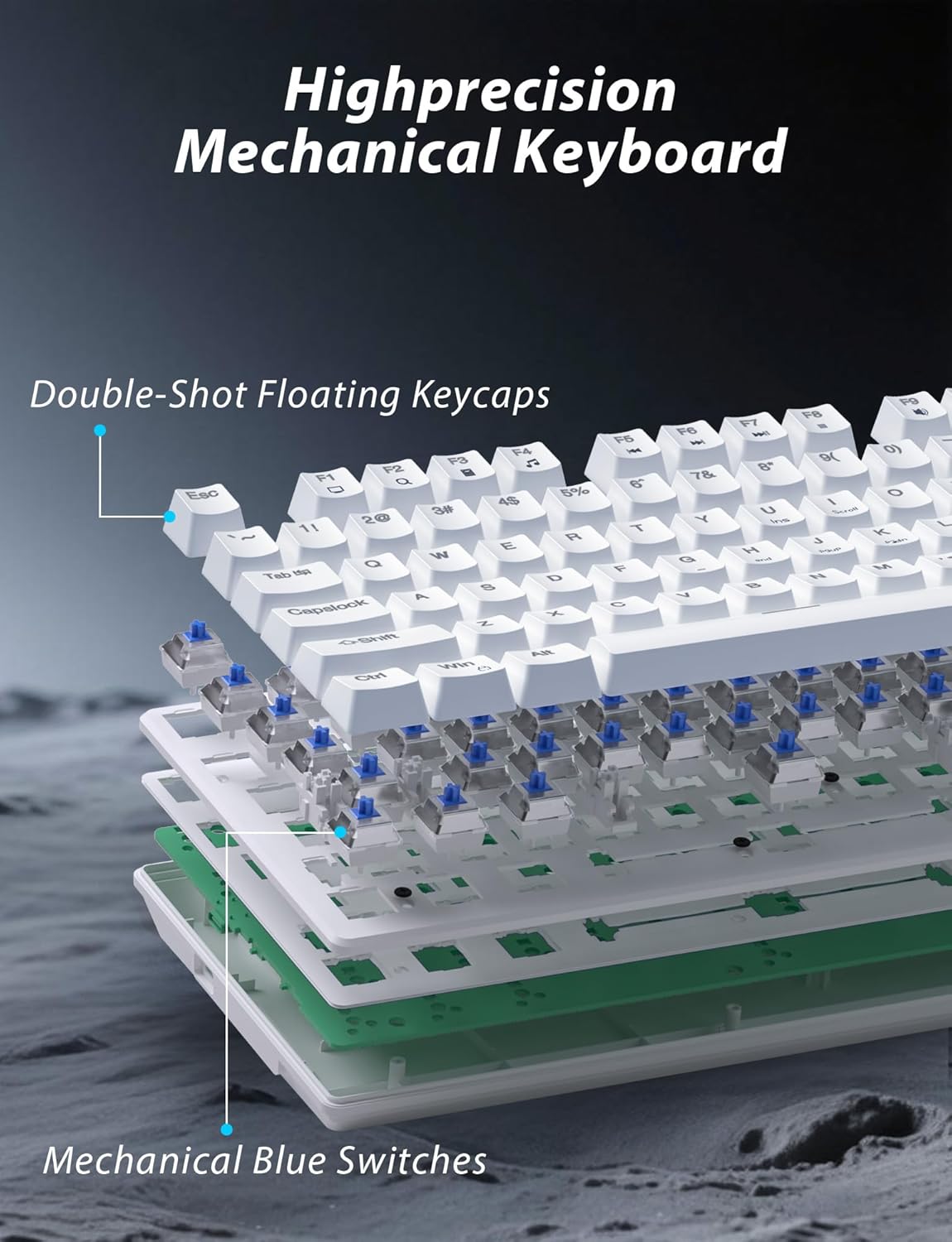
ຮູບພາບ 3.1: ລະເບີດ view illustrating the internal structure of the mechanical keyboard, highlighting the double-shot floating keycaps and mechanical blue switches.

ຮູບພາບ 3.2: ຂ້າງ view of the keyboard demonstrating its ergonomic design and adjustable stand for comfortable use.
3.2 ຄຸນສົມບັດຂອງເມົ້າ
- ການອອກແບບ Ergonomic: Shaped for comfortable grip.
- DPI ທີ່ສາມາດປັບໄດ້: Four levels (800/1600/2400/3200) for precision control.
- ປຸ່ມສົ່ງຕໍ່/ກັບຄືນ: Convenient side buttons for navigation.
- ການເຊື່ອມຕໍ່ສອງໂໝດ: Supports 2.4G wireless and Bluetooth.
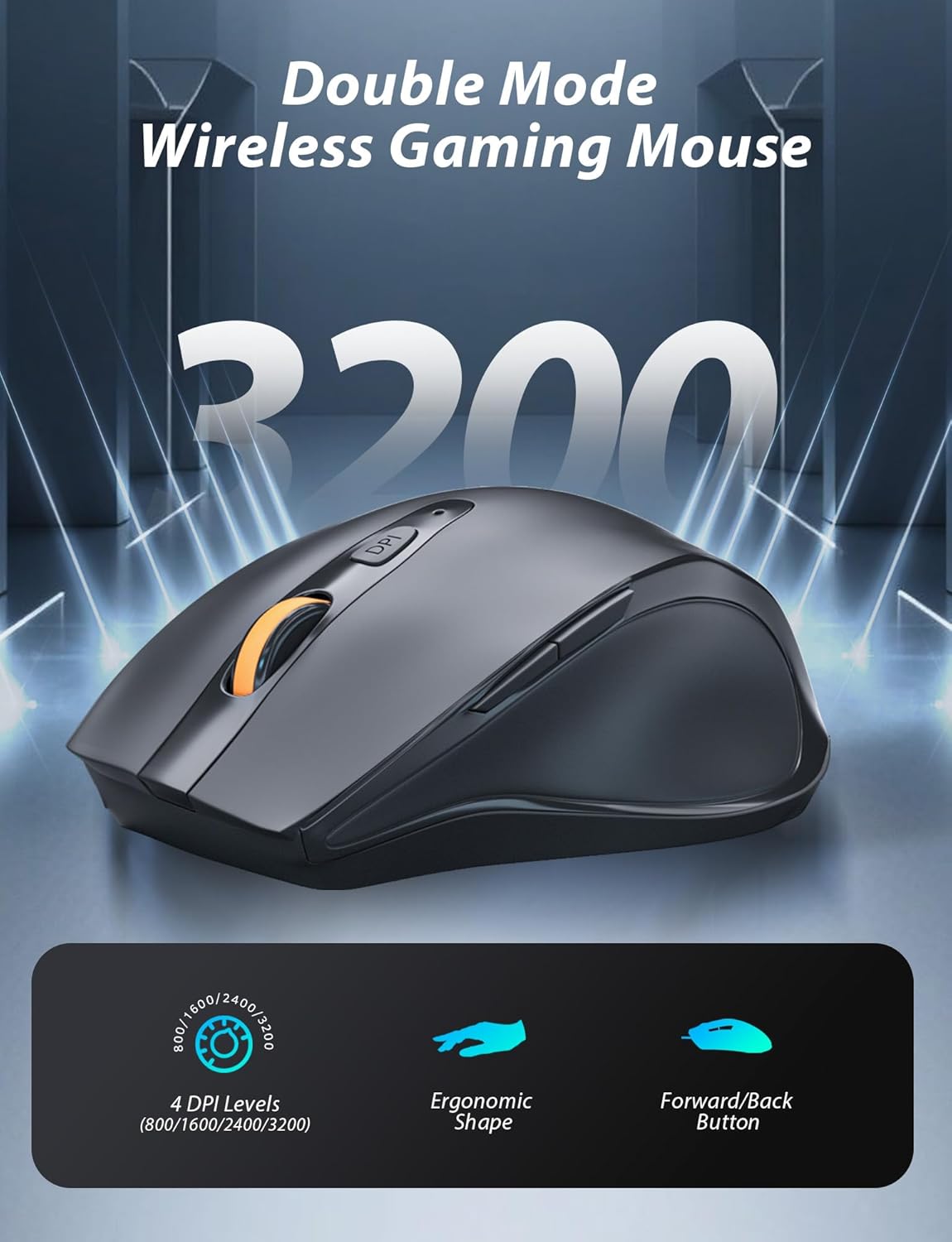
Image 3.3: The wireless gaming mouse, highlighting its ergonomic shape and four adjustable DPI levels.
4. ຄໍາແນະນໍາການຕິດຕັ້ງ
4.1 Keyboard Connection
The keyboard supports three connection modes: 2.4G wireless, Bluetooth, and wired USB-C.

Image 4.1: The keyboard displaying its three connectivity options: Bluetooth, 2.4GHz wireless, and USB-C wired connection.
ໂໝດໄຮ້ສາຍ 2.4G:
- Locate the USB 2.4G receiver, typically stored in the mouse's battery compartment.
- ສຽບຕົວຮັບ USB ເຂົ້າໄປໃນພອດ USB ທີ່ມີຢູ່ໃນຄອມພິວເຕີຂອງທ່ານ.
- On the keyboard, slide the mode switch (usually located on the top edge or bottom) to the '2.4G' position.
- ແປ້ນພິມຄວນເຊື່ອມຕໍ່ໂດຍອັດຕະໂນມັດ.
ແບບບູທູດ:
- Slide the mode switch on the keyboard to the 'BT' (Bluetooth) position.
- The keyboard's indicator light will flash, indicating it is in pairing mode.
- On your device (computer, laptop, smartphone), open Bluetooth settings and search for new devices.
- Select "Taiahiro Bk6301" or a similar name from the list of available devices to pair.
- ເມື່ອຈັບຄູ່ແລ້ວ, ໄຟຕົວຊີ້ວັດຈະກາຍເປັນແຂງ.
Wired USB-C Mode:
- ເຊື່ອມຕໍ່ສາຍ USB-C ທີ່ໃຫ້ມາກັບພອດ USB-C ຂອງແປ້ນພິມ.
- ເຊື່ອມຕໍ່ປາຍອື່ນ (USB-A) ກັບພອດ USB ທີ່ມີຢູ່ໃນຄອມພິວເຕີຂອງທ່ານ.
- The keyboard will function as a wired device and will charge simultaneously.
4.2 Mouse Connection
The mouse supports 2.4G wireless and Bluetooth connectivity.

Image 4.2: The underside of the mouse, illustrating the battery compartment for one AA battery and the storage slot for the tiny USB receiver.
ການຕິດຕັ້ງຫມໍ້ໄຟ:
- ເປີດຊ່ອງໃສ່ຫມໍ້ໄຟຢູ່ດ້ານລຸ່ມຂອງຫນູ.
- ໃສ່ໝໍ້ໄຟ AA ອັນໜຶ່ງ, ຮັບປະກັນການຂົ້ວທີ່ຖືກຕ້ອງ.
- ປິດຊ່ອງໃສ່ຫມໍ້ໄຟ.
ໂໝດໄຮ້ສາຍ 2.4G:
- Ensure the USB 2.4G receiver is plugged into your computer.
- ເລື່ອນສະວິດໂໝດຢູ່ດ້ານລຸ່ມຂອງເມົ້າໄປທີ່ຕຳແໜ່ງ '2.4G'.
- ເມົ້າຄວນເຊື່ອມຕໍ່ໂດຍອັດຕະໂນມັດ.
ແບບບູທູດ:
- Slide the mode switch on the underside of the mouse to the 'BT' (Bluetooth) position.
- The mouse will enter pairing mode.
- On your device, open Bluetooth settings and search for new devices.
- Select "Taiahiro Mouse" or a similar name from the list to pair.
5. ຄໍາແນະນໍາການດໍາເນີນງານ
5.1 ຟັງຊັນຄີບອດ
ການຄວບຄຸມໄຟຫຼັງ:
ແປ້ນພິມມີໄຟ backlight RGB ທີ່ສາມາດປັບແຕ່ງໄດ້.
- ປ່ຽນໂໝດ Backlight: ກົດ Fn + ບ້ານ ເພື່ອໝຸນວຽນຜ່ານຜົນກະທົບແສງທີ່ແຕກຕ່າງກັນ 18 ຢ່າງ.
- ປັບຄວາມສະຫວ່າງ: ກົດ Fn + ↑ (Up Arrow) or Fn + ↓ (Down Arrow) to adjust between 5 brightness levels.
- ປັບຄວາມໄວ: ກົດ Fn + ← (Left Arrow) or Fn + → (Right Arrow) to adjust between 5 lighting speed levels.

Image 5.1: Keyboard layout highlighting the function key combinations for controlling backlight modes, brightness, and speed.
ຟັງຊັນມັນຕິມີເດຍ:
Access multimedia controls by pressing the Fn key in combination with the designated F-keys (F1-F12).
- Fn+F1: Media Player
- Fn+F2: ປະລິມານລົງ
- Fn+F3: ປະລິມານຂຶ້ນ
- Fn+F4: ປິດສຽງ
- Fn+F5: ຢຸດ
- Fn+F6: ເພງກ່ອນໜ້າ
- Fn+F7: ຫຼິ້ນ/ຢຸດຊົ່ວຄາວ
- Fn+F8: ຕິດຕາມຕໍ່ໄປ
- Fn+F9: ອີເມວ
- Fn+F10: Web ຕົວທ່ອງເວັບ
- Fn+F11: ຄອມພິວເຕີຂອງຂ້ອຍ
- Fn+F12: ເຄື່ອງຄິດເລກ
5.2 ການທໍາງານຂອງຫນູ
ການປັບ DPI:
ກົດ ປຸ່ມ DPI (located behind the scroll wheel) to cycle through the four DPI settings: 800, 1600, 2400, and 3200. Each press changes the sensitivity, allowing you to adjust cursor speed to your preference.
6. ບໍາລຸງຮັກສາ
6.1 ການທໍາຄວາມສະອາດ
- ແປ້ນພິມ: Use a soft, dry cloth to wipe the surface. For deeper cleaning, use compressed air to remove debris from between keys. Avoid using harsh chemicals or abrasive materials.
- ຫນູ: Wipe the mouse surface with a soft, slightly damp cloth. Ensure no liquid enters the internal components.
6.2 ການຄຸ້ມຄອງຫມໍ້ໄຟ
- ແປ້ນພິມ: The keyboard has a built-in rechargeable battery. Connect the USB-C cable to a power source (e.g., computer USB port, USB wall adapter) to charge. The indicator light will show charging status.
- ຫນູ: The mouse uses one AA battery. Replace the battery when the mouse performance degrades or it stops responding. Ensure proper polarity when inserting a new battery.
7. ການແກ້ໄຂບັນຫາ
If you encounter issues with your Taiahiro keyboard and mouse combo, please refer to the following solutions:
| ບັນຫາ | ການແກ້ໄຂທີ່ເປັນໄປໄດ້ |
|---|---|
| Keyboard/Mouse not responding (2.4G) |
|
| Keyboard/Mouse not connecting (Bluetooth) |
|
| Keyboard backlight not working or stuck |
|
| ປຸ່ມບໍ່ຕອບສະໜອງ ຫຼືພິມສອງເທື່ອ |
|
8. ຂໍ້ມູນຈໍາເພາະ
| ຄຸນສົມບັດ | ລາຍລະອຽດ |
|---|---|
| ໝາຍເລກຕົວແບບ | Bk6301 |
| ການເຊື່ອມຕໍ່ | Bluetooth 5.0, 2.4G ໄຮ້ສາຍ, ມີສາຍ USB-C |
| ປະເພດແປ້ນພິມ | ແປ້ນພິມເກມກົນຈັກ |
| ໂຄງຮ່າງຫຼັກ | 98 Keys (with Numeric Keypad) |
| ປະເພດສະຫຼັບ | ສະຫຼັບສີຟ້າກົນຈັກ |
| ແສງພື້ນຫລັງ | RGB (18 ໂໝດ, 5 ຄວາມສະຫວ່າງ, 5 ລະດັບຄວາມໄວ) |
| ແບັດເຕີຣີແປ້ນພິມ | 2000mAh ສາມາດຕໍ່ໄດ້ |
| ລະດັບ DPI ຂອງເມົາສ໌ | 800 / 1600 / 2400 / 3200 |
| ແບັດເຕີລີເມົ້າ | ແບັດເຕີຣີ 1 x AA |
| ອຸປະກອນທີ່ເຂົ້າກັນໄດ້ | Personal Computer, Laptop, Smartphone |
| ນ້ໍາຫນັກລາຍການ | 2.72 ປອນ (ລວມ) |
| ຂະໜາດແພັກເກັດ | 15 x 5.59 x 3.11 ນິ້ວ |
9. ການຮັບປະກັນແລະການສະຫນັບສະຫນູນ
9.1 ຂໍ້ມູນການຮັບປະກັນ
Taiahiro products are covered by a limited warranty from the date of purchase. Please refer to the warranty card included in your package or visit the official Taiahiro website for detailed warranty terms and conditions. This warranty typically covers manufacturing defects and material faults under normal use.
9.2 ສະຫນັບສະຫນູນລູກຄ້າ
For technical assistance, troubleshooting, or any questions regarding your Taiahiro Bk6301 combo, please contact our customer support team. You can find contact information on the Taiahiro official website or through your purchase platform. When contacting support, please have your product model number (Bk6301) and purchase details ready.


