ແນະນຳ
This manual provides detailed instructions for the setup, operation, and maintenance of your Taiahiro Wireless Gaming Keyboard and Mouse Combo. This combo features a 98-key RGB backlit mechanical keyboard with blue switches and an ergonomic wireless gaming mouse, offering versatile connectivity options (USB-C, 2.4G, Bluetooth 5.0) for various devices.
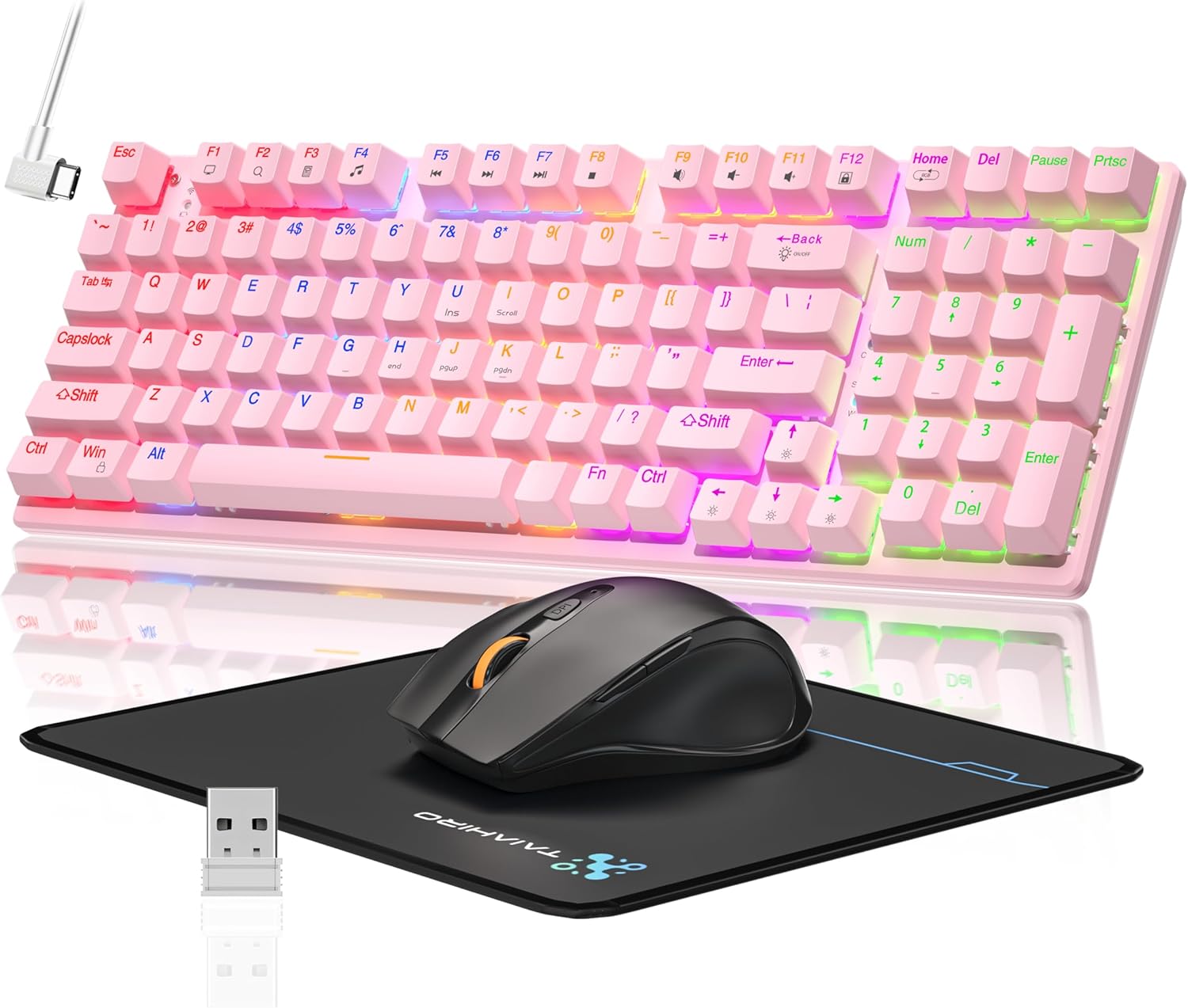
Image: The Taiahiro Wireless Gaming Keyboard and Mouse Combo, featuring a pink 98-key mechanical keyboard with RGB backlighting, a black ergonomic mouse, and a mouse pad. A USB receiver is also visible.
ເນື້ອໃນຊຸດ
- ຄີບອດແບບໄຮ້ສາຍ
- ເມົາສ໌ເກມໄຮ້ສາຍ
- ສາຍ USB-C
- ຕົວຮັບ USB 2.4G
- ແຜ່ນຫນູ
- ຄູ່ມືຜູ້ໃຊ້ (ເອກະສານນີ້)
ຕັ້ງຄ່າ
ຕັ້ງຄີບອດ
The keyboard supports three connectivity modes: USB-C wired, 2.4G wireless, and Bluetooth 5.0.
- ການເຊື່ອມຕໍ່ແບບມີສາຍ USB-C: ເຊື່ອມຕໍ່ສາຍ USB-C ທີ່ສະໜອງໃຫ້ຈາກແປ້ນພິມໄປຫາພອດ USB ທີ່ມີຢູ່ໃນຄອມພິວເຕີຂອງທ່ານ. ແປ້ນພິມຈະຖືກຮັບຮູ້ໂດຍອັດຕະໂນມັດ.
- ການເຊື່ອມຕໍ່ໄຮ້ສາຍ 2.4G:
- Locate the 2.4G USB receiver, typically stored in the mouse or keyboard compartment.
- ສຽບຕົວຮັບ USB 2.4G ເຂົ້າໄປໃນຜອດ USB ທີ່ມີຢູ່ໃນຄອມພິວເຕີຂອງທ່ານ.
- Ensure the keyboard's mode switch (usually on the back or side) is set to 2.4G mode.
- ແປ້ນພິມຄວນເຊື່ອມຕໍ່ອັດຕະໂນມັດ.
- ການເຊື່ອມຕໍ່ Bluetooth 5.0:
- ໃຫ້ແນ່ໃຈວ່າສະວິດໂໝດຂອງແປ້ນພິມຖືກຕັ້ງເປັນໂໝດ Bluetooth.
- On your device (PC, laptop, tablet, smartphone), enable Bluetooth and search for new devices.
- Select "Taiahiro Keyboard" (or similar name) from the list of available devices.
- ປະຕິບັດຕາມການເຕືອນໃນຫນ້າຈໍເພື່ອສໍາເລັດການຈັບຄູ່.

Image: A pink mechanical keyboard connected to various devices (monitor, laptop, tablet) illustrating its triple-mode connectivity via Bluetooth, 2.4GHz, and USB-C.
ການຕິດຕັ້ງເມົ້າ
The mouse supports 2.4G wireless and Bluetooth connectivity.
- ການເຊື່ອມຕໍ່ໄຮ້ສາຍ 2.4G:
- Insert 1 AA battery (not included) into the mouse.
- Plug the 2.4G USB receiver (shared with keyboard) into an available USB port on your computer.
- Ensure the mouse's power switch is turned ON.
- ຫນູຄວນເຊື່ອມຕໍ່ອັດຕະໂນມັດ.
- ການເຊື່ອມຕໍ່ບູທູດ:
- Insert 1 AA battery (not included) into the mouse.
- Ensure the mouse's power switch is turned ON and set to Bluetooth mode.
- ໃນອຸປະກອນຂອງທ່ານ, ເປີດ Bluetooth ແລະຊອກຫາອຸປະກອນໃໝ່.
- Select "Taiahiro Mouse" (or similar name) from the list of available devices.
- ປະຕິບັດຕາມການເຕືອນໃນຫນ້າຈໍເພື່ອສໍາເລັດການຈັບຄູ່.

Image: A wireless gaming mouse highlighting its 4 adjustable DPI levels and showing the battery compartment with a tiny USB receiver and space for a 1AA battery.
ຄໍາແນະນໍາການດໍາເນີນງານ
ຟັງຊັນແປ້ນພິມ
- Backlighting RGB: The keyboard features 8 different RGB lighting modes.
- ກົດ Fn + ບ້ານ ໝູນວຽນຜ່ານໂໝດແສງ.
- ກົດ Fn + ↑/↓ to adjust brightness (5 levels).
- ກົດ Fn + ←/→ to adjust breathing speed (5 levels).
- ປຸ່ມມັນຕິມີເດຍ: ໃຊ້ Fn key in combination with F-keys for multimedia controls (e.g., Fn+F1 for media player, Fn+F2 for volume down, etc.). Refer to the keycap legends for specific functions.
- ຕີນທີ່ສາມາດປັບໄດ້: The keyboard has adjustable feet on the underside to change the typing angle for ergonomic comfort.
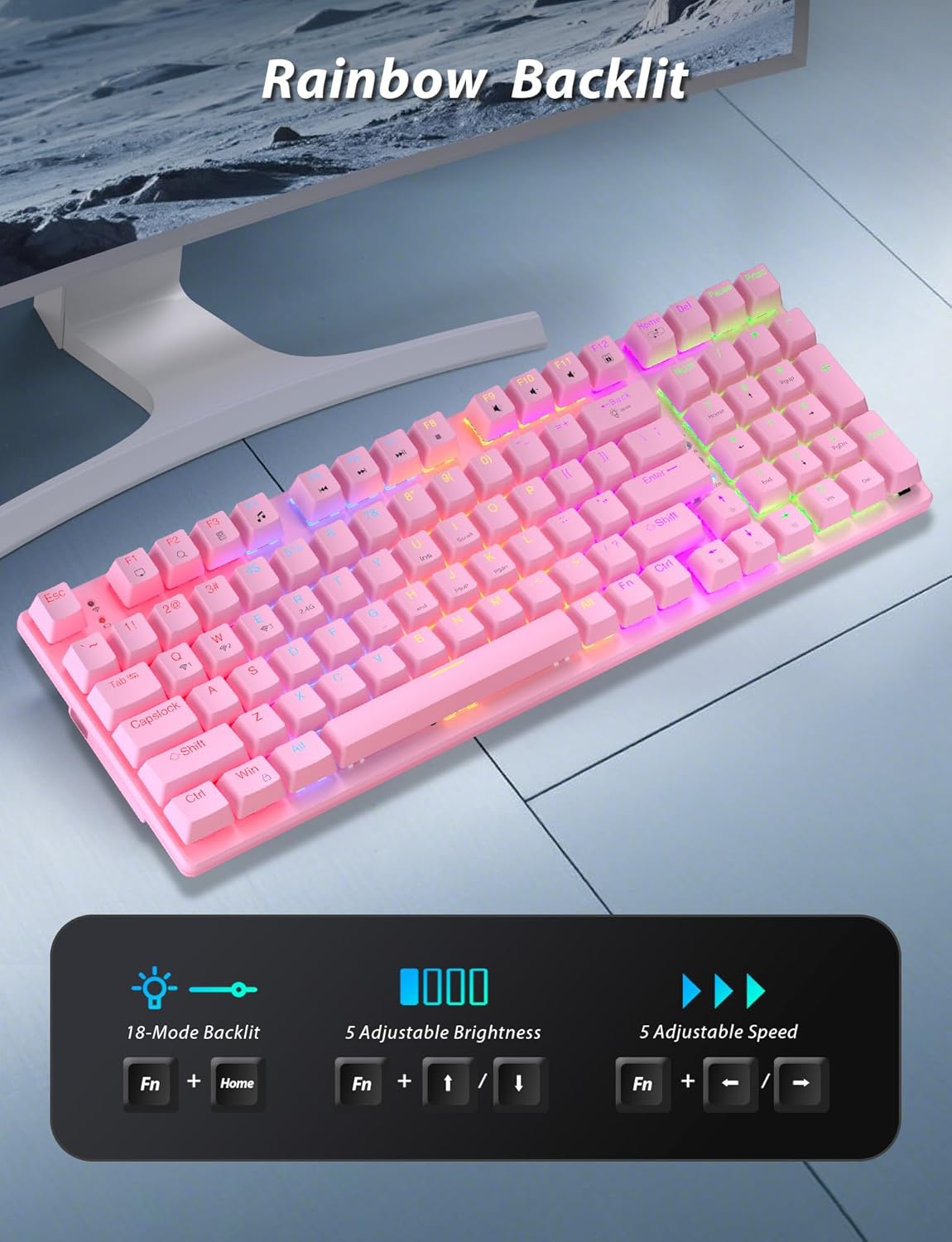
Image: A pink mechanical keyboard displaying its rainbow backlit keys, with an overlay showing the key combinations (Fn + Home, Fn + ↑/↓, Fn + ←/→) for controlling 8 modes, 5 adjustable brightness levels, and 5 adjustable speeds.

ຮູບພາບ: A close-up view of the side of the pink mechanical keyboard, showing its ergonomic sloped design and the adjustable feet extended for comfortable typing. The accompanying mouse is also shown on a mousepad.
ຟັງຊັນ ໜູ
- ການປັບ DPI: The mouse features 4 adjustable DPI levels (800/1600/2400/3200). Press the DPI button (usually located behind the scroll wheel) to cycle through the sensitivity settings.
- ການອອກແບບ Ergonomic: The contoured shape of the mouse is designed to fit comfortably in your hand, reducing fatigue during extended use.
- Anti-skid Scroll Wheel: Provides precise scrolling control.
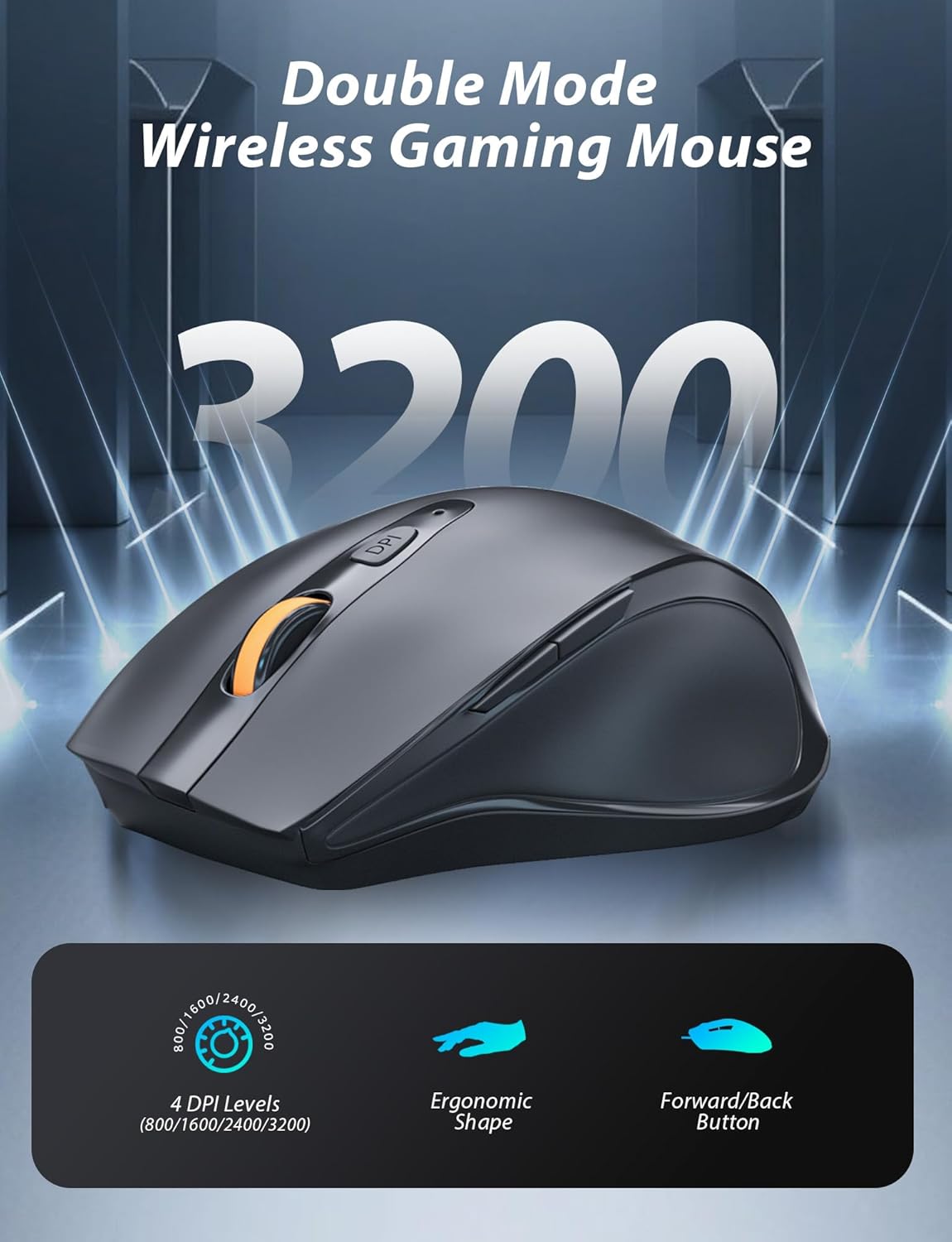
Image: A wireless gaming mouse with a prominent scroll wheel and DPI button, illustrating its 4 adjustable DPI levels (800/1600/2400/3200), ergonomic shape, and forward/back buttons.
ບໍາລຸງຮັກສາ
- ທໍາຄວາມສະອາດ: ໃຊ້ຜ້າອ່ອນໆແຫ້ງເພື່ອທຳຄວາມສະອາດພື້ນຜິວຂອງແປ້ນພິມ ແລະ ເມົ້າສ໌. ສຳລັບການທຳຄວາມສະອາດທີ່ເລິກເຊິ່ງກວ່າ, ໃຫ້ໃຊ້ຜ້າເຊັດໜ້າບາງໆamp ສາມາດໃຊ້ຜ້າໄດ້, ເພື່ອຮັບປະກັນວ່າບໍ່ມີນໍ້າເຂົ້າໄປໃນສ່ວນປະກອບພາຍໃນ. ຫຼີກລ່ຽງສານເຄມີທີ່ຮຸນແຮງ ຫຼື ວັດສະດຸຂັດ.
- ການປ່ຽນແບັດເຕີຣີ: For the mouse, replace the AA battery when performance degrades. For the keyboard, recharge via the USB-C cable when the battery indicator shows low power.
- ການເກັບຮັກສາ: When not in use for extended periods, store the combo in a cool, dry place away from direct sunlight and extreme temperatures.
ການແກ້ໄຂບັນຫາ
| ບັນຫາ | ການແກ້ໄຂ |
|---|---|
| Keyboard/Mouse not connecting via 2.4G. |
|
| Keyboard/Mouse not connecting via Bluetooth. |
|
| RGB backlighting not working or dim. |
|
| ເຄີເຊີເມົ້າບໍ່ສະໝໍ່າສະເໝີ ຫຼື ບໍ່ຕອບສະໜອງ. |
|
ຂໍ້ມູນຈໍາເພາະ
| ຄຸນສົມບັດ | ລາຍລະອຽດ |
|---|---|
| ໝາຍເລກຕົວແບບ | BK6301 |
| ປະເພດແປ້ນພິມ | 98-ຄີບອດກົນຈັກ |
| ປະເພດສະຫຼັບ | ສະຫຼັບສີຟ້າ |
| ການເຊື່ອມຕໍ່ແປ້ນພິມ | USB-C (Wired), 2.4G Wireless, Bluetooth 5.0 |
| ການເຊື່ອມຕໍ່ຫນູ | 2.4G Wireless, Bluetooth |
| ລະດັບ DPI ຂອງເມົາສ໌ | 800/1600/2400/3200 |
| Backlighting | RGB (8 Modes, 5 Brightness, 5 Speed) |
| ອຸປະກອນທີ່ເຂົ້າກັນໄດ້ | PC, Laptop, Smartphone, Tablet (Windows, macOS, Android) |
| Keyboard Key Life | 50 ລ້ານກົດ |
| ຂະ ໜາດ ຂອງຄີບອດ | Approx. 14.96 x 5.51 x 3.15 inches (from Package Dimensions) |
| ນ້ໍາຫນັກລາຍການ | 2.72 pounds (combo weight) |
| ແບັດເຕີລີເມົ້າ | ແບດເຕີຣີ້ 1 x AA (ບໍ່ລວມ) |
| ແບັດເຕີຣີແປ້ນພິມ | ແບັດເຕີຣີ 1 x C (ລວມ) Note: This seems unusual for a keyboard, usually Li-ion. Based on input "1 C batteries required. (included)". Will state as per input. |

ຮູບພາບ: A close-up view of the mechanical blue switches on the keyboard, showing the keycap removed and the switch mechanism, along with specifications like 50,000,000 keystrokes life, key force, and stroke travel.
ການຮັບປະກັນແລະການສະຫນັບສະຫນູນ
Taiahiro products are designed for reliability and performance. For warranty information or technical support, please refer to the contact details provided on the product packaging or visit the official Taiahiro webເວັບໄຊ. ຮັກສາໃບຮັບເງິນການຊື້ຂອງທ່ານສໍາລັບການຮ້ອງຂໍການຮັບປະກັນ.
For further assistance, you may contact Taiahiro customer service through their official channels. Please provide your product model number (BK6301) and a detailed description of the issue when seeking support.