1. ບົດແນະນຳ
This manual provides essential information for the safe and efficient operation of your Philips Evnia 24M2N3200L 24-inch Gaming Monitor. Please read this manual thoroughly before using the product and retain it for future reference.
2. ຂໍ້ມູນຄວາມປອດໄພ
ປະຕິບັດຕາມຄວາມລະມັດລະວັງດ້ານຄວາມປອດໄພຕໍ່ໄປນີ້ເພື່ອປ້ອງກັນຄວາມເສຍຫາຍຕໍ່ຈໍພາບ ແລະຮັບປະກັນຄວາມປອດໄພຂອງຜູ້ໃຊ້:
- ຢ່າເຮັດໃຫ້ຈໍສະແດງຜົນຖືກຝົນຫຼືຄວາມຊຸ່ມຊື່ນ.
- ຫ້າມເປີດຈໍພາບ casing; ສົ່ງການບໍລິການທັງໝົດໃຫ້ກັບບຸກຄະລາກອນທີ່ມີຄຸນວຸດທິ.
- ຮັບປະກັນການລະບາຍອາກາດທີ່ເຫມາະສົມຮອບຈໍ.
- ໃຊ້ພຽງແຕ່ອະແດັບເຕີພະລັງງານທີ່ສະໜອງໃຫ້ກັບຈໍພາບເທົ່ານັ້ນ.
- ຫຼີກເວັ້ນການວາງວັດຖຸຫນັກໃສ່ສາຍໄຟ.
- ເຊັດໜ້າຈໍດ້ວຍຜ້າອ່ອນໆທີ່ບໍ່ມີຂົນ. ຢ່າໃຊ້ນໍ້າຢາທຳຄວາມສະອາດໂດຍກົງໃສ່ໜ້າຈໍ.
3. ເນື້ອໃນຊຸດ
ກວດສອບວ່າລາຍການທັງຫມົດແມ່ນມີຢູ່ໃນຊຸດ:
- Philips Evnia 24M2N3200L Monitor
- Monitor Stand (ຖານ ແລະ ຄໍ)
- ສາຍໄຟ
- ສາຍ HDMI
- ສາຍ DisplayPort
- ຄູ່ມືຜູ້ໃຊ້ (ເອກະສານນີ້)

Image: The retail packaging box for the Philips Evnia 24M2N3200L monitor, showing the product name and design awards.
4. ຕັ້ງຄ່າ
4.1. ສະພາຢືນ
- ວາງຈໍພາບໜ້າລົງເທິງພື້ນຜິວທີ່ສະອາດ ແລະ ອ່ອນນຸ້ມເພື່ອປ້ອງກັນຮອຍຂີດຂ່ວນ.
- ແນບຄໍຂາຕັ້ງໃສ່ພື້ນທີ່ຕິດ VESA ຂອງຈໍພາບ. ຮັບປະກັນດ້ວຍ screws ຖ້າສະຫນອງໃຫ້.
- Attach the stand base to the bottom of the stand neck. Tighten the thumb screw or screws until secure.

ຮູບພາບ: ດ້ານຫລັງ view of the monitor showing the attached stand and the VESA mounting area.
4.2. ການເຊື່ອມຕໍ່ກັບຄອມພິວເຕີ
The monitor supports HDMI and DisplayPort connections.
- ການເຊື່ອມຕໍ່ພະລັງງານ: ເຊື່ອມຕໍ່ສາຍໄຟກັບອິນພຸດໄຟຂອງຈໍພາບ ແລະຈາກນັ້ນໄປຫາປລັກສຽບໄຟ.
- ການເຊື່ອມຕໍ່ວິດີໂອ:
- ສຳລັບ HDMI: ເຊື່ອມຕໍ່ສົ້ນໜຶ່ງຂອງສາຍ HDMI ກັບພອດ HDMI ຂອງຈໍພາບ ແລະອີກສົ້ນໜຶ່ງກັບຊ່ອງສຽບ HDMI ຂອງຄອມພິວເຕີຂອງທ່ານ.
- For DisplayPort: Connect one end of the DisplayPort cable to the monitor's DisplayPort and the other end to your computer's DisplayPort output.
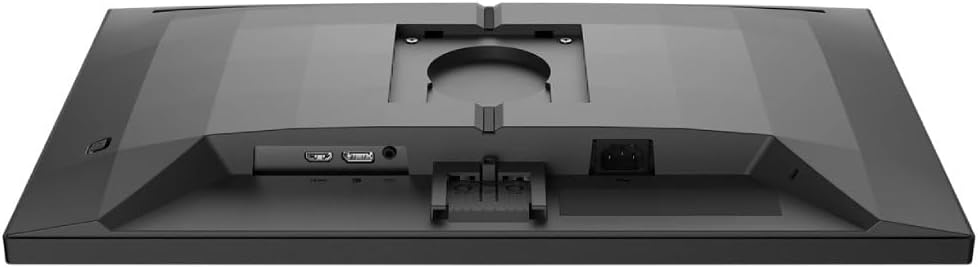
ຮູບພາບ: ລາຍລະອຽດ view of the monitor's rear panel, showing the HDMI, DisplayPort, and power input ports.
5. ການດໍາເນີນງານຂອງ Monitor
5.1. ເປີດ/ປິດ
Press the power button, usually located on the bottom right or rear of the monitor, to turn it on or off. The power LED will indicate the monitor's status.
5.2. ເມນູການສະແດງເທິງໜ້າຈໍ (OSD).
The OSD menu allows you to adjust various monitor settings. Use the joystick or buttons (refer to your monitor's specific layout) to navigate and select options.
- ຮູບ: ປັບຄວາມສະຫວ່າງ, ກົງກັນຂ້າມ, ຄວາມຄົມຊັດ, ແລະແກມມາ.
- ສີ: Select color temperature, sRGB mode, or user-defined color settings.
- ສຽງ: Control volume if the monitor has built-in speakers or an audio output.
- ປ້ອນຂໍ້ມູນ: ເລືອກແຫຼ່ງສັນຍານເຂົ້າ (HDMI, DisplayPort) ດ້ວຍຕົນເອງ.
- ເກມ: Access specific gaming features like SmartImage Game, Low Input Lag, and Adaptive Sync settings.
- ການຕັ້ງຄ່າ OSD: ປັບພາສາ OSD, ຄວາມໂປ່ງໃສ, ແລະການໝົດເວລາ.

Image: The Philips Evnia 24M2N3200L monitor showcasing a high-quality image from a video game, highlighting its display capabilities.
6. ບໍາລຸງຮັກສາ
6.1. ເຮັດຄວາມສະອາດ Monitor
- ຖອດສາຍຈໍສະແດງຜົນກ່ອນທຳຄວາມສະອາດທຸກຄັ້ງ.
- Use a soft, clean, lint-free cloth to gently wipe the screen.
- ສໍາລັບຮອຍແຂງ, ເບົາບາງ dampen the cloth with water or a mild, non-abrasive screen cleaner. Do not spray liquids directly onto the screen.
- ອະນາໄມຈໍພາບ ຄasing ດ້ວຍຜ້າອ່ອນ, ແຫ້ງ.
6.2. ການເກັບຮັກສາ
ຖ້າເກັບຮັກສາຈໍພາບໄວ້ເປັນເວລາດົນ, ໃຫ້ຖອດສາຍເຄເບີນທັງໝົດອອກ ແລະ ຫຸ້ມຫໍ່ມັນໄວ້ໃນບັນຈຸພັນເດີມເພື່ອປົກປ້ອງມັນຈາກຝຸ່ນ ແລະ ຄວາມເສຍຫາຍທາງຮ່າງກາຍ. ເກັບຮັກສາໄວ້ໃນບ່ອນທີ່ເຢັນ, ແຫ້ງ.
7. ການແກ້ໄຂບັນຫາ
ຖ້າເຈົ້າພົບບັນຫາກັບຈໍພາບຂອງເຈົ້າ, ໃຫ້ອ້າງອີງເຖິງບັນຫາ ແລະວິທີແກ້ໄຂບັນຫາທົ່ວໄປຕໍ່ໄປນີ້:
| ບັນຫາ | ສາເຫດທີ່ເປັນໄປໄດ້ | ການແກ້ໄຂ |
|---|---|---|
| ບໍ່ມີຮູບພາບໃນ ໜ້າ ຈໍ | Power cable disconnected, video cable loose, incorrect input source. | Check power and video cable connections. Select correct input source via OSD. |
| ຮູບພາບ flickering | Loose video cable, graphics card issue, refresh rate mismatch. | Ensure video cable is secure. Update graphics drivers. Adjust refresh rate in OS settings. |
| ສີບໍ່ຖືກຕ້ອງ | Incorrect color settings, faulty cable. | Reset color settings in OSD. Try a different video cable. |
| ຈໍສະແດງຜົນບໍ່ເປີດ | ບໍ່ມີໄຟ, ອະແດບເຕີໄຟຜິດພາດ. | Check power outlet and cable. Ensure power adapter is functioning. |
8. ຂໍ້ມູນຈໍາເພາະ
| ຄຸນສົມບັດ | ລາຍລະອຽດ |
|---|---|
| ໝາຍເລກຕົວແບບ | 24M2N3200L |
| ຂະໜາດໜ້າຈໍ | 24 ນິ້ວ |
| ປະເພດແຜງ | IPS |
| ຄວາມລະອຽດ | 1920 x 1080 (Full HD) |
| ອັດຕາສ່ວນ | 16:9 |
| ອັດຕາການໂຫຼດຂໍ້ມູນຄືນໃໝ່ | 180Hz |
| ເວລາຕອບສະຫນອງ | 0.5ms (MPRT) |
| ການເຊື່ອມຕໍ່ | 1x HDMI, 1x DisplayPort |
| ແຫຼ່ງພະລັງງານ | ໄຟຟ້າ |
| ຂະໜາດສິນຄ້າ (ມີຂາຕັ້ງ) | 19.5 x 54 x 43.3 cm (ເລິກ x ກວ້າງ x ສູງ) |
| ນ້ຳໜັກສິນຄ້າ (ພ້ອມຂາຕັ້ງ) | 4.96 ກິໂລກຣາມ |
| ຜູ້ຜະລິດ | ຟີລິບ |
9. ການຮັບປະກັນແລະການສະຫນັບສະຫນູນ
ສໍາລັບຂໍ້ມູນການຮັບປະກັນ ແລະການຊ່ວຍເຫຼືອດ້ານວິຊາການ, ກະລຸນາເບິ່ງບັດຮັບປະກັນທີ່ລວມຢູ່ໃນຊຸດຂອງທ່ານ ຫຼືເຂົ້າໄປທີ່ສູນຊ່ວຍເຫຼືອ Philips ຢ່າງເປັນທາງການ webເວັບໄຊ. ຮັກສາໃບຮັບເງິນການຊື້ຂອງທ່ານໄວ້ເປັນຫຼັກຖານການຊື້ສໍາລັບການຮ້ອງຂໍການຮັບປະກັນ.
ສະຫນັບສະຫນູນອອນໄລນ໌: www.philips.com/support


