1. ບົດແນະນຳ
Thank you for choosing the YI Smart Security Camera 360° PTZ Dome Camera. This camera provides comprehensive surveillance with its 360° pan and tilt capabilities, delivering crystal-clear 1080p Full HD video. Designed for indoor use, it features advanced motion detection, smart auto-tracking, enhanced night vision, and two-way audio communication. This manual will guide you through the setup, operation, and maintenance of your new security camera.
ຄຸນນະສົມບັດທີ່ສໍາຄັນ:
- ການຄຸ້ມຄອງ 360°: 355° horizontal and 90° vertical rotation for zero blind spots.
- ຄວາມລະອຽດ 1080p Full HD: High-definition video for clear monitoring.
- ການກວດຈັບການເຄື່ອນໄຫວ ແລະ ການຕິດຕາມອັດຕະໂນມັດ: Alerts and tracks moving objects automatically.
- ປັບປຸງວິໄສທັດກາງຄືນ: Multiple modes including full-color night vision.
- ສຽງສອງທາງ: ໄມໂຄຣໂຟນໃນຕົວ ແລະລຳໂພງສຳລັບການສື່ສານແບບສົດໆ.
- ການເກັບຮັກສາແບບຍືດຫຍຸ່ນ: Supports Cloud storage and local storage via microSD card (up to 128GB).
2. ເນື້ອໃນຊຸດ
ກະລຸນາກວດເບິ່ງຊຸດສຳລັບລາຍການຕໍ່ໄປນີ້:
- YI Smart Security Camera x1
- ສາຍ USB x1
- ຄູ່ມືຜູ້ໃຊ້ x1 (ເອກະສານນີ້)
3. ຜະລິດຕະພັນເກີນview
Familiarize yourself with the components of your YI Smart Security Camera.

ຮູບ 3.1: ດ້ານຫນ້າ view of the YI Smart Security Camera, showing the lens, LED lights, and two antennas.

Figure 3.2: Dimensions of the YI Smart Security Camera, indicating a height of 180mm (7.08in), width of 102mm (4.0in), and depth of 85mm (3.34in).
4. ການຕິດຕັ້ງແລະການຕິດຕັ້ງ
4.1 ການເປີດພະລັງງານເບື້ອງຕົ້ນ
- Connect the provided USB cable to the camera's power port and plug the other end into a compatible USB power adapter (not included).
- The camera will power on and initiate its self-test sequence. Wait for the indicator light to flash, indicating it's ready for setup.
4.2 ການດາວໂຫຼດແອັບ ແລະ ການສ້າງບັນຊີ
- ດາວນ໌ໂຫລດ YI IOT App ຈາກ App Store (iOS) ຫຼື Google Play Store (Android).
- ເປີດ app ແລະປະຕິບັດຕາມຄໍາແນະນໍາໃນຫນ້າຈໍເພື່ອສ້າງບັນຊີໃຫມ່ຫຼືເຂົ້າສູ່ລະບົບຖ້າຫາກວ່າທ່ານມີແລ້ວ.
4.3 ການເພີ່ມກ້ອງຖ່າຍຮູບຂອງທ່ານໃສ່ແອັບ
- In the YI IOT App, tap the "+" icon to add a new device.
- ເລືອກຮຸ່ນກ້ອງຖ່າຍຮູບຂອງທ່ານຈາກລາຍການ.
- Follow the app's instructions to connect the camera to your 2.4GHz Wi-Fi network. This typically involves scanning a QR code generated by the app with the camera's lens.
- ເມື່ອເຊື່ອມຕໍ່ແລ້ວ, ທ່ານສາມາດຕັ້ງຊື່ກ້ອງຖ່າຍຮູບຂອງທ່ານ ແລະ ເລີ່ມຖ່າຍທອດສົດໄດ້ viewing.
4.4 ຕິດຕັ້ງກ້ອງ
The camera is designed for indoor use and can be placed on a flat surface or wall-mounted. For wall mounting, use the included mounting accessories (if applicable) and ensure the camera is securely fastened.
ຮູບທີ 4.1: ຕົວຢ່າງamples of multi-scene applications, including wall and ceiling mounting, and placement in living rooms, bedrooms, and studies.
5. ປະຕິບັດການກ້ອງຖ່າຍຮູບຂອງທ່ານ
5.1 ການຄວບຄຸມ Pan-Tilt
The YI Smart Security Camera offers extensive pan and tilt capabilities, allowing you to monitor a wide area.
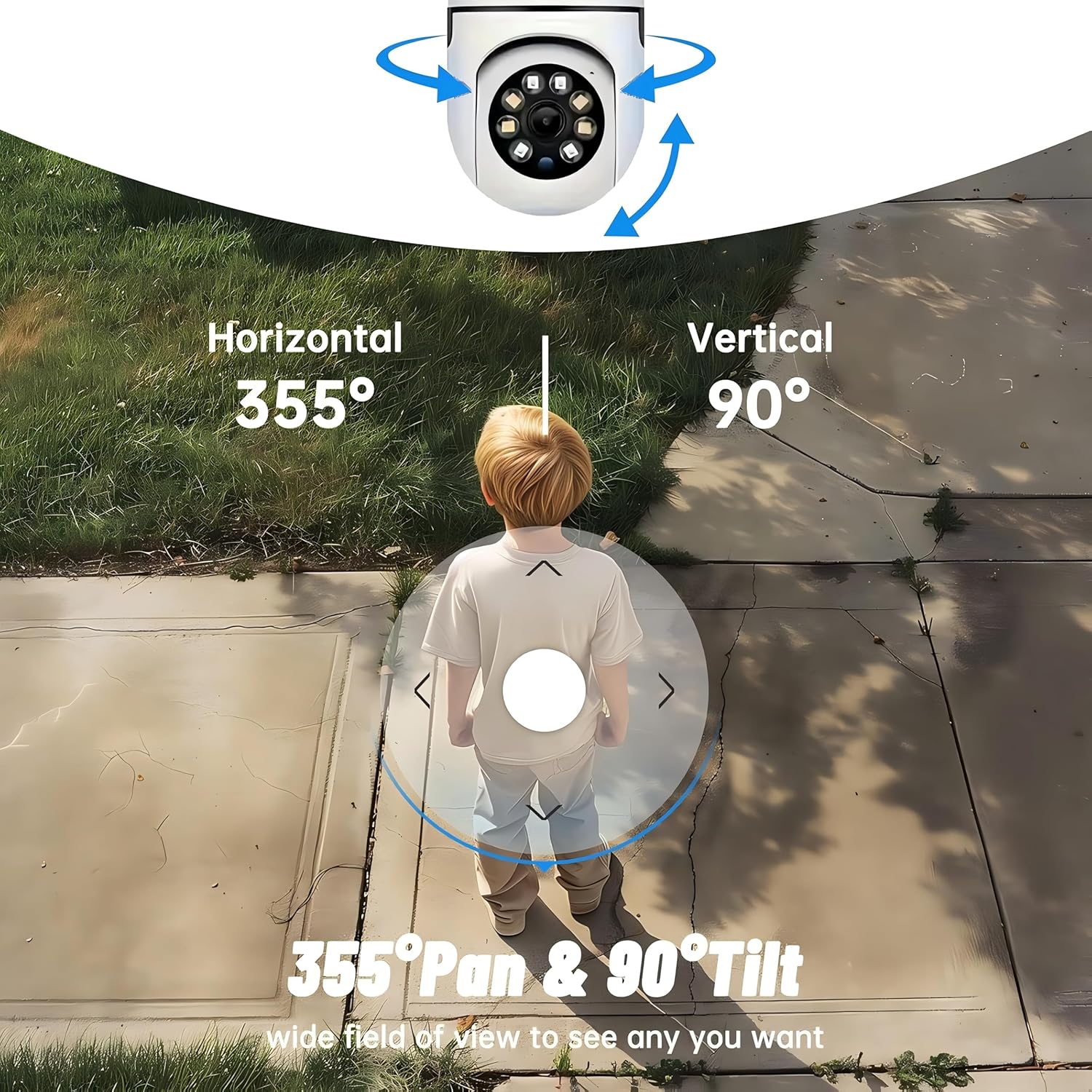
- ການຫມຸນແນວນອນ: 355°
- ການຫມຸນແນວຕັ້ງ: 90°
In the YI IOT App, use the directional controls on the live view screen to remotely adjust the camera's viewມຸມ ing.

Figure 5.1: Illustration of the camera's 355° horizontal pan and 90° vertical tilt capabilities, providing a wide field of view.
5.2 Motion Detection & Smart Auto Tracking
The camera can detect movement and automatically track objects, sending alerts to your smartphone.
- ກວດຈັບການເຄື່ອນໄຫວ: When motion is detected, the camera will send an instant push notification with a 6-second video clip to your phone via the YI IOT App.
- Smart Auto Tracking: If enabled, the camera will automatically follow moving objects for up to 10 seconds after detection, ensuring continuous monitoring of the activity.
Adjust sensitivity settings and notification preferences within the app.

Figure 5.2: Real-time alarm notification on the YI IOT app, showing an intruder detected by the camera.
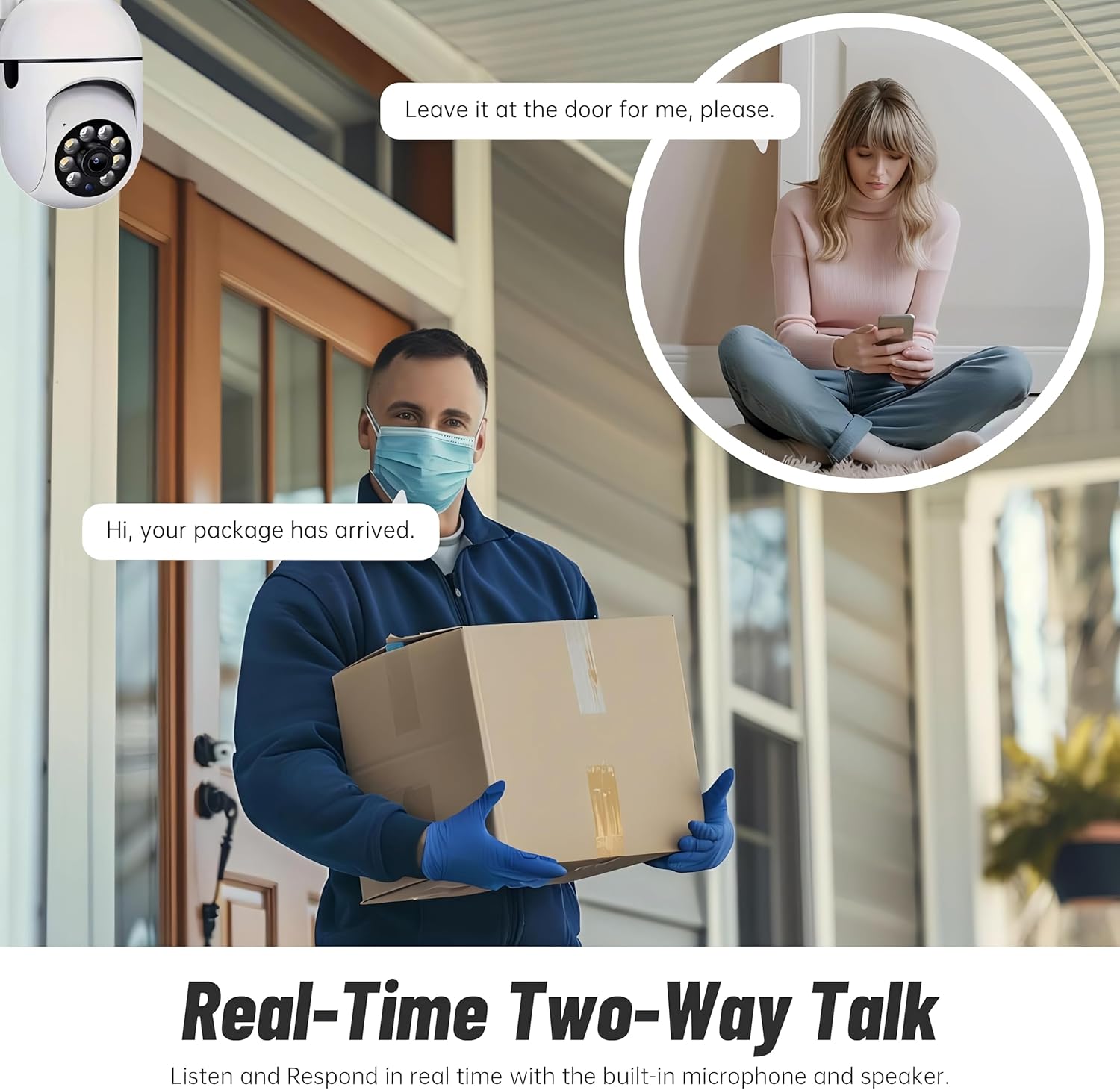
Figure 5.3: The camera's motion tracking feature focusing on a moving pet.

Figure 5.4: Visual representation of a motion detection alert, showing the camera capturing movement and sending notifications.
5.3 ວິໄສທັດໃນຕອນກາງຄືນທີ່ດີຂຶ້ນ
The camera is equipped with ultra-long-distance infrared LEDs and floodlight LEDs, offering multiple night vision modes for clear visibility in low-light conditions.
- ສາຍຕາກາງຄືນປົກກະຕິ: Standard black and white infrared view.
- ວິໄສທັດກາງຄືນອັດສະລິຍະ: Automatically switches between infrared and full-color based on detected activity.
- ວິໄສທັດກາງຄືນເຕັມສີ: Provides a color image even in low light, utilizing the built-in floodlight.
You can switch between these modes directly from the YI IOT App.

Figure 5.5: Comparison illustrating the difference between standard infrared night vision (monochrome) and 1080p full-color night vision.
5.4 ສຽງສອງທາງ
Communicate through the camera using its built-in microphone and high-power speaker.
- ແບບ Intercom: Press and hold the microphone icon in the app to speak, and release to listen. Ideal for giving commands to pets or deterring unwanted visitors.
- ໂໝດແຮນຟຣີ: Allows for a continuous two-way conversation, similar to a phone call.
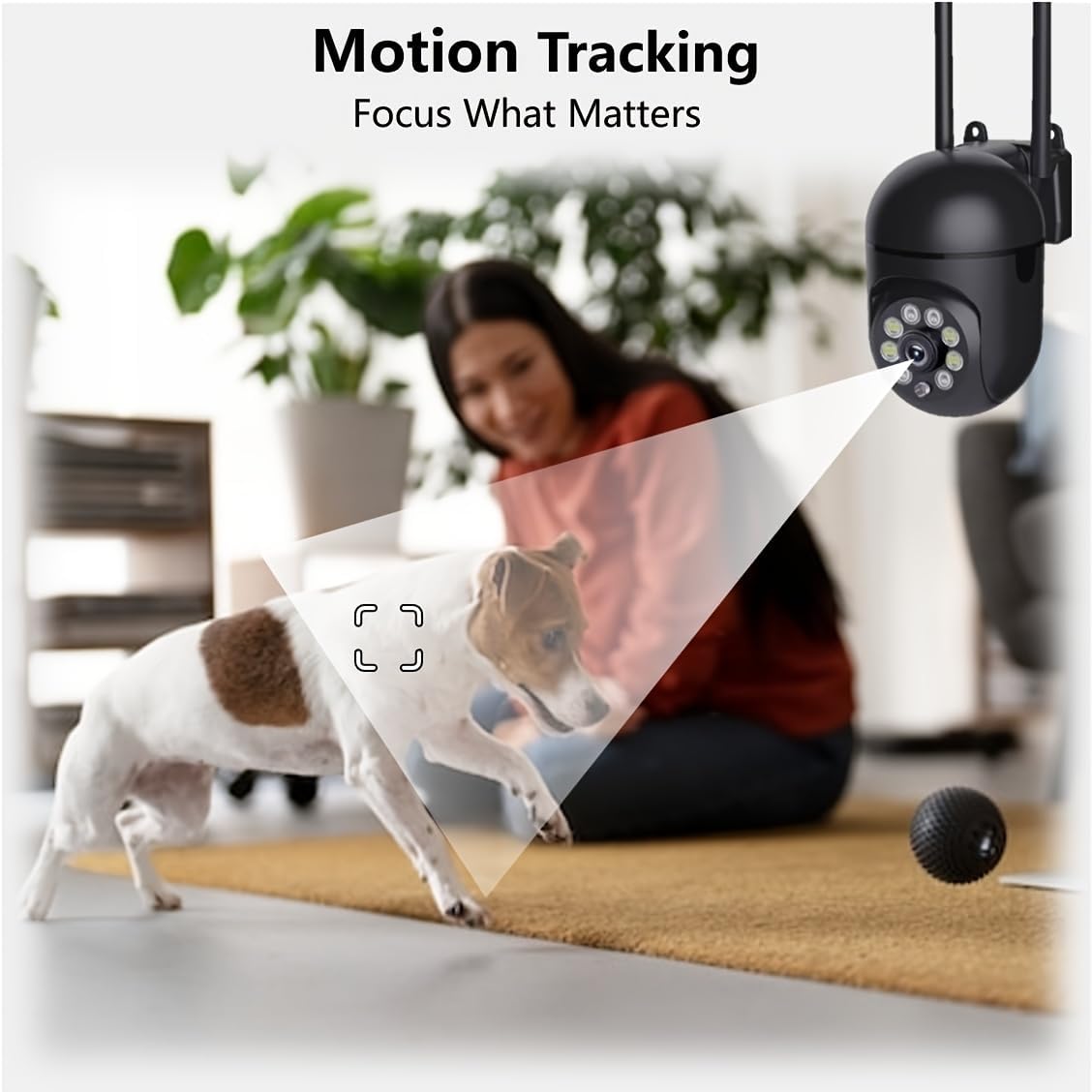
Figure 5.6: Demonstration of real-time two-way talk, allowing communication between the camera's location and the app user.
5.5 Cloud & Local Storage
Your camera offers flexible storage options for your video footage.
- YI Cloud Storage: Securely store 6-second video clips triggered by motion or sound detection. This ensures your footage is safe from loss, theft, or damage to local storage. Available for both iOS and Android.
- ການເກັບຮັກສາທ້ອງຖິ່ນ: The camera supports microSD cards up to 128GB (not included) for continuous recording or event-triggered recordings.
6. ບໍາລຸງຮັກສາ
To ensure optimal performance and longevity of your camera, follow these maintenance guidelines:
- ທໍາຄວາມສະອາດ: ເຊັດເລນກ້ອງຖ່າຍຮູບ ແລະ ຮ່າງກາຍດ້ວຍຜ້າອ່ອນ ແລະ ແຫ້ງ. ຫຼີກເວັ້ນການນໍາໃຊ້ສານເຄມີທີ່ຮຸນແຮງຫຼືວັດສະດຸຂັດ.
- ການອັບເດດເຟີມແວ: Regularly check for and install firmware updates via the YI IOT App. Updates often include performance improvements, new features, and security enhancements.
- ວົງຈອນພະລັງງານ: If the camera becomes unresponsive, unplug it from the power source for 10 seconds, then plug it back in to restart it.
7. ການແກ້ໄຂບັນຫາ
ຖ້າເຈົ້າພົບບັນຫາກັບກ້ອງຂອງເຈົ້າ, ໃຫ້ອ້າງອີງເຖິງບັນຫາ ແລະວິທີແກ້ໄຂບັນຫາທົ່ວໄປຕໍ່ໄປນີ້:
| ບັນຫາ | ສາເຫດທີ່ເປັນໄປໄດ້ | ການແກ້ໄຂ |
|---|---|---|
| ກ້ອງຖ່າຍຮູບອອບລາຍ | ບໍ່ມີໄຟຟ້າ; Wi-Fi ຖືກຕັດການເຊື່ອມຕໍ່; ມີບັນຫາເຣົາເຕີ | Check power connection; Restart camera and router; Reconnect camera to Wi-Fi via app. |
| ຄຸນນະພາບຮູບພາບບໍ່ດີ | Dirty lens; Insufficient lighting; Network bandwidth | Clean the lens; Ensure adequate lighting or enable night vision; Check Wi-Fi signal strength. |
| ການກວດຈັບການເຄື່ອນໄຫວບໍ່ເຮັດວຽກ | Feature disabled; Incorrect sensitivity; Obstruction | Enable motion detection in app; Adjust sensitivity; Ensure clear view. |
| ບັນຫາສຽງສອງທາງ | Microphone/speaker muted; App permissions; Network delay | Check app settings; Grant microphone permissions; Ensure stable network connection. |
| ບໍ່ຮັບຮູ້ບັດ MicroSD | Card not inserted correctly; Incompatible card; Corrupted card | Reinsert card; Use a compatible card (Class 10 or higher); Format card in app or replace. |
If the problem persists, please contact YI customer support.
8. ຂໍ້ມູນຈໍາເພາະ
Detailed technical specifications for the YI Smart Security Camera.
| ຄຸນສົມບັດ | ຂໍ້ມູນຈໍາເພາະ |
|---|---|
| ຊື່ຕົວແບບ | CB201-1X-W |
| ການນຳໃຊ້ພາຍໃນ/ນອກ | ພາຍໃນ |
| ຄວາມລະອຽດການຖ່າຍວິດີໂອ | ຄວາມລະອຽດ Full HD 1080p |
| ເຕັກໂນໂລຊີການເຊື່ອມຕໍ່ | ໄຮ້ສາຍ (Wi-Fi 2.4GHz) |
| ຊ່ວງເລື່ອນ/ອຽງ | ລວງນອນ 355°, ຕັ້ງ 90° |
| ຂອບເຂດວິໄສທັດກາງຄືນ | 10 ແມັດ |
| ສຽງສອງທາງ | ແມ່ນແລ້ວ |
| ຕົວເລືອກການເກັບຮັກສາ | Cloud Storage, MicroSD Card (up to 128GB) |
| ແຫຼ່ງພະລັງງານ | ໄຟຟ້າສາຍ |
| ອຸປະກອນທີ່ເຂົ້າກັນໄດ້ | ໂທລະສັບສະຫຼາດ (iOS/Android) |
| ຂະໜາດສິນຄ້າ (L x W x H) | 4 x 3.35 x 7.09 ນິ້ວ |
| ອົງປະກອບລວມ | Security Camera x1, USB Cable x1 |
9. ການຮັບປະກັນແລະການສະຫນັບສະຫນູນ
For warranty information and technical support, please refer to the official YI website or contact their customer service directly. Details can typically be found on the product packaging or within the YI IOT App's 'About' or 'Support' section.
ສະຫນັບສະຫນູນອອນໄລນ໌: Visit the official YI webເວັບໄຊສໍາລັບ FAQs, ຄູ່ມືການແກ້ໄຂບັນຫາ, ແລະທາງເລືອກການຕິດຕໍ່.
ສະຫນັບສະຫນູນ App: Access support resources directly within the YI IOT App.