1. ບົດແນະນຳ
The Tera P150 is a robust Android 12 handheld barcode scanner PDA designed for efficient data collection in various environments such as logistics, warehouses, retail, and construction. It features a high-precision Zebra SE4710 scanning head, a powerful octa-core processor, and advanced wireless connectivity options to streamline operations.
2. ເນື້ອໃນຊຸດ
ກະລຸນາກວດສອບວ່າລາຍການທັງຫມົດທີ່ລະບຸໄວ້ຂ້າງລຸ່ມນີ້ແມ່ນລວມຢູ່ໃນຊຸດຂອງທ່ານ. ຖ້າລາຍການໃດຂາດຫາຍໄປຫຼືເສຍຫາຍ, ກະລຸນາຕິດຕໍ່ຝ່າຍຊ່ວຍເຫຼືອລູກຄ້າ.
- 1x Tera P150 Android 12 Handheld Barcode Scanner
- 1x ສາຍ USB
- 1x Screen Protector
- 1x ຊິມຖາດ Ejector
- 1x ສາຍເຊືອກ
- 1x ຄູ່ມືຜູ້ໃຊ້ (ເອກະສານນີ້)
- 1x SDK (Software Development Kit)
- 1x Rugged Rubber Boot
- ສາຍຮັດມື 1x

Image: Tera P150 Android Barcode Scanner and its included accessories, such as the USB cable, screen protector, hand strap, and rugged rubber boot.
3. ຜະລິດຕະພັນເກີນview
The Tera P150 is designed for ergonomic handling and durability. It features a 5.5-inch full touch screen, a rear-mounted barcode scanner, and various ports and buttons for operation.
ອົງປະກອບທີ່ສໍາຄັນ:
- ຈໍສະແດງຜົນ 5.5 ນິ້ວ: High-resolution touch screen, responsive even with gloves or wet hands.
- ເຄື່ອງສະແກນບາໂຄດ: Integrated Zebra SE4710 for 1D, 2D, and QR code scanning.
- ປຸ່ມເປີດປິດ: ຕັ້ງຢູ່ດ້ານຂ້າງສໍາລັບການເປີດ / ປິດອຸປະກອນແລະການລັອກຫນ້າຈໍ.
- ປຸ່ມລະດັບສຽງ: ປັບລະດັບສຽງ.
- ຜອດ USB-C: ສໍາລັບການສາກໄຟແລະການໂອນຂໍ້ມູນ.
- ຊ່ອງໃສ່ຊິມ/SD ກາດ: For cellular connectivity and expandable storage.
- Hand Strap Attachment Points: For securing the included hand strap.
4. ຕັ້ງຄ່າ
4.1 ການສາກໄຟເບື້ອງຕົ້ນ
Before first use, fully charge the Tera P150. Connect the provided USB cable to the device's USB-C port and a compatible power adapter. A full charge typically takes approximately 3 hours for the 5000mAh battery.

Image: The Tera P150 Barcode Scanner displaying its battery status, indicating it is designed for all-day use with a 5000mAh battery, offering over 300 hours standby and 12 hours working time.
4.2 ການໃສ່ SIM/SD Card
- ຊອກຫາຖາດແຜ່ນ SIM/SD ຢູ່ດ້ານຂ້າງຂອງອຸປະກອນ.
- Use the provided SIM tray ejector tool to open the tray.
- Carefully place your Nano-SIM card(s) and/or microSD card into the designated slots.
- ຄ່ອຍໆຍູ້ຖາດກັບເຂົ້າໄປໃນອຸປະກອນຈົນກ່ວາມັນກົດເຂົ້າໄປໃນສະຖານທີ່.
4.3 ການເປີດ/ປິດ
- ເພື່ອເປີດເຄື່ອງ: Press and hold the Power button until the Tera logo appears on the screen.
- ປິດເຄື່ອງ: Press and hold the Power button until the power options menu appears. Select "Power off".
- ເພື່ອເລີ່ມຕົ້ນໃໝ່: Press and hold the Power button until the power options menu appears. Select "Restart".
4.4 ການຕິດຕັ້ງ Android ເບື້ອງຕົ້ນ
Upon first power-on, follow the on-screen prompts to complete the Android 12 setup process. This includes selecting your language, connecting to a Wi-Fi network, and setting up your Google account (optional).
5. ຄໍາແນະນໍາການດໍາເນີນງານ
5.1 ການສະແກນບາໂຄດ
The Tera P150 is equipped with a Zebra SE4710 scanning head for rapid and accurate barcode capture.
- Open the scanning application on your device.
- Point the scanner window at the barcode you wish to scan. Ensure the red aiming line or dot covers the entire barcode.
- Press the dedicated scan button (usually on the side or front of the device).
- ການສະແກນທີ່ສຳເລັດແລ້ວ ໂດຍປົກກະຕິແລ້ວຈະຖືກຊີ້ບອກດ້ວຍສຽງດັງ ແລະ/ຫຼື ການຢືນຢັນດ້ວຍຮູບພາບຢູ່ໜ້າຈໍ.

Image: A worker in a warehouse environment using the Tera P150 handheld device, demonstrating the use of its integrated Zebra SE4710 scanner to read barcodes on inventory.
5.2 ຈໍສະແດງຜົນ ແລະໜ້າຈໍສຳຜັດ
The 5.5-inch full touch screen offers a clear display and responsive interaction. It supports operation even when wearing gloves or with wet hands, enhancing usability in various work conditions.
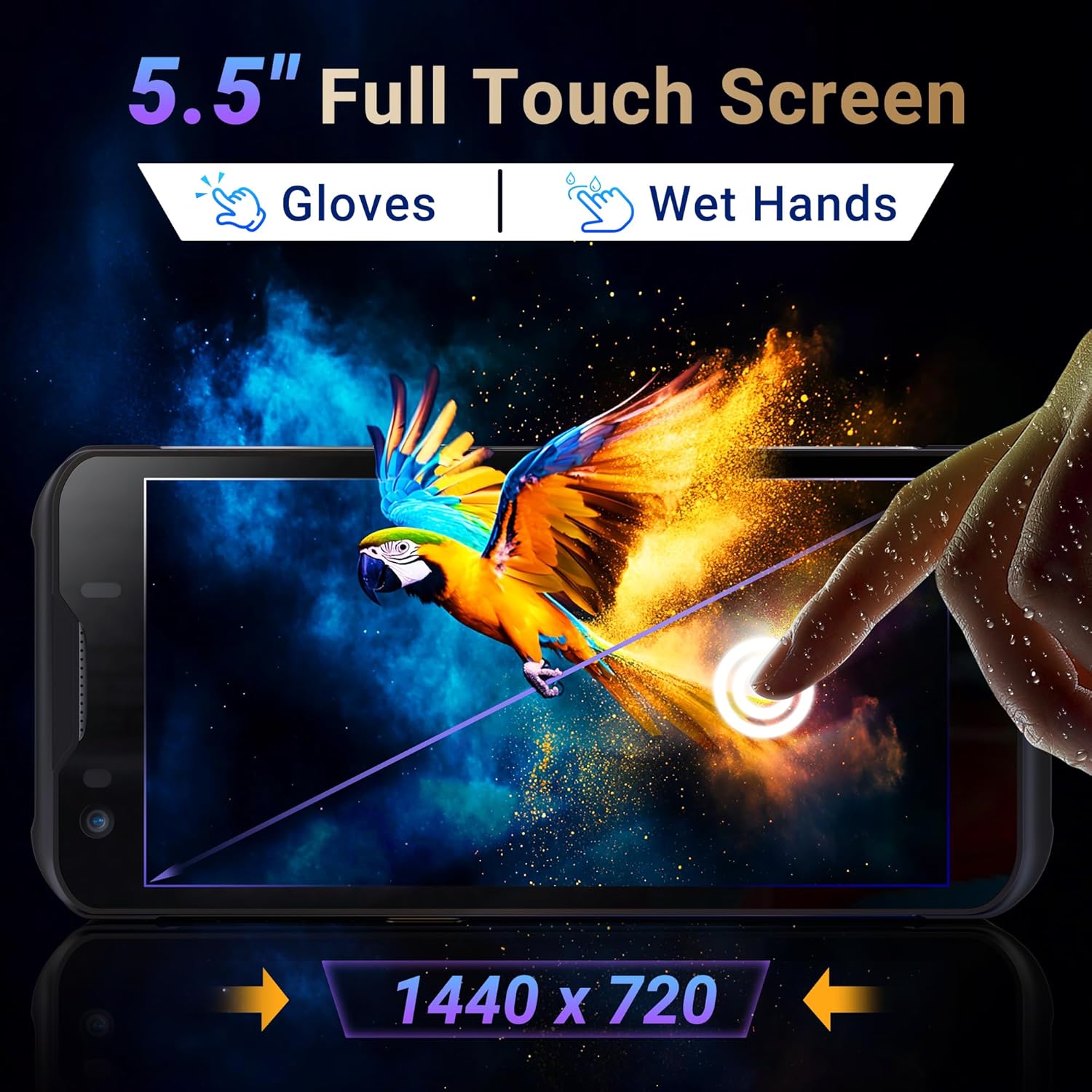
Image: The Tera P150's 5.5-inch full touch screen, highlighting its 1440x720 resolution and compatibility with both gloved and wet-hand operation.
5.3 ການເຊື່ອມຕໍ່
The device supports multiple connectivity options for seamless data transmission.
- Wi-Fi: Go to Settings > Network & internet > Wi-Fi to connect to available wireless networks. Supports dual-band Wi-Fi for stable connections.
- Bluetooth 5.0: Go to Settings > Connected devices > Bluetooth to pair with Bluetooth-enabled accessories. Bluetooth 5.0 offers faster speeds and extended range.
- 4G/3G Cellular: Insert a SIM card (as described in Section 4.2) to enable cellular data and communication.
- GPS: The integrated GPS module allows for location tracking and navigation.
5.4 ປະສິດທິພາບ ແລະການເຮັດວຽກຫຼາຍວຽກ
Powered by an MTK 2.0GHz octa-core processor with 4GB RAM and 64GB storage, the Tera P150 ensures smooth operation and efficient multitasking.

Image: The Tera P150 device highlighting its MTK 2.0GHz Octa-core processor and 4GB RAM + 64GB memory, indicating superior processing and performance compared to other devices.

Image: The Tera P150 device showcasing its Android 12 operating system and 4GB RAM + 64GB storage, illustrating its capability for seamless multitasking with multiple applications open.
6. ບໍາລຸງຮັກສາ
6.1 ການທໍາຄວາມສະອາດອຸປະກອນ
To maintain optimal performance and appearance, clean the device regularly.
- ໃຊ້ຜ້າແພທີ່ອ່ອນໆ ທີ່ບໍ່ມີເສັ້ນດ່າງ dampຜະສົມດ້ວຍນ້ໍາຫຼືເຄື່ອງເຮັດຄວາມສະອາດຫນ້າຈໍອ່ອນໆ.
- Avoid using harsh chemicals, abrasive cleaners, or solvents, as these can damage the screen and casing.
- ກວດໃຫ້ແນ່ໃຈວ່າອຸປະກອນຖືກປິດ ແລະຕັດການເຊື່ອມຕໍ່ຈາກແຫຼ່ງພະລັງງານໃດໆກ່ອນທີ່ຈະທໍາຄວາມສະອາດ.
6.2 ການດູແລຫມໍ້ໄຟ
The Tera P150 features a 5000mAh battery designed for extended use. Proper battery care can prolong its lifespan.
- ຫຼີກເວັ້ນອຸນຫະພູມທີ່ຮຸນແຮງ, ທັງຮ້ອນແລະເຢັນ, ຍ້ອນວ່າພວກມັນສາມາດເຮັດໃຫ້ປະສິດທິພາບຫມໍ້ໄຟຫຼຸດລົງ.
- Do not fully discharge the battery frequently. Charge it before it drops to very low levels.
- ໃຊ້ສະເພາະອຸປະກອນເສີມສາກໄຟທີ່ສະໜອງໃຫ້ ຫຼື ໄດ້ຮັບການອະນຸມັດເທົ່ານັ້ນ.
6.3 ຄຸນສົມບັດຄວາມທົນທານ
The Tera P150 is built with industrial-grade materials, featuring IP67 waterproofing and a 1.5-meter drop rating, making it suitable for harsh working environments.
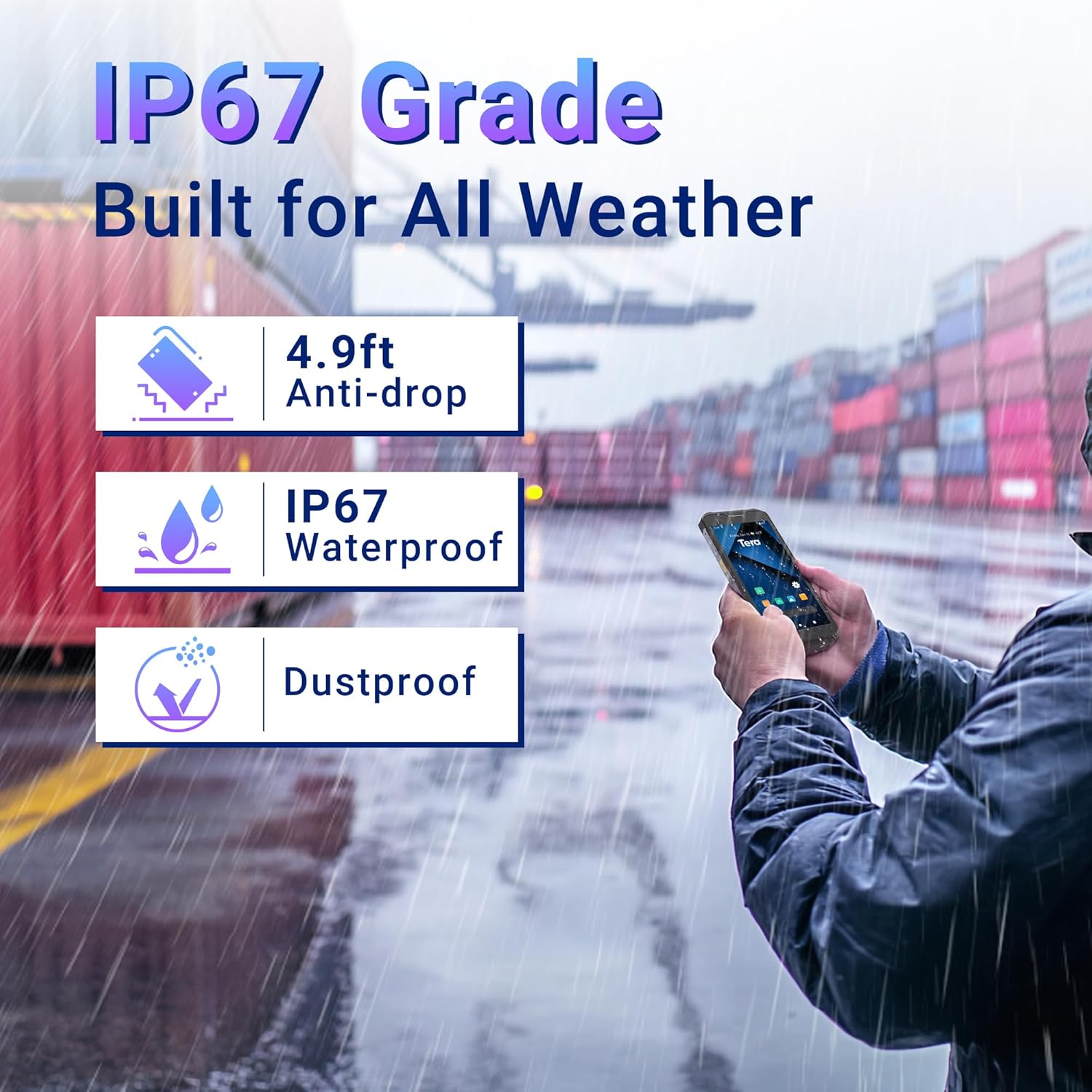
Image: The Tera P150 device highlighting its IP67 grade, 4.9ft anti-drop, IP67 waterproof, and dustproof capabilities, indicating its suitability for all-weather and rugged use.
7. ການແກ້ໄຂບັນຫາ
This section addresses common issues you might encounter with your Tera P150.
| ບັນຫາ | ສາເຫດທີ່ເປັນໄປໄດ້ | ການແກ້ໄຂ |
|---|---|---|
| ອຸປະກອນບໍ່ເປີດ | ຫມໍ້ໄຟຕ່ໍາ; ລະບົບຂັດຂ້ອງ | ສາກອຸປະກອນຢ່າງໜ້ອຍ 30 ນາທີ. ຖ້າຍັງບໍ່ຕອບສະໜອງ, ໃຫ້ປະຕິບັດການຣີສະຕາດແບບບັງຄັບໂດຍການກົດປຸ່ມເປີດປິດຄ້າງໄວ້ປະມານ 10-15 ວິນາທີ. |
| Barcode scanner not working | Scanning application not open; Barcode damaged/unreadable; Scanner module issue | Ensure the scanning application is active. Try scanning a different, known-good barcode. Clean the scanner window. Restart the device. |
| ບໍ່ສາມາດເຊື່ອມຕໍ່ກັບ Wi-Fi ໄດ້ | Incorrect password; Out of range; Router issue | Verify Wi-Fi password. Move closer to the Wi-Fi router. Restart the device and the router. |
| ໜ້າຈໍສຳຜັດບໍ່ຕອບສະໜອງ | Temporary software glitch; Screen protector interference | Restart the device. Ensure the screen protector is correctly applied and not interfering. |
8. ຂໍ້ມູນຈໍາເພາະ
Detailed technical specifications for the Tera P150 Android Barcode Scanner PDA.
- ຕົວແບບ: P150
- ລະບົບປະຕິບັດການ: Android 12
- ໜ່ວຍປະມວນຜົນ: MTK 2.0GHz Octa-core
- RAM: 4GB
- ການເກັບຮັກສາ: 64GB
- ຈໍສະແດງຜົນ: 5.5-inch Full Touch Screen (1440 x 720 resolution)
- ເຄື່ອງສະແກນບາໂຄດ: Zebra SE4710 (1D, 2D, QR)
- ແບັດເຕີຣີ: 5000mAh (Standby >300H, Working >12H, Charging >3H)
- ການເຊື່ອມຕໍ່: 4G, 3G, Dual-band Wi-Fi, Bluetooth 5.0, GPS
- ຄວາມທົນທານ: IP67 Waterproof, 1.5-meter Drop Rating, Industrial-grade materials
- ອຸປະກອນທີ່ເຂົ້າກັນໄດ້: Android devices (smartphones, tablets), POS systems
- ຂະໜາດບັນຈຸ: 20 x 11 x 8 cm
- ນ້ຳໜັກ: 540 g
9. ການຮັບປະກັນແລະການສະຫນັບສະຫນູນ
Tera products are manufactured to high-quality standards. For warranty information, please refer to the warranty card included with your product or visit the official Tera webເວັບໄຊ.
For technical support, troubleshooting assistance, or inquiries regarding your Tera P150, please contact Tera customer service:
- ເບີຕິດຕໍ່: +1 (626)438-1404
- ສະຫນັບສະຫນູນອອນໄລນ໌: Refer to the official Tera webເວັບໄຊທ໌ສໍາລັບ FAQs ແລະຊັບພະຍາກອນສະຫນັບສະຫນູນ.


