1. ບົດແນະນຳ
Thank you for choosing the FIREBAT Mini PC AK2 PLUS. This manual provides essential information for setting up, operating, maintaining, and troubleshooting your new mini PC. Please read this manual thoroughly before use to ensure optimal performance and longevity of your device.
2. ເນື້ອໃນຊຸດ
Carefully unpack your FIREBAT Mini PC and verify that all items listed below are included:
- 1 x FIREBAT AK2 N150 Mini PC
- 1 x 12V/2.5A US Adapter
- 1 x VESA Mount
- 1 x ສາຍ HDMI
- 1 x ຄູ່ມືຜູ້ໃຊ້ (ເອກະສານນີ້)

Image: Contents of the FIREBAT Mini PC AK2 PLUS package, including the mini PC, power adapter, VESA mount, HDMI cable, and user manual.
3. ຜະລິດຕະພັນເກີນview
The FIREBAT Mini PC AK2 PLUS is a compact and powerful desktop computer designed for various applications, from office work to home entertainment. It features an Intel 13th Gen N150 processor, ample storage, and versatile connectivity options.
3.1 ລັກສະນະທີ່ສໍາຄັນ
- ໜ່ວຍປະມວນຜົນ: Intel 13th Gen Twin Lake N150 (4 cores/4 threads, up to 3.6GHz)
- ໜ່ວຍຄວາມຈຳ: RAM 16GB DDR4
- ການເກັບຮັກສາ: 512GB M.2 2280 SSD (expandable up to 4TB with 2.5" SSD/HDD)
- ຮູບພາບ: Intel UHD Graphics (1000MHz, 4K support)
- ຈໍສະແດງຜົນ: Supports dual HDMI output for simultaneous 4K display
- ການເຊື່ອມຕໍ່: Dual-band Wi-Fi, Bluetooth 4.2, Gigabit Ethernet
- ພອດ: Multiple USB 2.0 and USB 3.0 ports, HDMI, LAN
- ຄວາມເຢັນ: Ultra-quiet fans with intelligent cooling technology

ຮູບພາບ: ດ້ານຫນ້າແລະດ້ານຫລັງ view of the FIREBAT Mini PC AK2 PLUS, highlighting its compact design and various ports.
3.2 ພອດແລະການໂຕ້ຕອບ
ເຮັດຄວາມຄຸ້ນເຄີຍກັບພອດທີ່ມີຢູ່ໃນ Mini PC ຂອງທ່ານ:
- ແຜງໜ້າ: Power Button, USB 3.2 Type-A ports
- ກະດານດ້ານຫລັງ: DC Power Input, 2 x HDMI 2.0 Type-A ports, LAN RJ45 port, USB 2.0 Type-A ports

Image: Detailed diagram of the FIREBAT Mini PC AK2 PLUS interfaces, showing the location of USB, HDMI, LAN, and power ports.
3.3 Internal Components and Expansion
The Mini PC comes with pre-installed RAM and SSD. You can expand the storage capacity:
- RAM: DDR4 SODIMM
- SSD: M.2 2280 SATA SSD
- ການຂະຫຍາຍຕົວ: Supports adding a 2.5" SSD/HDD (not included) for additional storage up to 2TB.

Image: Illustration of the M.2 2280 SSD and SO-DIMM DDR4 memory modules used in the Mini PC.
4. ຄູ່ມືການຕິດຕັ້ງ
Follow these steps to set up your FIREBAT Mini PC:
4.1 ການເຊື່ອມຕໍ່ອຸປະກອນຕໍ່
- ເຊື່ອມຕໍ່ຈໍສະແດງຜົນ: Use the provided HDMI cable to connect the Mini PC to your monitor or TV. The Mini PC supports dual display output via its two HDMI ports.
- ເຊື່ອມຕໍ່ແປ້ນພິມ ແລະເມົາສ໌: Plug your USB keyboard and mouse into the available USB ports on the Mini PC.
- ເຊື່ອມຕໍ່ເຄືອຂ່າຍ (ທາງເລືອກ): For a wired connection, connect an Ethernet cable from your router/modem to the LAN RJ45 port on the Mini PC. For wireless, ensure your Wi-Fi network is available.
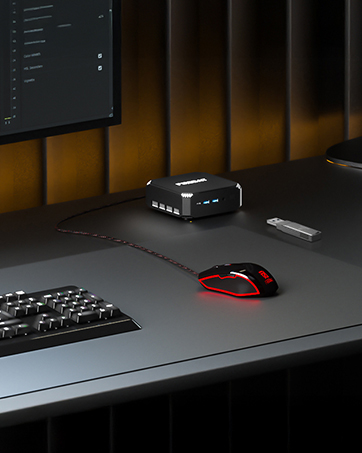
Image: The Mini PC connected to a monitor, keyboard, and mouse on a desk, illustrating a typical setup.
4.2 ການເປີດເຄື່ອງ
- ເຊື່ອມຕໍ່ອະແດບເຕີໄຟຟ້າ: Plug the 12V/2.5A US Adapter into the DC power input port on the Mini PC, then plug the adapter into a power outlet.
- ເປີດ: ກົດປຸ່ມເປີດປິດທີ່ຕັ້ງຢູ່ດ້ານຫນ້າຂອງ Mini PC. ໄຟຕົວຊີ້ວັດພະລັງງານຈະສະຫວ່າງ.

Image: The Mini PC connected to its power adapter, demonstrating the correct power connection.

Image: Close-up of the Mini PC's power button, indicating its location for powering on the device.
4.3 ການຕິດຕັ້ງ Mount VESA (ທາງເລືອກ)
ຕົວຍຶດ VESA ທີ່ມີມາໃຫ້ຊ່ວຍໃຫ້ທ່ານສາມາດຕິດຕັ້ງ Mini PC ເຂົ້າກັບດ້ານຫຼັງຂອງຈໍພາບທີ່ເຂົ້າກັນໄດ້ ຫຼື ໃສ່ຝາ, ເຊິ່ງຊ່ວຍປະຢັດພື້ນທີ່ໂຕະ.
- Attach the VESA bracket to the back of your monitor or desired surface using appropriate screws.
- ເລື່ອນ Mini PC ໄປໃສ່ວົງເລັບ VESA ຈົນກວ່າມັນຈະຄລິກເຂົ້າໃສ່ຢ່າງປອດໄພ.

Image: The Mini PC shown with its VESA mount, demonstrating how it can be attached to the back of a monitor for a space-saving setup.
5. ຄໍາແນະນໍາການດໍາເນີນງານ
5.1 ການບູດເບື້ອງຕົ້ນ ແລະ ການຕິດຕັ້ງລະບົບປະຕິບັດການ
Upon first power-on, the Mini PC may guide you through the initial setup of its default operating system. Follow the on-screen prompts to configure language, region, network, and user accounts.
5.2 ການຕິດຕັ້ງຈໍສະແດງຜົນຄູ່
To utilize the dual display feature:
- Connect two monitors to the two HDMI ports on the rear of the Mini PC.
- Once both monitors are connected and powered on, the operating system should automatically detect them.
- Adjust display settings (e.g., extend, duplicate, resolution) through your operating system's display configuration panel.

Image: The Mini PC connected to two monitors via HDMI, demonstrating its dual display capability for enhanced productivity.
5.3 ການເຊື່ອມຕໍ່ເຄືອຂ່າຍ
The Mini PC supports both wired and wireless network connections:
- ມີສາຍ (ອີເທີເນັດ): Connect an Ethernet cable to the RJ45 port. The connection will be established automatically.
- ໄຮ້ສາຍ (Wi-Fi): Access your operating system's network settings, select your Wi-Fi network, and enter the password to connect.
- Bluetooth: Enable Bluetooth in your operating system settings to pair with compatible devices like headphones, keyboards, or mice.
6. ບໍາລຸງຮັກສາ
ການບໍາລຸງຮັກສາທີ່ເຫມາະສົມຮັບປະກັນອາຍຸຍືນແລະການປະຕິບັດທີ່ດີທີ່ສຸດຂອງ Mini PC ຂອງທ່ານ.
6.1 ການທໍາຄວາມສະອາດ
- ເຮັດຄວາມສະອາດດ້ານນອກຂອງ Mini PC ເປັນປົກກະຕິດ້ວຍຜ້າອ່ອນໆ.
- Use compressed air to gently clear dust from the ventilation openings to maintain proper airflow and cooling.
- Do not use liquid cleaners or sprays directly on the device.

Image: An illustration showing the internal cooling fan of the Mini PC, emphasizing the importance of keeping ventilation clear for efficient heat dissipation.
6.2 ການເກັບຮັກສາ ແລະສິ່ງແວດລ້ອມ
- Store the Mini PC in a cool, dry place away from direct sunlight and extreme temperatures.
- Avoid placing the device in dusty environments or near sources of moisture.
- Ensure adequate ventilation around the Mini PC during operation.
7. ການແກ້ໄຂບັນຫາ
If you encounter issues with your FIREBAT Mini PC, refer to the following common problems and solutions:
| ບັນຫາ | ສາເຫດທີ່ເປັນໄປໄດ້ | ການແກ້ໄຂ |
|---|---|---|
| ບໍ່ມີໄຟ / ບໍ່ເປີດ | Power adapter not connected or faulty; Power outlet issue. | ໃຫ້ແນ່ໃຈວ່າອະແດັບເຕີໄຟເຊື່ອມຕໍ່ຢ່າງປອດໄພກັບທັງ Mini PC ແລະປລັກສຽບໄຟທີ່ເຮັດວຽກໄດ້. ລອງຮ້ານອື່ນ. |
| ບໍ່ມີຈໍສະແດງຜົນ | HDMI cable loose or faulty; Monitor input not selected correctly; Monitor not powered on. | Check HDMI cable connections. Ensure monitor is powered on and set to the correct input source (HDMI). Try a different HDMI cable or monitor. |
| No internet connection (Wi-Fi) | Incorrect Wi-Fi password; Router issue; Wi-Fi adapter disabled. | Verify Wi-Fi password. Restart your router. Check operating system settings to ensure Wi-Fi is enabled. |
| No internet connection (Wired) | Ethernet cable loose or faulty; Router issue; Network adapter disabled. | Check Ethernet cable connections. Restart your router. Check operating system settings to ensure the wired network adapter is enabled. |
| ລະບົບຊ້າຫຼືບໍ່ຕອບສະໜອງ | ແອັບພລິເຄຊັນເຮັດວຽກຫຼາຍເກີນໄປ; ພື້ນທີ່ດິດຕ່ໍາ; ຮ້ອນເກີນໄປ. | Close unnecessary applications. Free up disk space. Ensure proper ventilation and clean dust from vents. Restart the Mini PC. |
If the problem persists after trying these solutions, please contact FIREBAT customer support.
8. ຂໍ້ມູນຈໍາເພາະ
Detailed technical specifications for the FIREBAT Mini PC AK2 PLUS:
| ຄຸນສົມບັດ | ຂໍ້ມູນຈໍາເພາະ |
|---|---|
| ໝາຍເລກຕົວແບບ | AK2 PLUS |
| ໂຮງງານຜະລິດ | Intel 13th Gen Twin Lake N150 (4 Cores, 4 Threads, up to 3.6 GHz) |
| RAM | 16GB DDR4 SDRAM |
| ການເກັບຮັກສາ | 512GB M.2 2280 SSD (eSATA interface) |
| Graphics Coprocessor | Intel UHD Graphics (Integrated, 1000MHz) |
| ຄວາມລະອຽດໜ້າຈໍສູງສຸດ | 4096 x 2160 ພິກເຊລ (4K) |
| ການເຊື່ອມຕໍ່ໄຮ້ສາຍ | 802.11a/b/g/n/ac (Dual-band Wi-Fi), Bluetooth 4.2 |
| ພອດ USB | 2 x USB 2.0, 2 x USB 3.0 |
| ຜົນຜະລິດວິດີໂອ | 2 x HDMI |
| ພອດ LAN | RJ45 Gigabit Ethernet |
| ລະບົບປະຕິບັດການ | Default (Pre-installed) |
| ນ້ໍາຫນັກລາຍການ | 12.8 ອອນສ໌ (ປະມານ 0.36 ກິໂລ) |
| ຂະໜາດສິນຄ້າ | 5.5 x 5.5 x 1.9 ນິ້ວ (ປະມານ 14 x 14 x 4.8 ຊມ) |
| ສີ | ສີເທົາ |
9. ການຮັບປະກັນແລະການສະຫນັບສະຫນູນ
FIREBAT is committed to providing quality products and excellent customer service. Your Mini PC comes with a standard warranty. For specific warranty terms and conditions, please refer to the documentation included with your purchase or visit the official FIREBAT webເວັບໄຊ.
9.1 ສະຫນັບສະຫນູນລູກຄ້າ
If you require technical assistance, have questions about your product, or need to claim warranty service, please contact FIREBAT customer support:
- ອີເມວ: support@firebatpc.com
- Webເວັບໄຊ: www.firebatpc.com
Please provide your product model (AK2 PLUS) and a detailed description of the issue when contacting support to facilitate a quicker resolution.


