KOOSMILE Mini PC KT-M9 User Manual
Model: KT-M9
1. ບົດແນະນຳ
Thank you for choosing the KOOSMILE Mini PC KT-M9. This compact yet powerful desktop computer is designed for a wide range of applications, from demanding professional tasks to immersive home entertainment. Equipped with an Intel Core i9-12900HK processor, ample memory, and high-speed storage, it delivers exceptional performance in a small form factor. This manual provides essential information for setting up, operating, maintaining, and troubleshooting your Mini PC.
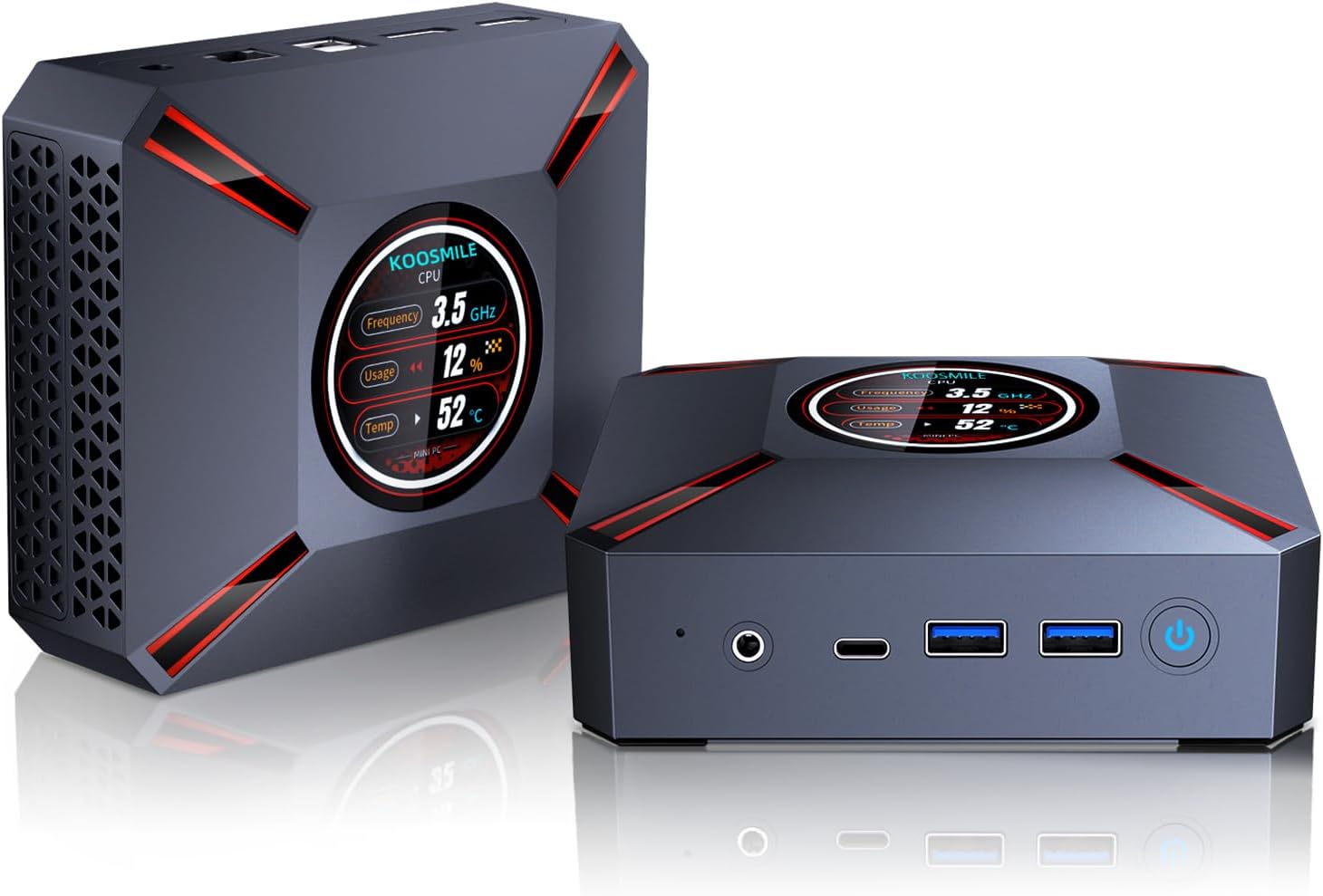
Figure 1.1: The KOOSMILE Mini PC KT-M9, showcasing its compact design and smart display.

ຮູບ 1.2: ເກີນview of the Mini PC's core features, including its powerful processor, memory, storage, and connectivity options.
2. ເນື້ອໃນຊຸດ
ກະລຸນາກວດສອບວ່າສິນຄ້າທຸກຢ່າງມີຢູ່ ແລະ ຢູ່ໃນສະພາບດີເມື່ອເປີດການຫຸ້ມຫໍ່. ຖ້າມີສິນຄ້າໃດຂາດຫາຍໄປ ຫຼື ເສຍຫາຍ, ກະລຸນາຕິດຕໍ່ຝ່າຍບໍລິການລູກຄ້າ.
- 1 x KOOSMILE Mini PC KT-M9
- 1 x ສາຍ HDMI
- 1 x Power Adapter
- 1 x DisplayPort (DP) Cable
- 1 x USB Hub
- 1 x Metal Sheet Bracket (for mounting)
- 1 x ຄູ່ມືຜູ້ໃຊ້ (ເອກະສານນີ້)
3. ຜະລິດຕະພັນເກີນview
The KOOSMILE Mini PC KT-M9 is designed for efficiency and versatility. Its compact chassis houses high-performance components and a variety of ports for extensive connectivity.
3.1. ຂະຫນາດທາງກາຍະພາບ
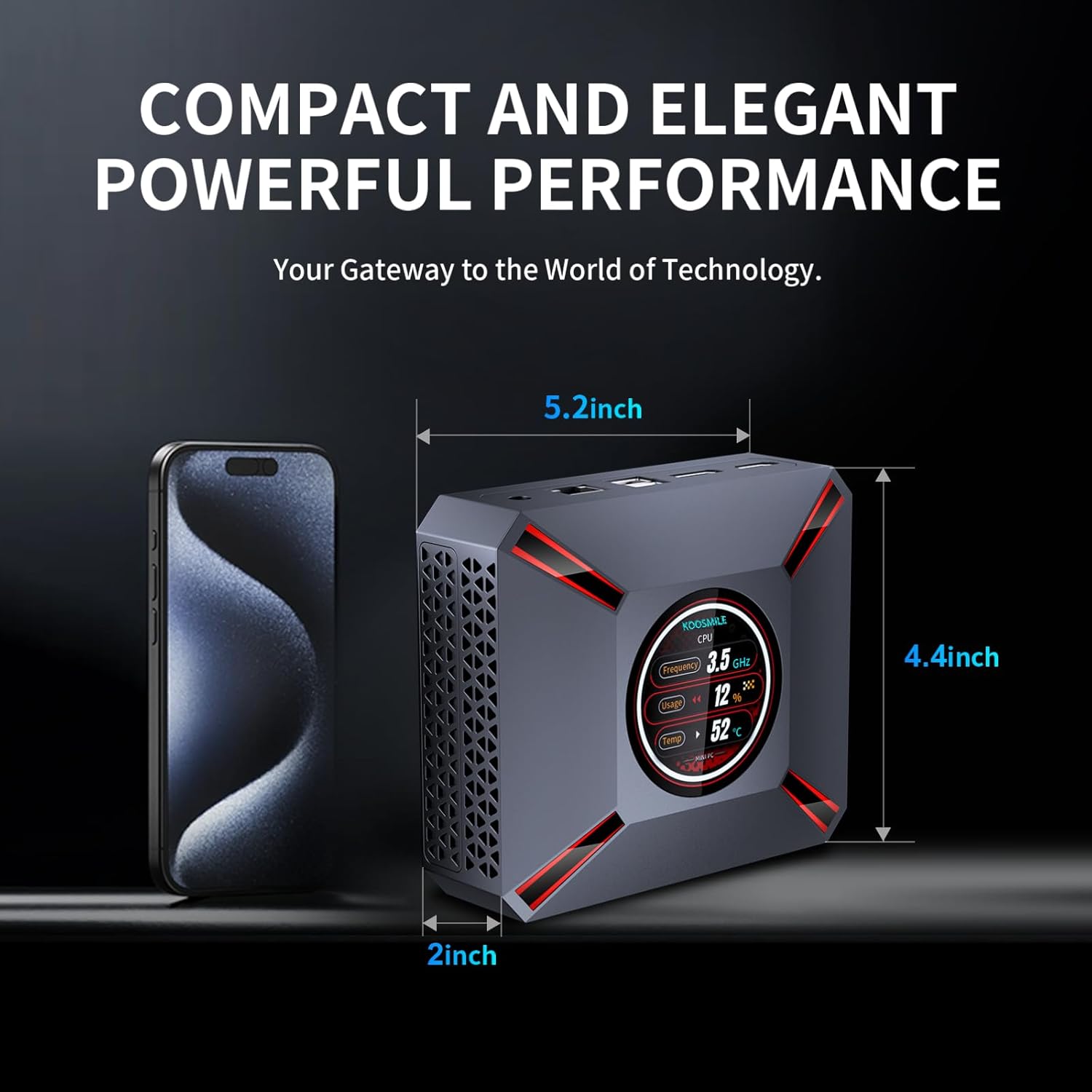
Figure 3.1: The compact size of the Mini PC, approximately 5.2 inches in length, 4.4 inches in width, and 2 inches in height, shown next to a smartphone for scale.
3.2. ພອດ ແລະຕົວເຊື່ອມຕໍ່
Familiarize yourself with the various input/output ports on your Mini PC:

Figure 3.2: Detailed diagram of the Mini PC's front and rear ports, including power, video outputs, USB, and audio connections.
- ແຜງໜ້າ:
- 3.5mm Audio/Mic Jack
- USB Type-C Port (Full-feature)
- 2 x USB 3.0 ພອດ
- ປຸ່ມເປີດປິດ
- CMOS Reset Pinhole
- ກະດານດ້ານຫລັງ:
- DC-IN Jack (ການປ້ອນຂໍ້ມູນພະລັງງານ)
- Ethernet (RJ-45) Port
- 2 x USB 2.0 ພອດ
- DisplayPort (DP 1.4a)
- ຜົນຜະລິດ HDMI 2.1
3.3. Smart Display Monitoring
The Mini PC features a built-in smart display on the lid that provides real-time system information. This display allows you to quickly monitor key performance metrics without needing additional software.

Figure 3.3: The smart display interface, showing real-time data such as CPU frequency, usage, temperature, network upload/download speeds, and disk usage.
Information displayed includes:
- ຄວາມຖີ່ CPU
- ເປີເຊັນການໃຊ້ CPUtage
- CPU Temperature (°C)
- Network Upload/Download Speeds
- ການນຳໃຊ້ໜ່ວຍຄວາມຈຳ
4. ຄູ່ມືການຕິດຕັ້ງ
Follow these steps to set up your KOOSMILE Mini PC for the first time.
4.1. ການເຊື່ອມຕໍ່ຮາດແວເບື້ອງຕົ້ນ
- ເຊື່ອມຕໍ່ອຸປະກອນຕໍ່ພ່ວງ: Plug in your USB keyboard and mouse to the available USB ports (USB 3.0 ports are recommended for faster response).
- Connect Display(s): Connect your monitor(s) to the Mini PC using the provided HDMI cable, DisplayPort cable, or a USB-C to display cable. Important: Ensure the display device is connected before turning on the computer. Use the included HDMI cable and avoid other adapter cables for the HDMI interface to prevent compatibility issues.
- ເຊື່ອມຕໍ່ພະລັງງານ: Insert the power adapter cable into the DC-IN jack on the rear panel of the Mini PC, then plug the power adapter into a wall outlet.
- ການເຊື່ອມຕໍ່ເຄືອຂ່າຍ (ທາງເລືອກ): For a wired connection, connect an Ethernet cable from your router or modem to the RJ-45 port on the Mini PC. For wireless connection, Wi-Fi 6 is enabled by default.
4.2. First Boot and Windows 11 Pro Setup
- ເປີດ: Press the Power Button on the front panel of the Mini PC. The smart display will illuminate, and the system will begin to boot.
- ການຕິດຕັ້ງ Windows 11 Pro: The Mini PC comes pre-installed with Windows 11 Pro. On the first boot, you will be guided through the Windows Out-Of-Box Experience (OOBE) to configure language, region, network, and user accounts. Follow the on-screen prompts to complete the setup.
- ການຕິດຕັ້ງໄດເວີ: All necessary drivers are pre-installed. Please avoid installing third-party drivers unless specifically instructed by KOOSMILE support to prevent compatibility issues.
4.3. Triple Display Configuration
The Mini PC supports up to three displays simultaneously via HDMI 2.1, DisplayPort 1.4a, and the full-feature USB Type-C port. This allows for an extended workspace or multi-monitor setups for productivity or entertainment.
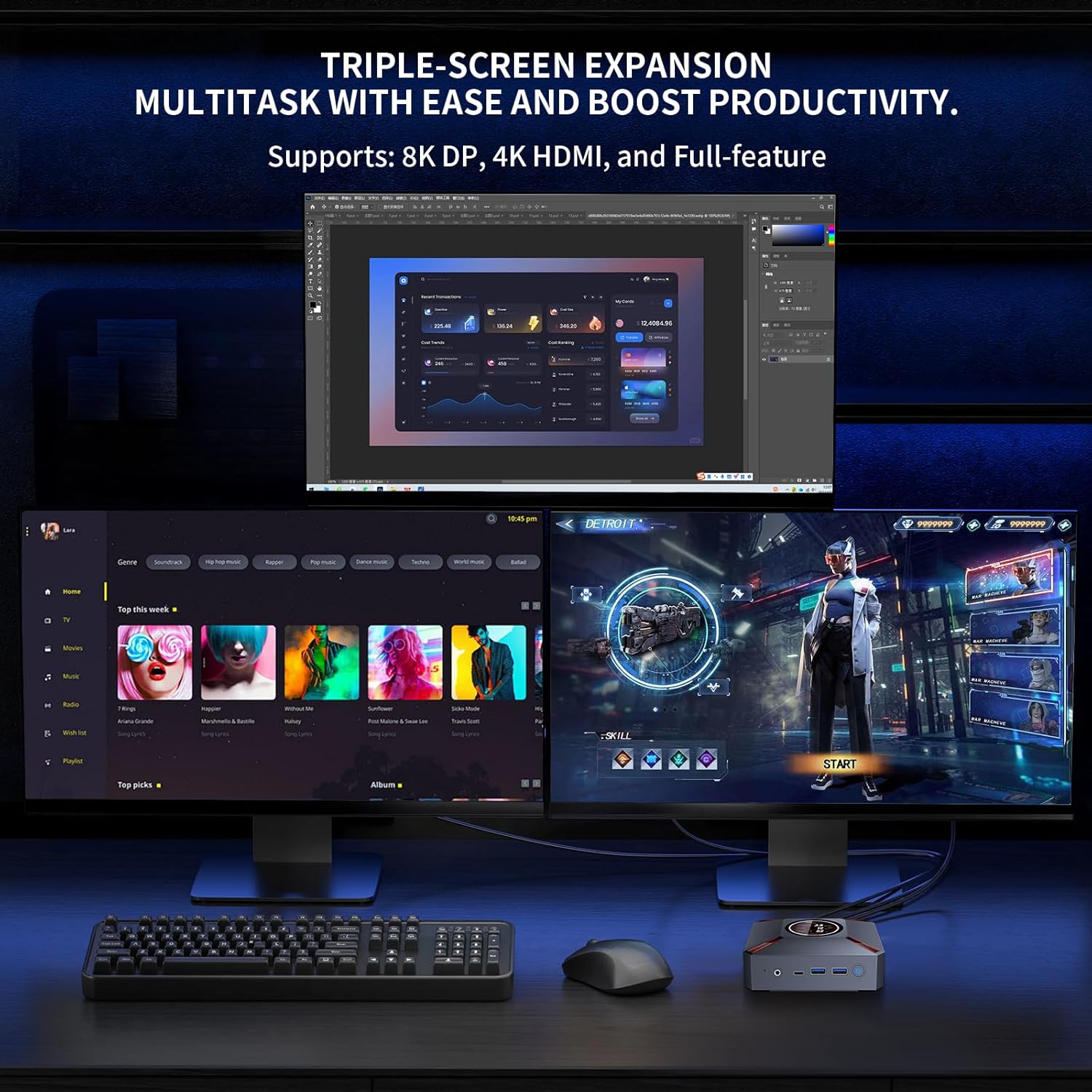
ຮູບທີ 4.1: ຕົວຢ່າງample of a triple-monitor setup connected to the Mini PC, demonstrating its multi-display capability.
To configure multiple displays in Windows 11:
- Ensure all monitors are physically connected to the Mini PC and powered on.
- Right-click on an empty area of your desktop and select "Display settings."
- In the Display settings window, Windows should detect all connected displays. You can arrange them by dragging and dropping the display icons.
- Under "Multiple displays," choose how you want to use your displays (e.g., "Extend these displays," "Duplicate these displays").
- Adjust resolution, orientation, and scaling for each display as needed.
5. ຄໍາແນະນໍາການດໍາເນີນງານ
This section covers basic operation and utilization of your Mini PC.
5.1. ເປີດ/ປິດ ແລະຣີສະຕາດ
- ເປີດ: ກົດປຸ່ມເປີດປິດຢູ່ດ້ານໜ້າຂອງ Mini PC.
- ປິດລົງ: ຄລິກທີ່ປຸ່ມ Start ໃນ Windows, ຈາກນັ້ນເລືອກ Power > Shut down.
- ຣີສະຕາດ: ຄລິກທີ່ປຸ່ມ Start ໃນ Windows, ຈາກນັ້ນເລືອກ Power > Restart.
- ນອນ: ຄລິກທີ່ປຸ່ມ Start ໃນ Windows, ຈາກນັ້ນເລືອກ Power > Sleep.
5.2. Using the Smart Display
The smart display on the lid provides real-time system metrics. It operates automatically and requires no user input. Monitor these values to understand your system's current load and health.
5.3. ການເຊື່ອມຕໍ່ເຄືອຂ່າຍ
- Wi-Fi 6: To connect to a wireless network, click the Wi-Fi icon in the Windows taskbar, select your desired network, enter the password, and click Connect.
- ອີເທີເນັດ: If an Ethernet cable is connected, the Mini PC will automatically establish a wired network connection.
5.4. ການຄຸ້ມຄອງການເກັບຮັກສາ
Your Mini PC comes with a 1TB NVMe SSD. You can manage disk partitions through Windows Disk Management. If you wish to adjust the hard disk partition structure, please refer to online resources or contact KOOSMILE customer support for guidance.
6. ບໍາລຸງຮັກສາ
ການບໍາລຸງຮັກສາທີ່ເຫມາະສົມຮັບປະກັນອາຍຸຍືນແລະການປະຕິບັດທີ່ດີທີ່ສຸດຂອງ Mini PC ຂອງທ່ານ.
6.1. ທໍາຄວາມສະອາດ
- ພາຍນອກ: ໃຊ້ຜ້າແພທີ່ອ່ອນ, ແຫ້ງ, ບໍ່ມີເສັ້ນດ່າງເພື່ອເຊັດດ້ານນອກຂອງ Mini PC. ສໍາລັບຮອຍແຂງ, ເລັກນ້ອຍ dampen ຜ້າທີ່ມີນ້ໍາ. ຫຼີກເວັ້ນການສານເຄມີທີ່ຮຸນແຮງຫຼືເຄື່ອງເຮັດຄວາມສະອາດຂັດ.
- ຮູ: Periodically use compressed air to clear dust from the ventilation grilles to ensure proper airflow.
6.2. ລະບົບເຮັດຄວາມເຢັນ
The Mini PC features an advanced copper cooling fan and multiple vents for efficient heat dissipation. This system is designed to keep your PC running smoothly even under intense tasks.

ຮູບທີ 6.1: ພາຍໃນ view highlighting the efficient cooling system with its copper fan, designed to maintain optimal operating temperatures.
Ensure the Mini PC is placed in a well-ventilated area and that the vents are not obstructed. A slight heating of the metal housing during operation is normal and indicates effective heat dissipation.
6.3. ການປັບປຸງຊອບແວ
ກວດສອບແລະຕິດຕັ້ງການປັບປຸງ Windows ເປັນປົກກະຕິເພື່ອຮັບປະກັນຄວາມຫມັ້ນຄົງຂອງລະບົບ, ຄວາມປອດໄພ, ແລະການປະຕິບັດ. ໄປທີ່ ການຕັ້ງຄ່າ > Windows Update ເພື່ອກວດສອບການອັບເດດ.
7. ການແກ້ໄຂບັນຫາ
ພາກນີ້ແກ້ໄຂບັນຫາທົ່ວໄປທີ່ທ່ານອາດຈະພົບກັບ Mini PC ຂອງທ່ານ.
7.1. ບໍ່ມີການສະແດງຜົນອອກ
- Ensure the monitor is powered on and correctly connected to the Mini PC's HDMI, DisplayPort, or USB-C video output.
- ກວດສອບວ່າແຫຼ່ງປ້ອນຂໍ້ມູນທີ່ຖືກຕ້ອງໄດ້ຖືກຄັດເລືອກຢູ່ໃນຈໍພາບຂອງທ່ານ.
- ສຳຄັນ: Always connect the display device before powering on the Mini PC.
- Try using a different video cable or monitor to rule out faulty peripherals.
7.2. ລະບົບບໍ່ເປີດເຄື່ອງ
- Check that the power adapter is securely connected to both the Mini PC and a working power outlet.
- ໃຫ້ແນ່ໃຈວ່າປລັກສຽບໄຟເຮັດວຽກໄດ້ໂດຍການທົດສອບມັນກັບອຸປະກອນອື່ນ.
7.3. Buzzing Sound
- A slight buzzing sound might occur. Try restarting the computer. If the sound persists or is unusually loud, contact customer support.
7.4. ບັນຫາການເຊື່ອມຕໍ່ (Wi-Fi/Bluetooth)
- Wi-Fi: Ensure Wi-Fi is enabled in Windows settings. Restart your router/modem. Check for interference from other devices.
- Bluetooth: Ensure Bluetooth is enabled in Windows settings. Try re-pairing your Bluetooth device.
7.5. ບັນຫາການປະຕິບັດທົ່ວໄປ
- ປິດແອັບພລິເຄຊັນທີ່ບໍ່ຈໍາເປັນທີ່ເຮັດວຽກຢູ່ໃນພື້ນຫຼັງ.
- ໃຫ້ແນ່ໃຈວ່າ Windows ແລະໄດເວີແມ່ນອັບເດດແລ້ວ.
- Check the smart display for high CPU usage or temperature, which might indicate a heavy workload or cooling issue.
8. ຂໍ້ມູນຈໍາເພາະ
Detailed technical specifications for the KOOSMILE Mini PC KT-M9.

Figure 8.1: Key specifications of the Intel Core i9-12900HK processor, highlighting its core count, threads, cache, and maximum turbo frequency.

Figure 8.2: Information on the high-speed DDR4 memory and PCIe 3.0 SSD, crucial for fast data processing and quick loading times.

Figure 8.3: Comparison of wireless and wired connectivity speeds, highlighting the advantages of Wi-Fi 6 and USB 3.0.
| ອົງປະກອບ | ຂໍ້ມູນຈໍາເພາະ |
|---|---|
| ໂຮງງານຜະລິດ | Intel Core i9-12900HK (14 Cores, 20 Threads, up to 5.0GHz, 24MB Cache) |
| ລະບົບປະຕິບັດການ | Windows 11 Pro |
| RAM | 32GB DDR4 3200MHz |
| ການເກັບຮັກສາ | 1TB PCIe 3.0 NVMe SSD |
| ຮູບພາບ | Intel Iris Xe Graphics (ປະສົມປະສານ) |
| ຜົນຜະລິດວິດີໂອ | HDMI 2.1 (4K @ 60Hz), DisplayPort 1.4a (8K @ 60Hz), USB Type-C (Full-feature) |
| ການເຊື່ອມຕໍ່ໄຮ້ສາຍ | Wi-Fi 6 (802.11ax), Bluetooth 5.2 |
| ການເຊື່ອມຕໍ່ແບບມີສາຍ | 1000M RJ45 Ethernet |
| ພອດ USB | 2 x USB 3.0, 2 x USB 2.0, 1 x USB Type-C (Full-feature) |
| ສຽງ | 3.5mm Audio/Mic Jack |
| ລະບົບເຮັດຄວາມເຢັນ | Advanced Copper Cooling Fan with Multiple Vents |
| ຈໍສະແດງຜົນອັດສະລິຍະ | Real-time CPU Frequency, Usage, Temperature, Network, Memory |
| ຂະໜາດ | ປະມານ. 5.2 x 4.4 x 2 ນິ້ວ (13.2 x 11.2 x 5.1 cm) |
| ນ້ຳໜັກ | ປະມານ. 2.57 ປອນ (1.17 ກິໂລ) |
9. ການຮັບປະກັນແລະການສະຫນັບສະຫນູນ
KOOSMILE is committed to providing high-quality products and excellent customer service.
9.1. ຂໍ້ມູນການຮັບປະກັນ
Your KOOSMILE Mini PC KT-M9 comes with a ຮັບປະກັນ 1 ປີຟຣີ from the date of purchase. This warranty covers manufacturing defects and hardware malfunctions under normal use. It does not cover damage caused by misuse, accidents, unauthorized modifications, or natural disasters.
9.2. ສະຫນັບສະຫນູນດ້ານວິຊາການ
For any technical assistance, troubleshooting, or warranty claims, please contact our customer service team via email. Provide your product model (KT-M9), purchase date, and a detailed description of the issue to receive prompt support.
ອີເມວ: [Insert Customer Support Email Here - e.g., support@koosmile.com]
Our team is dedicated to helping you resolve any issues and ensure your satisfaction with your KOOSMILE Mini PC.


