1. ບົດແນະນຳ
This manual provides instructions for the assembly, operation, and maintenance of your FLEXISPOT 36-inch Standing Desk Converter, Model MT137. This height-adjustable workstation is designed to facilitate seamless transitions between sitting and standing positions, promoting a more dynamic and ergonomic work environment. It accommodates dual monitors and laptops, featuring a wide keyboard tray for enhanced comfort and productivity.
2. ຂໍ້ມູນຄວາມປອດໄພ
ຄໍາແນະນໍາຄວາມປອດໄພທີ່ສໍາຄັນ:
- Always secure the desk converter to your existing desk to prevent tipping.
- Read and follow all assembly instructions carefully to ensure safe and proper use.
- Do not place your hands near the strut during adjustments. The angle of the strut joints will change during the adjustment of the desktop height and may cause injury.
- Ensure the desk converter is placed on a stable, level surface.
- Do not overload the desk converter. Refer to the specifications section for maximum weight capacities.
- Keep children and pets away from the desk converter during operation.
3. ຕັ້ງຄ່າ
The FLEXISPOT Standing Desk Converter is designed for quick and straightforward assembly. Most of the unit comes pre-assembled.
3.1 ເນື້ອໃນຊຸດ
ກວດສອບວ່າອົງປະກອບທັງຫມົດແມ່ນມີຢູ່ກ່ອນທີ່ຈະເລີ່ມການປະກອບ:
- Main Desk Converter Unit
- ຖາດແປ້ນພິມ
- Mounting Hardware for Keyboard Tray
- ຄູ່ມືການສອນ
3.2 ຂັ້ນຕອນການປະກອບ
- Unpack ຫນ່ວຍງານ: ເອົາສ່ວນປະກອບທັງໝົດອອກຈາກການຫຸ້ມຫໍ່ຢ່າງລະມັດລະວັງ. ວາງໜ່ວຍແປງໂຕະຫຼັກໄວ້ເທິງໂຕະທີ່ມີຢູ່ແລ້ວຂອງທ່ານໃນຕຳແໜ່ງທີ່ຕ້ອງການ.
- Attach the Keyboard Tray: Align the keyboard tray with the designated attachment points on the main unit. Secure the tray using the provided mounting hardware (screws, brackets). Ensure it is firmly attached.
- ການຄຸ້ມຄອງສາຍໄຟ: Utilize the integrated cable management clips (if included) to organize any power or display cables, preventing clutter and ensuring smooth operation during height adjustments.
- ອຸປະກອນວາງ: Position your monitor(s) or laptop on the upper desktop surface. Place your keyboard and mouse on the attached keyboard tray.

Figure 1: Fully assembled FLEXISPOT Standing Desk Converter with dual monitors and a laptop.

Figure 2: Illustration of attaching the keyboard tray to the main unit.
3.3 ວິດີໂອປະກອບ
ວິດີໂອ 1: ຫຼາຍກວ່າview of the FLEXISPOT 36 inch Standing Desk Converter, demonstrating its features and assembly process.
4. ຄໍາແນະນໍາການດໍາເນີນງານ
The FLEXISPOT Standing Desk Converter features a gas spring system for smooth and effortless height adjustments.
4.1 ການປັບຄວາມສູງ
- ຍົກສູງບົດບາດ: Locate the adjustment lever, typically on the side of the upper desktop. Squeeze the lever and gently lift the desktop to your desired standing height. Release the lever to lock the desk in place.
- ຕ່ໍາກວ່າ: Squeeze the adjustment lever and apply gentle downward pressure on the desktop. Guide the desktop down to your preferred sitting height. Release the lever to lock the desk in place.
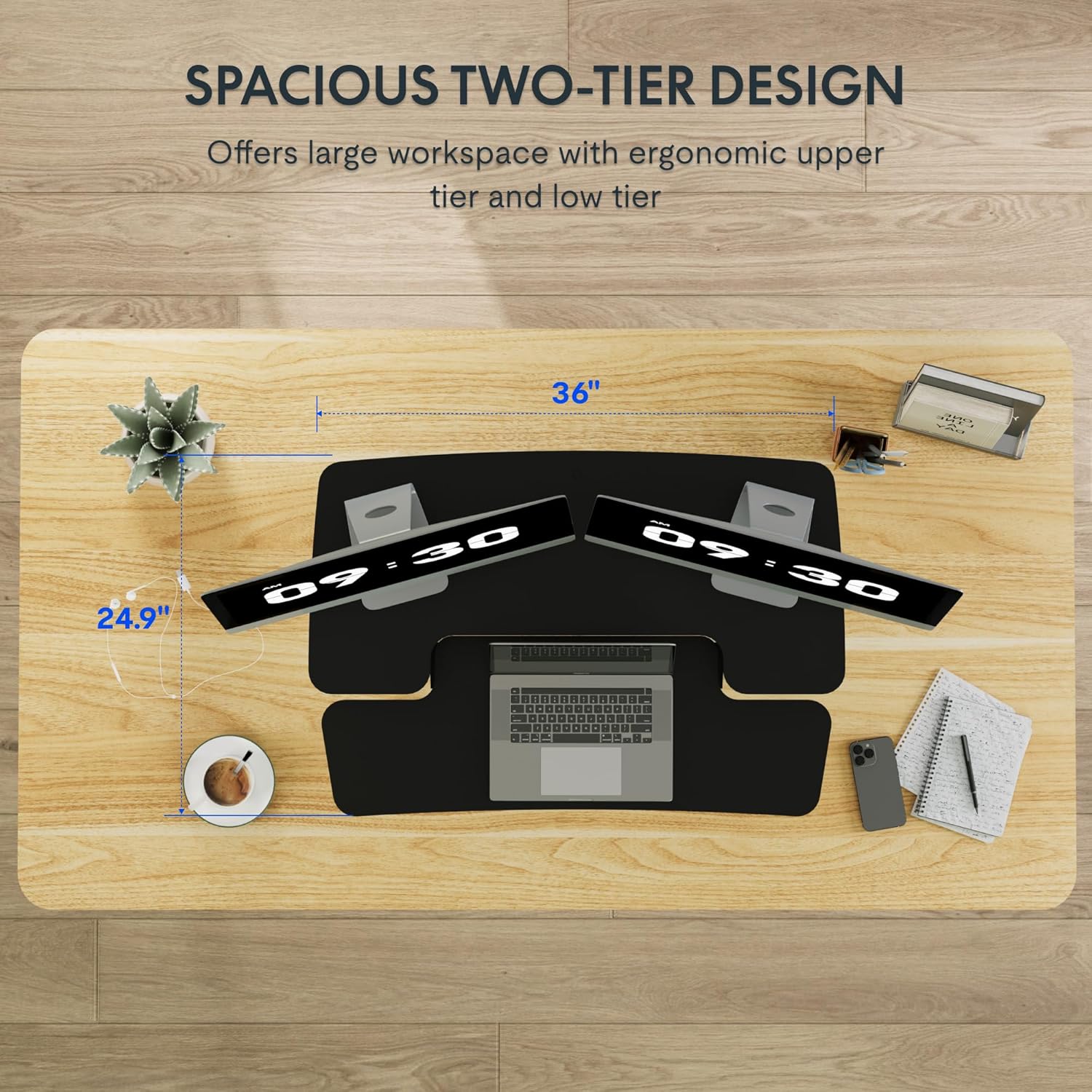
Figure 3: Close-up of the height adjustment lever and gas spring mechanism.

Figure 4: Visual representation of the desk converter's adjustable height range (4.7 to 16.6 inches).
4.2 Dual-Tier Design
The converter features a two-tier design:
- Upper Desktop: Designed to hold monitors or a laptop, keeping your screen at an ergonomic eye level.
- Lower Keyboard Tray: Provides space for your keyboard and mouse, allowing your wrists to remain in a neutral position. The U-shaped design of the upper deck also allows for a laptop to be placed directly on the keyboard tray if preferred.

Figure 5: The dual-tier design providing ample space for monitors, laptop, keyboard, and mouse.
5. ບໍາລຸງຮັກສາ
To ensure the longevity and optimal performance of your FLEXISPOT Standing Desk Converter, follow these maintenance guidelines:
- ທໍາຄວາມສະອາດ: ເຊັດພື້ນຜິວໃຫ້ອ່ອນໆ, ງamp ຜ້າ. ຫຼີກລ້ຽງການເຮັດຄວາມສະອາດຂັດຫຼືສານລະລາຍທີ່ອາດຈະທໍາລາຍການສໍາເລັດຮູບ.
- ການກວດກາ: ກວດເບິ່ງທຸກສະກູແລະການເຊື່ອມຕໍ່ເປັນໄລຍະເພື່ອຮັບປະກັນວ່າພວກມັນແຫນ້ນ. ເຄັ່ງຄັດຄືນໃໝ່ຖ້າຈຳເປັນ.
- ການເຄື່ອນໄຫວ: Ensure the gas spring mechanism operates smoothly. If you notice any stiffness or unusual sounds, contact customer support. Do not attempt to lubricate or repair the gas spring yourself.
- ການແຜ່ກະຈາຍນ້ໍາຫນັກ: Always distribute weight evenly across the desktop and keyboard tray to prevent strain on the mechanism.
6. ການແກ້ໄຂບັນຫາ
If you encounter any issues with your desk converter, refer to the following common problems and solutions:
| ບັນຫາ | ສາເຫດທີ່ເປັນໄປໄດ້ | ການແກ້ໄຂ |
|---|---|---|
| Desk does not adjust smoothly. | Uneven weight distribution or mechanism obstruction. | Redistribute items evenly. Check for any obstructions around the X-frame. |
| ໂຕະເຮັດວຽກຮູ້ສຶກສັ່ນ. | ການເຊື່ອມຕໍ່ວ່າງຫຼືພື້ນຜິວທີ່ບໍ່ສະເຫມີກັນ. | Ensure all screws are tightened. Place the converter on a flat, stable desk. |
| Keyboard tray is not secure. | Improper attachment during assembly. | Re-check the keyboard tray mounting hardware and ensure it is correctly installed and tightened. |
If the problem persists, please contact FLEXISPOT customer support for further assistance.
7. ຂໍ້ມູນຈໍາເພາະ

Figure 6: Detailed dimensions and weight capacities of the FLEXISPOT Standing Desk Converter.
| ຄຸນສົມບັດ | ລາຍລະອຽດ |
|---|---|
| ຍີ່ຫໍ້ | FLEXISPOT |
| ໝາຍເລກຕົວແບບ | MT137 (MB) |
| ຂະໜາດສິນຄ້າ (ກວ້າງ x ຍາວ x ສູງ) | 24"D x 35"W x 19.7"H |
| ສີ | ດຳ |
| ແບບ | ທັນສະໄຫມ |
| ວັດສະດຸພື້ນຖານ | ໂລຫະ |
| ປະເພດວັດສະດຸສູງສຸດ | ໄມ້ |
| ນ້ໍາຫນັກລາຍການ | 25.5 ປອນ |
| ຄວາມສູງຕໍາ່ສຸດທີ່ | 4.7 ນິ້ວ |
| ຄວາມສູງສູງສຸດ | 19.6 ນິ້ວ |
| Upper Desktop Load Capacity | ເຖິງ 33 ປອນ |
| Keyboard Tray Load Capacity | ເຖິງ 6.6 ປອນ |
| ຄຸນນະສົມບັດພິເສດ | Adjustable Height, Ergonomic, Keyboard Tray Included |
8. ການຮັບປະກັນແລະການສະ ໜັບ ສະ ໜູນ
8.1 ຂໍ້ມູນການຮັບປະກັນ
This FLEXISPOT product comes with a Full Warranty. For specific details regarding the warranty period and coverage, please refer to the warranty card included with your product or visit the official FLEXISPOT webເວັບໄຊ.
8.2 ສະຫນັບສະຫນູນລູກຄ້າ
For technical assistance, troubleshooting, or inquiries regarding your product, please contact FLEXISPOT customer support. Contact information can be found on the official FLEXISPOT webເວັບໄຊ ຫຼືການຫຸ້ມຫໍ່ຜະລິດຕະພັນຂອງທ່ານ.
ຊັບພະຍາກອນອອນໄລນ໌:
- ຢ້ຽມຢາມຢ່າງເປັນທາງການ ຮ້ານ FLEXISPOT ສໍາລັບຂໍ້ມູນຜະລິດຕະພັນແລະການສະຫນັບສະຫນູນ.


