1. ຜະລິດຕະພັນເກີນview
The Tongtion Wireless HDMI Extender (Model H-1) provides a solution for extending HDMI video and audio signals wirelessly. It supports 1080P Full HD resolution at 60Hz and offers a transmission range of up to 1640 feet (500 meters) in line-of-sight conditions. Designed for plug-and-play operation, it eliminates the need for complex driver installations or software configurations, making it suitable for various applications including conference rooms, live events, and home theaters.
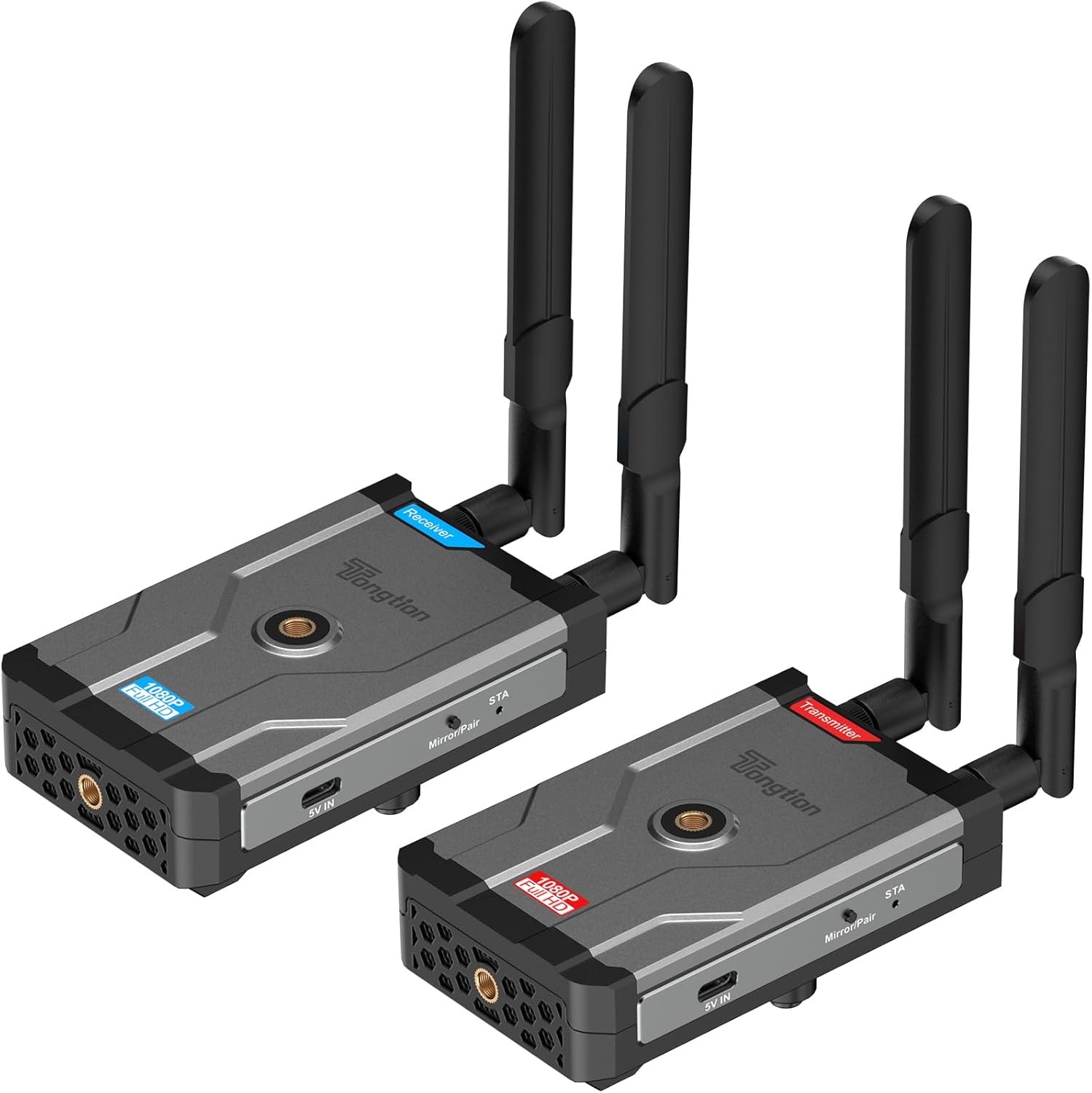
Image: The Tongtion Wireless HDMI Extender system, showing both the transmitter and receiver units with their antennas.
2. ສິ່ງທີ່ຢູ່ໃນກ່ອງ
ກວດສອບວ່າອົງປະກອບທັງໝົດມີຢູ່ໃນຊຸດ:
- ເຄື່ອງສົ່ງສັນຍານໄຮ້ສາຍ HDMI ຂະ ໜາດ 1 x
- ເຄື່ອງຮັບສັນຍານ HDMI ແບບບໍ່ມີສາຍ 1 x
- ເສົາອາກາດ 4 x
- 2 x ຕົວແປງໄຟ
- 2 x USB-C Power Cables
- 1 x ຄູ່ມືຜູ້ໃຊ້
- ສາຍ HDMI

Image: A visual representation of the package contents, including the transmitter, receiver, antennas, power adapters, USB-C cables, and user guide.
3. ຂໍ້ມູນຈໍາເພາະ
| ຄຸນສົມບັດ | ລາຍລະອຽດ |
|---|---|
| ໝາຍເລກຕົວແບບ | H-1 |
| ການແກ້ໄຂສະຫນັບສະຫນູນ | 1920×1080@60Hz (1080P Full HD) |
| ລະບົບສາຍສົ່ງ | ສາຍຕາສູງສຸດ 500 ແມັດ (1640 ຟຸດ) |
| ຄວາມຖີ່ໄຮ້ສາຍ | 5GHz (802.11a/n) |
| ການຕັ້ງຄ່າເສົາອາກາດ | 2T2R Dual-Antenna |
| ມາດຕະຖານ HDMI | HDMI1.4 / HDCP1.4 |
| ຕົວເລືອກພະລັງງານ | Power bank, NP-F series batteries (not included), USB-C ports |
| ສີ | ດຳ |
| ນ້ໍາຫນັກລາຍການ | 1.17 ປອນ (0.53 ກິໂລ) |
| ຂະໜາດສິນຄ້າ | 5.87 x 3.74 x 0.96 ນິ້ວ (14.9 x 9.5 x 2.4 cm) |
| ຄຸນນະສົມບັດພິເສດ | Calibration ອັດຕະໂນມັດ |
4. ຄໍາແນະນໍາການຕິດຕັ້ງ
The Tongtion Wireless HDMI Extender is designed for true plug-and-play operation, requiring no drivers or software installation.
- ເຊື່ອມຕໍ່ເສົາອາກາດ: Screw the four provided antennas onto the designated ports on both the Transmitter and Receiver units. Ensure they are securely fastened.

ຮູບພາບ: ໃກ້ຊິດ view of the transmitter and receiver units, highlighting the antenna connection points.
- ພະລັງງານໃຫ້ຕົວຮັບ: Connect one end of a USB-C power cable to the Receiver unit's USB-C port and the other end to a power adapter. Plug the power adapter into an electrical outlet. Alternatively, use a power bank or compatible NP-F series battery (not included) for portable power.
- Connect Receiver to Display: Use an HDMI cable to connect the HDMI OUT port on the Receiver unit to the HDMI input port on your display device (e.g., TV, projector, monitor).
- ພະລັງງານ Transmitter: Connect the second USB-C power cable to the Transmitter unit's USB-C port and the other end to its power adapter. Plug the power adapter into an electrical outlet. Similar to the receiver, a power bank or NP-F series battery can be used.
- Connect Transmitter to Source: Use an HDMI cable to connect the HDMI IN port on the Transmitter unit to the HDMI output port on your source device (e.g., laptop, camera, set-top box, PC, DV).

Image: A diagram illustrating the connection process: transmitter connected to a laptop and receiver connected to a television.
- ການຈັບຄູ່ອັດຕະໂນມັດ: The Transmitter and Receiver units are designed to pair automatically within seconds. No manual pairing or software configuration is typically required. Wait for the connection indicator lights on both units to show a stable connection.
Note: For optimal performance, ensure a clear line of sight between the transmitter and receiver, especially for longer distances. Walls and other obstructions can reduce the effective transmission range.
5. ຄໍາແນະນໍາການດໍາເນີນງານ
Once the setup is complete and the units are paired, the system operates automatically.
- ເປີດ: Ensure both the Transmitter and Receiver units are powered on.
- ອຸປະກອນແຫຼ່ງຂໍ້ມູນຜົນຜະລິດ: Ensure your source device (laptop, camera, etc.) is outputting video via its HDMI port.
- ການປ້ອນຂໍ້ມູນຈໍສະແດງຜົນ: Set your display device (TV, projector) to the correct HDMI input channel where the Receiver is connected.
- ການສົ່ງສັນຍານ: ສັນຍານວິດີໂອ ແລະສຽງຈາກອຸປະກອນແຫຼ່ງທີ່ມາຂອງເຈົ້າຈະຖືກສົ່ງແບບໄຮ້ສາຍໄປຫາຈໍສະແດງຜົນຂອງເຈົ້າ.
- One-Button Sync: If pairing is lost or you need to re-sync, press the sync button on both the Transmitter and Receiver units simultaneously.

Image: A visual representation of the extender in operation, showing a clear 1080P Full HD signal being transmitted wirelessly to a display.
5.1. Universal Device Compatibility
The system is compatible with a wide range of HDMI-enabled devices:
- ອຸປະກອນທີ່ມາ: Cameras, Laptops, Set-top boxes, Switchers, PCs, DVs.
- ອຸປະກອນສະແດງ: Projectors, TVs, Monitors.
It supports HDMI1.4/HDCP1.4, allowing for protected content streaming from various platforms.

Image: An illustration demonstrating the broad compatibility of the wireless HDMI extender with various input and output devices.
5.2. Transmission Range and Performance
The device offers a long-range 5GHz dual-antenna transmission, minimizing interference and ensuring stable signal coverage.
- Line-of-Sight (LOS) Range: ສູງເຖິງ 1640 ຟຸດ (500 ແມັດ).
- Through-Wall Penetration: Effective range is reduced when transmitting through walls or obstructions. Typical ranges are 164-295 feet (50-90 meters) through complex home environments.
- ເວລາຕອບສະໜອງ: The system is designed for low latency, suitable for video streaming and presentations. Note: Not recommended for gaming due to potential minor latency.

Image: A graphic depicting the extensive transmission range of 1640 feet and the low latency of 0.15 seconds, with a visual of the transmitter and receiver units.

ຮູບພາບ: ຢູ່ເທິງຫົວ view of a house layout illustrating the signal penetration capabilities through walls and the difference between line-of-sight and obstructed transmission ranges.
6. ການແກ້ໄຂບັນຫາ
ຖ້າເຈົ້າພົບບັນຫາ, ເບິ່ງຂັ້ນຕອນການແກ້ໄຂບັນຫາທົ່ວໄປຕໍ່ໄປນີ້:
- ບໍ່ມີສັນຍານສະແດງຜົນ:
- Ensure both Transmitter and Receiver are powered on and their power indicators are lit.
- Verify all HDMI cables are securely connected to the correct ports (HDMI IN on Transmitter, HDMI OUT on Receiver).
- ກວດເບິ່ງວ່າອຸປະກອນສະແດງຜົນຂອງທ່ານຖືກຕັ້ງເປັນແຫຼ່ງປ້ອນ HDMI ທີ່ຖືກຕ້ອງ.
- Ensure the source device is outputting an HDMI signal.
- Try pressing the sync button on both units simultaneously to re-establish pairing.
- Reduce the distance between the Transmitter and Receiver, and remove any obstructions.
- Intermittent Signal / Poor Quality:
- ໃຫ້ແນ່ໃຈວ່າເສົາອາກາດຖືກຕິດຕັ້ງຢ່າງປອດໄພ ແລະ ຫັນທິດທາງຢ່າງຖືກຕ້ອງ.
- Check for strong interference sources (e.g., Wi-Fi routers, microwaves) operating on the 5GHz band nearby.
- Move the units closer together or adjust their positions to improve line of sight.
- Verify that the power supply is stable and sufficient for both units.
- ບໍ່ມີສຽງ:
- ກວດສອບການຕັ້ງຄ່າສຽງໃນອຸປະກອນແຫຼ່ງທີ່ມາຂອງທ່ານ.
- Ensure the display device's volume is not muted or set too low.
- Confirm HDMI cables are fully inserted.
- ຫນ່ວຍທີ່ບໍ່ໄດ້ຈັບຄູ່:
- ກວດໃຫ້ແນ່ໃຈວ່າທັງສອງໜ່ວຍເປີດຢູ່.
- Perform a manual sync by pressing the pairing button on both units.
- Power cycle both the Transmitter and Receiver units.
7. ບໍາລຸງຮັກສາ
To ensure the longevity and optimal performance of your Wireless HDMI Extender, follow these maintenance guidelines:
- ທໍາຄວາມສະອາດ: ໃຊ້ຜ້າປຽກແຫ້ງເພື່ອເຮັດຄວາມສະອາດດ້ານນອກຂອງເຄື່ອງ. ຢ່າໃຊ້ເຄື່ອງເຮັດຄວາມສະອາດຂອງແຫຼວຫຼື aerosols.
- ການເກັບຮັກສາ: ເມື່ອບໍ່ໄດ້ໃຊ້ເປັນເວລາດົນ, ໃຫ້ເກັບຮັກສາເຄື່ອງໄວ້ໃນບ່ອນເຢັນ, ແຫ້ງແລ້ງຫ່າງຈາກແສງແດດໂດຍກົງ ແລະ ອຸນຫະພູມທີ່ຮ້າຍກາດ.
- ການຈັດການ: Handle the units and antennas with care to avoid physical damage. Avoid dropping or subjecting them to strong impacts.
- ການລະບາຍອາກາດ: Ensure the units have adequate ventilation to prevent overheating, especially during prolonged operation. Do not block ventilation holes.
- ການສະຫນອງພະລັງງານ: Always use the provided power adapters or compatible power sources to prevent damage.
8. ການຮັບປະກັນແລະການສະຫນັບສະຫນູນ
The Tongtion Wireless HDMI Extender comes with a ຮັບປະກັນ 1 ປີ ຈາກວັນທີ່ຊື້.
Tongtion also provides ສະ ໜັບ ສະ ໜູນ ຕະຫຼອດຊີວິດ for this product. If you encounter any issues or have questions that are not covered in this manual, please contact Tongtion customer support through their official channels or refer to the 24/7 troubleshooting guides mentioned in the product features.
ສໍາລັບການຊ່ວຍເຫຼືອເພີ່ມເຕີມ, ໄປຢ້ຽມຢາມ Tongtion Store on Amazon.


