1. ບົດແນະນຳ
This user manual provides comprehensive instructions for the installation, operation, and maintenance of your NVIDIA RTX 5000 Ada Generation GPU. Designed for professional workflows, this GPU leverages the NVIDIA Ada Lovelace architecture to deliver exceptional performance for rendering, AI, graphics, and compute workloads. Please read this manual carefully before installing and using the product to ensure optimal performance and longevity.
2. ຜະລິດຕະພັນເກີນview
The NVIDIA RTX 5000 Ada Generation GPU is a high-performance graphics card built for demanding professional applications. It features 100 third-generation RT Cores, 400 fourth-generation Tensor Cores, and 12,800 CUDA cores, coupled with 32 GB of GDDR6 graphics memory. This combination enables advanced AI graphics and petaFLOPS inferencing performance.
ຄຸນນະສົມບັດທີ່ສໍາຄັນ:
- NVIDIA GPUDirect ການເຂົ້າເຖິງຫນ່ວຍຄວາມຈໍາໂດຍກົງຈາກໄລຍະໄກ (RDMA) ສະຫນັບສະຫນູນ
- ຄວາມເຂົ້າກັນໄດ້ຂອງ NVIDIA Quadro Sync II
- ສະຫນັບສະຫນູນ stereo 3D ທີ່ມີຕົວເຊື່ອມຕໍ່ສະເຕຣິໂອ
- NVIDIA GPUDirect ສໍາລັບການສະຫນັບສະຫນູນວິດີໂອ
- ເຕັກໂນໂລຊີ NVIDIA Mosaic
ມີຫຍັງຢູ່ໃນກ່ອງ:
- NVIDIA 900-5G132-2540-000 RTX 5000 Ada Graphic Card - 32 GB GDDR6
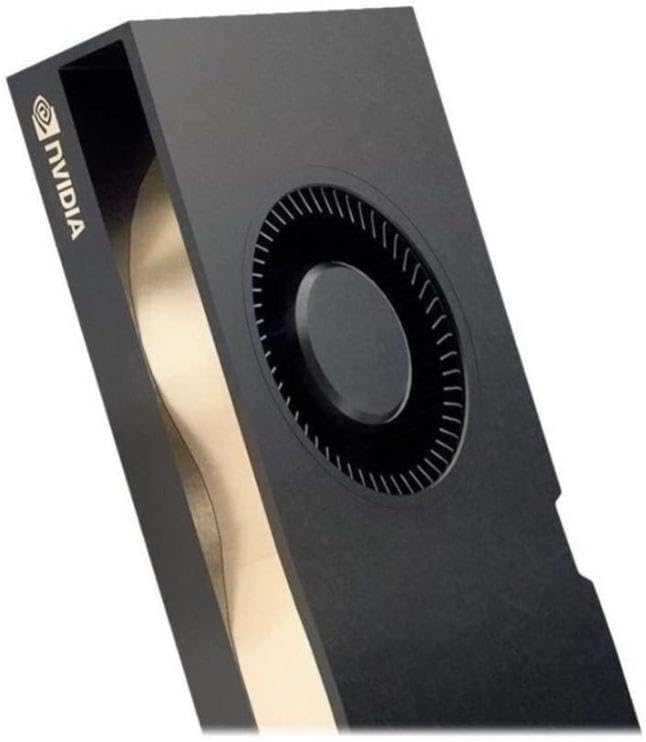
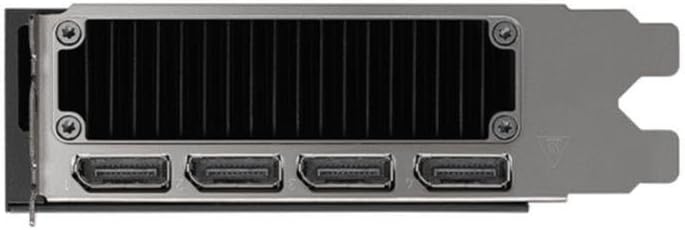
ຮູບພາບຜະລິດຕະພັນ:

3. ການຕິດຕັ້ງແລະການຕິດຕັ້ງ
Proper installation is crucial for the performance and stability of your NVIDIA RTX 5000 Ada GPU. Ensure your system meets the minimum requirements before proceeding.
ຄວາມຕ້ອງການລະບົບ:
- ຊ່ອງ PCI Express x16 ເທິງເມນບອດ
- Adequate power supply unit (PSU) with required PCIe power connectors (refer to GPU specifications for exact wattage)
- Compatible operating system (Windows, Linux)
- Minimum 8GB system memory (RAM)
ຂັ້ນຕອນການຕິດຕັ້ງ:
- ກະກຽມລະບົບຂອງທ່ານ: ປິດຄອມພິວເຕີຂອງທ່ານ ແລະຕັດການເຊື່ອມຕໍ່ສາຍທັງໝົດ. ເປີດກໍລະນີຄອມພິວເຕີ.
- ຊອກຫາສະລັອດຕິງ PCIe: Identify an available PCI Express x16 slot on your motherboard. Remove any expansion slot covers if necessary.
- Insert the GPU: Carefully align the GPU with the PCIe slot and press down firmly until it is securely seated. Ensure the retention clip locks into place.
- ເຊື່ອມຕໍ່ພະລັງງານ: Connect the required PCIe power cables from your power supply to the GPU's power connectors.
- Secure the GPU: Secure the GPU to the computer case using the screw or latch mechanism provided by your case.
- ປິດກໍລະນີ ແລະເຊື່ອມຕໍ່ຄືນໃໝ່: ປິດເຄສຄອມພິວເຕີຂອງທ່ານ, ເຊື່ອມຕໍ່ສາຍໄຟທັງໝົດຄືນໃໝ່, ແລະ ເປີດລະບົບຂອງທ່ານ.
- ຕິດຕັ້ງໄດເວີ: Once the operating system loads, download and install the latest NVIDIA Quadro drivers from the official NVIDIA webເວັບໄຊ (www.nvidia.com/drivers). Follow the on-screen instructions for driver installation.
4. ຄໍາແນະນໍາການດໍາເນີນງານ
After successful installation, your NVIDIA RTX 5000 Ada GPU is ready for operation. This section covers general usage and specific features.
ແຜງຄວບຄຸມ NVIDIA:
The NVIDIA Control Panel provides extensive options for configuring your GPU settings, including display resolution, refresh rates, 3D settings, and multi-display configurations. Access it by right-clicking on your desktop and selecting "NVIDIA Control Panel."
Multi-Display Setup (NVIDIA Mosaic Technology):
The NVIDIA RTX 5000 Ada supports multiple displays. Utilize NVIDIA Mosaic technology to seamlessly span applications across multiple high-resolution displays, creating a single large desktop. Refer to the NVIDIA Control Panel for Mosaic configuration options.
Professional Application Optimization:
For optimal performance in professional design, rendering, and simulation applications, ensure you are using the latest certified drivers. Many applications have specific GPU acceleration settings that can be configured within the application itself or via the NVIDIA Control Panel.
GPUDirect and Quadro Sync II:
Leverage NVIDIA GPUDirect for direct data transfer between GPUs and third-party devices, reducing CPU overhead. For advanced synchronization across multiple GPUs and displays, the RTX 5000 Ada is compatible with NVIDIA Quadro Sync II (sold separately).
5. ບໍາລຸງຮັກສາ
Regular maintenance helps ensure the longevity and optimal performance of your GPU.
ອັບເດດໄດເວີ:
Periodically check the official NVIDIA website for the latest driver updates. Keeping your drivers current can improve performance, add new features, and resolve compatibility issues.
ທໍາຄວາມສະອາດ:
- ການກຳຈັດຂີ້ຝຸ່ນ: Over time, dust can accumulate on the GPU's heatsink and fan, impeding cooling. With the system powered off and unplugged, use compressed air to gently clear dust from the fan blades and heatsink fins.
- ການອະນາໄມພື້ນຜິວ: Use a soft, dry, lint-free cloth to wipe the exterior surfaces of the GPU. Avoid using liquid cleaners directly on the card.
6. ການແກ້ໄຂບັນຫາ
This section addresses common issues you might encounter with your NVIDIA RTX 5000 Ada GPU.
ບໍ່ມີການສະແດງຜົນອອກ:
- Ensure the monitor cable is securely connected to both the GPU and the monitor.
- Verify that the GPU is fully seated in the PCIe slot and that all power connectors are properly attached.
- ທົດສອບດ້ວຍສາຍສະແດງຜົນອື່ນ ຫຼືຈໍພາບຖ້າເປັນໄປໄດ້.
- Check your BIOS/UEFI settings to ensure the correct primary display adapter is selected (PCIe/Discrete GPU).
ບັນຫາການຕິດຕັ້ງໄດເວີ:
- Download the latest drivers directly from the official NVIDIA webເວັບໄຊ.
- ປິດການໃຊ້ງານຊອບແວ antivirus ຊົ່ວຄາວໃນລະຫວ່າງການຕິດຕັ້ງໄດເວີ.
- Use Display Driver Uninstaller (DDU) in Safe Mode to completely remove previous driver versions before attempting a clean installation.
Performance Problems or Crashes:
- Ensure your system's power supply unit (PSU) meets the recommended wattage for the GPU.
- Monitor GPU temperatures using monitoring software. Excessive heat can lead to throttling or instability. Ensure adequate case airflow.
- ກວດສອບວ່າລະບົບປະຕິບັດການ ແລະ ແອັບພລິເຄຊັນຂອງທ່ານໄດ້ຮັບການອັບເດດແລ້ວ.
- Run diagnostic tools (e.g., NVIDIA's built-in diagnostics or third-party stress tests) to identify potential hardware issues.
7. ຂໍ້ມູນຈໍາເພາະ
The following table details the technical specifications of the NVIDIA RTX 5000 Ada Generation GPU.
| ຄຸນສົມບັດ | ຂໍ້ມູນຈໍາເພາະ |
|---|---|
| ຍີ່ຫໍ້ | NVIDIA |
| ໝາຍເລກຕົວແບບ | 900-5G132-2540-000 |
| Graphics Coprocessor | NVIDIA Quadro RTX 5000 |
| ຂະໜາດຂອງບັດກາຟິກ | 32 GB GDDR6 |
| ຄວາມໄວຄວາມຈໍາ | 2000 MHz |
| ຄວາມໄວໂມງ GPU | 2550 MHz |
| ຄວາມລະອຽດໜ້າຈໍສູງສຸດ | 3840x2160 |
| ການໂຕ້ຕອບຜົນຜະລິດວິດີໂອ | DisplayPort, HDMI |
| ນ້ໍາຫນັກລາຍການ | 1.32 ປອນ |
| ສີ | ດຳ |
| ວັນທີທໍາອິດທີ່ມີ | ວັນທີ 1 ທັນວາ 2024 |
8. ການຮັບປະກັນແລະການສະຫນັບສະຫນູນ
NVIDIA provides support for its products. For detailed warranty information and technical assistance, please refer to the official NVIDIA support resources.
ສະຫນັບສະຫນູນຢ່າງເປັນທາງການ:
- ສະຫນັບສະຫນູນ NVIDIA Webເວັບໄຊ: For drivers, FAQs, and troubleshooting guides, visit www.nvidia.com/support.
- ການລົງທະບຽນຜະລິດຕະພັນ: Register your product on the NVIDIA website to receive updates and facilitate warranty claims.
ແຜນການປົກປ້ອງແບບຂະຫຍາຍ:
Extended protection plans may be available for purchase to provide additional coverage beyond the standard manufacturer's warranty. Please check with your retailer or NVIDIA for details on available plans.
- ແຜນການປົກປ້ອງ 3 ປີ
- ແຜນການປົກປ້ອງ 4 ປີ
- ສໍາເລັດການປົກປ້ອງ (ແຜນການປະຈໍາເດືອນ)