1. ບົດແນະນຳ
This manual provides essential instructions for setting up, operating, and maintaining your SUAAT S10 10-inch Android 14 Tablet. Please read this manual thoroughly before using your device to ensure proper functionality and to maximize its lifespan. The SUAAT S10 tablet features an Octa-Core processor, 22GB RAM, 128GB ROM (expandable to 1TB), 5G+2.4G WiFi, Bluetooth 5.0, an 8000mAh battery, and an 8MP rear camera with a 5MP front camera.
2. ເນື້ອໃນຊຸດ
ກວດສອບວ່າລາຍການທັງຫມົດທີ່ລະບຸໄວ້ຂ້າງລຸ່ມນີ້ແມ່ນມີຢູ່ໃນຊຸດຜະລິດຕະພັນຂອງທ່ານ:
- ເມັດ SUAAT S10
- ແປ້ນພິມ Bluetooth
- ເມົາສ໌ໄຮ້ສາຍ
- ກໍລະນີປ້ອງກັນ
- Screen Protector (Tempered Glass)
- ສາຍສາກໄຟ USB Type-C
- Power Adapter
- ອະແດັບເຕີ OTG
- SIM Ejector Pin (for microSD card slot)
- ຄູ່ມືຜູ້ໃຊ້

Figure 2.1: Included accessories with the SUAAT S10 tablet.
3. ການຕິດຕັ້ງເບື້ອງຕົ້ນ
3.1 ການສາກແທັບເລັດ
Before first use, fully charge the tablet. Connect the USB Type-C charging cable to the tablet's charging port and the power adapter to a wall outlet. The charging indicator will show the charging status. A full charge typically takes several hours.
3.2 ການເປີດ/ປິດ
- ເພື່ອເປີດເຄື່ອງ: ກົດປຸ່ມເປີດປິດຄ້າງໄວ້ຈົນກ່ວາ ໜ້າ ຈໍຈະແຈ້ງຂຶ້ນ.
- ປິດເຄື່ອງ: ກົດປຸ່ມເປີດປິດຄ້າງໄວ້, ຈາກນັ້ນເລືອກ "ປິດເຄື່ອງ" ຈາກຕົວເລືອກໃນໜ້າຈໍ.
- ເພື່ອເລີ່ມຕົ້ນໃໝ່: ກົດປຸ່ມເປີດປິດຄ້າງໄວ້, ຈາກນັ້ນເລືອກ "ຣີສະຕາດ" ຈາກຕົວເລືອກໃນໜ້າຈໍ.
3.3 ການເຊື່ອມຕໍ່ Wi-Fi
- ໄປທີ່ ການຕັ້ງຄ່າ > ເຄືອຂ່າຍ ແລະອິນເຕີເນັດ > Wi-Fi.
- ສະຫຼັບ Wi-Fi On.
- ເລືອກເຄືອຂ່າຍ Wi-Fi ທີ່ທ່ານຕ້ອງການຈາກບັນຊີລາຍຊື່.
- ໃສ່ລະຫັດຜ່ານເຄືອຂ່າຍຖ້າຖືກເຕືອນ, ຈາກນັ້ນແຕະ ເຊື່ອມຕໍ່.
3.4 Pairing Bluetooth Accessories (Keyboard & Mouse)
- Ensure the Bluetooth keyboard and mouse are powered on and in pairing mode (refer to their respective manuals for specific instructions).
- ໃນແທັບເລັດຂອງທ່ານ, ໄປທີ່ ການຕັ້ງຄ່າ > ອຸປະກອນທີ່ເຊື່ອມຕໍ່ > Bluetooth.
- ສະຫຼັບ Bluetooth On.
- ແຕະ ຈັບຄູ່ອຸປະກອນໃ່.
- Select the keyboard or mouse from the list of available devices and follow any on-screen prompts to complete pairing.

Figure 3.1: SUAAT S10 tablet with keyboard and mouse accessories.
4. ປະຕິບັດການແທັບເລັດ
ອິນເຕີເຟດ 4.1 Android 14
Your SUAAT S10 tablet runs on Android 14, offering a user-friendly interface. Navigate by tapping, swiping, and pinching the screen. The home screen provides quick access to applications and widgets. Swipe down from the top for notifications and quick settings.

Figure 4.1: Android 14 operating system on SUAAT S10.
4.2 ການນໍາໃຊ້ກ້ອງຖ່າຍຮູບ
The tablet is equipped with an 8MP rear camera and a 5MP front camera. Open the Camera application to capture photos and videos. Tap the screen to focus and press the shutter button to take a picture.

Figure 4.2: Camera features and sample ຮູບພາບ.
4.3 ການບໍລິໂພກສື່
The 10-inch display with 1920x1200 resolution and Widevine L1 support provides an optimal viewing experience for videos and other media. The 8000mAh battery supports extended usage for video playback, music, and gaming.

Figure 4.3: High-definition display of the SUAAT S10 tablet.
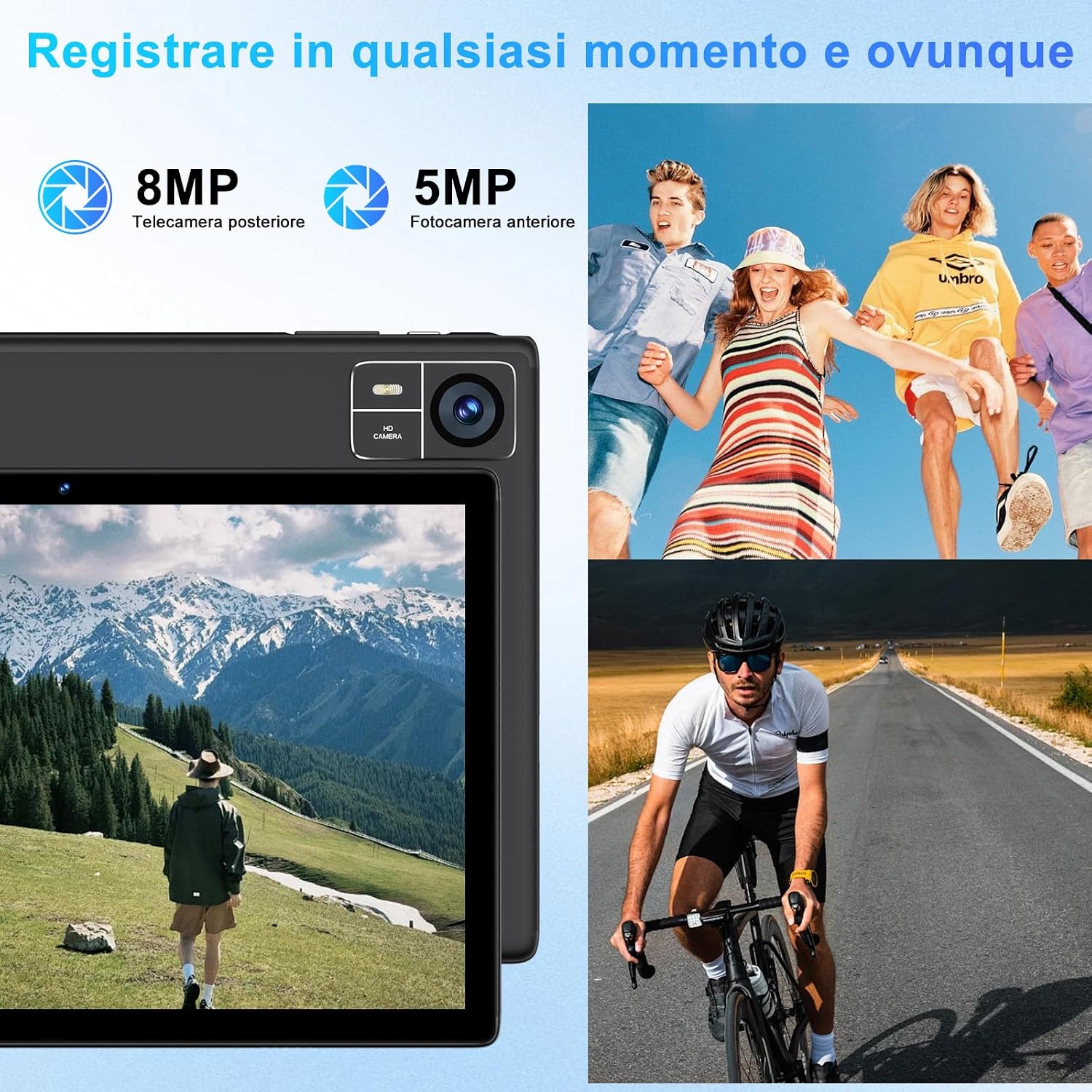
Figure 4.4: 8000mAh battery for extended use.

Figure 4.5: Tablet performance for media and applications.
5. ບໍາລຸງຮັກສາ
5.1 ການເຮັດຄວາມສະອາດແທັບເລັດ
Use a soft, lint-free cloth to clean the screen and body of the tablet. Avoid using harsh chemicals or abrasive materials, which can damage the screen coating or finish. For stubborn smudges, slightly dampເຊັດຜ້າດ້ວຍນ້ຳ ຫຼື ນ້ຳຢາທຳຄວາມສະອາດສະເພາະສຳລັບໜ້າຈໍ.
5.2 ການດູແລຫມໍ້ໄຟ
- ຫຼີກເວັ້ນການເປີດເຜີຍແທັບເລັດກັບອຸນຫະພູມທີ່ຮຸນແຮງ (ຮ້ອນຫຼືເຢັນ), ເນື່ອງຈາກວ່ານີ້ສາມາດເຮັດໃຫ້ປະສິດທິພາບຫມໍ້ໄຟຫຼຸດລົງ.
- ຢ່າປະໄວ້ໃຫ້ແທັບເລັດໝົດໄປເປັນໄລຍະເວລາທີ່ຍາວນານ.
- For optimal battery longevity, avoid constantly charging the tablet to 100% or letting it frequently drop to 0%.
5.3 ການປັບປຸງຊອບແວ
ກວດສອບ ແລະຕິດຕັ້ງການອັບເດດຊອບແວເປັນປະຈຳເພື່ອຮັບປະກັນວ່າແທັບເລັດຂອງທ່ານມີຄຸນສົມບັດຫຼ້າສຸດ, ແຜ່ນປ້ອງກັນຄວາມປອດໄພ ແລະການປັບປຸງປະສິດທິພາບ. ໄປທີ່ ການຕັ້ງຄ່າ > ລະບົບ > ອັບເດດລະບົບ.
6. ການແກ້ໄຂບັນຫາ
6.1 ແທັບເລັດບໍ່ເປີດ
- ໃຫ້ແນ່ໃຈວ່າແທັບເລັດສາກໄຟພຽງພໍ. ເຊື່ອມຕໍ່ມັນກັບເຄື່ອງສາກຢ່າງໜ້ອຍ 30 ນາທີ.
- ກົດປຸ່ມເປີດປິດຄ້າງໄວ້ 10-15 ວິນາທີເພື່ອເປີດປິດເປີດຄືນໃໝ່.
6.2 ບັນຫາການເຊື່ອມຕໍ່ Wi-Fi
- Check if Wi-Fi is enabled in ການຕັ້ງຄ່າ.
- ຣີສະຕາດເລົາເຕີ Wi-Fi ແລະແທັບເລັດຂອງທ່ານ.
- ລືມເຄືອຂ່າຍໃນ ການຕັ້ງຄ່າ > ເຄືອຂ່າຍ ແລະອິນເຕີເນັດ > Wi-Fi, then reconnect.
6.3 ການປະຕິບັດຊ້າ
- ປິດແອັບພລິເຄຊັນພື້ນຫຼັງທີ່ບໍ່ຈໍາເປັນ.
- Clear cache data for frequently used apps in ການຕັ້ງຄ່າ > ແອັບ > [ຊື່ແອັບ] > ການເກັບຮັກສາ & cache.
- ໃຫ້ແນ່ໃຈວ່າມີພື້ນທີ່ເກັບຂໍ້ມູນທີ່ພຽງພໍ. ລຶບສ່ວນທີ່ບໍ່ໄດ້ໃຊ້ອອກ files ຫຼືກິດ.
- ຣີສະຕາດແທັບເລັດ.
6.4 Bluetooth Accessories Not Connecting
- Ensure the accessories are charged and in pairing mode.
- Check if Bluetooth is enabled on the tablet.
- Unpair and re-pair the accessories.
- Restart both the tablet and the accessories.
7. ຂໍ້ມູນຈໍາເພາະ
| ຄຸນສົມບັດ | ຂໍ້ມູນຈໍາເພາະ |
|---|---|
| ຍີ່ຫໍ້ | ຊູແອດ |
| ໝາຍເລກຕົວແບບ | S10 |
| ລະບົບປະຕິບັດການ | Android 14 |
| ຍີ່ຫໍ້ເຄື່ອງປະມວນຜົນ | Unisoc Octa-Core (2.0 GHz) |
| RAM | 22GB (Note: This typically includes virtual RAM expansion. Actual physical RAM may be lower.) |
| ການເກັບຮັກສາພາຍໃນ | 128GB |
| ການເກັບຮັກສາທີ່ຂະຫຍາຍໄດ້ | ສູງສຸດ 1TB ຜ່ານບັດ TF (microSD) |
| ຂະໜາດໜ້າຈໍ | 10 ນິ້ວ |
| ຄວາມລະອຽດການສະແດງ | 1920x1200 pixels (FHD) |
| ກ້ອງຫຼັງ | 8MP |
| ກ້ອງໜ້າ | 5MP |
| ຄວາມອາດສາມາດຫມໍ້ໄຟ | 8000mAh |
| ການເຊື່ອມຕໍ່ໄຮ້ສາຍ | 5G+2.4G WiFi (802.11ac, 802.11b, 802.11g, 802.11n), Bluetooth 5.0 |
| ປະເພດການເຊື່ອມຕໍ່ | USB Type-C |
| ຂະໜາດ (L x W x H) | 17 x 12 x 0.8 cm |
| ຄຸນນະສົມບັດພິເສດ | Widevine L1 Support, Includes Keyboard and Mouse |
8. ການຮັບປະກັນແລະການສະຫນັບສະຫນູນ
SUAAT is committed to providing professional technical assistance and 24-hour after-sales service. For any issues, questions, or warranty claims, please contact SUAAT customer support through the official channels provided with your purchase or on the SUAAT brand webເວັບໄຊ.

Figure 8.1: SUAAT customer support details.


