ແນະນຳ
Welcome to the user manual for your CWOWDEFU P25L 11-inch Android 14 Tablet. This guide provides essential information to help you set up, operate, maintain, and troubleshoot your device. Please read this manual carefully to ensure optimal performance and longevity of your tablet.
1. ຕັ້ງຄ່າ
1.1 Unboxing ແລະ Package Contents
Before starting, ensure all items are present in the package. Carefully remove the tablet and accessories from the box.

Image: The CWOWDEFU P25L tablet packaging showing the tablet, charging head, Type-C cable, instruction manual, screen protector, and ejector pin.
ຊຸດຄວນປະກອບດ້ວຍ:
- 1 x CWOWDEFU P25L Tablet
- 1 x Charging Head
- 1 x ສາຍ Type-C
- 1 x ຄູ່ມືແນະນຳ (ເອກະສານນີ້)
- 1 x ປ້ອງກັນຫນ້າຈໍ
- 1 x Ejector Pin
1.2 ການສາກແທັບເລັດ
For first-time use, fully charge the tablet. Connect the Type-C cable to the tablet's charging port and the charging head to a power outlet. The battery indicator on the screen will show charging status.

Image: A user holding the CWOWDEFU P25L tablet, illustrating its 7000mAh long-lasting battery and 10W fast charging capability.
1.3 ການເປີດ/ປິດ
- ເພື່ອເປີດເຄື່ອງ: Press and hold the Power button until the CWOWDEFU logo appears.
- ປິດເຄື່ອງ: ກົດປຸ່ມເປີດປິດຄ້າງໄວ້, ຈາກນັ້ນເລືອກ 'ປິດເຄື່ອງ' ຈາກຕົວເລືອກໃນໜ້າຈໍ.
- ເພື່ອເລີ່ມຕົ້ນໃໝ່: ກົດປຸ່ມເປີດປິດຄ້າງໄວ້, ຈາກນັ້ນເລືອກ 'ຣີສະຕາດ' ຈາກຕົວເລືອກຕ່າງໆ.
1.4 ການຕິດຕັ້ງເບື້ອງຕົ້ນ
ເມື່ອເປີດເຄື່ອງທຳອິດ, ໃຫ້ເຮັດຕາມການເຕືອນເທິງໜ້າຈໍເພື່ອ:
- ເລືອກພາສາທີ່ທ່ານຕ້ອງການ.
- ເຊື່ອມຕໍ່ກັບເຄືອຂ່າຍ Wi-Fi.
- ເຂົ້າສູ່ລະບົບດ້ວຍບັນຊີ Google ຂອງທ່ານ ຫຼືສ້າງອັນໃໝ່.
- ຕັ້ງຄ່າການລັອກໜ້າຈໍ (PIN, ຮູບແບບ, ລະຫັດຜ່ານ).
1.5 ການໃສ່ບັດ TF
The tablet supports storage expansion up to 1TB using a TF (microSD) card.
- ຊອກຫາຖາດແຜ່ນ SIM/TF ຢູ່ດ້ານຂ້າງຂອງແທັບເລັດ.
- Use the ejector pin to open the tray.
- Place the TF card into the designated slot with the gold contacts facing down.
- ຍູ້ຖາດກັບໄປໃສ່ແທັບເລັດຄ່ອຍໆ ຈົນກວ່າມັນຈະກົດໃສ່ບ່ອນ.
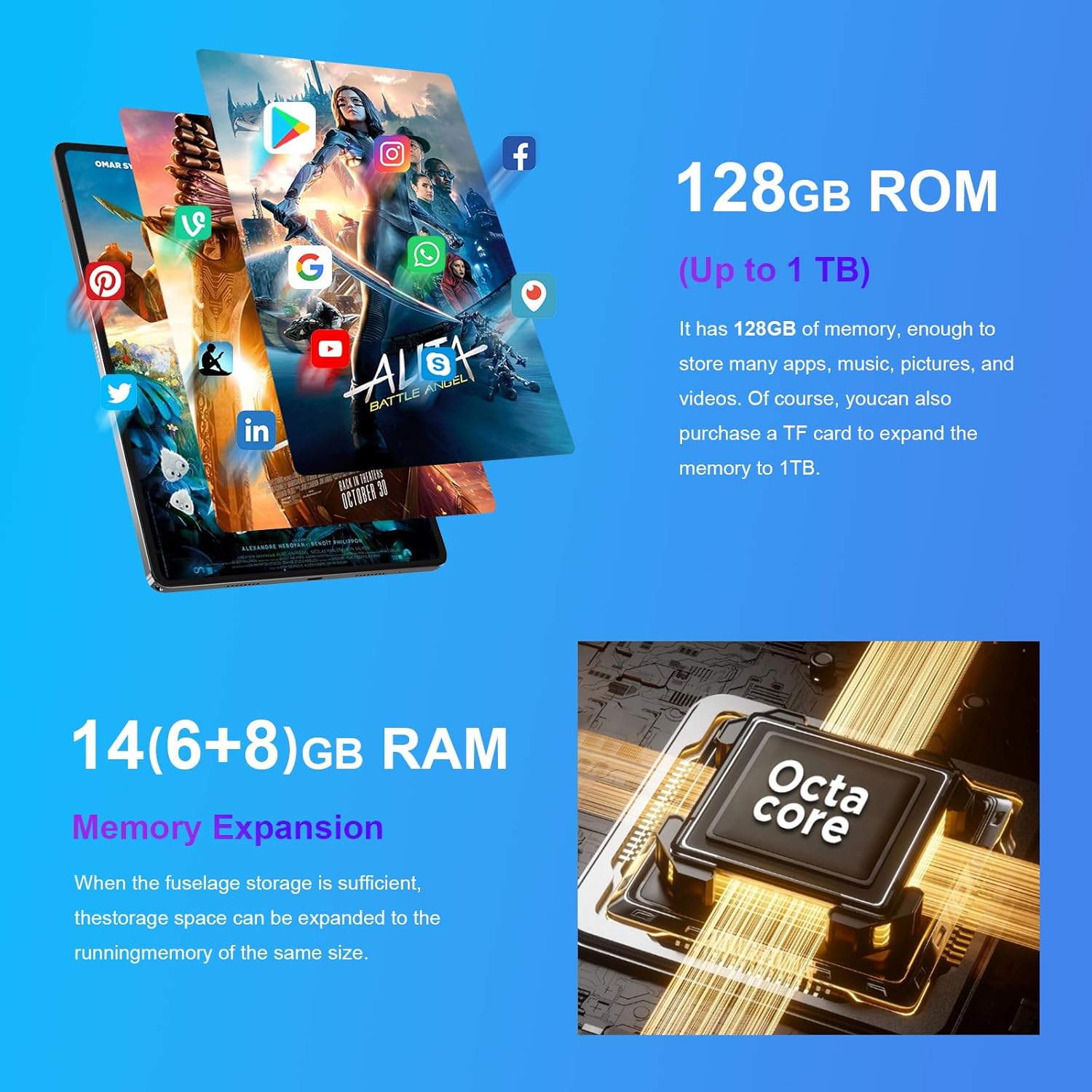
Image: The CWOWDEFU P25L tablet highlighting its 128GB ROM (expandable up to 1TB) and 14GB RAM (6+8GB memory expansion) with an Octa-core processor.
2. ຄໍາແນະນໍາການດໍາເນີນງານ
2.1 ການນໍາທາງພື້ນຖານ
ແທັບເລັດໃຊ້ທ່າທາງສຳຜັດສຳລັບການນຳທາງ:
- ແຕະ: ເລືອກລາຍການ ຫຼືເປີດແອັບ.
- ແຕະແລະຖື: ເຂົ້າເຖິງເມນູບໍລິບົດ ຫຼືຍ້າຍໄອຄອນ.
- ປັດ: ເລື່ອນຜ່ານໜ້າ ຫຼືລາຍຊື່.
- Pinch-to-Zoom: ຊູມເຂົ້າ ຫຼືອອກໃນຮູບພາບ ແລະ web ໜ້າ.
2.2 ການເຊື່ອມຕໍ່ Wi-Fi
- ໄປທີ່ ການຕັ້ງຄ່າ > ເຄືອຂ່າຍ ແລະອິນເຕີເນັດ > Wi-Fi.
- ສະຫຼັບ Wi-Fi On.
- ເລືອກເຄືອຂ່າຍທີ່ທ່ານຕ້ອງການຈາກບັນຊີລາຍຊື່ແລະໃສ່ລະຫັດຜ່ານຖ້າຫາກວ່າ prompted.
2.3 ການຈັບຄູ່ Bluetooth
- ໄປທີ່ ການຕັ້ງຄ່າ > ອຸປະກອນທີ່ເຊື່ອມຕໍ່ > Bluetooth.
- ສະຫຼັບ Bluetooth On.
- The tablet will scan for available devices. Select your device from the list to pair.
2.4 ການນໍາໃຊ້ກ້ອງຖ່າຍຮູບ
The tablet is equipped with a front 5MP camera and a rear 13MP + 3MP dual camera system. Open the Camera app to take photos or record videos. Tap the screen to focus and press the shutter button to capture.
2.5 ຈໍສະແດງຜົນ ແລະສຽງ
The 11-inch 2K IPS display (1920x1200) provides clear visuals, complemented by dual stereo speakers for an immersive audio experience.

Image: The CWOWDEFU P25L tablet showcasing its 11-inch 2K display and dual-speaker stereo sound, ideal for media consumption.
- ຄວາມສະຫວ່າງ: Adjust screen brightness from the Quick Settings panel (swipe down from the top) or in ການຕັ້ງຄ່າ > ຈໍສະແດງຜົນ.
- ປະລິມານ: Use the volume buttons on the side of the tablet or adjust in ການຕັ້ງຄ່າ > ສຽງ & ການສັ່ນສະເທືອນ.
2.6 ຄຸນສົມບັດ Android 14
Your tablet runs on the latest Android 14 operating system, offering enhanced privacy, security, and multitasking capabilities.
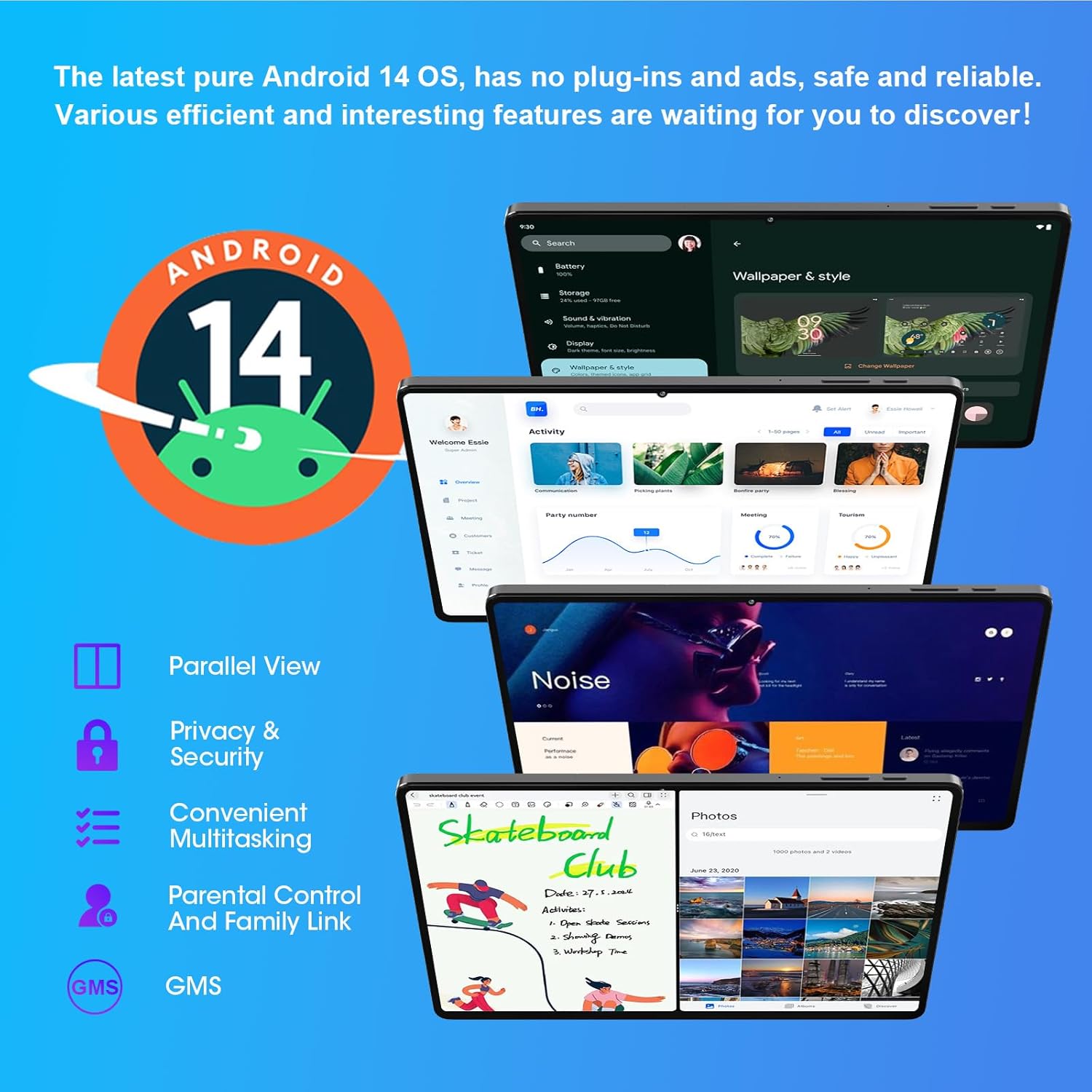
Image: The CWOWDEFU P25L tablet displaying the Android 14 interface, highlighting features such as Parallel View, Privacy & Security, Convenient Multitasking, and Parental Control.
- ຂະໜານ View: Utilize multiple apps side-by-side for improved productivity.
- ຄວາມເປັນສ່ວນຕົວ ແລະຄວາມປອດໄພ: Advanced controls to manage app permissions and data access.
- Convenient Multitasking: ສະຫຼັບລະຫວ່າງແອັບພລິເຄຊັນຢ່າງບໍ່ຢຸດຢັ້ງ.
- Parental Control and Family Link: Manage device usage for children.
3. ບໍາລຸງຮັກສາ
3.1 ການເຮັດຄວາມສະອາດແທັບເລັດ
- ໃຊ້ຜ້າທີ່ອ່ອນໆ, ບໍ່ມີສານດ່າງເພື່ອເຮັດຄວາມສະອາດຫນ້າຈໍແລະຮ່າງກາຍ.
- ສໍາລັບ smudges stubborn, ເລັກນ້ອຍ dampໃສ່ຜ້າດ້ວຍນ້ໍາຫຼືເຄື່ອງເຮັດຄວາມສະອາດຫນ້າຈໍ.
- ຫຼີກເວັ້ນການນໍາໃຊ້ສານເຄມີທີ່ຮຸນແຮງ, ວັດສະດຸຂັດ, ຫຼືຄວາມຊຸ່ມຊື່ນຫຼາຍເກີນໄປ.
3.2 ການປັບປຸງຊອບແວ
ກວດສອບ ແລະຕິດຕັ້ງການອັບເດດຊອບແວເປັນປະຈຳເພື່ອຮັບປະກັນວ່າແທັບເລັດຂອງທ່ານມີຄຸນສົມບັດຫຼ້າສຸດ, ແຜ່ນປ້ອງກັນຄວາມປອດໄພ ແລະການປັບປຸງປະສິດທິພາບ.
- ໄປທີ່ ການຕັ້ງຄ່າ > ລະບົບ > ອັບເດດລະບົບ.
- ປະຕິບັດຕາມຄໍາແນະນໍາໃນຫນ້າຈໍເພື່ອດາວໂຫລດແລະຕິດຕັ້ງການອັບເດດທີ່ມີຢູ່.
3.3 ການດູແລຫມໍ້ໄຟ
- ຫຼີກເວັ້ນການເປີດເຜີຍແທັບເລັດກັບອຸນຫະພູມທີ່ຮຸນແຮງ.
- ຢ່າປ່ອຍໃຫ້ຫມໍ້ໄຟຫມົດໄປເລື້ອຍໆ.
- ໃຊ້ສາຍສາກ ແລະສາຍສາກຕົ້ນສະບັບສຳລັບການສາກໄຟທີ່ດີທີ່ສຸດ.
3.4 ການຄຸ້ມຄອງການເກັບຮັກສາ
ເພື່ອຮັກສາປະສິດທິພາບທີ່ດີທີ່ສຸດ, ໃຫ້ຈັດການພື້ນທີ່ເກັບຂໍ້ມູນຂອງແທັບເລັດຂອງທ່ານເປັນປະຈຳ:
- ລຶບແອັບຯທີ່ບໍ່ຈໍາເປັນແລະ files.
- ຍ້າຍຂະຫນາດໃຫຍ່ files (photos, videos) to a TF card or cloud storage.
- Clear app cache regularly in ການຕັ້ງຄ່າ > ແອັບ > [ຊື່ແອັບ] > ການເກັບຮັກສາ & cache.
4. ການແກ້ໄຂບັນຫາ
4.1 ແທັບເລັດບໍ່ເປີດ
- ໃຫ້ແນ່ໃຈວ່າແທັບເລັດສາກໄຟພຽງພໍ. ເຊື່ອມຕໍ່ມັນກັບເຄື່ອງສາກຢ່າງໜ້ອຍ 30 ນາທີ.
- ກົດປຸ່ມເປີດປິດຄ້າງໄວ້ 10-15 ວິນາທີເພື່ອບັງຄັບໃຫ້ຣີສະຕາດ.
4.2 ບັນຫາການເຊື່ອມຕໍ່ Wi-Fi
- ຣີສະຕາດເລົາເຕີ Wi-Fi ແລະແທັບເລັດຂອງທ່ານ.
- ລືມເຄືອຂ່າຍໃນ ການຕັ້ງຄ່າ > ເຄືອຂ່າຍ ແລະອິນເຕີເນັດ > Wi-Fi, then reconnect.
- ໃຫ້ແນ່ໃຈວ່າທ່ານຢູ່ໃນຂອບເຂດຂອງສັນຍານ Wi-Fi.
4.3 ການປະຕິບັດຊ້າ
- ປິດແອັບພລິເຄຊັນທີ່ບໍ່ໄດ້ໃຊ້ທີ່ເຮັດວຽກຢູ່ໃນພື້ນຫຼັງ.
- Clear app caches and free up storage space.
- ຣີສະຕາດແທັບເລັດ.
- If performance issues persist, consider a factory reset (ຄຳເຕືອນ: This will erase all data. Back up important files ທໍາອິດ.). Go to ການຕັ້ງຄ່າ > ລະບົບ > ຣີເຊັດຕົວເລືອກ > ລຶບຂໍ້ມູນທັງໝົດ (ຣີເຊັດເປັນຄ່າໂຮງງານ).
4.4 ແອັບຂັດຂ້ອງ ຫຼື ບໍ່ຕອບສະໜອງ
- ບັງຄັບປິດແອັບ: ໄປທີ່ ການຕັ້ງຄ່າ > ແອັບ > [ຊື່ແອັບ] > ບັງຄັບໃຫ້ຢຸດ.
- Clear the app's cache and data: Go to ການຕັ້ງຄ່າ > ແອັບ > [ຊື່ແອັບ] > ການເກັບຮັກສາ & cache > ລຶບລ້າງແຄດ ແລະ ລຶບຂໍ້ມູນ.
- ຖອນການຕິດຕັ້ງ ແລະຕິດຕັ້ງແອັບຯຄືນໃໝ່.
5. ຂໍ້ມູນຈໍາເພາະ
The CWOWDEFU P25L tablet features a robust design and powerful components for a smooth user experience.

Image: The CWOWDEFU P25L tablet highlighting its simple, sturdy, and stylish 7.2mm thick all-metal body, designed for durability.
| ຄຸນສົມບັດ | ລາຍລະອຽດ |
|---|---|
| ຊື່ຕົວແບບ | P25L |
| ລະບົບປະຕິບັດການ | Android 14 |
| ຈໍສະແດງຜົນ | 11-inch IPS, 1920 x 1200 pixels (2K Resolution) |
| ໂຮງງານຜະລິດ | Octa-Core UMS 9230 (UNISOC), 2 GHz |
| GPU | ມາລີ-G52 |
| RAM | 14 GB (6 GB installed + 8 GB expandable) |
| ການເກັບຮັກສາພາຍໃນ | ROM 128 GB |
| ການເກັບຮັກສາທີ່ຂະຫຍາຍໄດ້ | ສູງສຸດ 1 TB ຜ່ານບັດ TF |
| ແບັດເຕີຣີ | 7000 mAh Lithium-polymer |
| ກ້ອງຖ່າຍຮູບ | Front: 5 MP, Rear: 13 MP + 3 MP |
| ການເຊື່ອມຕໍ່ | Wi-Fi (802.11a/b/g/n/ac, 2.4G/5G), Bluetooth 5.0, GPS |
| ການໂຕ້ຕອບ | USB Type-C, ຮູສຽບສຽງ 3.5 ມມ |
| ຄຸນນະສົມບັດພິເສດ | Stereo Speakers, USB OTG Support, Expandable Storage |
| ຂະໜາດ (L x W x H) | 24.5 x 8.3 x 16.4 cm |
| ນ້ຳໜັກ | 920 ກຣາມ |
| ສີ | ເງິນ |
6. ການຮັບປະກັນແລະການສະຫນັບສະຫນູນ
6.1 ຂໍ້ມູນການຮັບປະກັນ
Your CWOWDEFU P25L tablet comes with a ຮັບປະກັນ 1 ປີ ນັບຈາກວັນທີຊື້. ນອກຈາກນັ້ນ, a ນະໂຍບາຍການກັບຄືນ 30 ມື້ is offered for returns without questions.
6.2 ສະຫນັບສະຫນູນລູກຄ້າ
If you encounter any issues or have questions regarding your tablet, please contact CWOWDEFU customer support. Support is available 24/7 to assist you.
- Refer to the contact information provided on the CWOWDEFU official webເວັບໄຊ ຫຼືເອກະສານການຊື້ຂອງທ່ານ.


