1. ບົດແນະນຳ
This manual provides essential information for the safe and efficient operation of your KEFEYA 32-Inch Portable Touch Screen TV, Model G2. This device combines a large 32-inch 1080P Full HD touch screen with the versatility of Android 13 OS, offering a portable entertainment and productivity solution with an integrated battery and mobile stand.
2. ເນື້ອໃນຊຸດ
ກວດສອບວ່າລາຍການທັງຫມົດທີ່ລະບຸໄວ້ຂ້າງລຸ່ມນີ້ແມ່ນລວມຢູ່ໃນຊຸດຂອງທ່ານ:
- ໜ້າຈໍ x1
- ຢືນ x1
- ຜູ້ດັດແປງ x1
- ສາຍໄຟ AC x1
- Screw ສັ້ນ x1
- screws ຍາວ x4
- ສາຍ HDMI x1
- ສະກູດເຕີ x1
- ຖານ x1
- Cable Outlet Cover x1
- ຫ່າງໄກສອກຫຼີກ x1

ຮູບທີ 2.1: ອຸປະກອນເສີມ
3. ຕັ້ງຄ່າ
3.1 ສະພາ
- ຖອດສ່ວນປະກອບທັງໝົດອອກຈາກເຄື່ອງຫຸ້ມຫໍ່ຢ່າງລະມັດລະວັງ.
- Attach the screen to the stand using the provided screws and screwdriver.
- Secure the stand to the base.
- Connect the AC Power Cable to the adapter, then plug the adapter into the TV and a power outlet.
3.2 ການເປີດເຄື່ອງເບື້ອງຕົ້ນ
Press the power button located on the device to turn on the TV. Follow the on-screen prompts for initial setup, including language selection and network connection.
3.3 ຈັບຄູ່ຄວບຄຸມໄລຍະໄກ
To pair your remote with the G2, follow these steps:
- Ensure the remote control has batteries installed correctly.
- Press and hold the “Confirm” and “Back” buttons on the remote for 3 seconds until the indicator light begins flashing.
- Open the G2 settings page.
- Locate “Connected Devices” in the settings options.
- Select “Pair with New Device.”
- Tap the Bluetooth option named “portable tv.” Pairing is now complete.
4. ຄໍາແນະນໍາການດໍາເນີນງານ
4.1 ການນຳທາງໜ້າຈໍສຳຜັດ
The 10-point touch screen allows for intuitive interaction. Use standard touch gestures such as tapping to select, swiping to scroll, and pinching to zoom. The screen can be rotated 90 degrees for portrait or landscape viewing.
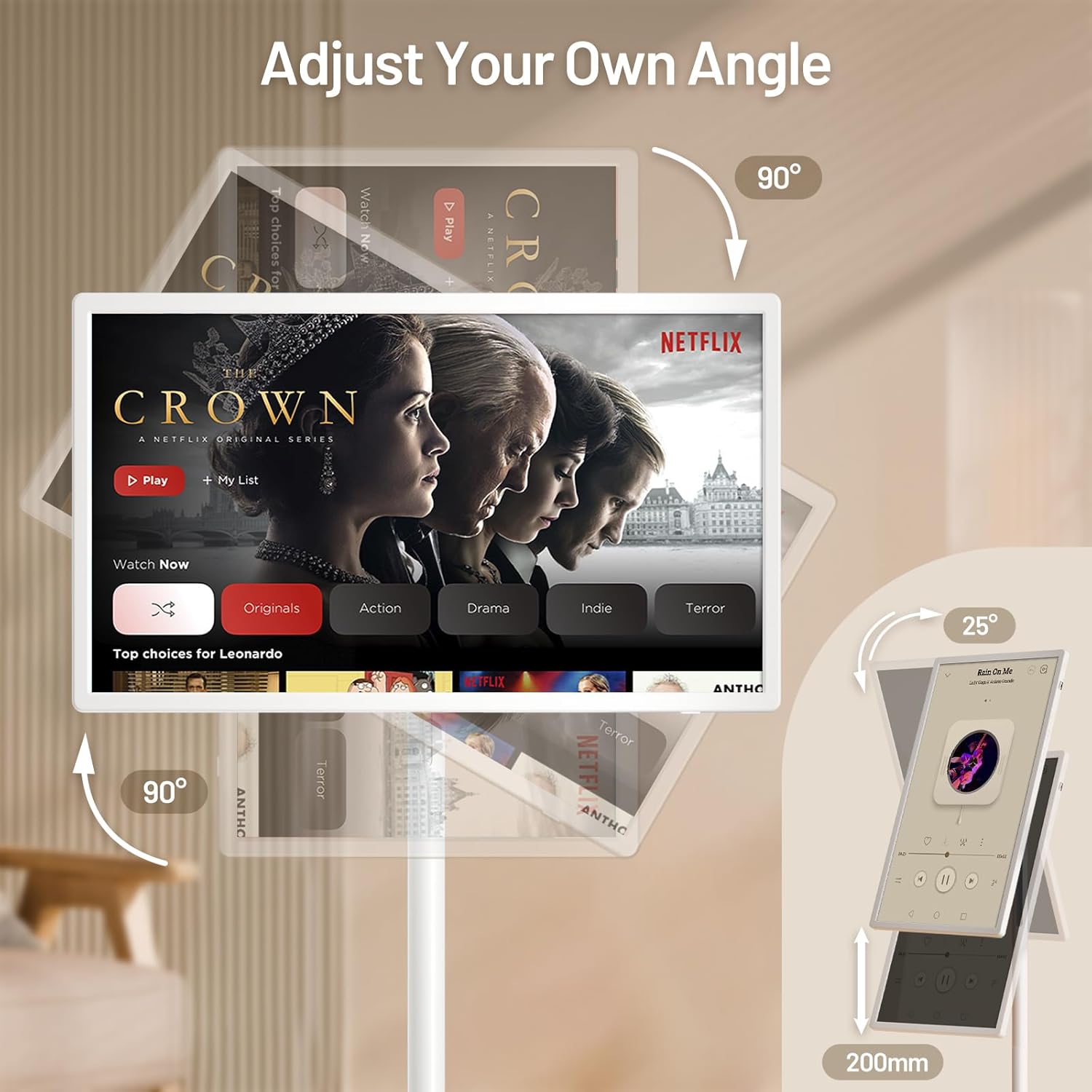
Figure 4.1: Screen Adjustment Capabilities
4.2 Android 13 OS and Applications
Your KEFEYA G2 runs on Android 13 OS and includes the Google Play Store, allowing you to download and install a wide range of applications for entertainment, productivity, and more. Navigate the home screen to access your installed apps.

Figure 4.2: Android 13 Interface with Google Play
4.3 ການເຊື່ອມຕໍ່
The TV supports various connection methods:
- ການສົ່ງສັນຍານໄຮ້ສາຍ: Connect wirelessly from compatible devices to mirror content.
- ພອດທາງກາຍະພາບ: Utilize Type-C, USB-A, and HDMI ports for wired connections to external devices such as laptops, gaming consoles, or storage drives.

Figure 4.3: Multiple Screen Sharing Options
4.4 ສຽງ
The device features dual stereo speakers for audio output. Volume can be adjusted via the remote control or on-screen controls.
4.5 Mobility and Battery Life
The integrated base with five silent wheels allows for easy movement of the TV between rooms. The built-in high-capacity battery provides approximately 6 to 9 hours of continuous use, depending on usage and settings.

Figure 4.4: Portable Usage Scenario
ວິດີໂອ 4.1: ຫຼາຍກວ່າview of the KEFEYA Portable Smart Screen on Wheels, demonstrating its features and mobility.
5. ບໍາລຸງຮັກສາ
To ensure the longevity and optimal performance of your KEFEYA G2:
- ທໍາຄວາມສະອາດ: ໃຊ້ຜ້າອ່ອນ, ແຫ້ງເພື່ອເຮັດຄວາມສະອາດຫນ້າຈໍແລະພາຍນອກ. ຫຼີກລ້ຽງການເຮັດຄວາມສະອາດຂັດຫຼືສານລະລາຍ.
- ການດູແລຫມໍ້ໄຟ: For optimal battery health, avoid completely draining the battery frequently. When the TV is not in use, it is recommended to turn it off.
- ການເກັບຮັກສາ: ເກັບຮັກສາໂທລະທັດໄວ້ໃນບ່ອນທີ່ເຢັນ, ແຫ້ງ ແລະ ຫ່າງຈາກແສງແດດໂດຍກົງ ແລະ ອຸນຫະພູມທີ່ຮຸນແຮງ.
6. ການແກ້ໄຂບັນຫາ
If you encounter issues with your KEFEYA G2, refer to the following common solutions:
- TV will not turn on: Ensure all power cords are securely connected. Check if the TV has sufficient battery charge or is connected to a power source.
- Remote control not working or connecting: Re-pair the remote control by following the steps in Section 3.3. Ensure batteries are correctly inserted and charged.
- Distorted picture or audio from external device: Verify the external device is properly connected to the correct port (HDMI, Type-C). Check the device's output settings and the TV's input selection.
- General performance issues (slow response, app crashes): Try restarting the TV. Ensure the device's software is up to date via the settings menu.
7. ຂໍ້ມູນຈໍາເພາະ
| ຄຸນສົມບັດ | ຂໍ້ມູນຈໍາເພາະ |
|---|---|
| ຂະໜາດສິນຄ້າ | 29.05 x 17.12 x 2.28 ນິ້ວ |
| ນ້ໍາຫນັກລາຍການ | 52.9 ປອນ |
| ໝາຍເລກຕົວແບບ | G2 |
| ໝໍ້ໄຟ | 1 ແບດເຕີຣີ Lithium Ion ຕ້ອງການ (ລວມ) |
| ຂະຫນາດຈໍສະແດງຜົນຢືນ | 32 ນິ້ວ |
| ອັດຕາສ່ວນ | 16:9 |
| ຍີ່ຫໍ້ | KEFEYA |
| ເຕັກໂນໂລຊີການສະແດງ | IPS |
| ຄວາມລະອຽດ | 1080p |
| ອັດຕາການໂຫຼດຂໍ້ມູນຄືນໃໝ່ | 60 Hz |
| ຄຸນນະສົມບັດພິເສດ | Height Adjustment, Swivel Adjustment, Tilt Adjustment, Touchscreen |
| ເຕັກໂນໂລຊີການເຊື່ອມຕໍ່ | ມີສາຍ, ໄຮ້ສາຍ |
| ບໍລິການອິນເຕີເນັດທີ່ຮອງຮັບ | Netflix, Google Play Store (and various other streaming services) |
8. ການຮັບປະກັນແລະການສະ ໜັບ ສະ ໜູນ
KEFEYA is committed to providing reliable customer service. Your product includes:
- 30-day replacement and return policy.
- ສະຫນັບສະຫນູນດ້ານວິຊາການຕະຫຼອດຊີວິດ.
- Prompt response to inquiries within 24 hours.
For any questions or assistance, please contact KEFEYA customer support directly through the seller's page on Amazon or visit the official KEFEYA store: KEFEYA Store.


