ແນະນຳ
This manual provides comprehensive instructions for the installation, operation, and maintenance of your Akia Screens Motorized Projector Screen. Designed for optimal viewing experience, this 110-inch diagonal screen features a 16:9 aspect ratio, MaxWhite 2 material, and is compatible with 4K, 8K, HD, and 3D projection. Its motorized function allows for convenient retraction and deployment via remote control or 12V trigger.
ຂໍ້ມູນຄວາມປອດໄພ
Please read all safety warnings and instructions carefully before installation and operation to prevent injury and damage to the product. Retain this manual for future reference.
- Ensure the screen is installed by qualified personnel following local building codes.
- Do not attempt to disassemble or modify the screen motor or electrical components.
- Keep hands and objects clear of the screen casing during operation to avoid pinching or entanglement.
- Do not expose the screen to excessive moisture or extreme temperatures.
- Use only the provided power adapter and remote controls.
- This screen is NOT COMPATIBLE with Ultra Short Throw (UST) projectors.
ເນື້ອໃນຊຸດ
ກວດສອບວ່າອົງປະກອບທັງໝົດມີຢູ່ ແລະບໍ່ມີຄວາມເສຍຫາຍເມື່ອ unboxing:
- Motorized Projector Screen Unit (110-inch)
- ການຄວບຄຸມໄລຍະໄກ Infrared (IR).
- Wall Box Controller with built-in IR sensor
- ສາຍໄຟ
- Installation Kit (mounting brackets, screws, anchors)
- ຄູ່ມືຜູ້ໃຊ້ (ເອກະສານນີ້)

Image: The Akia Screens 110-inch motorized projector screen, showcasing the main unit along with the two remote controls and a connecting cable.
ສິນຄ້າເກີນview
The Akia Screens motorized projector screen is designed for versatile installation and high-quality projection. Key features include:
- ໂລຫະທົນທານ Casing: Houses the screen and motor, suitable for wall or ceiling installations.
- MaxWhite 2 Screen Material: A multi-layer weave with 1.1 gain and a 180-degree wide viewing angle, optimized for 4K Ultra HD, 8K, and Active 3D projection. It is GreenGuard and GreenGuard GOLD Certified.
- Black Backing: Eliminates light penetration for a brighter, sharper image.
- Black Masking Borders: Standard black borders enhance picture contrast and absorb projector overshoot.
- Tubular Motor: Ensures smooth and quiet operation for screen retraction and deployment.

ຮູບພາບ: ໃກ້ຊິດ views of the screen's durable black metal casing and the black masking borders that frame the projection surface.

Image: Illustration of the MaxWhite 2 screen material, highlighting its black backing and certifications like GreenGuard and ISF, indicating quality and low chemical emissions.
ຕັ້ງຄ່າ
1. Mounting the Screen
The screen can be installed on a wall or ceiling. Ensure the mounting surface is strong enough to support the screen's weight (approximately 24 lbs for the 110-inch model).
- ການວັດແທກແລະເຄື່ອງຫມາຍ: Determine the desired mounting location. Use a level to mark the positions for the mounting brackets. Refer to the screen's overall width (105.5 inches) and product dimensions (102.8"W x 63.87"H) for accurate placement.
- ຮູເຈາະ: Drill pilot holes at the marked locations. Use appropriate drill bits for your wall or ceiling material.
- ຕິດຕັ້ງວົງເລັບ: Secure the mounting brackets using the provided screws and anchors. Ensure they are firmly attached.
- ແຂວນໜ້າຈໍ: Carefully lift the screen and attach it to the installed mounting brackets. Ensure it is securely seated.
2. ການເຊື່ອມຕໍ່ພະລັງງານ
Plug the power cable into the screen's power input and then into a standard electrical outlet. The screen is designed for plug-and-play operation.
3. Remote Control and Wall Box Setup
The screen comes with an Infrared (IR) remote and a wall box controller. The wall box controller has a built-in IR sensor and an RJ50 port for the 12V trigger feature.
- IR Remote: Point the IR remote directly at the IR sensor on the wall box controller for operation.
- Wall Box Controller: Mount the wall box controller in a convenient location. It can be detached for a cleaner look if you primarily use the IR remote or an optional RF remote (sold separately).
4. 12V Trigger Feature (Optional)
The 12V trigger feature allows the screen to automatically deploy or retract in synchronization with your projector's power cycle. This requires a projector with a 12V trigger output.
- Connect a 12V trigger cable (not included, typically supplied with projector or purchased separately) from your projector's 12V output to the RJ50 port on the screen's wall box controller.
- Once connected, the screen will automatically lower when the projector is turned on and retract when the projector is turned off.

Image: The screen's control system, illustrating the infrared (IR) remote and the wall box controller with its RJ50 port for the 12-volt trigger connection.
ຄໍາແນະນໍາການດໍາເນີນງານ
ການນໍາໃຊ້ການຄວບຄຸມໄລຍະໄກ
The included IR remote control allows for easy operation of the screen.
- ປຸ່ມຂຶ້ນ: Press to retract the screen fully into its casing.
- ປຸ່ມລົງ: Press to deploy the screen fully.
- ປຸ່ມຢຸດ: Press to stop the screen at any desired position during deployment or retraction.
Programmable Vertical Drop Position
The screen features a user-friendly programmable vertical drop position for customized viewຄວາມສູງ.
- Deploy the screen to your desired lower limit using the DOWN button.
- Press and hold the STOP button on the remote or wall box controller for approximately 5 seconds until the screen jogs slightly. This sets the new lower limit.
- To reset to factory default, consult the full technical manual or contact customer support.
ບໍາລຸງຮັກສາ
Proper care will ensure the longevity and performance of your projector screen.
- ການເຮັດຄວາມສະອາດໜ້າໜ້າຈໍ: The MaxWhite 2 screen material is easy to clean. Use a soft cloth dampened with mild soap and water. Gently wipe the screen surface. Do not use abrasive cleaners, solvents, or harsh chemicals, as these can damage the screen.
- Casing Maintenance: ເຊັດໂລຫະ casing ທີ່ມີແຫ້ງ ຫຼື d ເລັກນ້ອຍamp ຜ້າເຊັດຂີ້ຝຸ່ນ.
- ການດູແລລົດ: The motorized mechanism is maintenance-free. Do not lubricate or attempt to service the motor.
- ການເກັບຮັກສາ: ເມື່ອບໍ່ໄດ້ໃຊ້ເປັນເວລາດົນ, ໃຫ້ແນ່ໃຈວ່າໜ້າຈໍຖືກຫົດເຂົ້າກັບບ່ອນວາງຂອງມັນຢ່າງສົມບູນasing ເພື່ອປົກປ້ອງພື້ນຜິວຈາກຝຸ່ນ ແລະ ຄວາມເສຍຫາຍ.
ການແກ້ໄຂບັນຫາ
| ບັນຫາ | ສາເຫດທີ່ເປັນໄປໄດ້ | ການແກ້ໄຂ |
|---|---|---|
| Screen does not respond to remote. |
|
|
| Screen stops unexpectedly during operation. |
|
|
| Screen is wavy or has creases. |
|
|
| 12V trigger not working. |
|
|
ຂໍ້ມູນຈໍາເພາະ
| ຄຸນສົມບັດ | ລາຍລະອຽດ |
|---|---|
| ໝາຍເລກຕົວແບບ | AK-MOTORIZE110H2 |
| ຂະໜາດໜ້າຈໍ (ເສັ້ນຂວາງ) | 110 ນິ້ວ |
| Viewing Area (H x W) | 54 ນິ້ວ x 96 ນິ້ວ |
| ອັດຕາສ່ວນ | 16:9 HD Format |
| Overall Extended Size (H x W) | 68.6 ນິ້ວ x 105.5 ນິ້ວ |
| Product Dimensions (Casing) | 102.8"W x 63.87"H |
| ວັດສະດຸໜ້າຈໍ | MaxWhite 2 (1.1 Gain, 180° Viewing Angle, Black Backed) |
| ຄວາມເຂົ້າກັນໄດ້ | 4K Ultra HD, 8K, Active 3D (Not compatible with UST projectors) |
| ການຢັ້ງຢືນ | GreenGuard, GreenGuard GOLD, UL 2818 |
| ລະບົບຄວບຄຸມ | IR Remote, Wall Box Controller, 12V Trigger (RJ50) |
| ປະເພດການຕິດຕັ້ງ | ຕິດຝາແລະເພດານ Mount |
| ນ້ໍາຫນັກລາຍການ | 24 ປອນ |
| Casing ວັດສະດຸ | ໂລຫະ |
| ປະເທດຕົ້ນກໍາເນີດ | ຈີນ |
| ວັນທີທໍາອິດທີ່ມີ | ວັນທີ 1 ສິງຫາ 2024 |
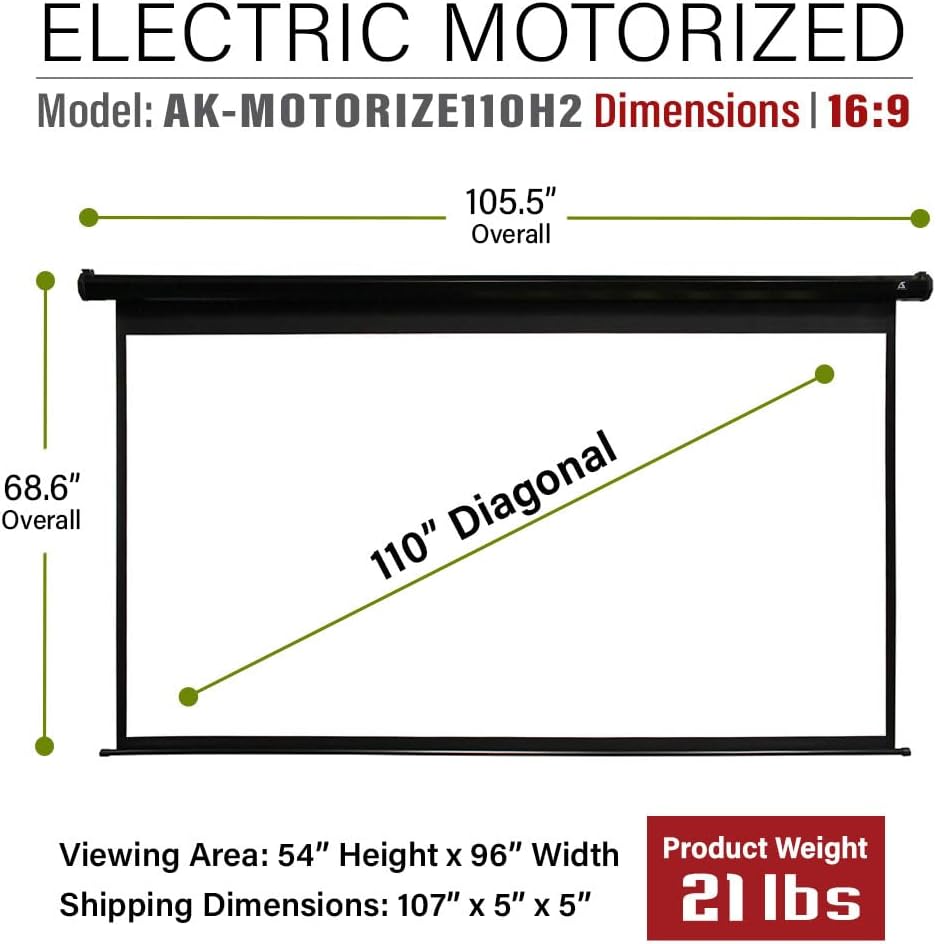
Image: A technical diagram illustrating the overall and viewing dimensions of the 110-inch motorized projector screen.
ການຮັບປະກັນແລະການສະຫນັບສະຫນູນ
Akia Screens provides comprehensive support for its products.
- ການຮັບປະກັນ: 2-Year Manufacturer's Warranty from an ISO9001 certified manufacturer (since 2004).
- ສະຫນັບສະຫນູນດ້ານວິຊາການ: Lifetime Technical Support available via Email, Web Chat, or Toll-Free phone call. Support is provided by a U.S. Based Professional Service Team.
For assistance, please visit the official Akia Screens webເວັບໄຊ ຫຼືອ້າງອີງເຖິງຂໍ້ມູນການຕິດຕໍ່ທີ່ສະໜອງໃຫ້ກັບເອກະສານຜະລິດຕະພັນຂອງທ່ານ.

Image: A visual representation of Akia Screens' U.S. based customer support team, highlighting the 2-year warranty and lifetime technical support.